How to Screen Mirror Your Galaxy Phone to a Samsung TV
SammyGuru is reader-supported. We have affiliate and sponsored partnerships, so we may earn a commission when you buy through links on our site — at no extra cost to you. Learn more.
In this article
- What is screen mirroring?
- Method 1: Mirror your Galaxy phone using Smart View (recommended)
- Method 2: Mirror using SmartThings
- Method 3: Use Tap View
- Mirror streaming apps like Netflix and YouTube
- Frequently asked questions
- Does screen mirroring require Wi-Fi?
- Can I mirror games?
- Can I use my phone while mirroring?
- Which Samsung TVs support Smart View?
Screen mirroring is one of the easiest ways to enjoy photos, videos, games, presentations, or even apps from your Galaxy phone on a much larger display. Samsung offers several ways to do this, including Smart View, SmartThings, and Tap View (on supported devices). If you’re using a Samsung Smart TV, the process usually takes less than a minute once both devices are on the same Wi-Fi network. Let us walk you through it.
What is screen mirroring?
Screen mirroring wirelessly displays everything happening on your Galaxy smartphone, including apps, games, photos, videos, and notifications, on your Samsung TV in real time. Unlike casting, which only sends supported media to the TV, screen mirroring duplicates your phone’s entire display. Before you begin, check the following to ensure a smooth connection and setup:
- Your Galaxy phone and Samsung TV are connected to the same Wi-Fi network (this is important)
- Both devices have the latest available software updates installed
- Your TV is turned on and supports Smart View or screen mirroring
- If prompted, allow the connection request on your TV
Method 1: Mirror your Galaxy phone using Smart View (recommended)
Smart View is Samsung’s built-in screen mirroring feature available on most Galaxy smartphones. It is also the simplest way to copy your phone’s display to the big screen.
- Open Quick Settings and tap the Smart View icon
- Your phone will search for compatible Samsung TVs — tap your TV from the available devices list
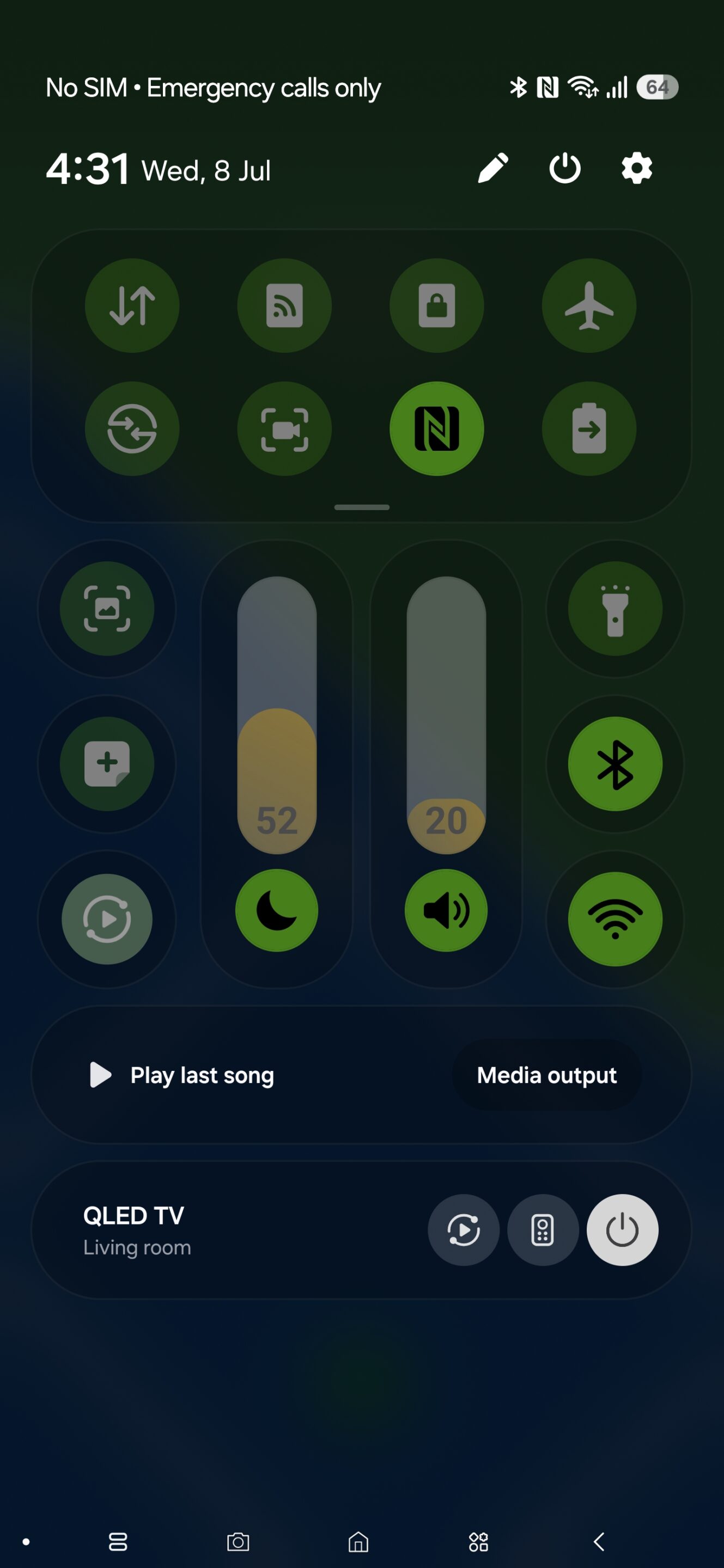
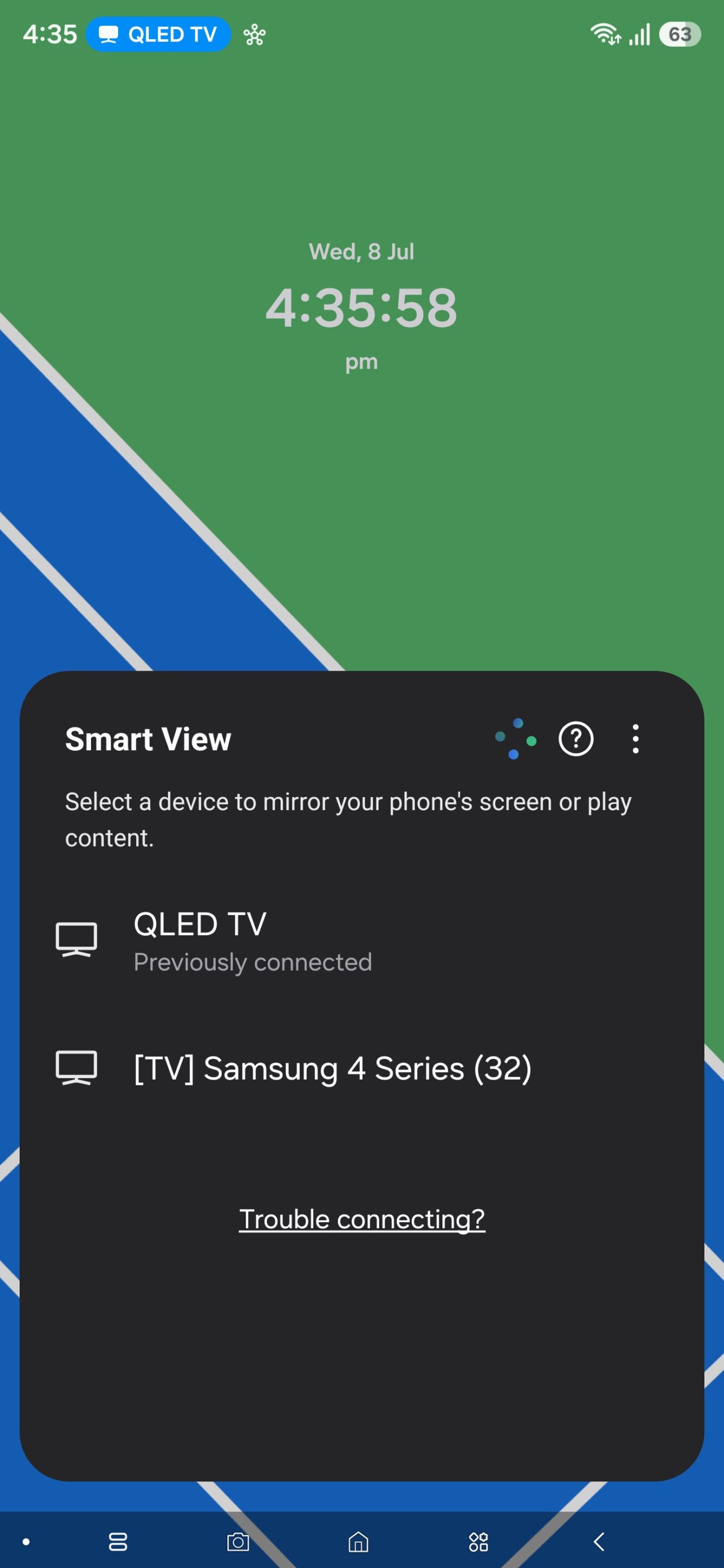
- If you are connecting your phone to the TV for the first time, you may need to grant some permissions — follow the on-screen instructions on your phone and TV to proceed
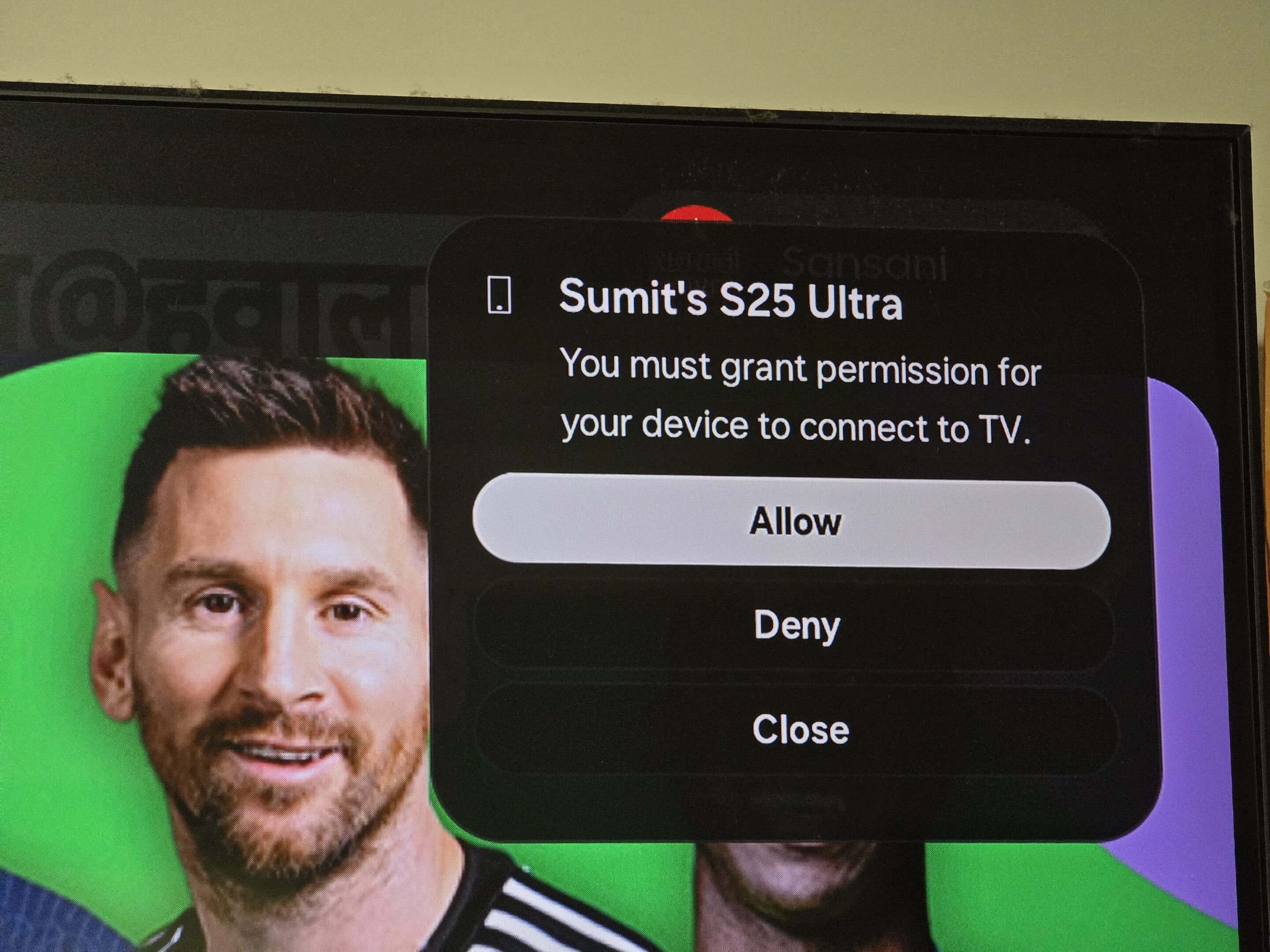
- Some TVs display a PIN for security — enter the PIN on your Galaxy phone and tap Connect
Within a few seconds, your Galaxy phone’s display will appear on the TV. And if you have connected your phone and TV before, the whole process may be completed in a lot fewer steps. If the mirrored image doesn’t fill the TV correctly, you can change the aspect ratio using the steps below:
- Tap the Smart View floating icon
- Select Change Aspect Ratio and choose the display option that looks best on your TV
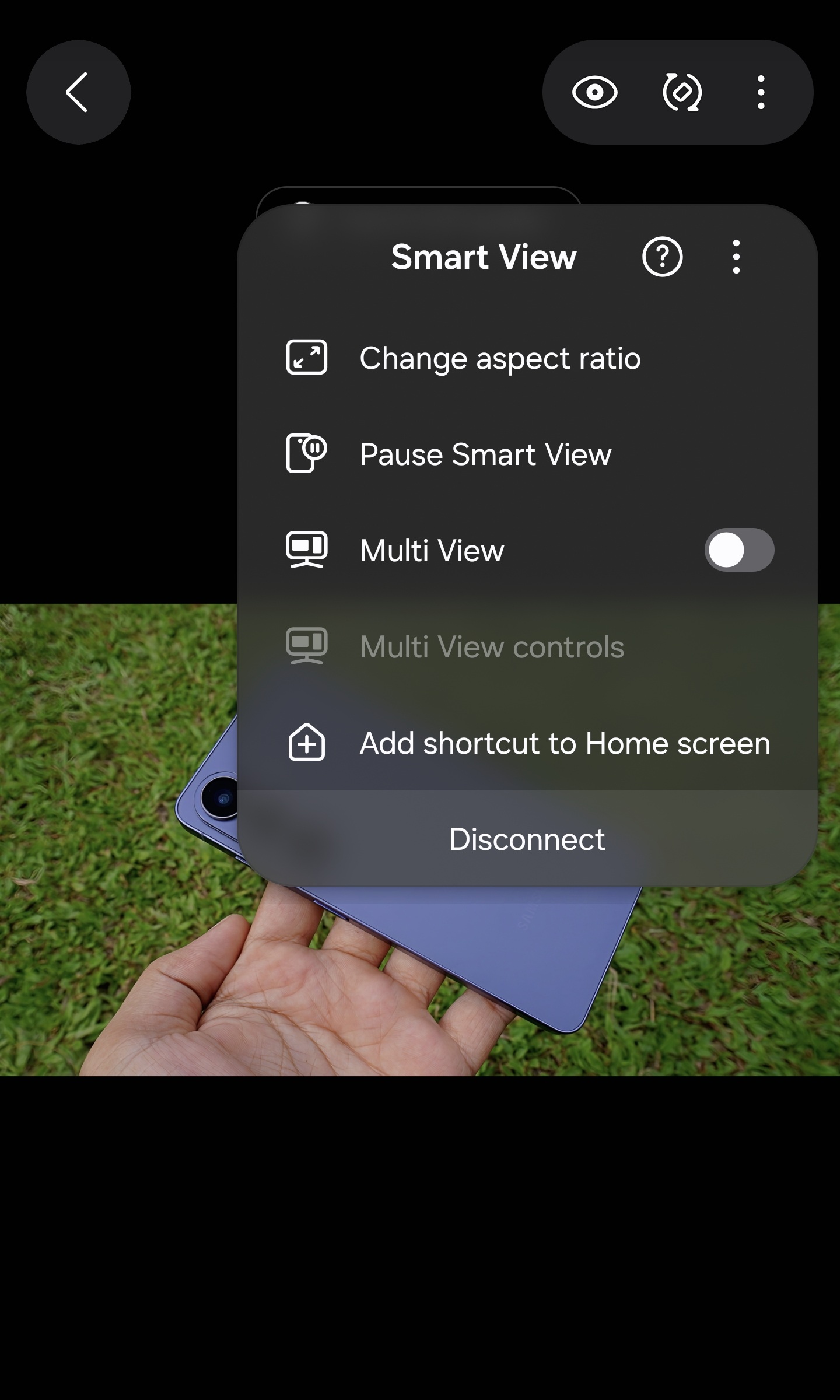
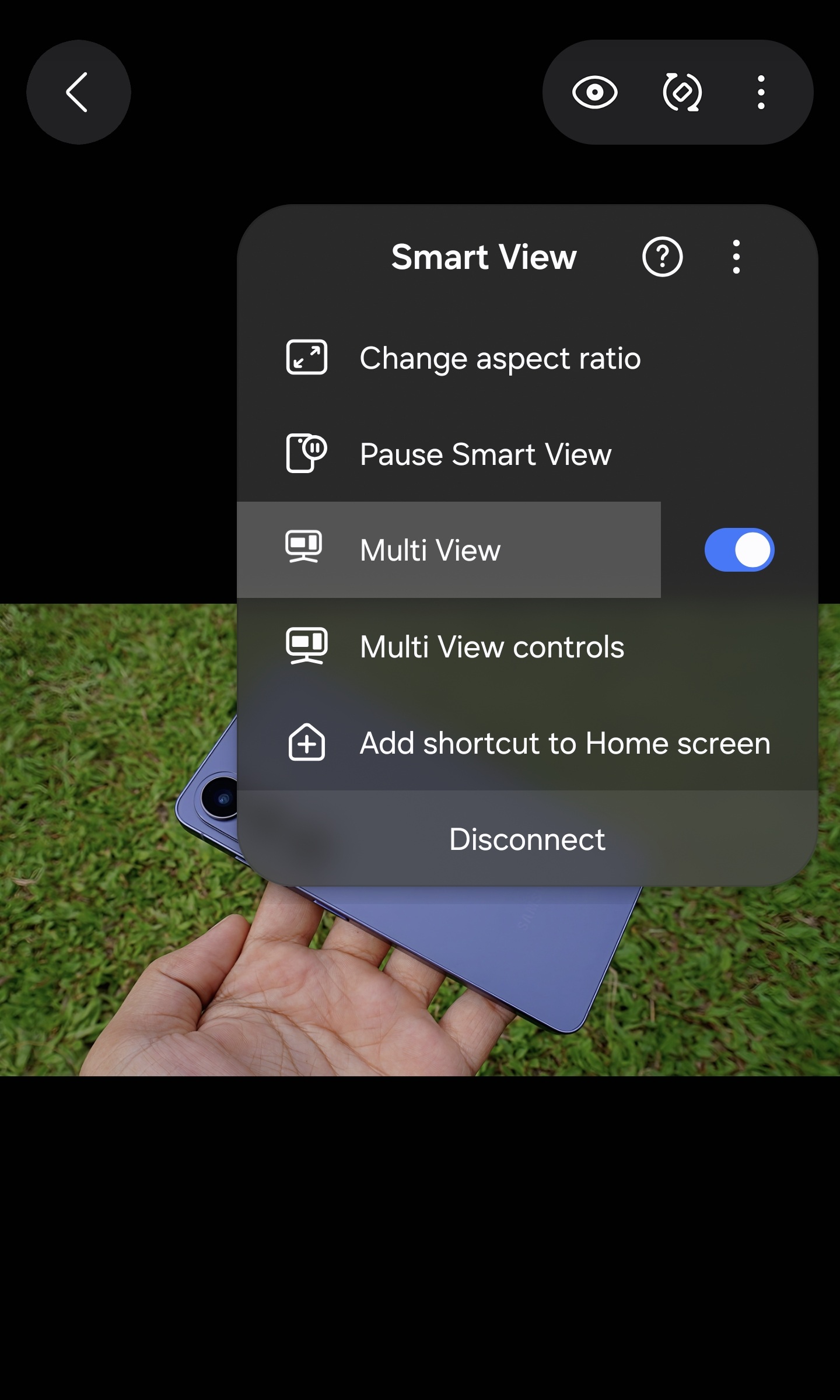
You can also enable Multi View from the same floating menu. Multi View allows you to mirror your phone screen on the TV while simultaneously using supported apps on the TV.
Method 2: Mirror using SmartThings
Samsung also lets you mirror your phone using the SmartThings app. This method is useful if you’ve already added your TV to SmartThings.
- Open the SmartThings app
- Select your Samsung TV
- Open the Featured tab
- Tap the Smart View card
- Choose your mirroring option
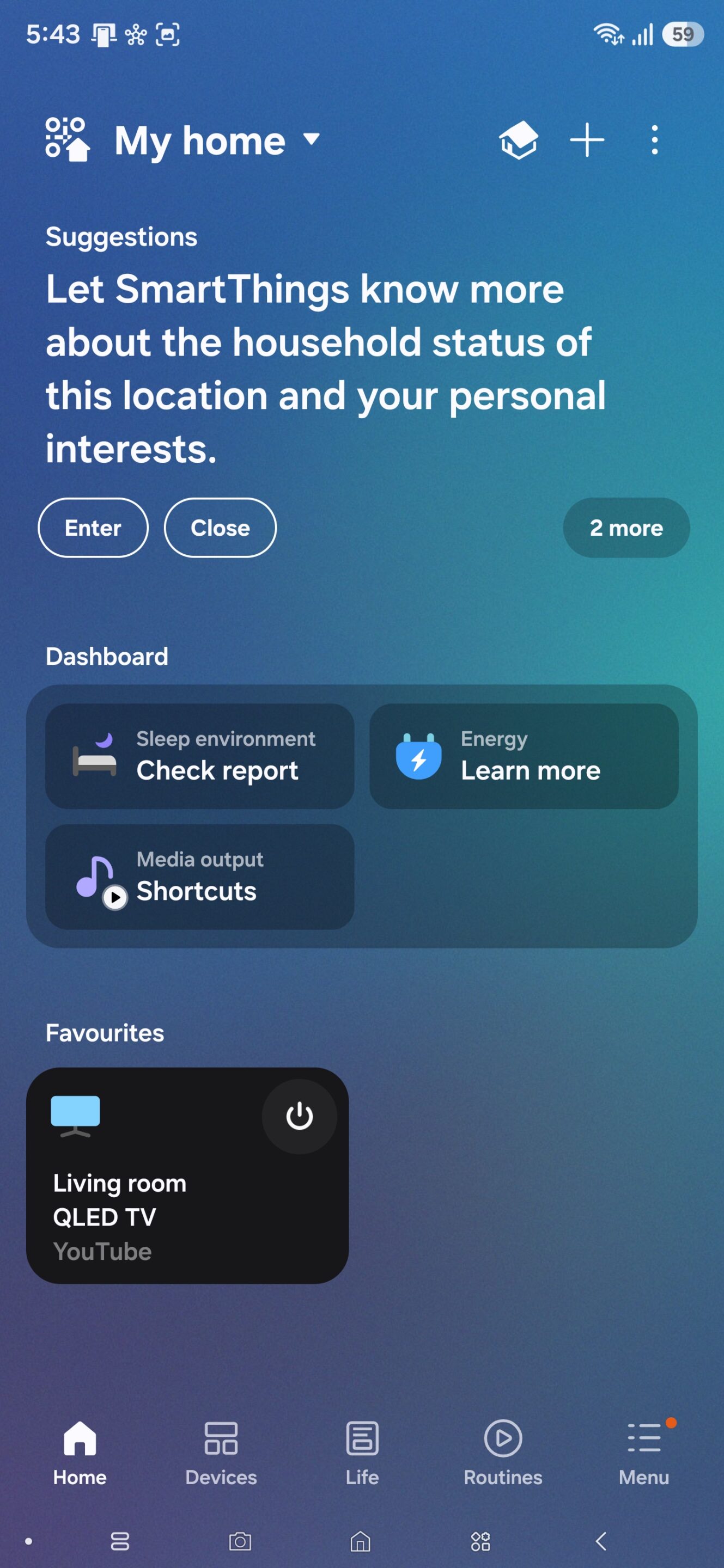
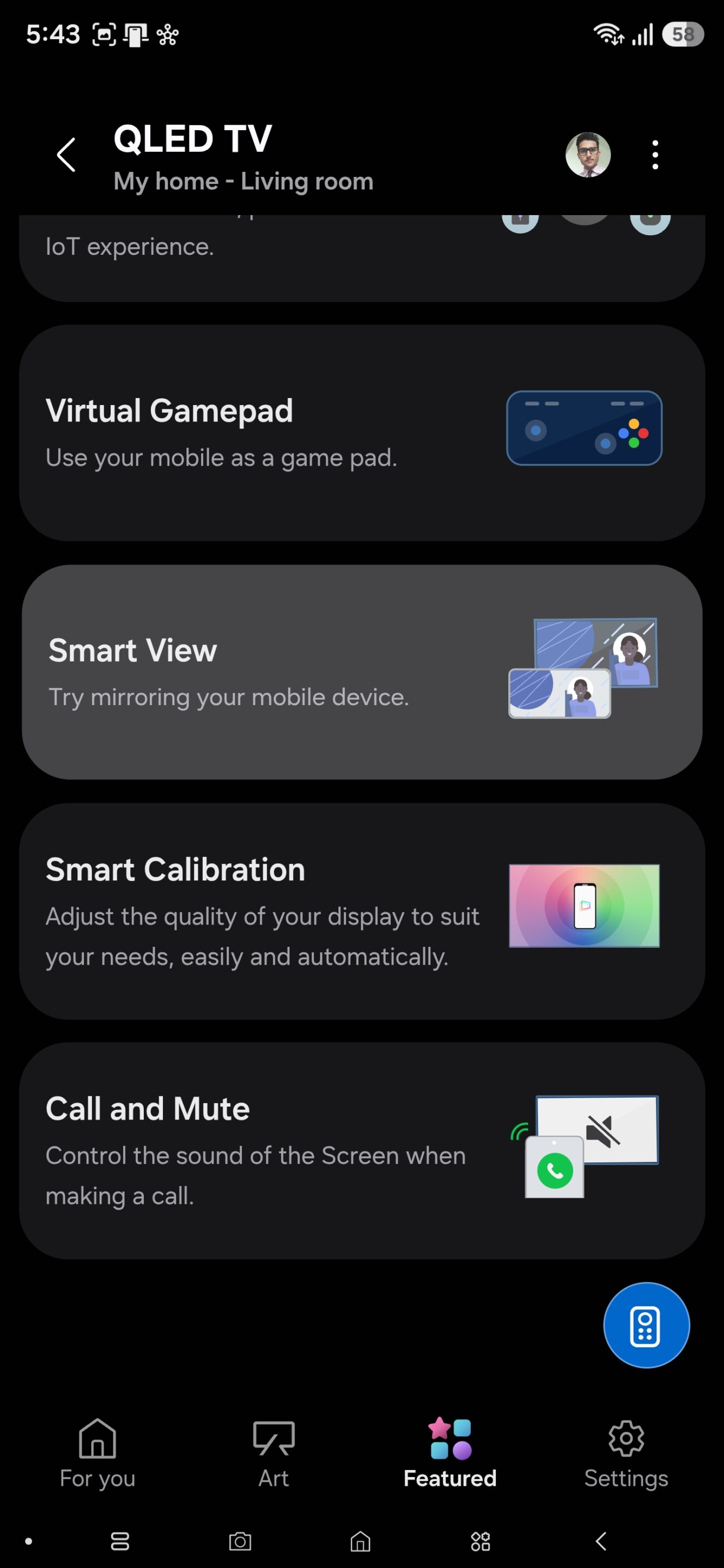
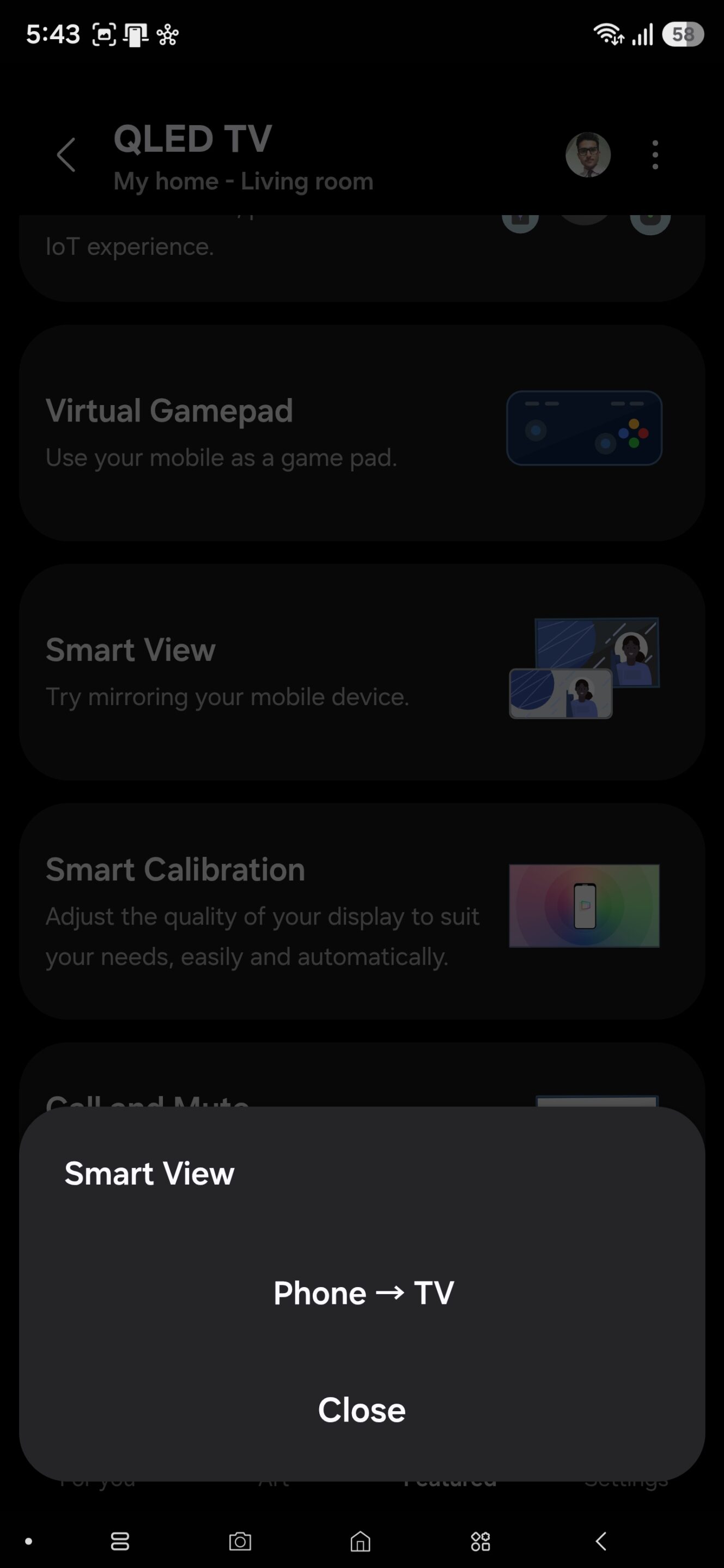
Your phone screen will now appear on the TV.
Method 3: Use Tap View
Tap View offers one of the quickest ways to start mirroring. Instead of opening Smart View manually, you simply tap your Galaxy phone against the side of your compatible Samsung TV. The feature uses NFC, so it only works if your phone and TV support NFC connectivity. And before using it, you have to enable the feature inside SmartThings:
- Open SmartThings and go to the Menu tab
- Go to Settings (top right corner)
- Turn on Tap View, Tap Sound
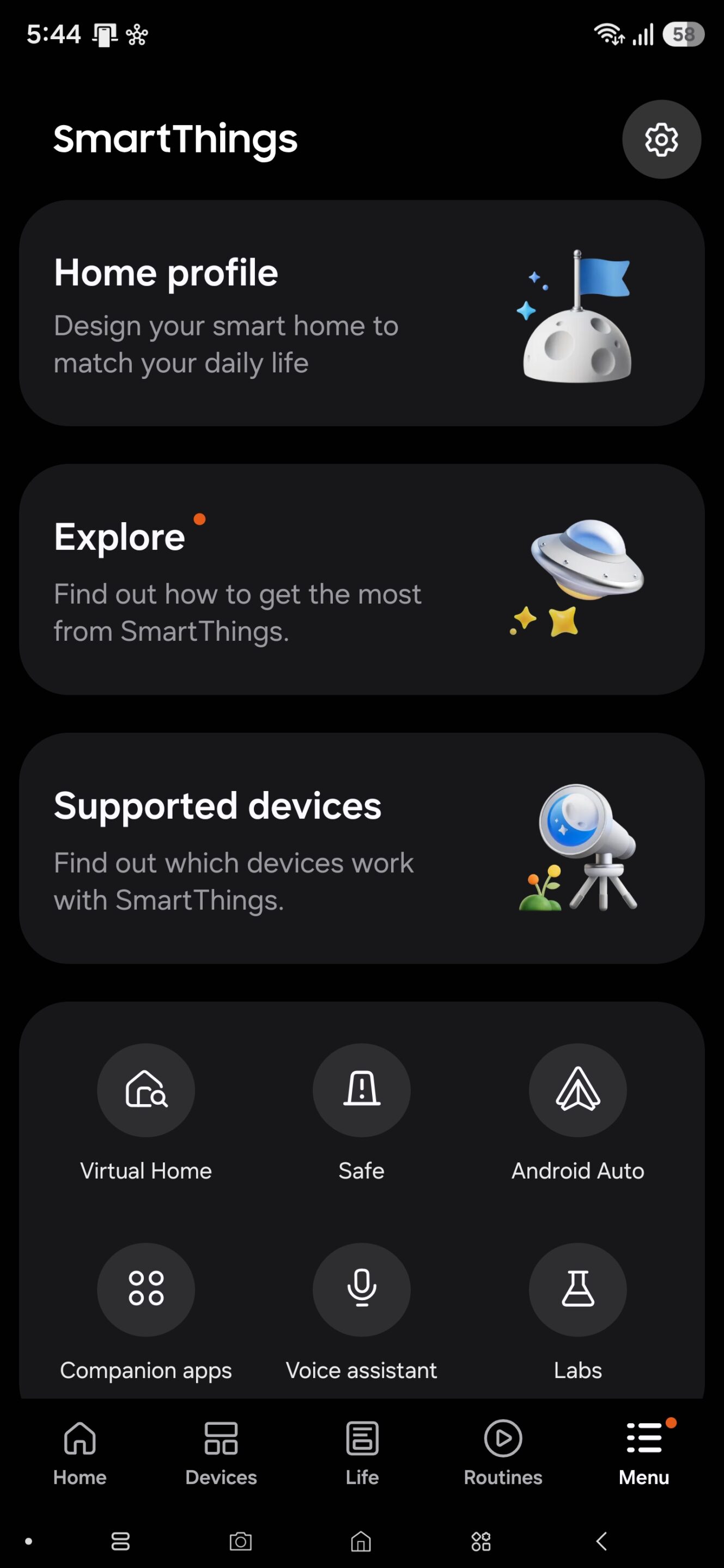
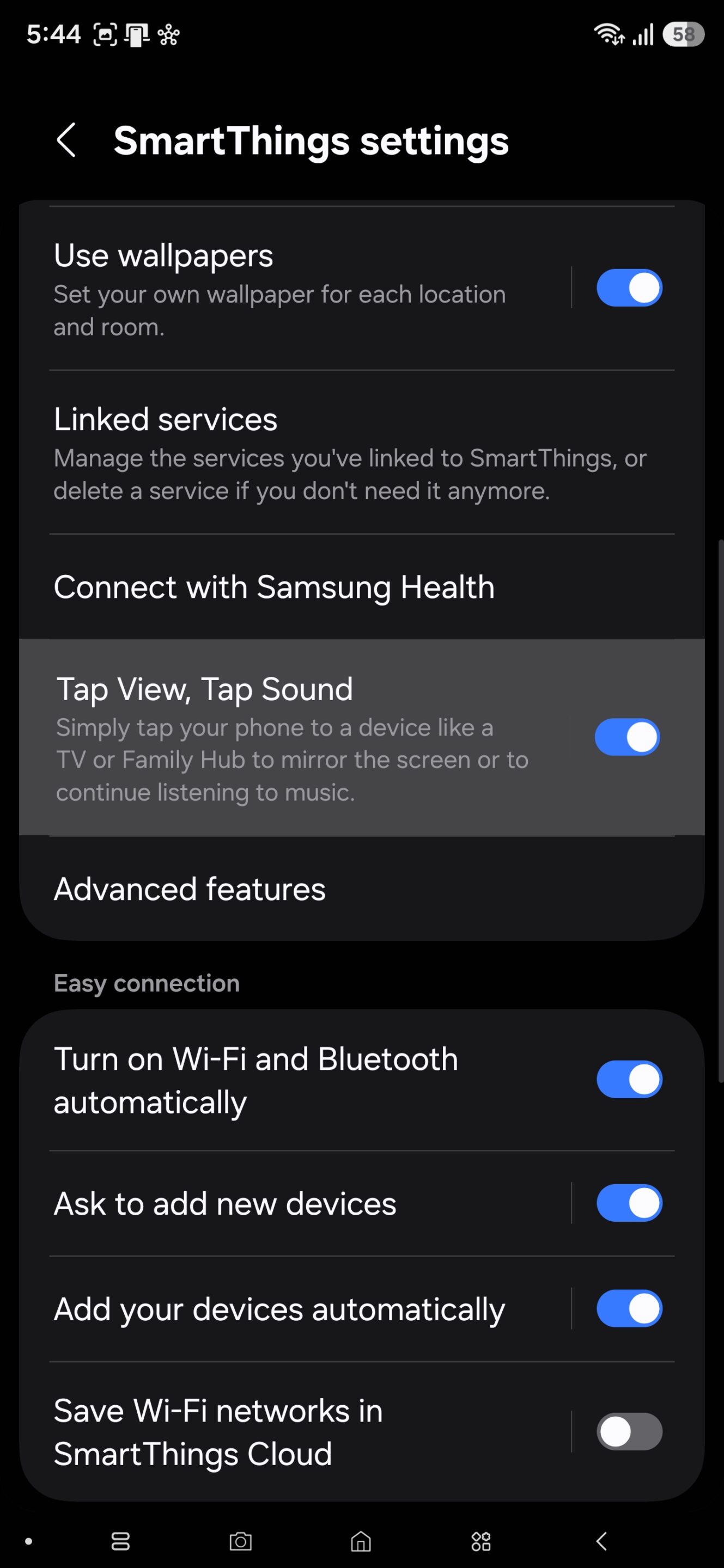
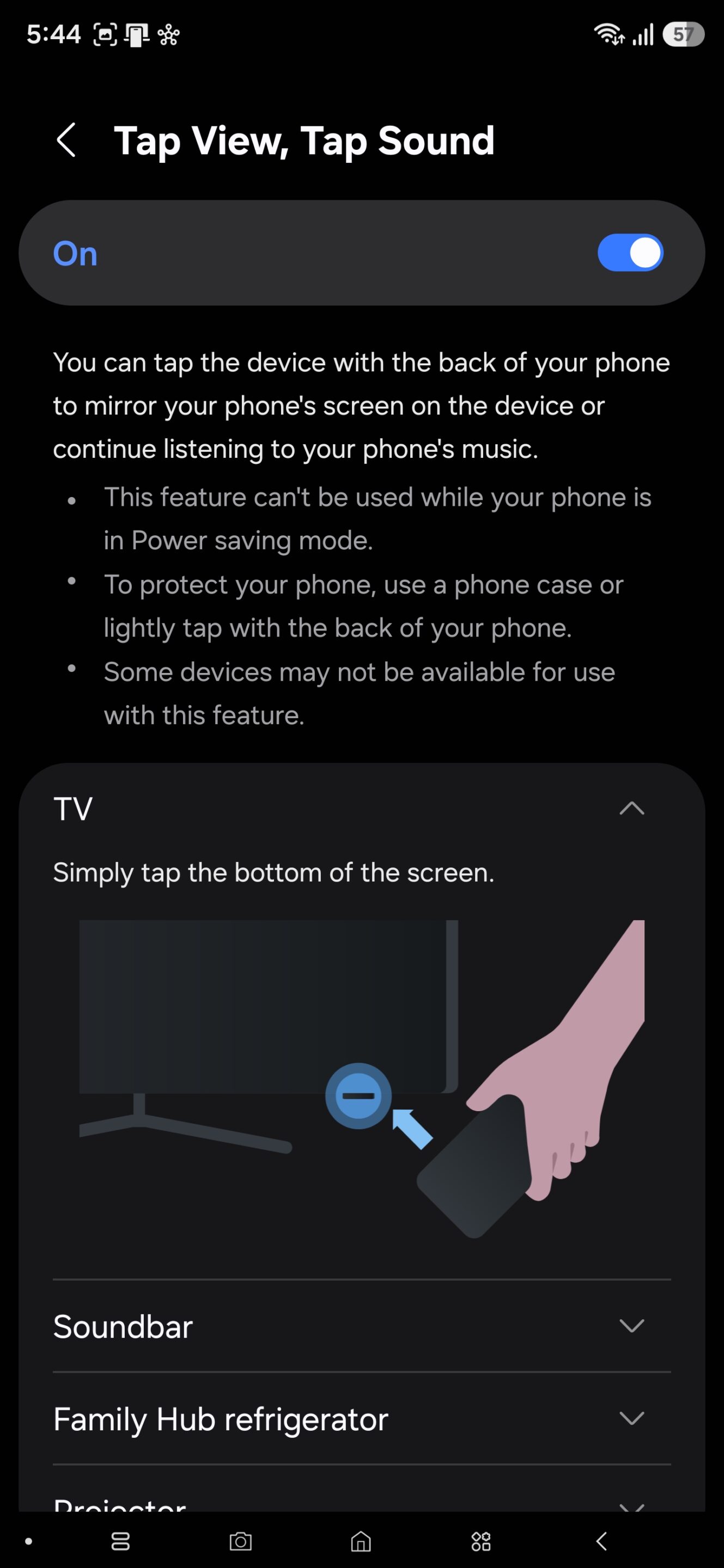
Additionally, you have to enable the Access Notification option on your TV. For that:
- Open Settings (you can use the button on your TV remote)
- Go to All Settings and then Connections
- Go to Device Connect Manager and set Access Notification to Always on
The first time you connect your phone using Tap View, you may also need to allow the request on your TV. As mentioned above, this feature doesn’t work on every Samsung Smart TV.
Mirror streaming apps like Netflix and YouTube
Many popular apps support built-in casting, which is often better than full-screen mirroring if you only want to stream content on the big screen. To cast:
- Connect your TV and phone to the same Wi-Fi network
- Open YouTube, Netflix, or another supported app
- Sign into the same account on both devices if required
- Tap the Cast icon (looks like a small TV or display with a Wi-Fi signal)
- Choose your Samsung TV
The video will play directly on the TV while your phone can usually be used for other tasks.
Frequently asked questions
Does screen mirroring require Wi-Fi?
Yes. Samsung recommends connecting both your Galaxy phone and Samsung TV to the same Wi-Fi network for Smart View and SmartThings mirroring.
Can I mirror games?
Yes. Smart View mirrors your entire display, making it suitable for mobile gaming, though some latency may occur depending on your wireless network.
Can I use my phone while mirroring?
With Smart View, your phone’s screen is duplicated on the TV, so anything you do appears there as well. If you’re using a streaming app’s built-in Cast feature instead, you can often continue using your phone independently.
Which Samsung TVs support Smart View?
Most Samsung Smart TVs manufactured in recent years support wireless screen mirroring or Smart View, though available features may vary by model.

Written by
Sumit AdhikariSumit, a life-long Samsung user, is passionate about technology and has been professionally writing on tech since 2017. He’s a mathematics graduate by education and enjoys teaching basic mathematics tricks to school kids in his spare time. Sumit believes in artificial intelligence and dreams of a fully open, intelligent and connected world.

Follow us on Google Discover & set us as a preferred source in Google News
Share this Post
___________________________


New Blog Posts
___________________________
Galaxy A15 5G, A27, A36, Tab S10 Lite & Tab A11 Join One UI 9 Development
5 more devices in!
One UI 9’s Home Up to Get Dock Customization, Multi-Finger Gestures
This will let you unlock new ways to personalize your Galaxy experience
Android Auto Users Can Now Access Motorcycle-Focused Navigation
Motorcycle dashboards get smarter with Sygic’s Motorbike Mode