How to Block Apps with Excessive Ads on Samsung Galaxy Phones
SammyGuru is reader-supported. We have affiliate and sponsored partnerships, so we may earn a commission when you buy through links on our site — at no extra cost to you. Learn more.
Samsung has quietly introduced a handy feature for Galaxy users who are tired of apps flooding their phones with promotional notifications. The feature, called “Block apps with excessive ads,” does exactly what the name implies. It automatically detects apps that send an unusually high number of advertising alerts and can move them to Deep Sleep to prevent further spam. Here’s how to enable it on your Galaxy device.
Note: This feature does not block advertisements that appear inside apps. Instead, it focuses solely on notification-based advertising, preventing apps from repeatedly sending promotional alerts to your phone. Apps often require paid subscriptions to disable in-app ads.
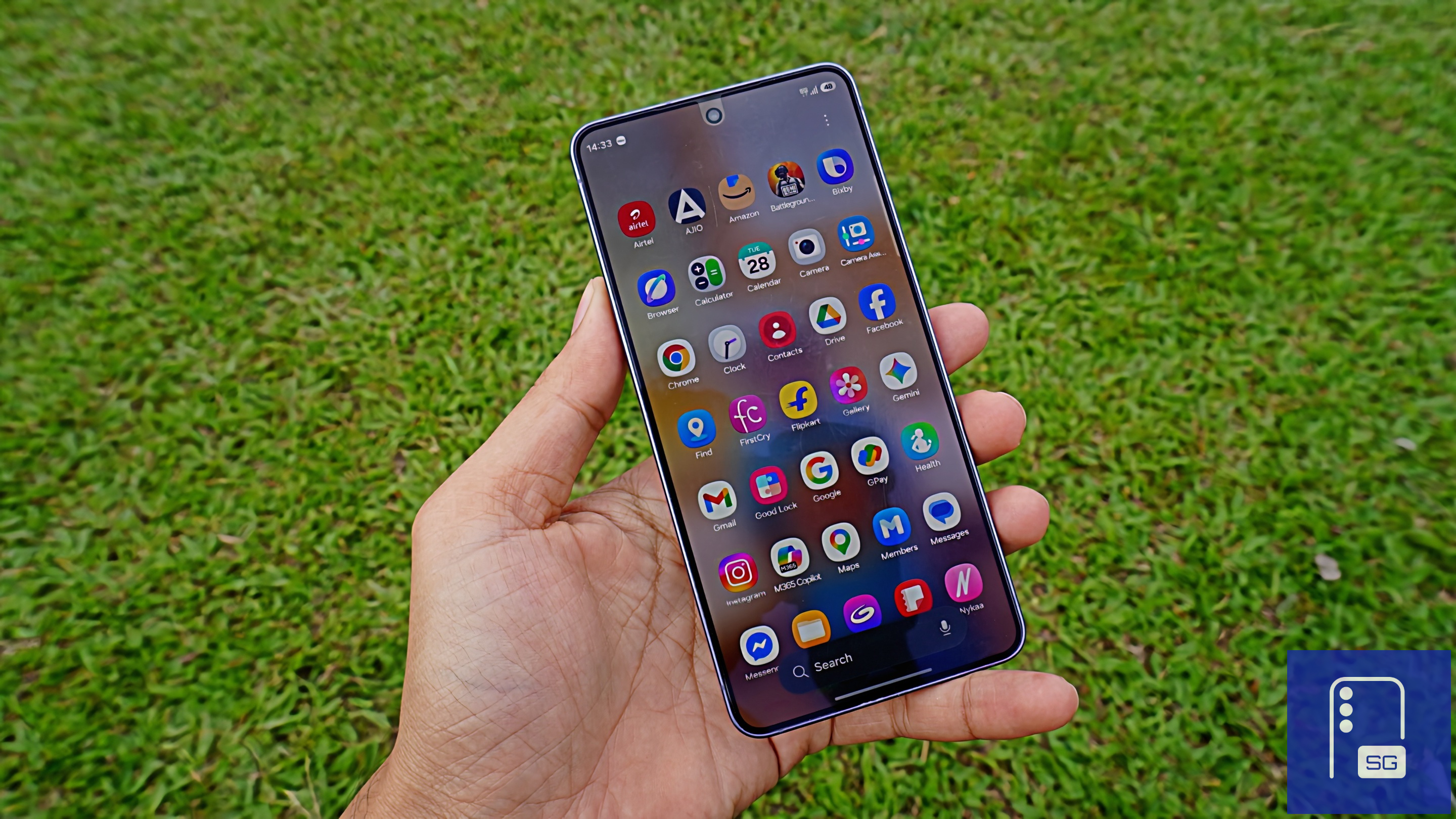
Your Galaxy Phone can now block apps that send too many ads
While many apps use notifications for legitimate updates, others abuse the system by constantly pushing advertisements, offers, and engagement prompts. Samsung’s new tool aims to tackle that problem automatically. It helps reduce notification spam without requiring users to manually identify and disable troublesome apps.
When the system detects that an app is generating an unusually high number of advertising notifications, it can automatically place that app into Deep Sleep. Apps in Deep Sleep are heavily restricted from running in the background, which significantly reduces their ability to continue sending unwanted notifications.
How to enable the feature
Samsung offers two different modes to help keep notification spam under control. All compatible Galaxy devices have Basic Blocking enabled by default. In this mode, Samsung relies on its own database and detection methods to identify apps that send excessive advertising notifications. Once detected, the system automatically restricts those apps.
For users who want stronger protection, Samsung also offers Intelligent Blocking, which you have to enable manually (see steps below). This mode actively analyzes notifications in real time and can identify new apps that begin sending excessive promotional content. If an app crosses the threshold, Samsung can automatically restrict it before it becomes a major annoyance.
The addition of Intelligent Blocking means the system isn’t limited to a predefined list of problematic apps and can adapt to new offenders as they emerge. This also means the system can get things wrong sometimes, but it mostly doesn’t. You can turn it on by following these steps:
- Open Settings and go to Device Care
- Tap the three-dot menu in the upper-right corner
- Select Settings
- Tap Block apps with excessive ads
- Turn on Intelligent Blocking
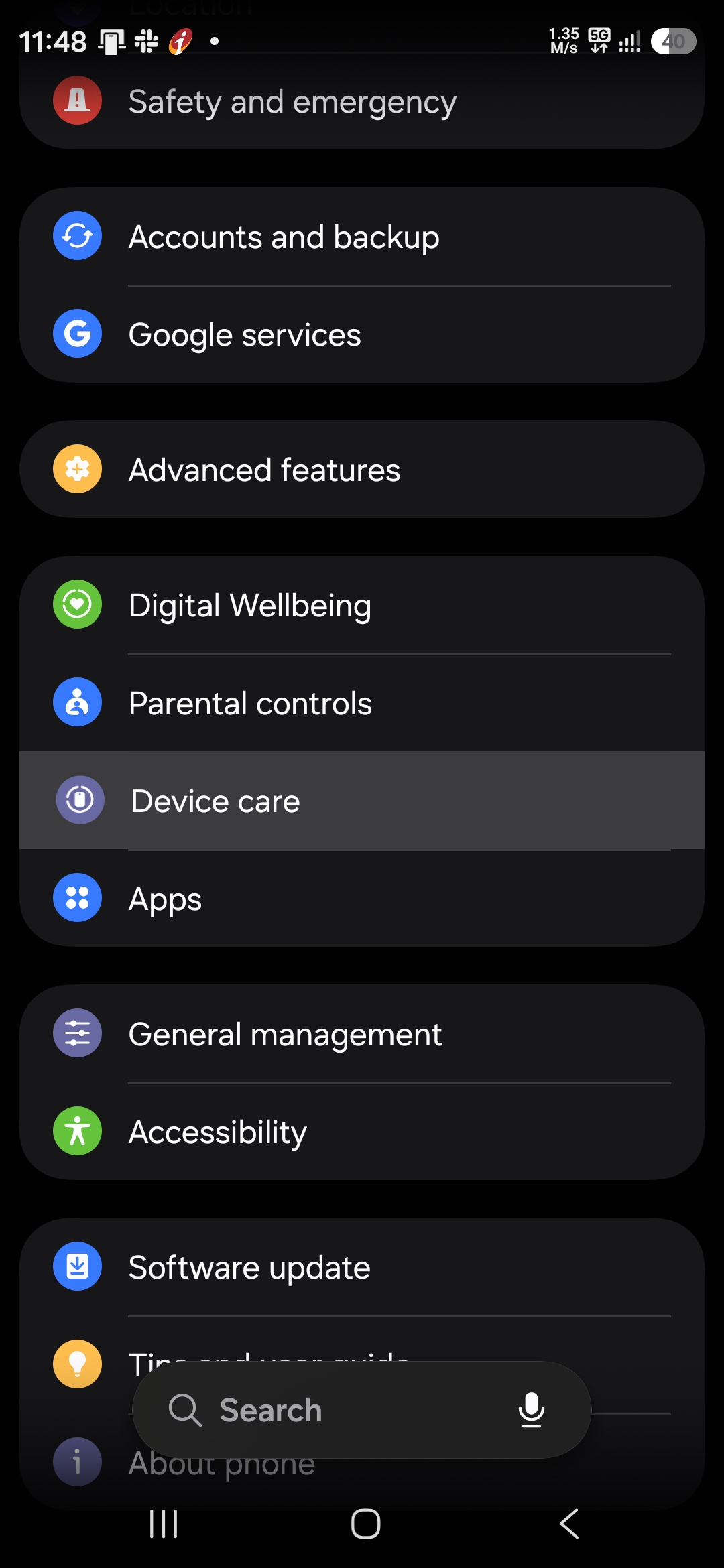
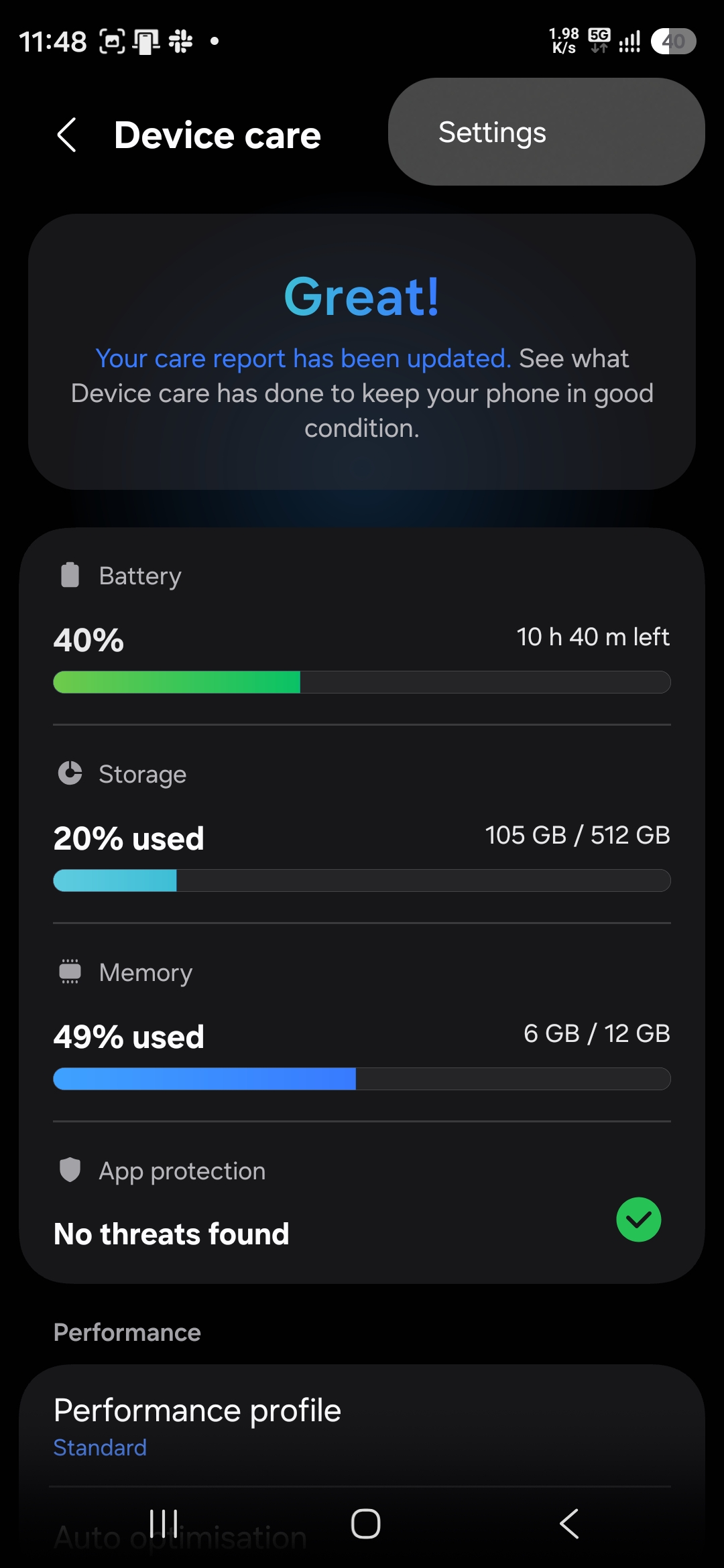
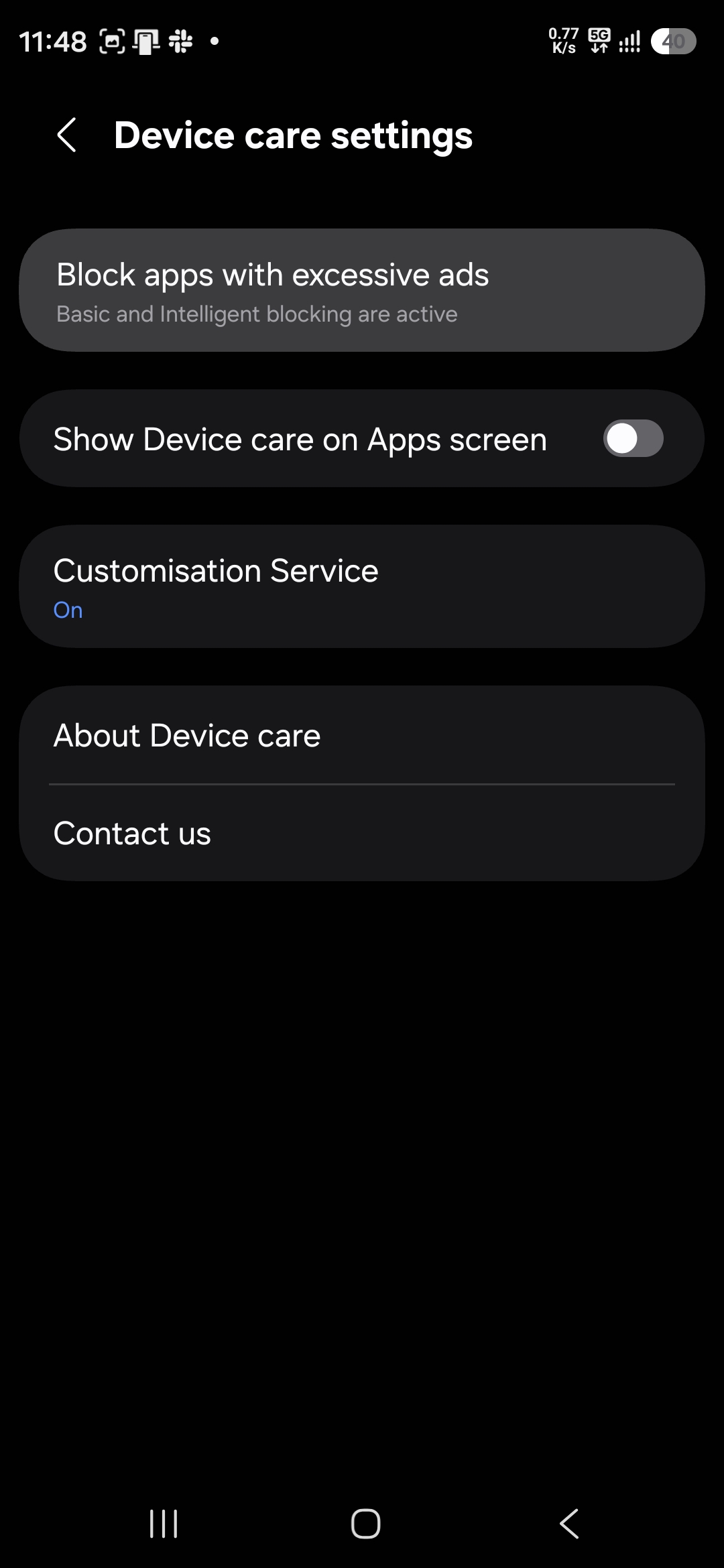
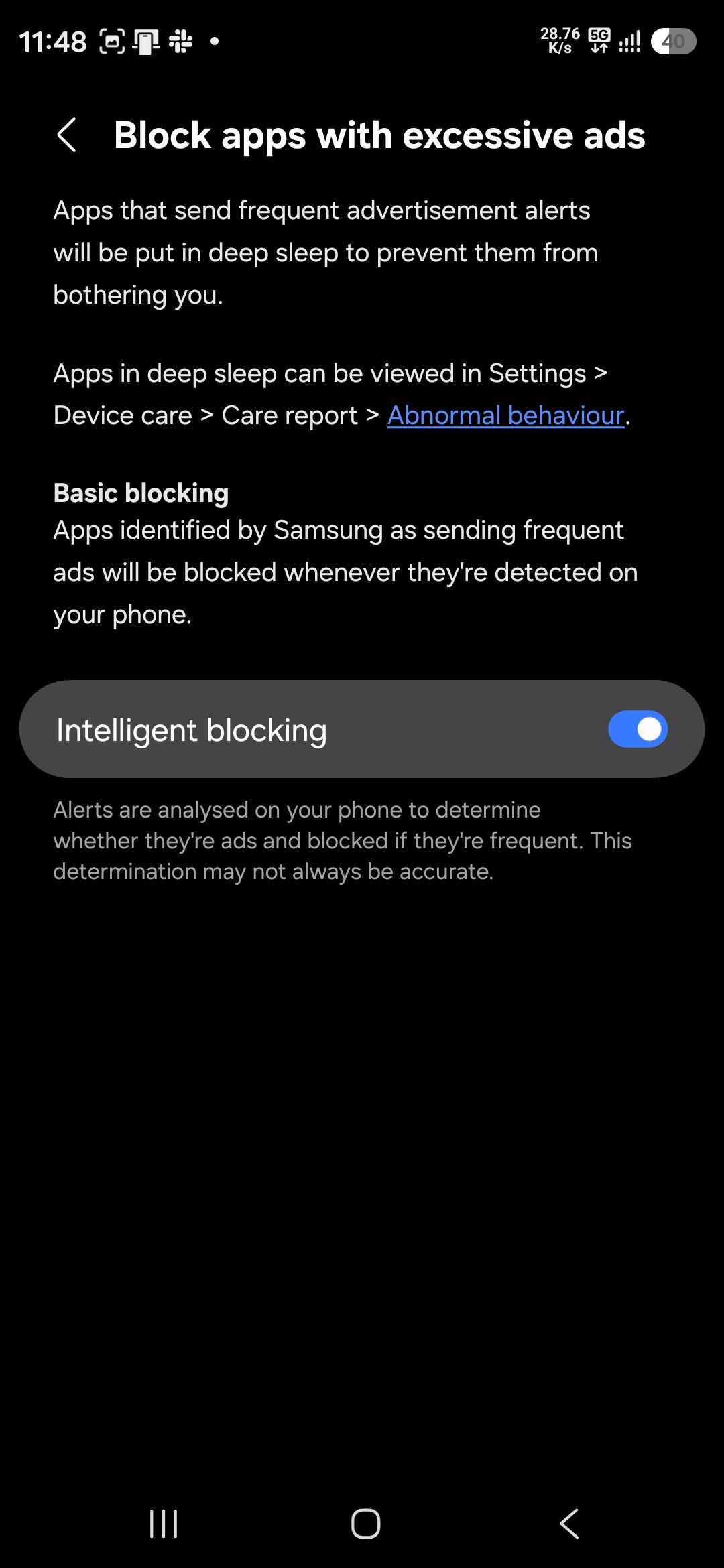
Once activated, your phone will automatically monitor notification activity and take action against apps that generate excessive advertising alerts. Samsung also gives users visibility into which apps have been flagged for abnormal behavior.
To view the list, tap the Graph icon in the upper-right corner of the Device Care page. Here, you will find two separate lists of unused apps (which you didn’t open for 15 days in a row) and apps that showed abnormal behavior. Apps on these lists are put into deep sleep. If you want to remove any app from deep sleep, select it and disable the “Put in deep sleep” toggle.
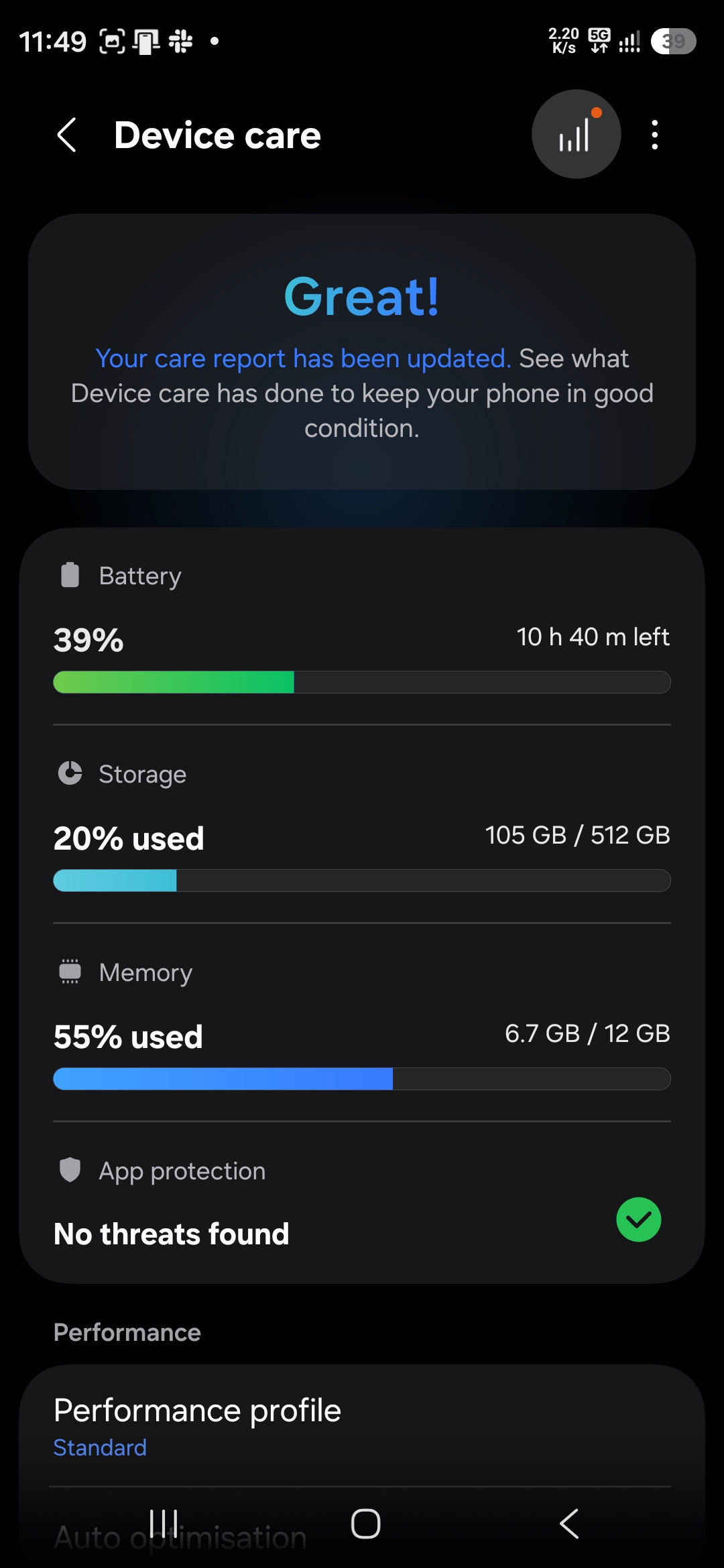
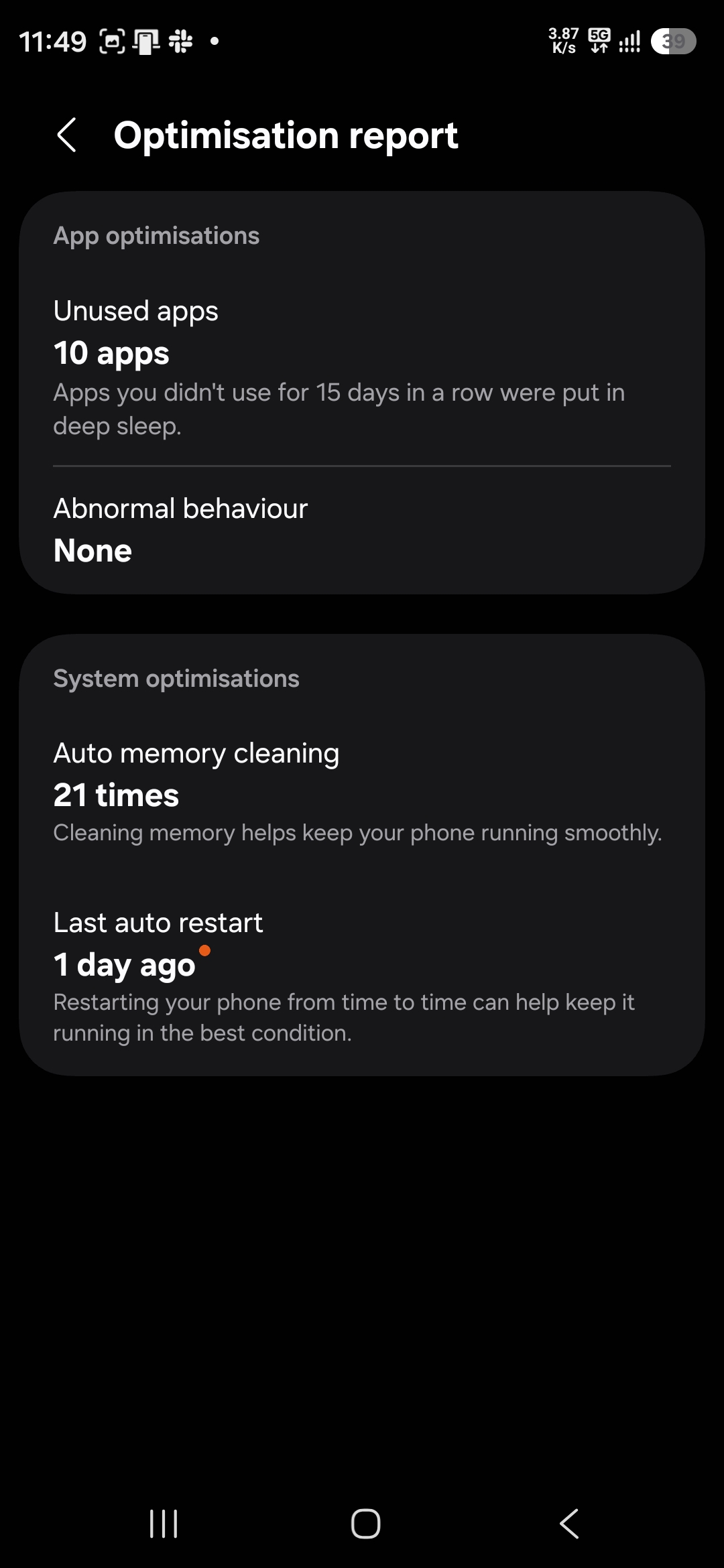
Note that Samsung introduced this feature recently. Not every Galaxy device may have it yet. But if it’s available on your phone, enabling Intelligent Blocking could make your notification panel a lot cleaner and easier to manage.

Written by
Sumit AdhikariSumit, a life-long Samsung user, is passionate about technology and has been professionally writing on tech since 2017. He’s a mathematics graduate by education and enjoys teaching basic mathematics tricks to school kids in his spare time. Sumit believes in artificial intelligence and dreams of a fully open, intelligent and connected world.

Follow us on Google Discover & set us as a preferred source in Google News
Share this Post
___________________________


New Blog Posts
___________________________
Galaxy A08 and Galaxy A07s Spotted on Samsung’s Internal Servers
One step closer to launch

Samsung Galaxy Weekly Updates Roundup (June 29-July 5)
Samsung’s update speed saw a brief slowdown this week
Galaxy F70 Pro Spotted on Bluetooth SIG Ahead of Launch
Galaxy F70 Pro set to launch soon