How to Enable Network Speed Indicator on Samsung Galaxy Phones

Real-time network speed indicators have long been a popular feature among Android users. And starting with One UI 9, the feature arrives on Galaxy phones too. Samsung provides the option through QuickStar, a module within the Good Lock suite. You get live internet speeds right in the status bar, making it easier to monitor internet activity without relying on third-party apps. Here’s how to set up the feature.
Here’s how to enable the network speed indicator on Galaxy devices
The network speed meter feature is available in the One UI 9 version of QuickStar. This basically means your Galaxy device must be running One UI 9 (or higher) to use this tool. The Android 17-based update is currently in beta and is limited to the Galaxy S26 lineup in select regions. However, a broader rollout should begin later this year, bringing One UI 9 and the network speed indicator to more devices.
If One UI 9 isn’t available for your Galaxy phone right now, you can bookmark this page and visit it later, once the update arrives. We have detailed the steps to enable the network speed meter below.
- Install Good Lock: If you haven’t already, download and install Good Lock from the Galaxy Store. In some regions, it may also be available through the Play Store.
- Install the latest QuickStar module: Open the Good Lock app, go to the Plugins tab, and install the latest version of QuickStar. We are looking for version 11.0.03.15 or higher.
Note: If the required version doesn’t show up, you may sideload the APK from external sources. However, we do not recommend this. It’s better to wait for the official release.
- Once you have installed QuickStar, launch the app (within Good Lock) and turn it On.
- Go to Visibility of Indicator Icons and enable the Network Speed toggle.
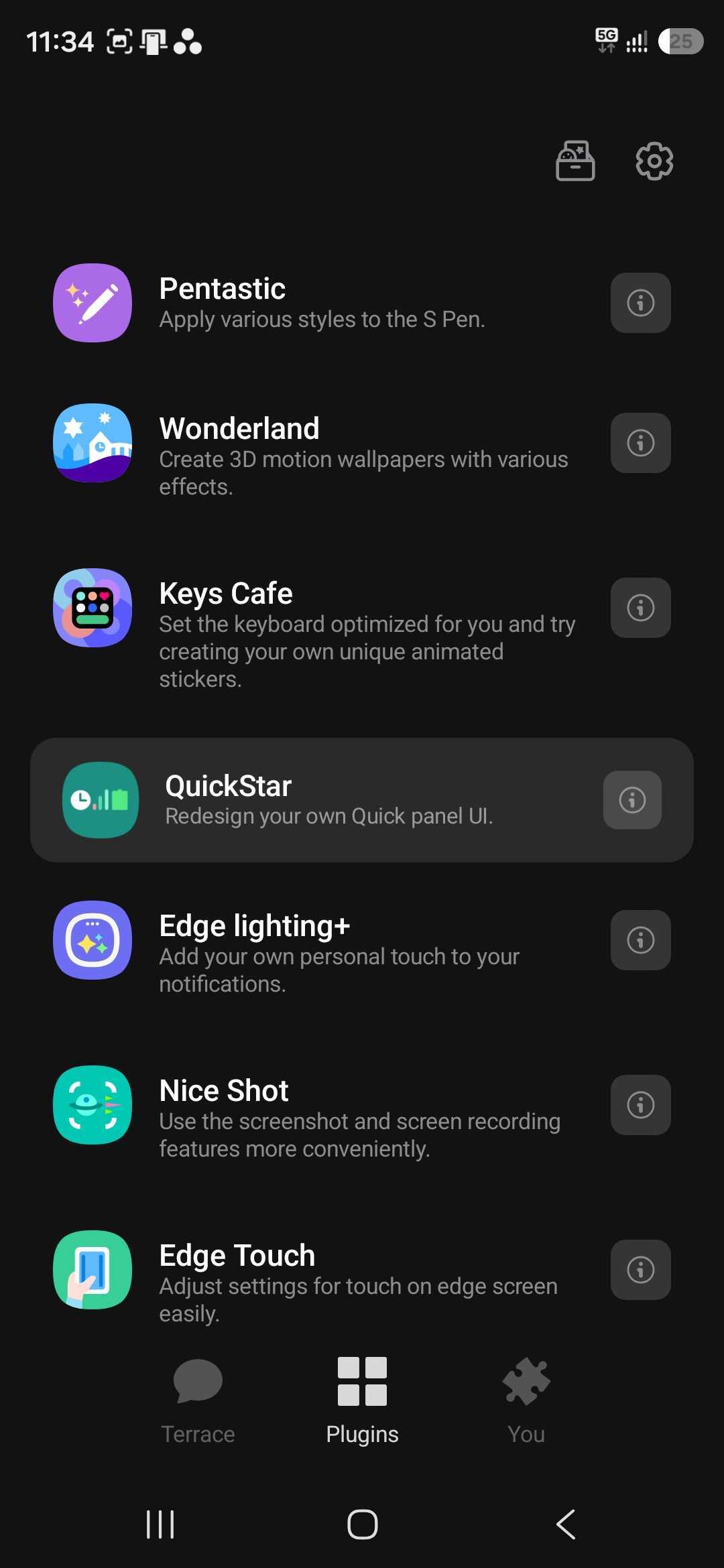
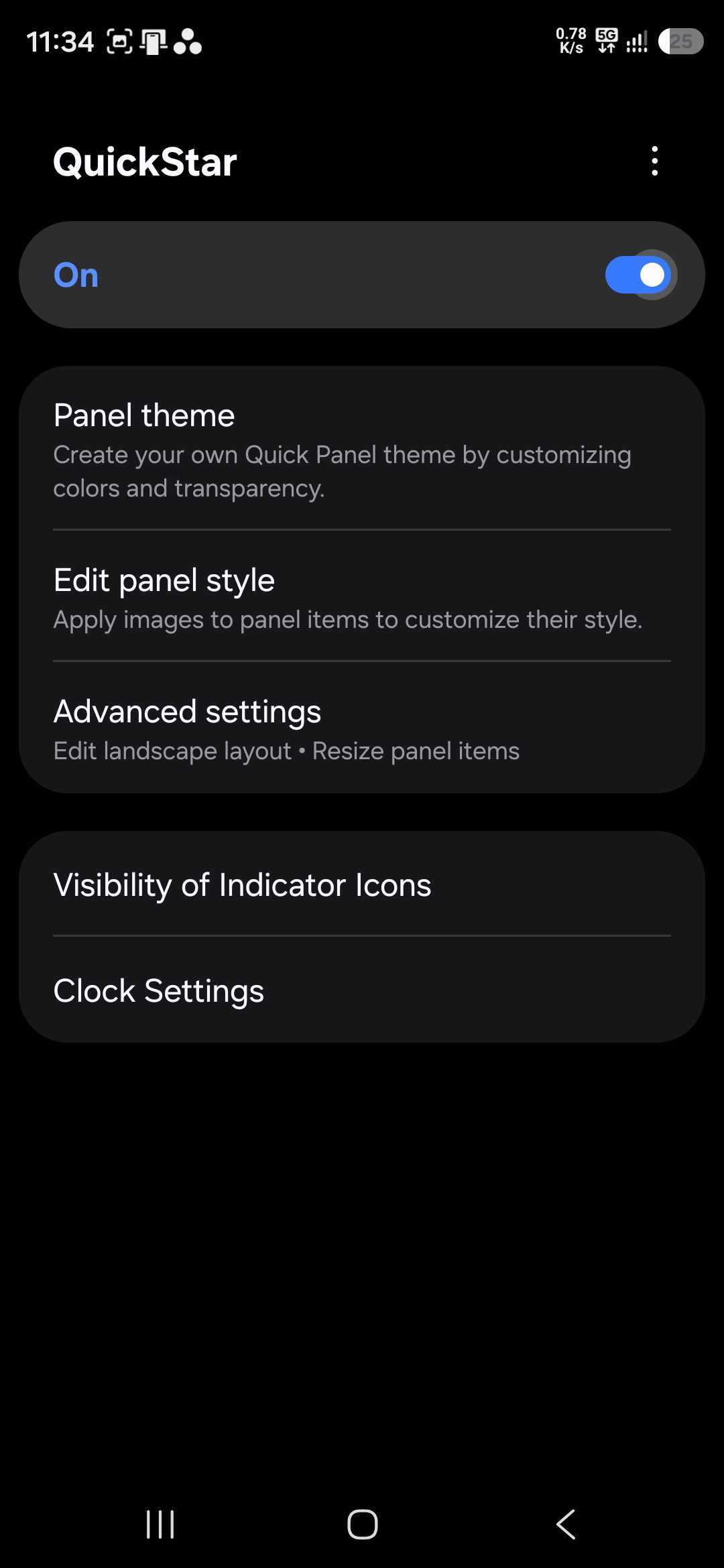
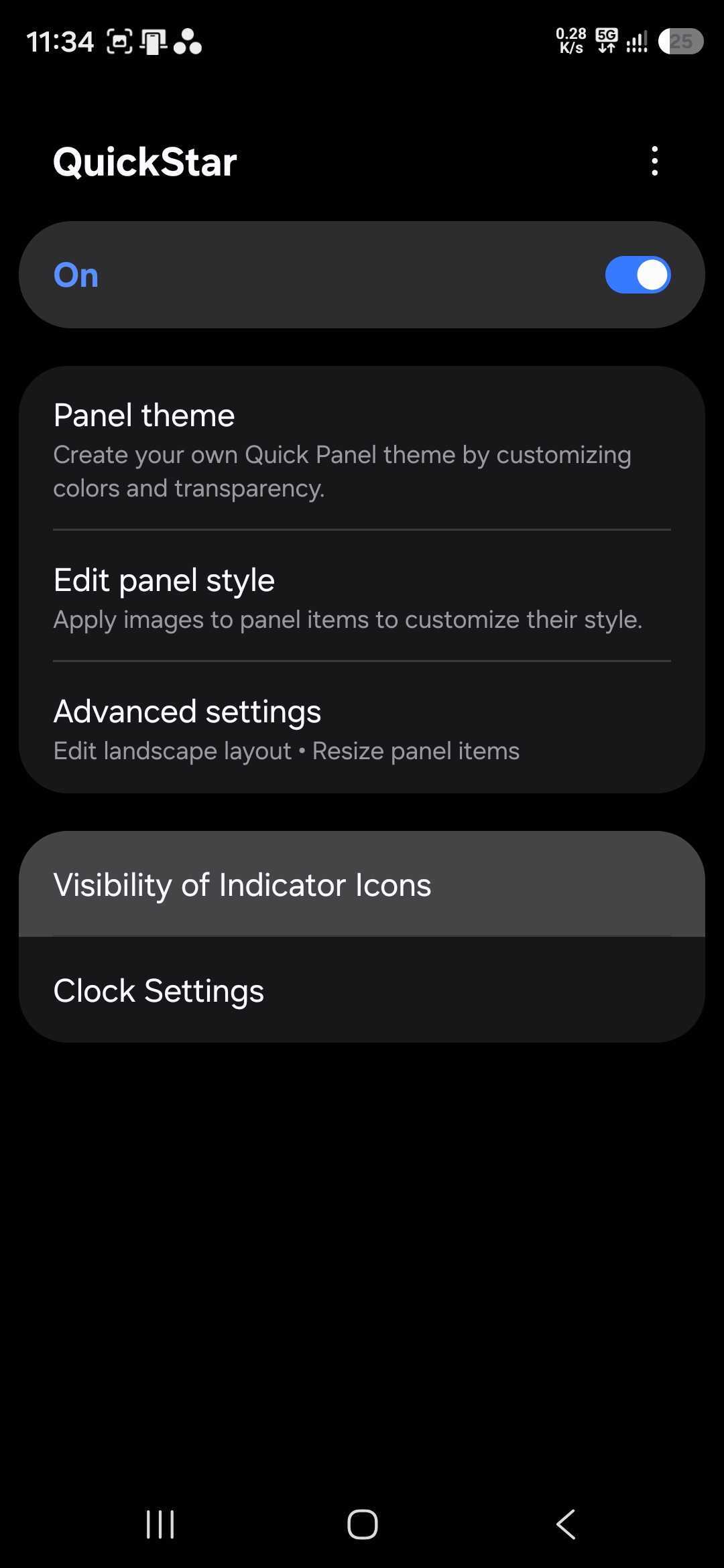
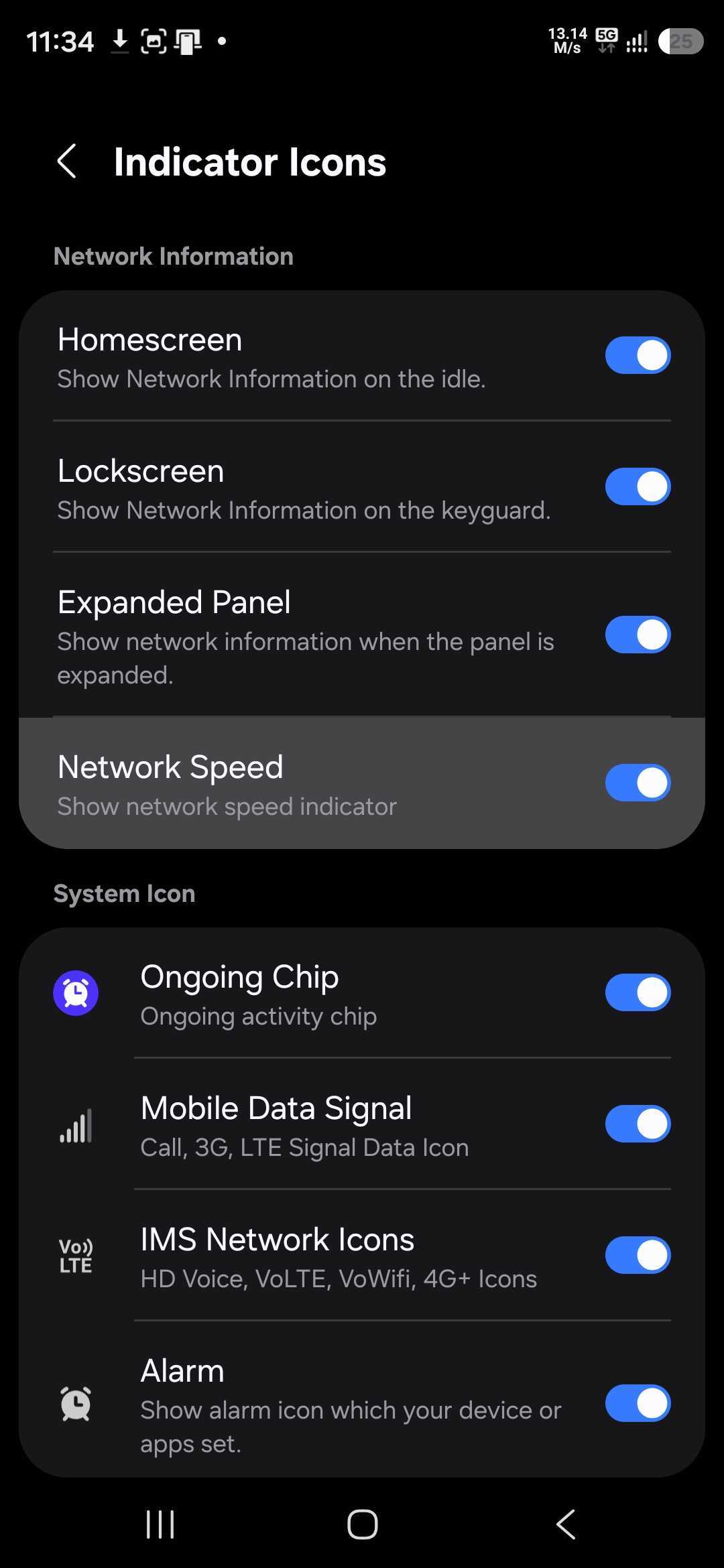
That’s pretty much it. The network speed meter should appear in your status bar instantly. The feature displays your current network activity alongside your existing system icons. The meter updates in real time and shows both upload and download speeds using K/s or M/s units. It works whether you’re connected through Wi-Fi or mobile data, allowing you to monitor your internet performance without opening a separate app.
It’s worth noting that the indicator only displays data transfer speeds. It does not replace the Wi-Fi or mobile signal icons, which continue to show connection strength.
As said earlier, the feature is exclusive to the One UI 9 version of Good Lock’s QuickStar module. Samsung has not announced whether it will be backported to older One UI versions or eventually integrated directly into the system settings. We will let you know accordingly.

Follow us on Google Discover & set us as a preferred source in Google News
Share this Post
___________________________


New Blog Posts
___________________________
Samsung’s SSD Warranty Response Draws Threat of Legal Action
The company offered the customer a refund for the defective drive

Galaxy Watch Users Can Now Chat on Telegram
Telegram arrives on Wear OS after years away
Galaxy A27 5G Launch Could be Right Around the Corner
Galaxy A27 strongly suggests launch is around the corner before unpacked event