How to add Document Scan Shortcut on Samsung Phones (One UI 8.5)
SammyGuru is reader-supported. We have affiliate and sponsored partnerships, so we may earn a commission when you buy through links on our site — at no extra cost to you. Learn more.
If you regularly use your phone to scan documents and turn them into digital copies, Samsung’s One UI 8.5 brings a genuinely useful upgrade. The update introduces a faster, smarter document scanner built into the camera app. More importantly, Samsung lets you add a dedicated Document Scan shortcut to your apps screen for instant access. Here’s how to set it up.
A built-in document scanner that actually feels complete
While apps like Google Drive, which comes pre-installed on Samsung Galaxy devices, already offer document scanning, Samsung’s new tool in One UI 8.5 enhances the experience. It’s tightly integrated, quicker to access, and designed to work seamlessly with the system. Samsung has refined the entire workflow — from capturing to editing and sharing, you can go from paper to polished digital copy in seconds.
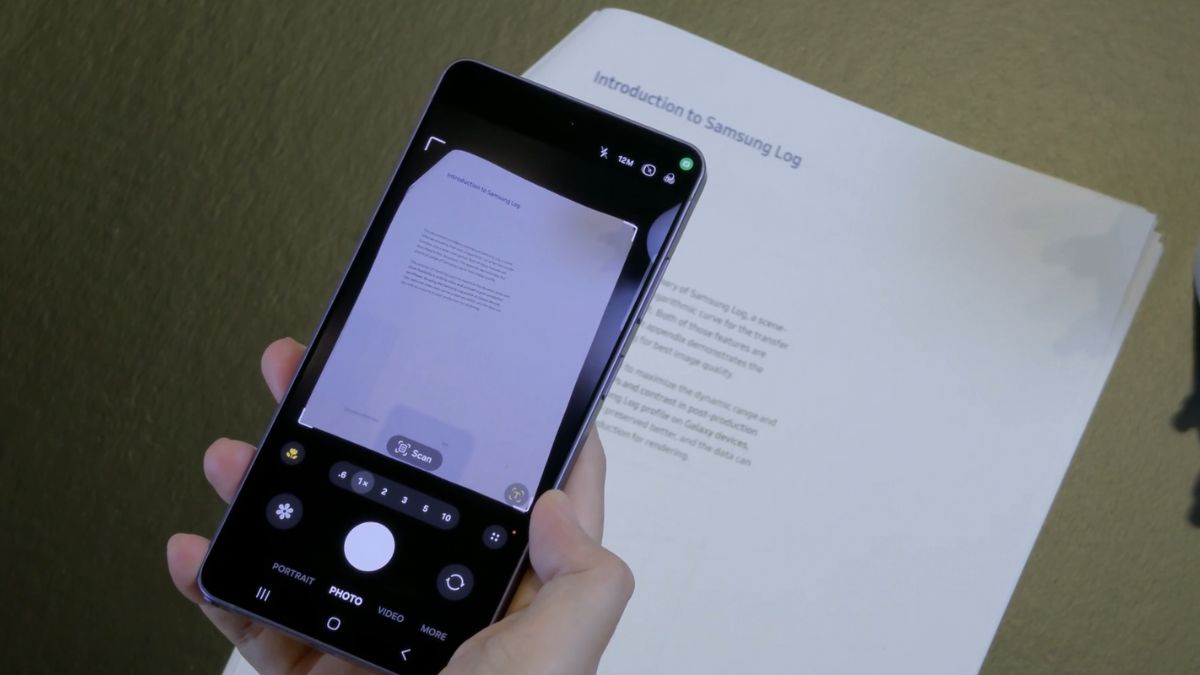
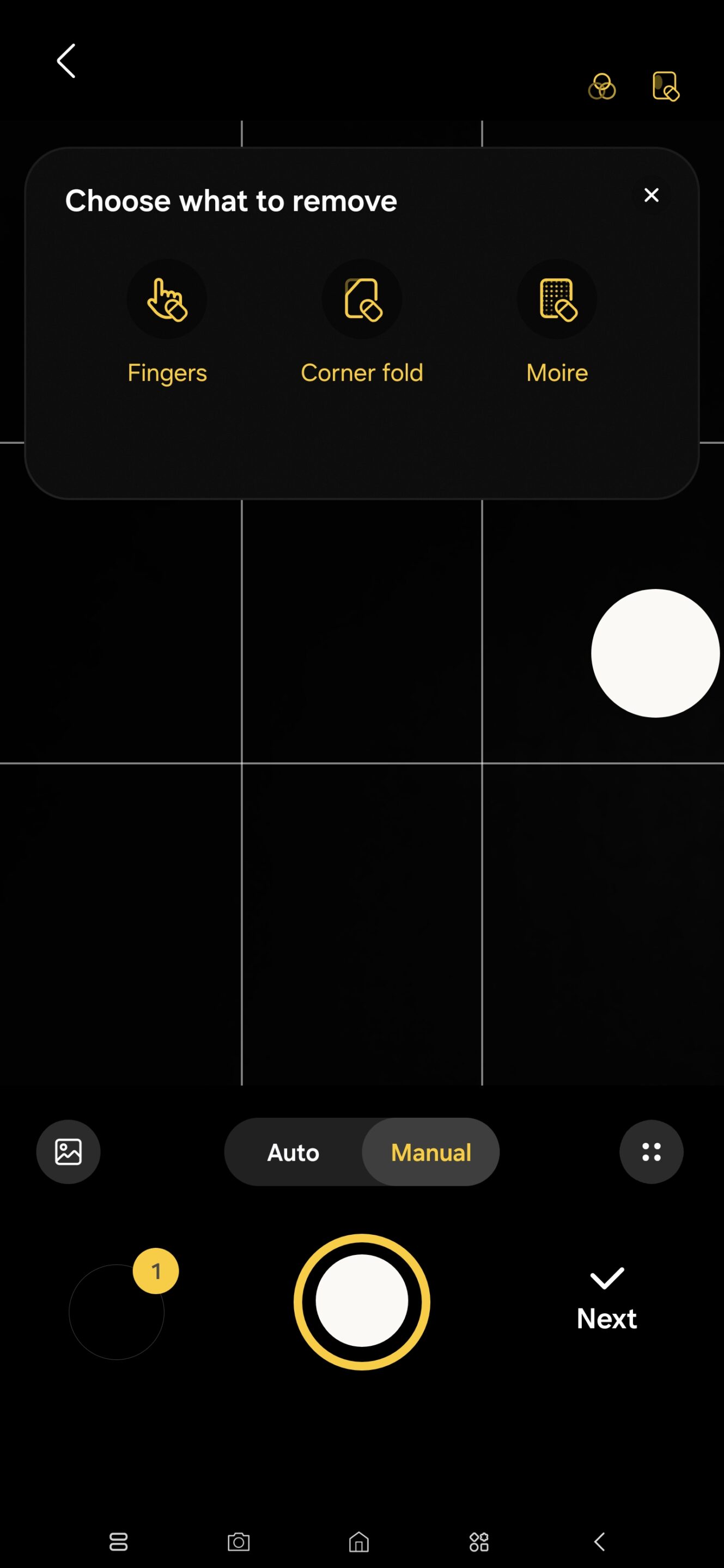
The new Document Scan feature lives inside the Camera app. It automatically detects document edges, corrects perspective, and enhances readability. The tool can also intelligently remove distractions like fingers in the frame, folded corners, or moiré patterns from printed pages.
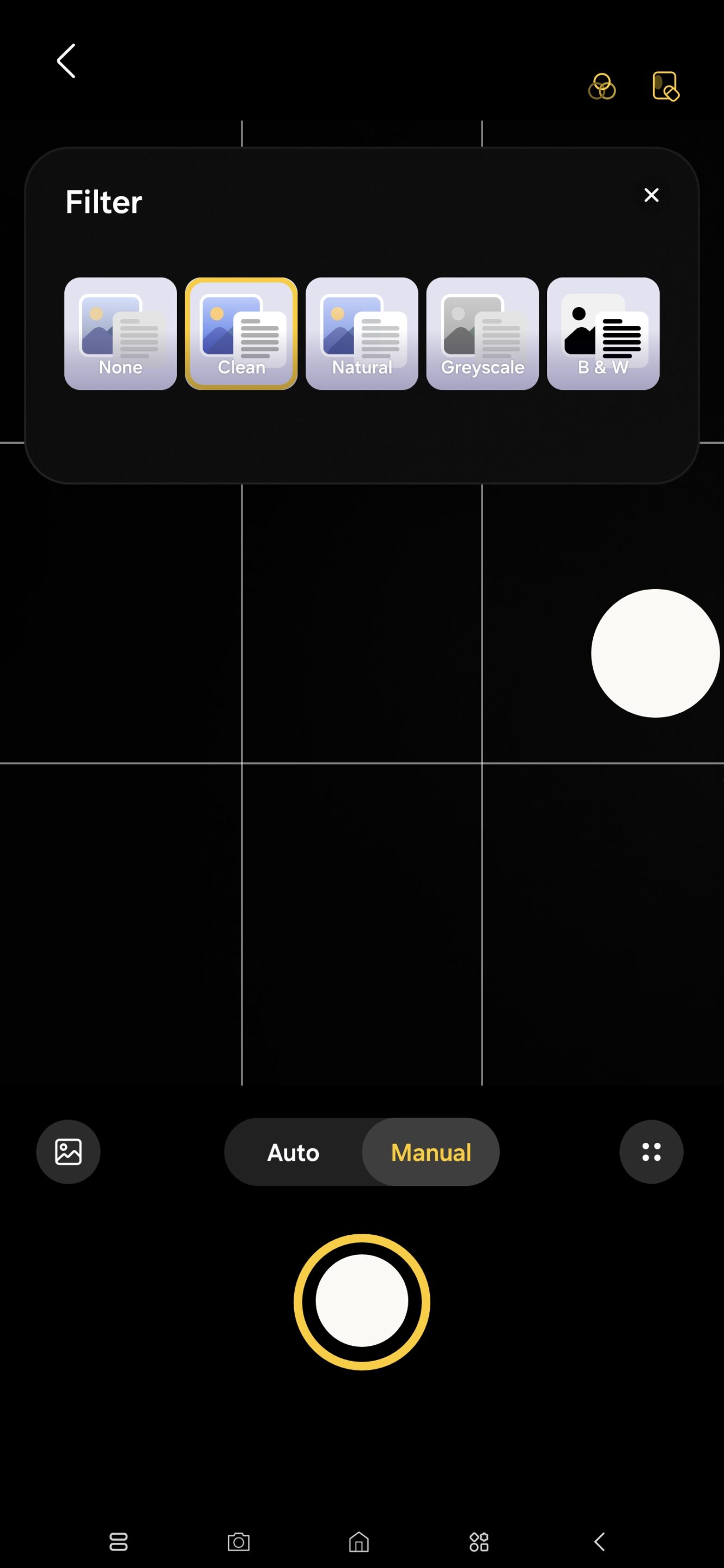
On top of that, Samsung includes filters like Clean, Natural, Grayscale, and Black & White, so you can adjust the output depending on your needs. Combined with adjustable flash modes, it’s a complete toolkit for everyday use. You also get two capture modes: Auto mode for quick scans and Manual mode for more control.
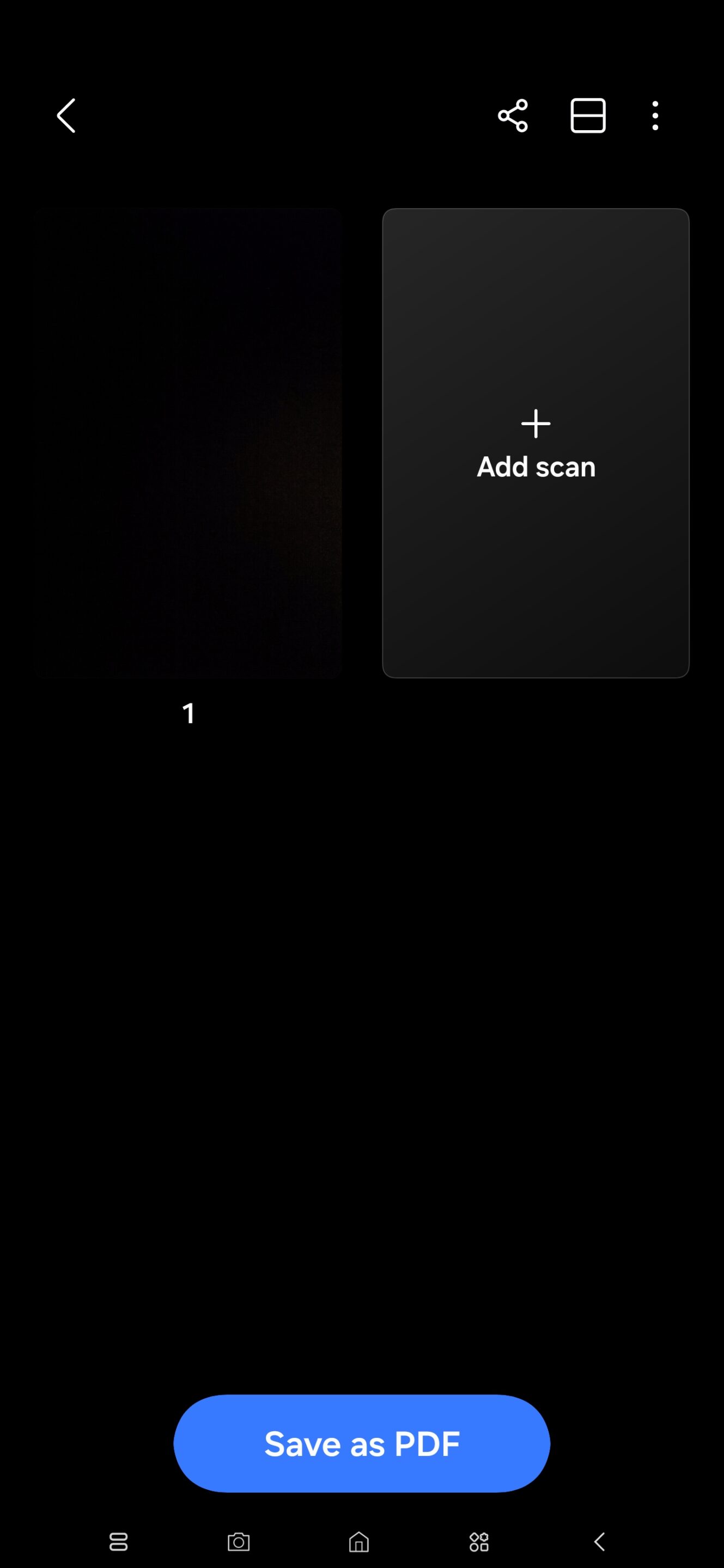
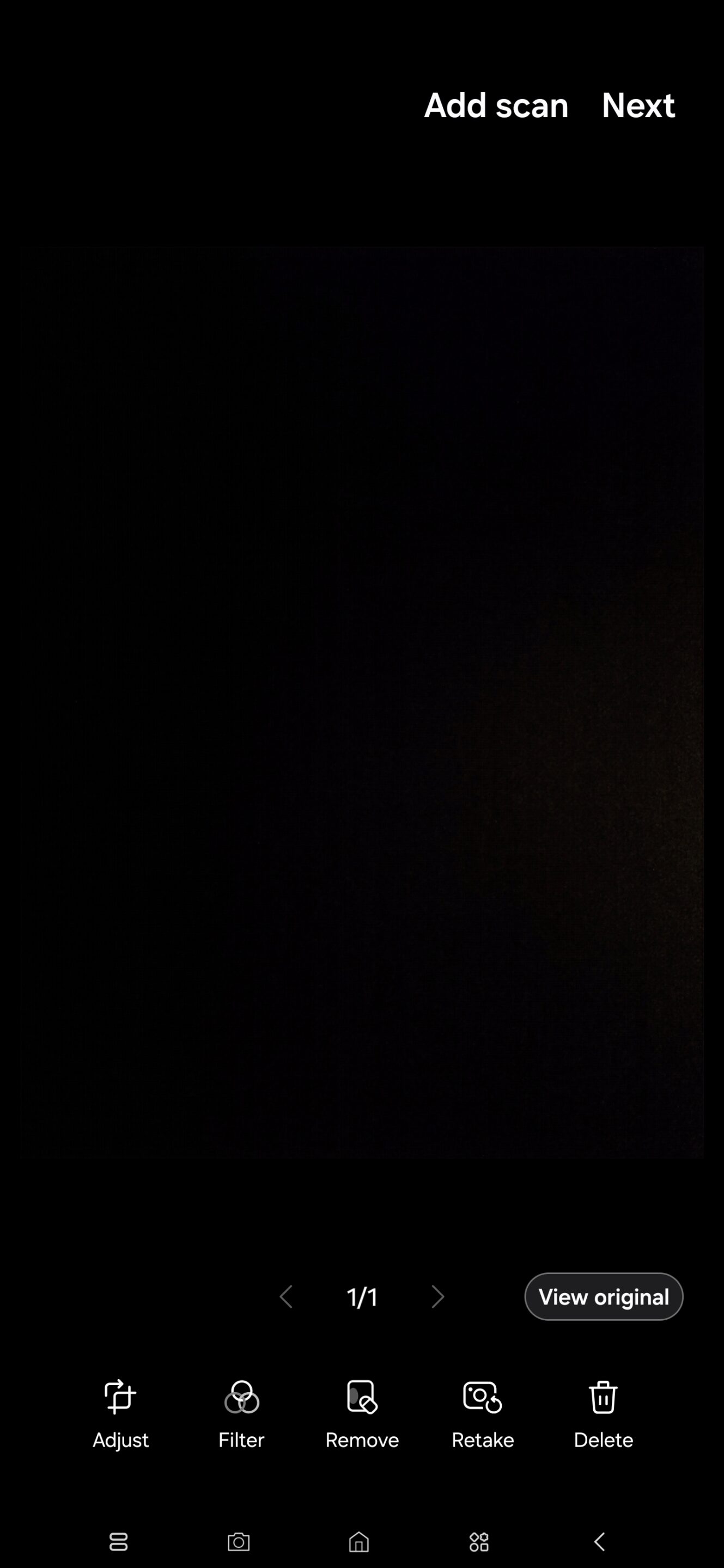
How to enable Document Scan shortcut
Document Scan is a new mode in Samsung’s stock camera app in One UI 8.5. It kicks in automatically when the system detects a document in the viewfinder. You can tap the Scan button on the screen to launch it and scan your document.
However, if you want quicker access, you can create a shortcut. If you’re using a compatible Galaxy device running One UI 8.5, here’s how to set it up:
- Open the Camera app
- Tap the Settings (gear icon)
- Go to Scanning and enable Document Scan
- Tap Document Scan and turn on Add to Apps screen
- (Optional) Set Scan resolution to High for better quality
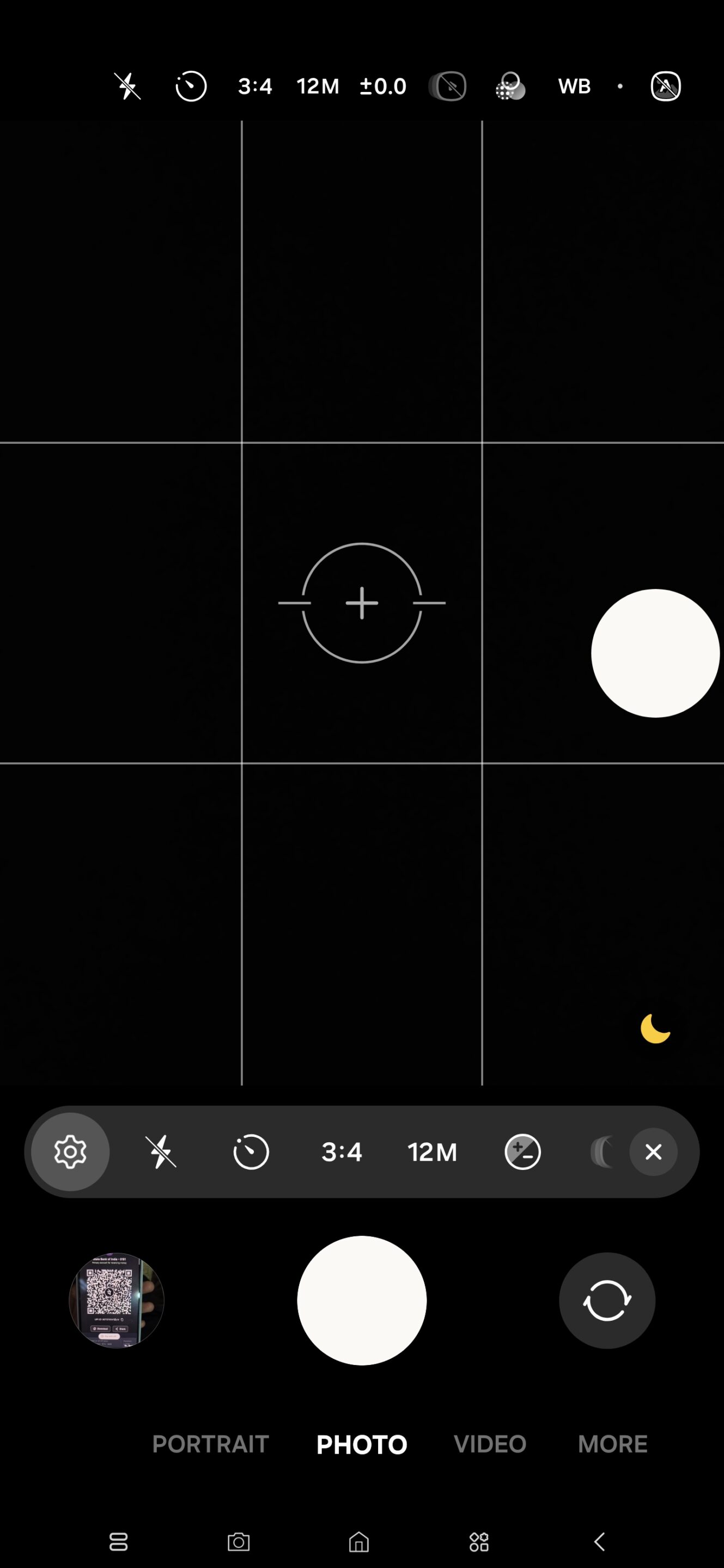
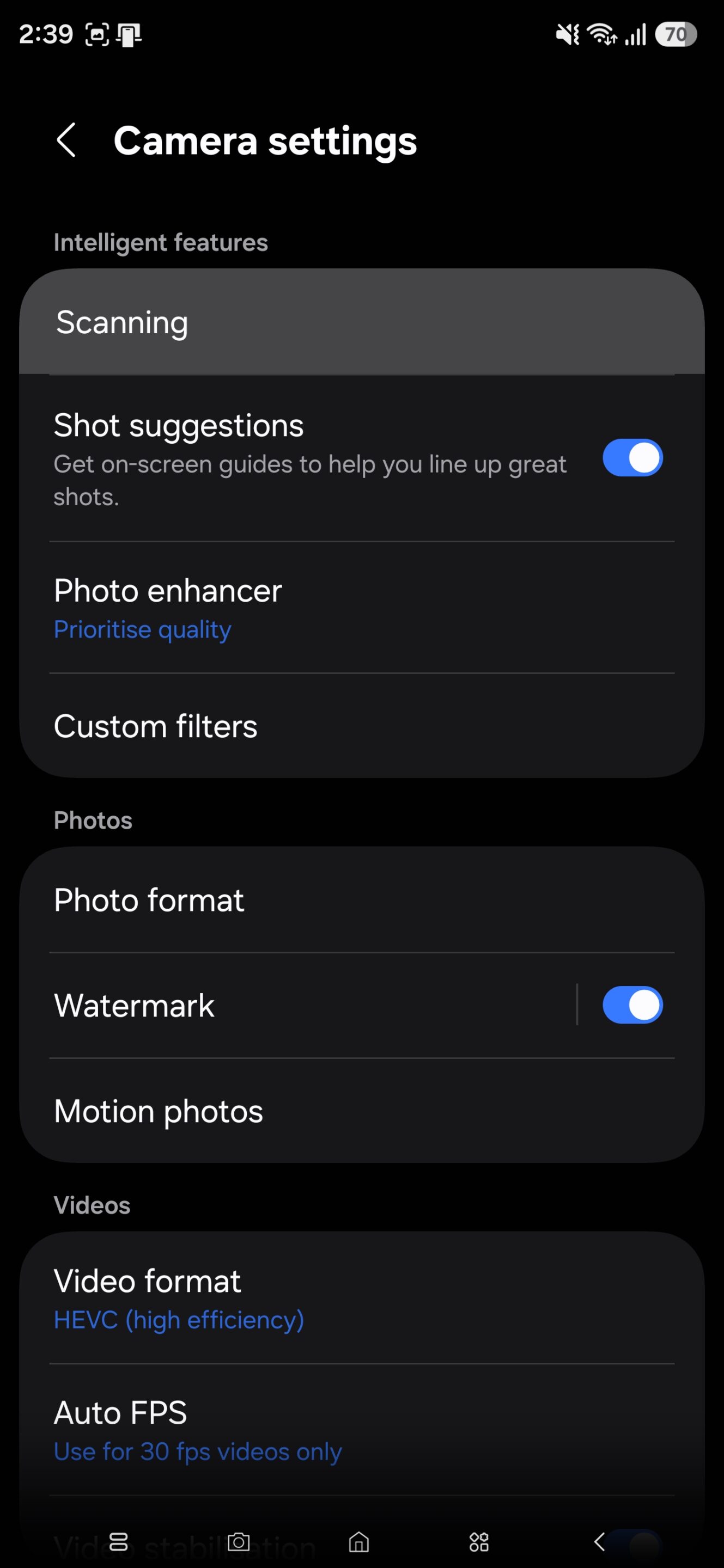
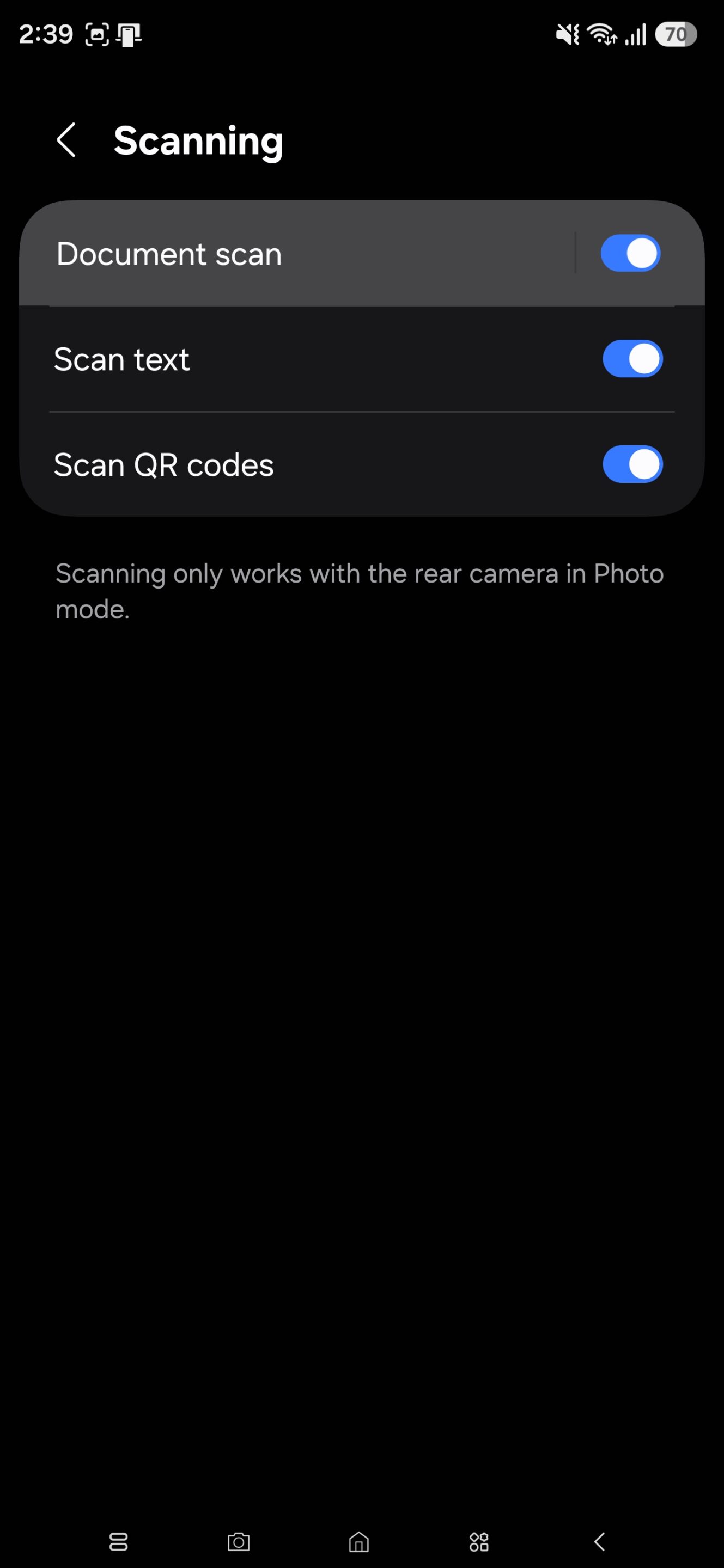
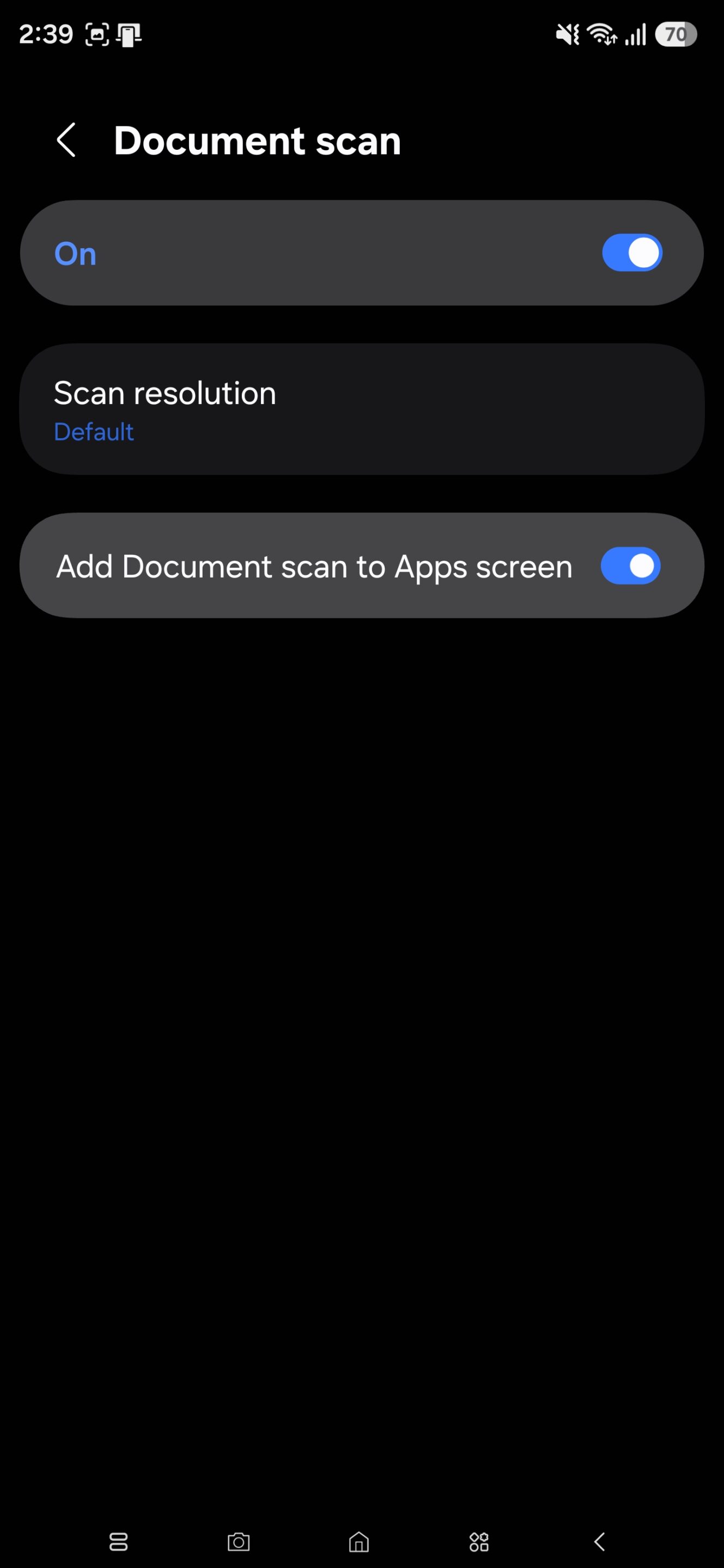
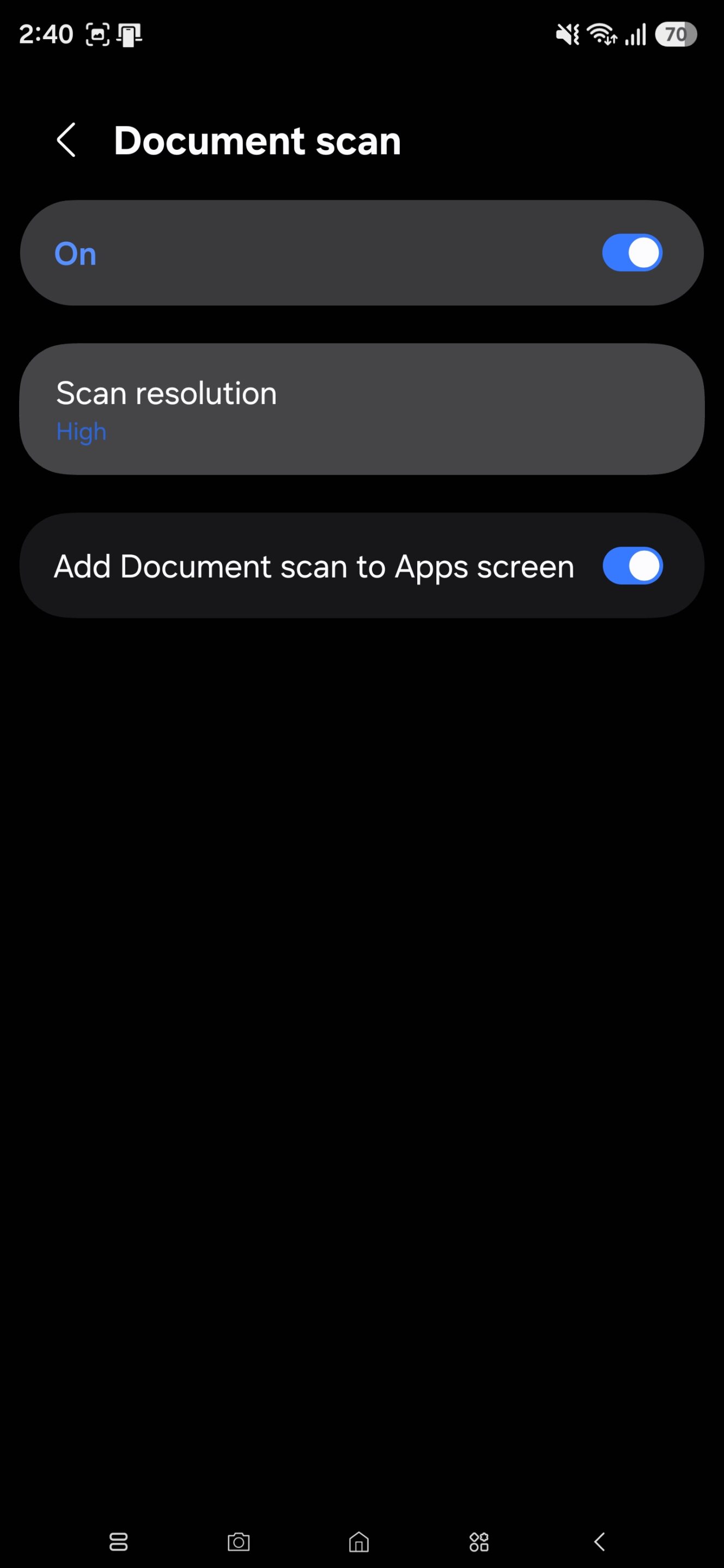
Once enabled, you’ll see a dedicated Document Scan icon in your app launcher. You can drag it to your home screen for even faster access. For students, office workers, or anyone who regularly scans receipts, notes, or documents, this small change makes a big difference. It cuts friction out of a task you might perform multiple times a day.
Pro tip: Long-press the Camera app icon and select Document Scan to jump straight into scanning.
This feature is part of Samsung’s One UI 8.5 update. Some older models may not receive it, but most newer Galaxy phones should get Document Scan with One UI 8.5. The update is now rolling out to 2025 flagships and is expected to expand to more devices in the coming months.

Written by
Sumit AdhikariSumit is a lifelong Samsung enthusiast and technology journalist who has been covering the consumer technology industry since 2017. A mathematics graduate by education, he specializes in smartphones, software, and emerging technologies, with a keen interest in artificial intelligence and the future of connected experiences. Sumit believes AI will play a transformative role in building a more open, intelligent, and seamlessly connected world.

Follow us on Google Discover & set us as a preferred source in Google News
Share this Post
___________________________


New Blog Posts
___________________________
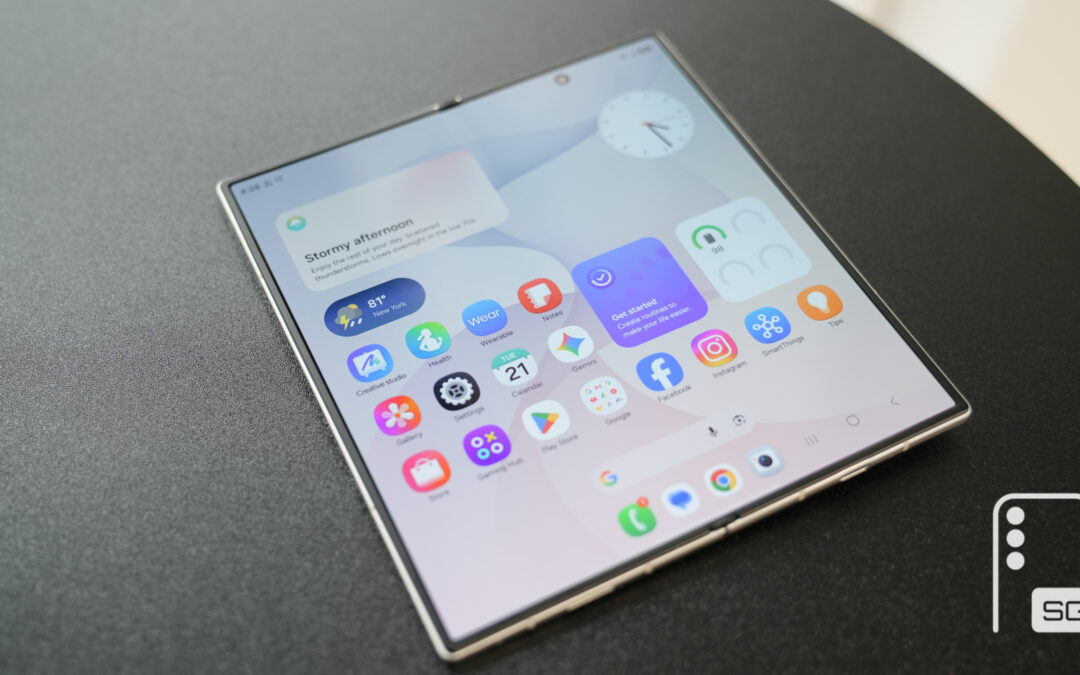
We Tracked Galaxy Z Fold 8 Ultra Leaks for Months: Here’s What Samsung Shipped and What it Didn’t
Galaxy Z Fold 8 Ultra is Samsung’s biggest Fold upgrade in years
Samsung Chairman Heads to Google’s Exclusive Camp for AI Discussions
AI may be a key topic of discussion
Qualcomm’s Snapdragon Price Hike May Add to Galaxy S27 Costs
Double-digit price hike for Snapdragon chips