How to Control Exposure on Galaxy Devices: Understanding AE, AF, and More
SammyGuru is reader-supported. We have affiliate and sponsored partnerships, so we may earn a commission when you buy through links on our site — at no extra cost to you. Learn more.
In this article
Most Samsung Galaxy users know how to tap the screen to focus. Far fewer realize that controlling exposure can dramatically improve image quality before the shutter button is even pressed. Samsung’s camera app offers a great amount of control over various shooting parameters, but understanding that control requires looking beyond the shutter button and paying attention to how the camera responds to a simple tap.
More importantly, Samsung does not treat every camera mode the same. The behavior of a single tap changes depending on whether you’re shooting in standard Auto Mode or high-resolution modes such as 50MP and 200MP. Once you understand that difference, the camera becomes far more predictable and significantly easier to control.
Understanding Auto Focus and Auto Exposure
Before exploring Samsung’s camera behavior, it helps to understand two systems that work behind every photo. Auto Focus (AF) determines what appears sharp within the frame. It decides which subject should receive focus priority and continuously adjusts focus as the scene changes. Auto Exposure (AE) determines how bright or dark the final image should appear. It evaluates the scene, analyzes available light, and decides how highlights, shadows, and midtones should be balanced.
Most smartphone users rarely think about these systems separately because the camera typically manages both automatically. Samsung, however, provides several ways to influence them, and in some modes, separates them entirely. Understanding where that separation happens is the key to understanding how Samsung’s camera really works.
The Behavior Most Samsung Users Never Notice
Many users assume tapping the screen behaves identically across all camera modes. It doesn’t. In fact, Samsung appears to use two different philosophies depending on the resolution mode selected. When shooting in the standard 12MP or 24MP Auto Mode, a single tap primarily activates Tracking Auto Focus.
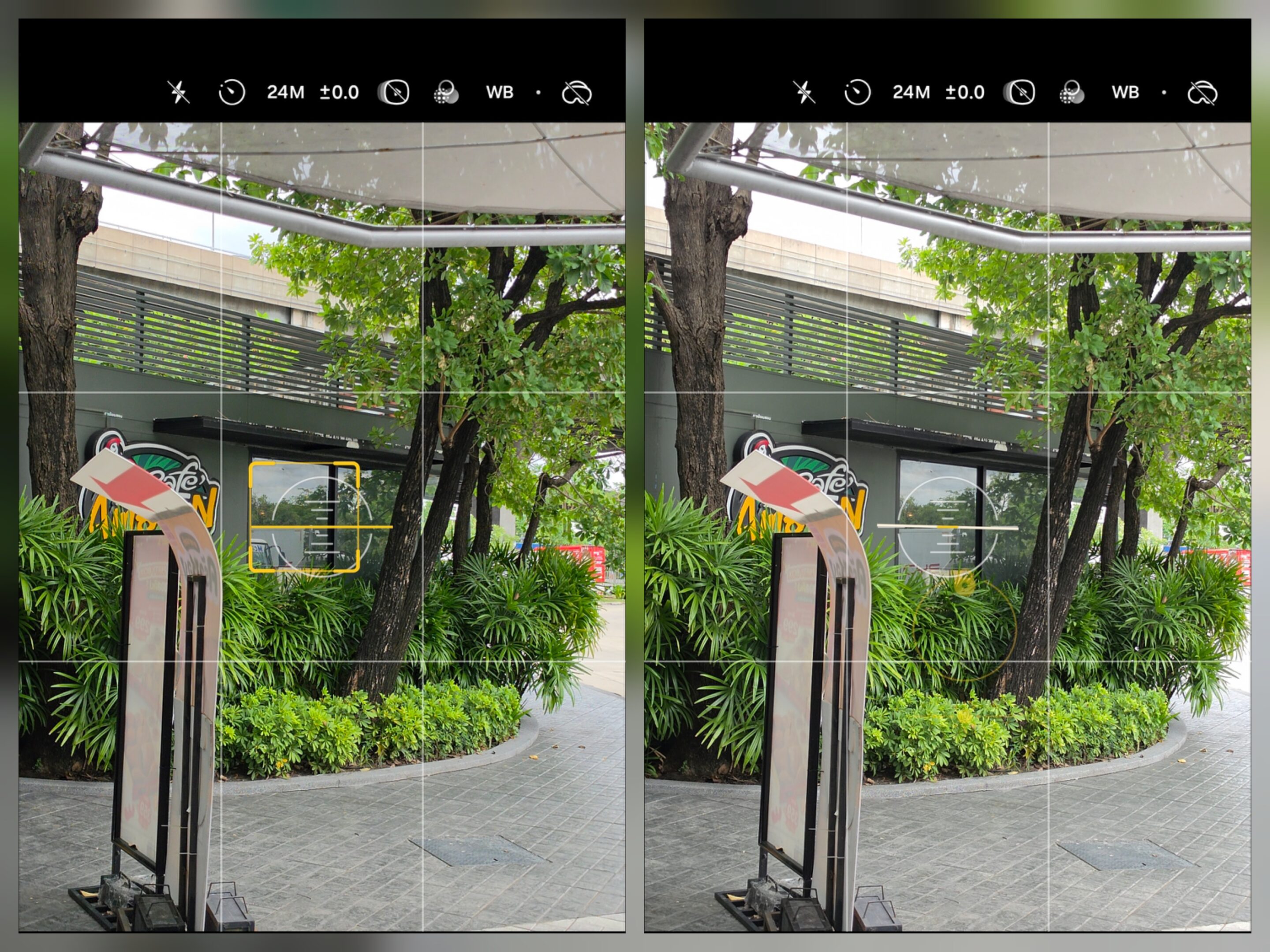
Tap a person’s face, a building, a flower, or a moving subject, and the camera’s primary objective becomes keeping that target in focus. The autofocus system continuously follows the selected subject while exposure continues operating automatically in the background.
In other words, the tap is acting mainly as a focus instruction. The camera is essentially asking: “What should I keep sharp?” This approach makes perfect sense for everyday photography because most users care more about ensuring the subject remains in focus than manually influencing exposure.
However, the moment you switch to 50MP or 200MP mode, the behavior changes significantly. A single tap now behaves much closer to an exposure control point than a traditional focus command.
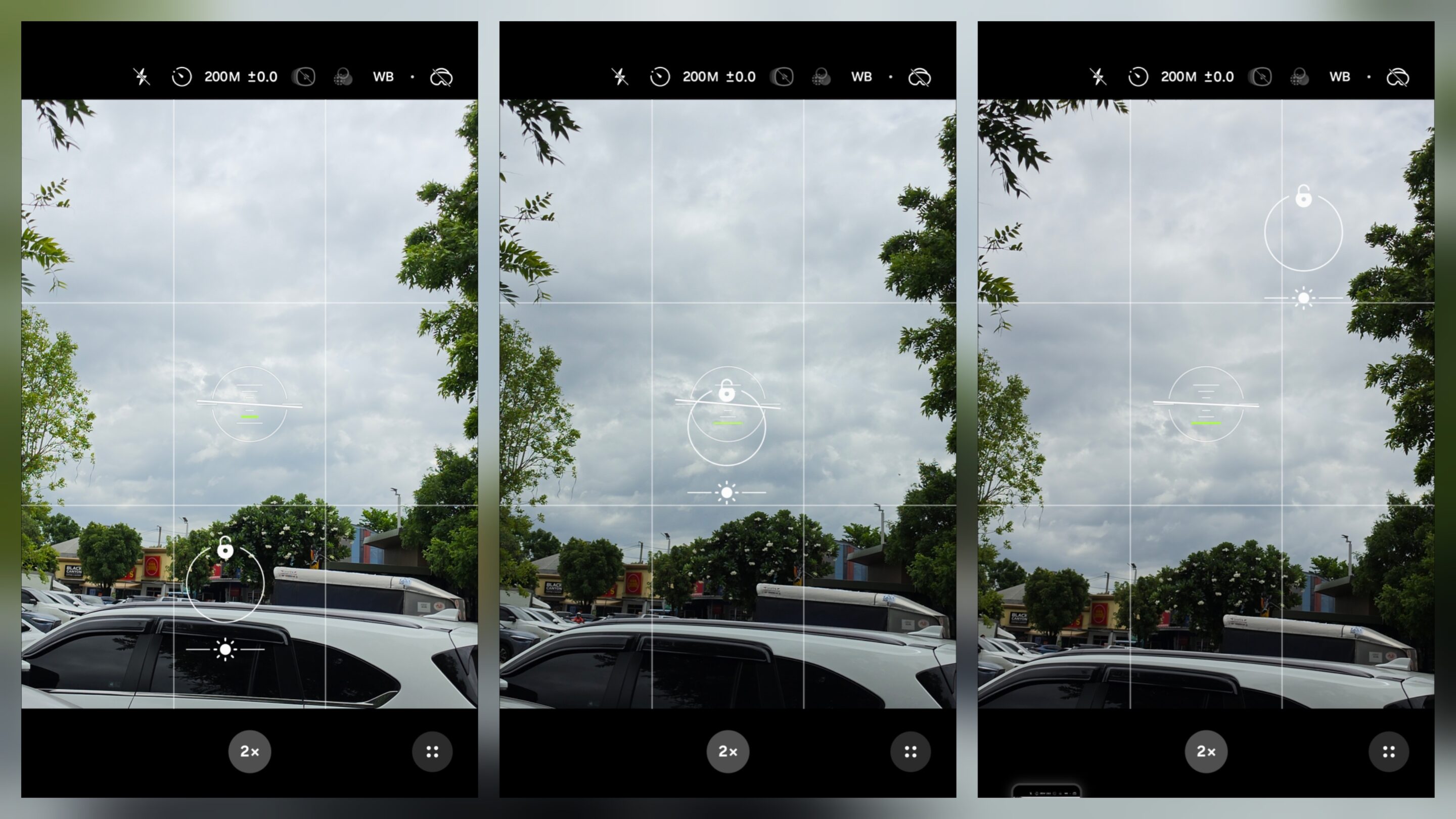
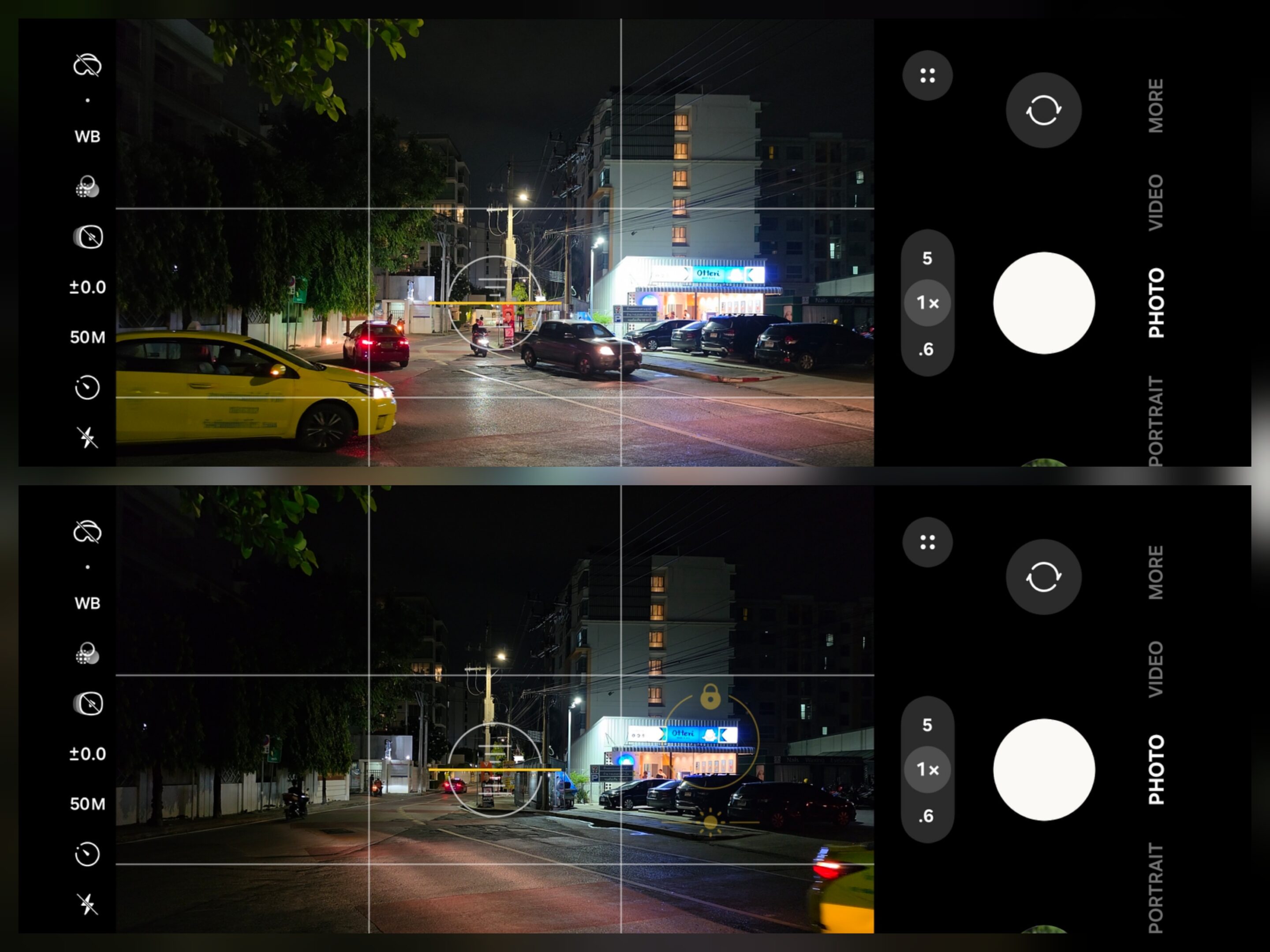
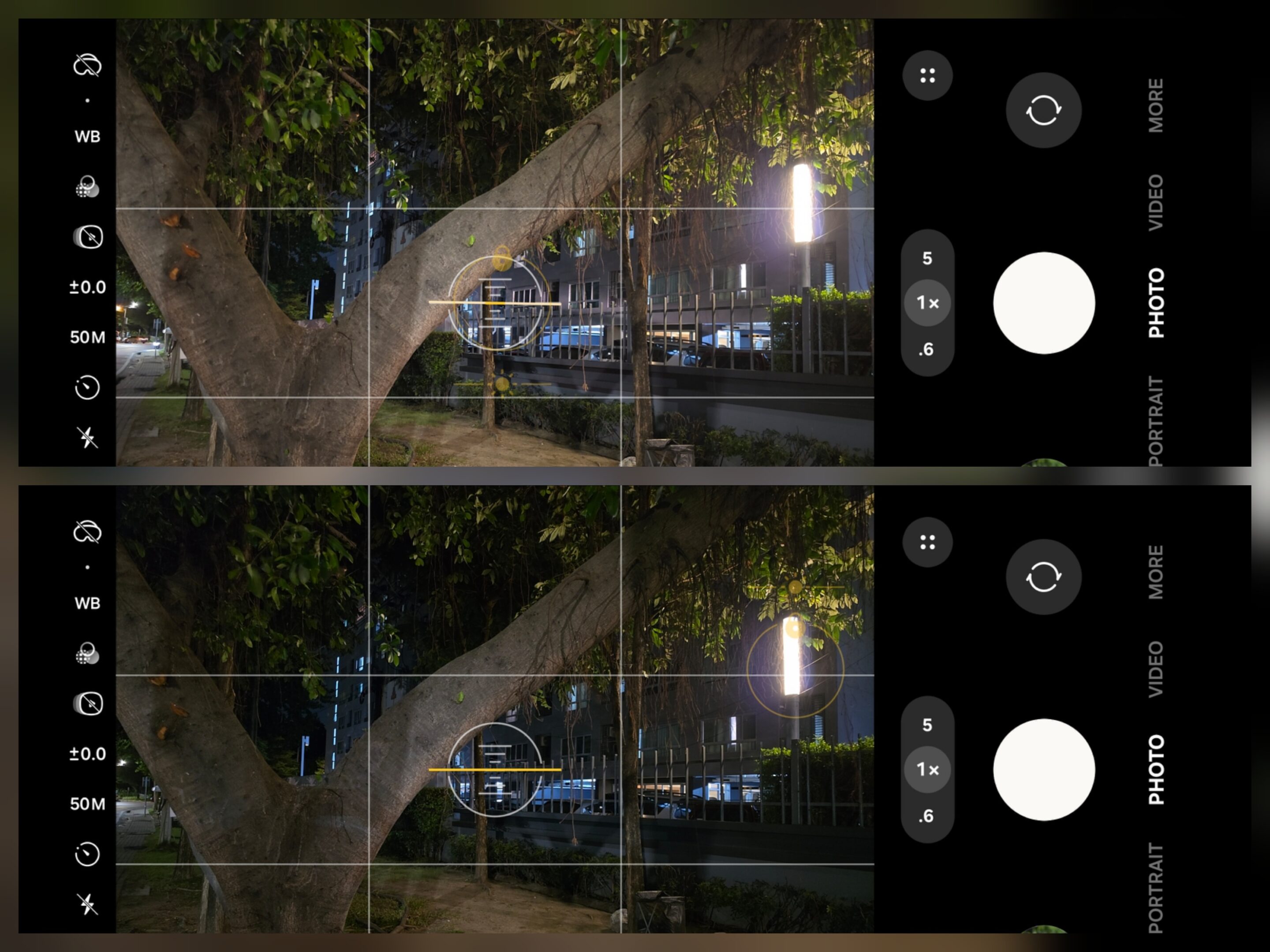
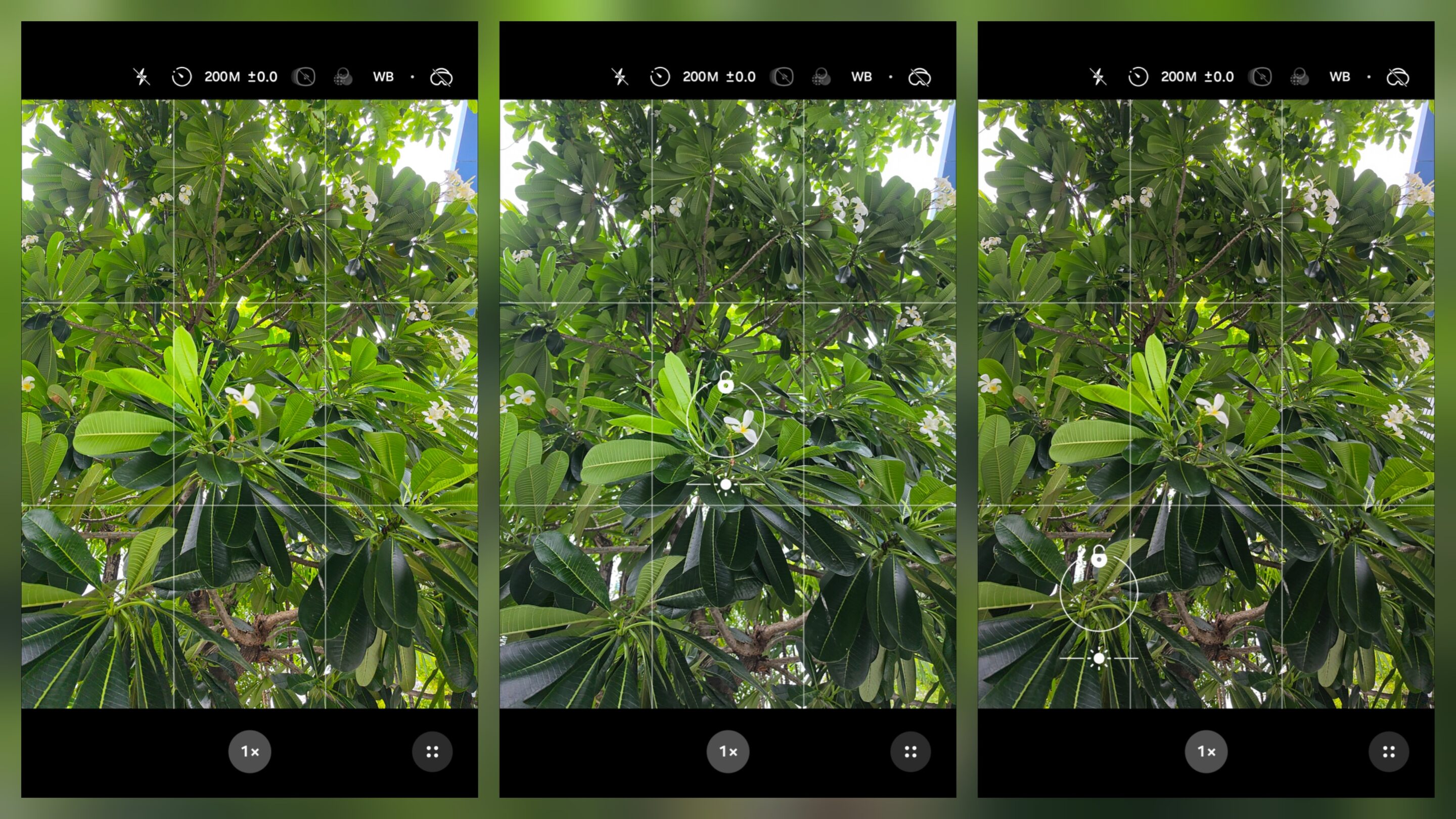
Tap a bright cloud, and the image becomes darker to preserve highlights. Tap a shadow area, and exposure increases to reveal more detail. Move the tap point around the frame, and the exposure changes accordingly, often without noticeably affecting autofocus behavior.
The camera is now asking a different question: “How should I expose this scene?” This effectively transforms the screen into a simplified exposure metering tool.
Most users never discover this because Samsung presents the interaction using the same interface. The gesture looks identical, yet the camera is interpreting it differently behind the scenes. That subtle distinction is one of the most overlooked aspects of Samsung’s camera system.
Why Samsung Might Handle These Modes Differently
The difference appears deliberate rather than accidental. In standard Auto Mode, Samsung prioritizes convenience. Most users want dependable subject tracking and reliable focus without needing to think about camera settings. A single tap, therefore, functions as a focus-first command.
In 50MP and 200MP modes, however, Samsung appears to prioritize exposure control and shooting consistency. Rather than constantly shifting focus every time the user taps around the frame, the camera allows the tap position to influence exposure while maintaining focus stability. This makes it easier to preserve highlights, brighten shadows, or fine-tune brightness without disrupting focus behavior.
The result is a surprisingly practical shortcut. Users gain a level of exposure control that many assume requires the EV slider, Pro Mode, or post-processing. In reality, it is already available directly within Auto Mode.
The Feature That Works Across Every Mode
While single-tap behavior changes, tap-and-hold remains remarkably consistent. Press and hold on a subject, and Samsung activates AE/AF Lock. Unlike a standard tap, this gesture locks both Auto Exposure and Auto Focus simultaneously.
Whether you’re shooting in 12MP, 24MP, 50MP, or 200MP mode, the selected area becomes the camera’s reference point for both focus and exposure. A person’s face, a building, a flower, or a distant object can become the center of the camera’s decision-making process with a single gesture.
Once locked, those values remain fixed until the lock is released. This transforms the camera from reactive to intentional. Instead of allowing the camera to continuously change focus and brightness as the scene evolves, the user decides exactly what should matter.
What AE/AF Lock Is Actually Doing
Many users activate AE/AF Lock without fully understanding its purpose. The feature is not simply freezing focus. It is freezing the camera’s interpretation of the scene.
Imagine photographing a person standing in front of a bright sunset. Without AE/AF Lock, the camera may continuously adjust exposure as you slightly reposition the frame. Small composition changes can lead to different brightness levels from shot to shot.
With AE/AF Lock activated on the subject, the camera maintains both focus and exposure based on that original reference point. The result is consistency. And consistency is often the difference between getting one good image and getting five.
Taking Control with Pro Mode and Expert RAW
If Auto Mode provides simplified control, Pro Mode and Expert RAW provide precision. These modes allow Auto Focus and Auto Exposure to be managed independently rather than as a single system. At first glance, this may sound like a small technical advantage.
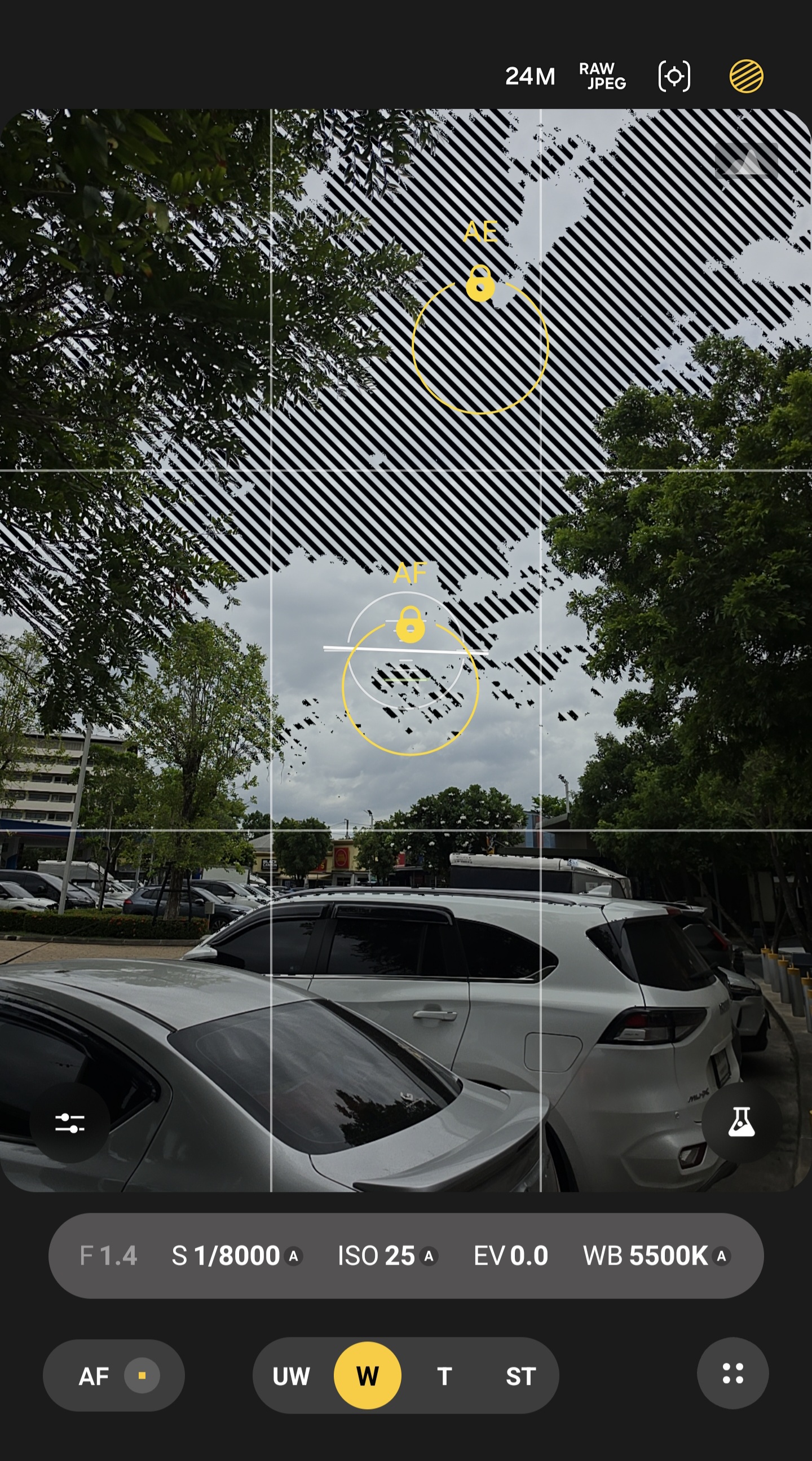
In practice, it changes everything. Instead of forcing focus and exposure to prioritize the same area, photographers can decide what should be sharp and what should influence brightness separately. The camera stops making assumptions. The user takes over while still using the auto setting ISO, Speed, etc.
How Moving the AE Point Changes the Entire Image
One of the most powerful tools available in Pro Mode and Expert RAW is the ability to move the Auto Exposure point independently from focus. This means focus can remain locked on a subject while exposure is measured from a completely different part of the frame.
Consider a portrait at sunset. You may want the person’s face to remain perfectly focused while preserving highlight detail in the sky. By keeping focus on the subject and moving the AE point toward the brightest portion of the sunset, the camera protects highlights while maintaining subject sharpness.
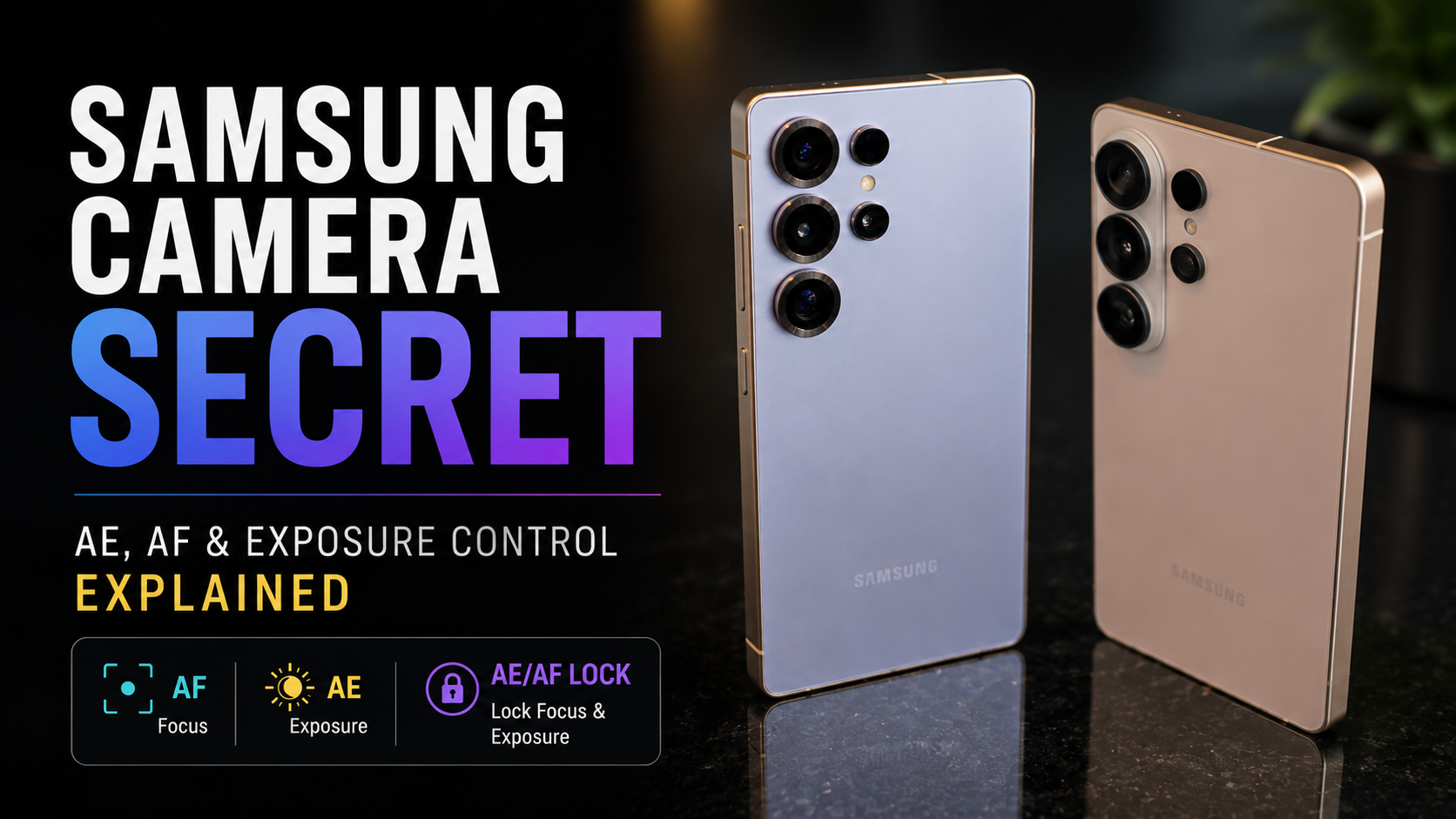
Move the AE point toward a darker foreground area, and the entire scene brightens without changing focus placement. The subject remains sharp. The exposure changes. This is one of the closest experiences Samsung offers to the exposure control techniques traditionally used on dedicated cameras. The infographic below explains Samsung’s camera tap behavior across various shooting modes.
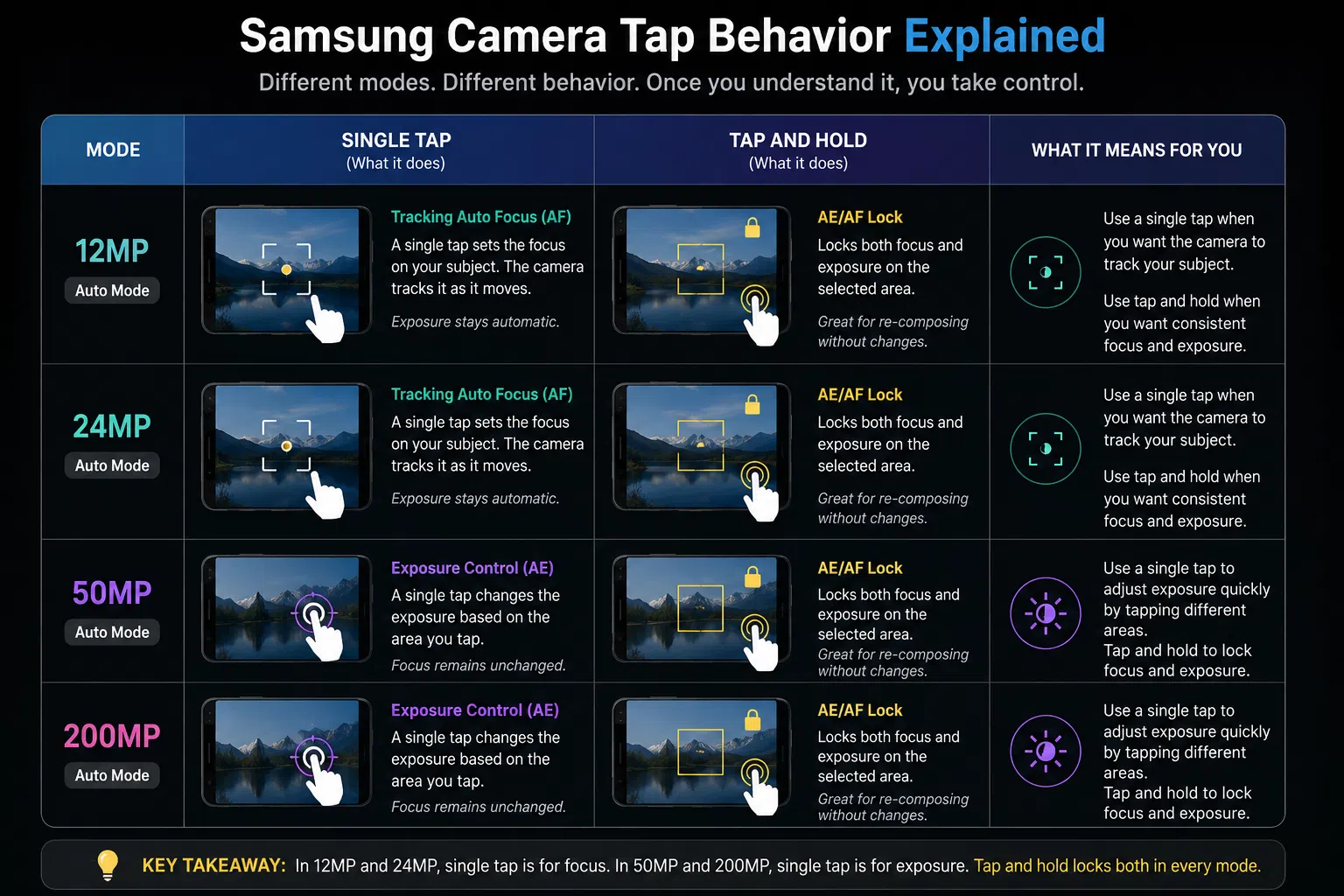
Once this behavior becomes familiar, many frustrating exposure and focus issues suddenly become easier to understand. The moment you understand the difference between AE and AF, and how Samsung separates them across different modes, you stop reacting to the camera’s decisions and start influencing them before the shutter is ever pressed.


Follow us on Google Discover & set us as a preferred source in Google News
Share this Post
___________________________


New Blog Posts
___________________________
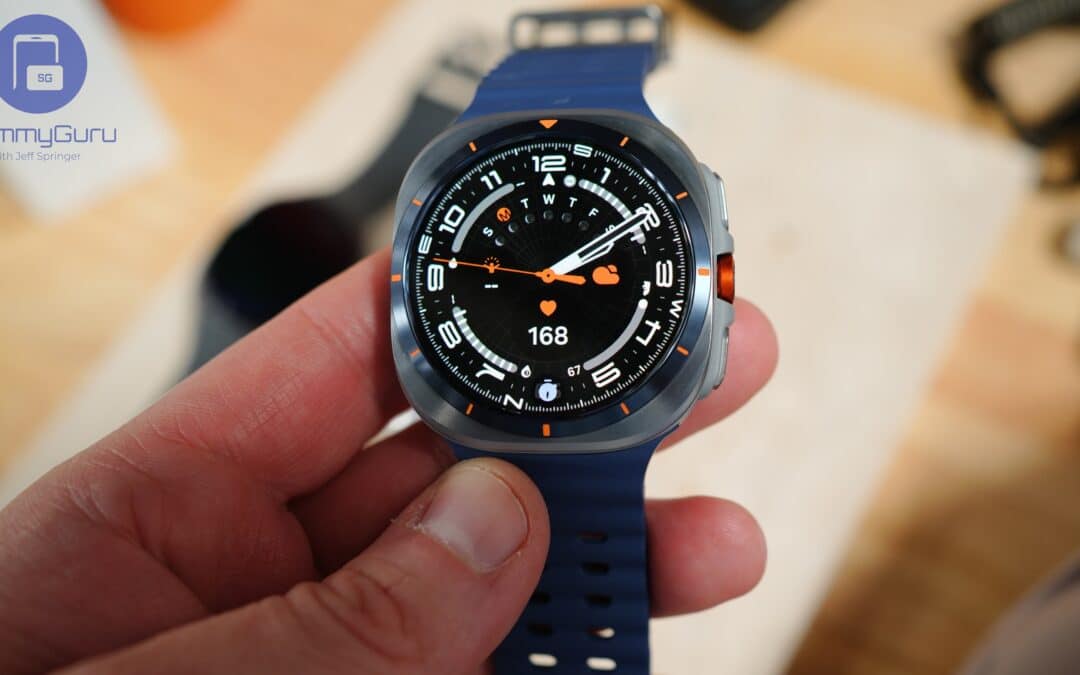
Galaxy Watch 9 and Watch Ultra 2 Confirmed via NBTC
Who’s saving money already?

Samsung TV Plus Adds Free 24/7 Carwow Channel for Car Fans
It offers more than 10,000 hours of automotive programming
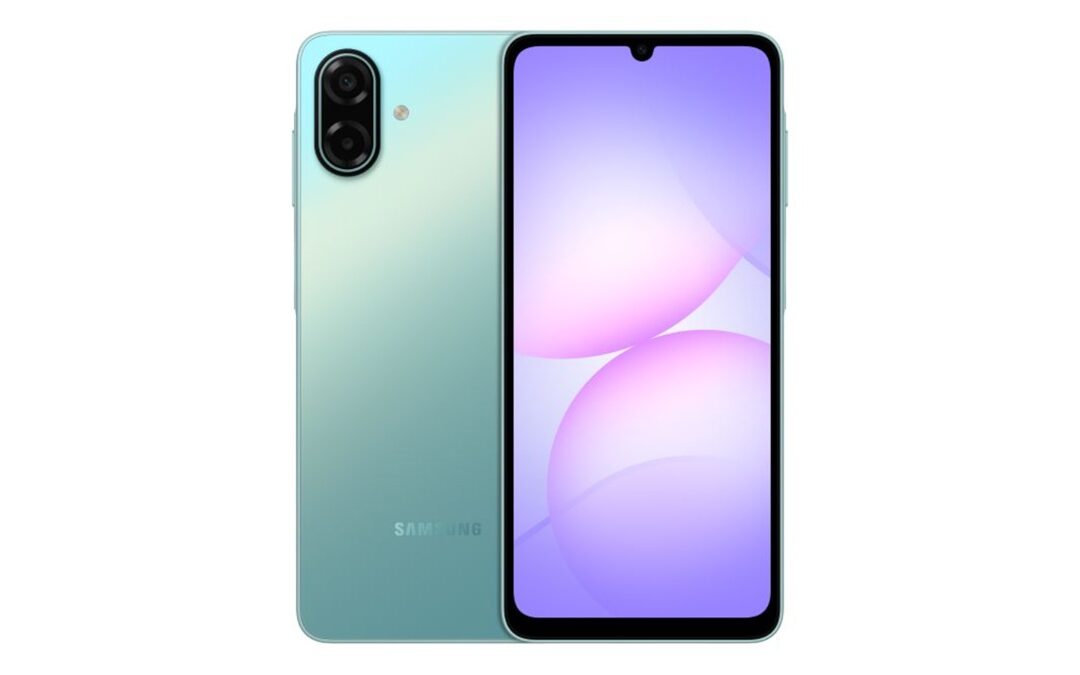
Galaxy A07s Picks Up FCC Certification, Hints at US Launch
Galaxy A07s spotted on FCC after Wi-Fi and IMEI listings