SmartThings Brings Music Sync to Nanoleaf Lights
SammyGuru is reader-supported. We have affiliate and sponsored partnerships, so we may earn a commission when you buy through links on our site — at no extra cost to you. Learn more.
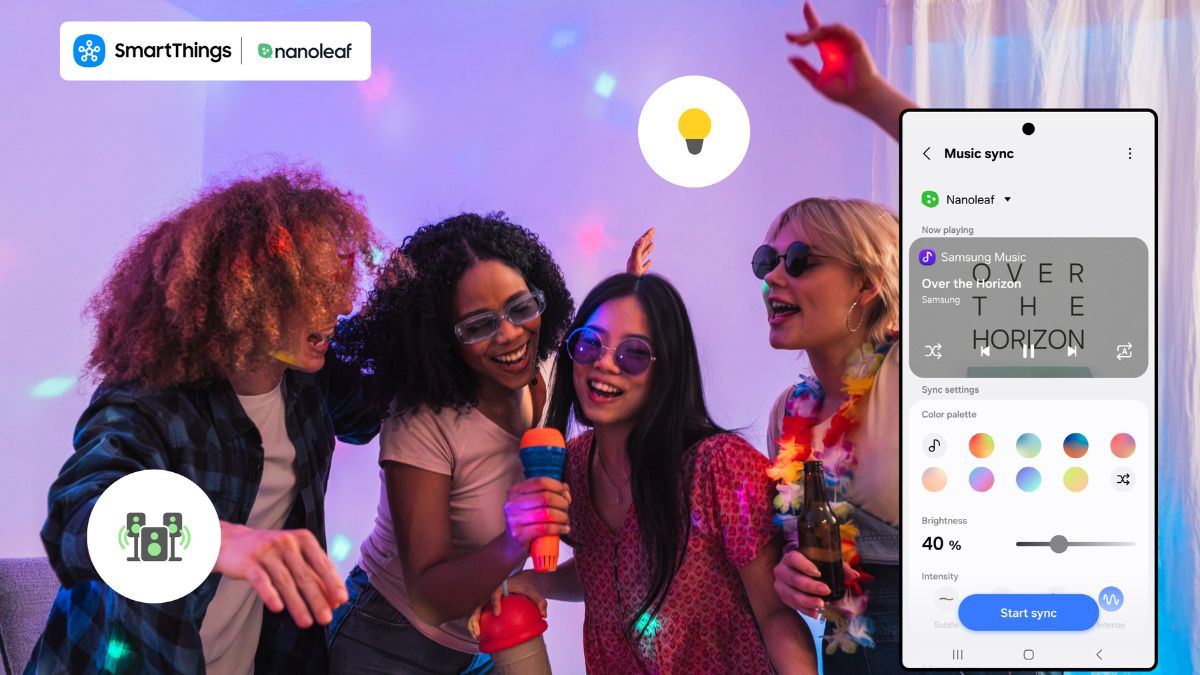
Samsung’s SmartThings Music Sync can sync smart lights with music streaming services. The feature now supports Nanoleaf lights, bringing dynamic effects to smart home setups. This is useful for different scenarios, such as gaming, watching, or listening, where your lighting keeps up in real time.
Nanoleaf lights now react to music in real time via SmartThings
Nanoleaf already offers colorful and animated lighting scenes. Thanks to SmartThings Music Sync integration, they now respond to “what you’re doing, what you’re listening to, and the kind of moment you want to create”. It connects directly to the music source on your Galaxy device, so the lights follow the song in real time. As a result, you can see the effect in every beat, with no delay.
This setup should definitely elevate your gaming experience, as your space responds in real time while you play. Background music, game soundtracks, and sound effects all trigger dynamic lighting changes. Intense moments in a game can feel more dramatic as the lights respond. Likewise, more relaxed gameplay moments match with softer lighting changes.
The best thing is that you can combine Nanoleaf lighting with other smart home routines. You can set up simple automations like lights slowly brightening in the morning, softer tones at night for winding down, or a party mode that triggers Music Sync with dynamic scenes. Moreover, you can also set your lights to turn off automatically when you leave home. They all run in the background, meaning your space stays ready for you.
To get started, you need to make sure you have a compatible hub. Open the SmartThings app on your Galaxy device to add a Nanoleaf product. Once connected, you can group your lights, set up automations, and create routines. Now head over to the Life tab and then select Music Sync. Finally, follow the instructions to finish syncing your devices.

Written by
Binay KonwarBinay Konwar started his blogging journey in 2014 and has since written plenty of tech articles. At present, he is working as a News Writer at SammyGuru, covering everything about Samsung. He holds a Master's degree in Mathematics, but his real passion lies in tech and writing. In his free time, he enjoys playing chess and watching movies.

Follow us on Google Discover & set us as a preferred source in Google News
Share this Post
___________________________


New Blog Posts
___________________________
Samsung Announces UFS 5.0 Storage for Faster On-Device AI
The company plans to kick off mass production later this year
Galaxy S24 (Exynos) June 2026 Update Rolls Out in Europe
A bunch of Galaxy phones and tablets have received the latest security patch in the past few days
This Galaxy Z Flip 7 FE Deal Finally Fixes Its Biggest Problem
Galaxy Z Flip 7 FE drops to $599.99, and it’s hard to ignore