Samsung Adds New Brushes and Fresh Features to PENUP
SammyGuru is reader-supported. We have affiliate and sponsored partnerships, so we may earn a commission when you buy through links on our site — at no extra cost to you. Learn more.
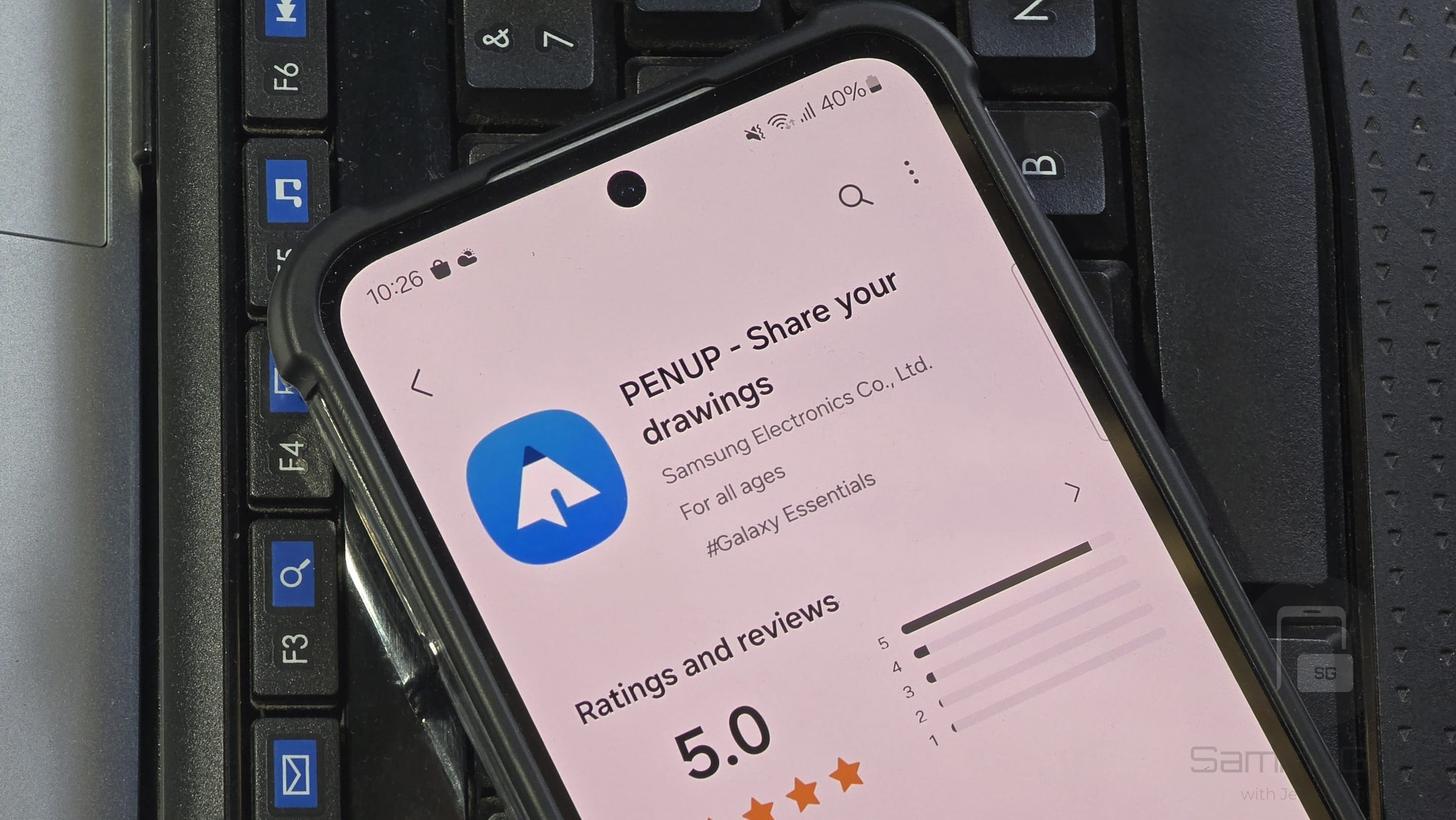
Samsung has released a major new update for its drawing app, PENUP. The update brings a bunch of new features along with more than 50 fresh brushes. The company appears to be gradually rolling out the new version to all eligible Galaxy users around the world.
PENUP now offers an enhanced digital drawing experience
PENUP is a creative social network app that lets you sketch, paint, and share your artwork with others in the community. The platform is useful for both beginners and experienced artists, offering powerful tools to bring ideas to life. You can improve your drawing skills through Live Drawing (provides video tutorials). Likewise, Photo Drawing helps you draw using a reference photo.
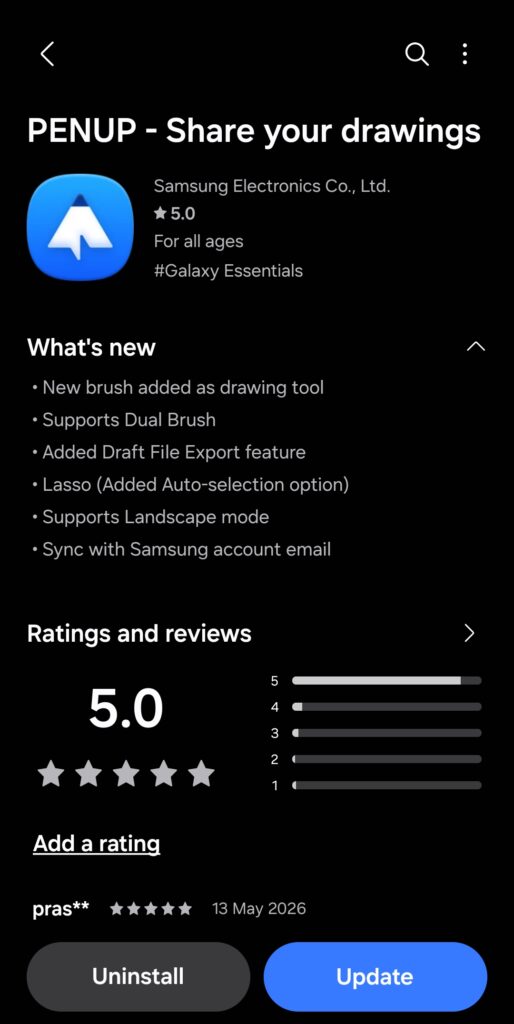
Samsung has now updated its PENUP app with version 3.9.22.23. The update brings 53 new brushes, which you can download through the “Download more brushes” option. Thanks to the dual brush feature, you can use two different brush strokes at the same time.
The app now offers improved brush customization. You can tap a brush in the selection twice to access its individual settings. Moreover, it separates unrelated options and offers a live preview of changes.
The update also brings Export Draft and Import Draft features. They let you save unfinished drawings in a “.penup” file extension. You can then move these drafts between different Galaxy devices. This comes in handy if you work on multiple devices or want to resume your artwork later.
Furthermore, we get Auto Select mode in the Lasso section tool. This feature automatically selects different objects in a drawing. Samsung has also brought support for automatic UI rotation into landscape mode. When Auto Rotate is enabled on your device, the app interface rotates to the horizontal screen orientation.
Last but not least, PENUP now supports syncing across devices using a Samsung account. To update to the latest version, you will first need to open the Galaxy Store. From there, navigate to the menu (three lines) and tap on “Updates”. If you don’t see the update right away, you may need to wait a few days.

Written by
Binay KonwarBinay Konwar started his blogging journey in 2014 and has since written plenty of tech articles. At present, he is working as a News Writer at SammyGuru, covering everything about Samsung. He holds a Master's degree in Mathematics, but his real passion lies in tech and writing. In his free time, he enjoys playing chess and watching movies.

Follow us on Google Discover & set us as a preferred source in Google News
Share this Post
___________________________


New Blog Posts
___________________________
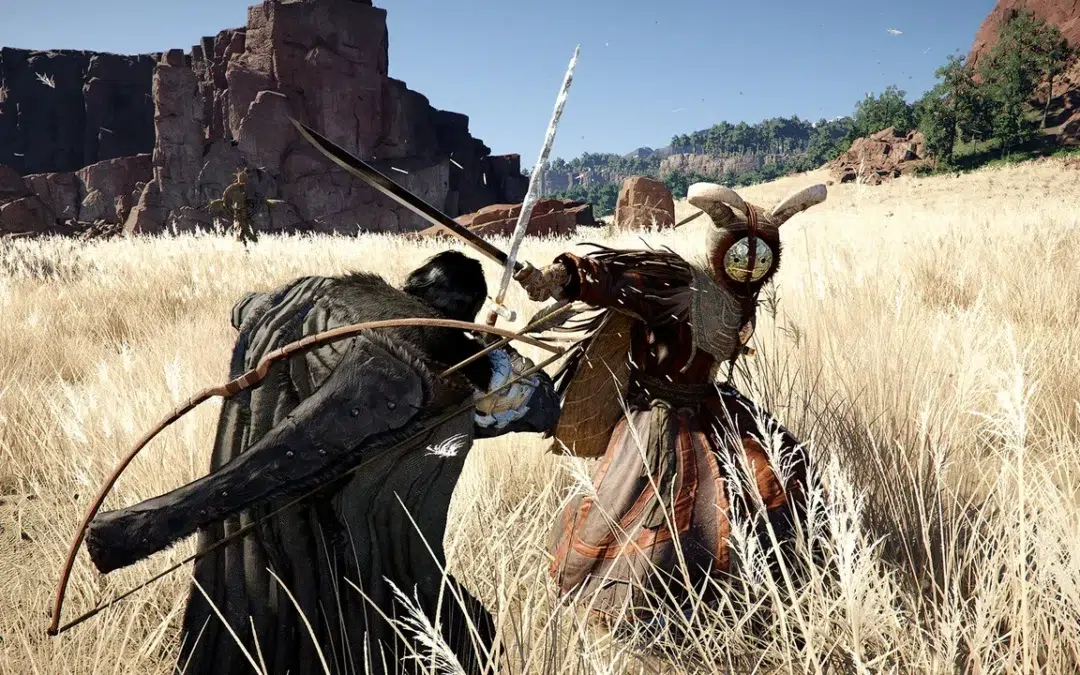
Samsung’s Odyssey G8 Will Power Crimson Desert Demos at Gamescom 2026
In Cologne, August 36-August 30
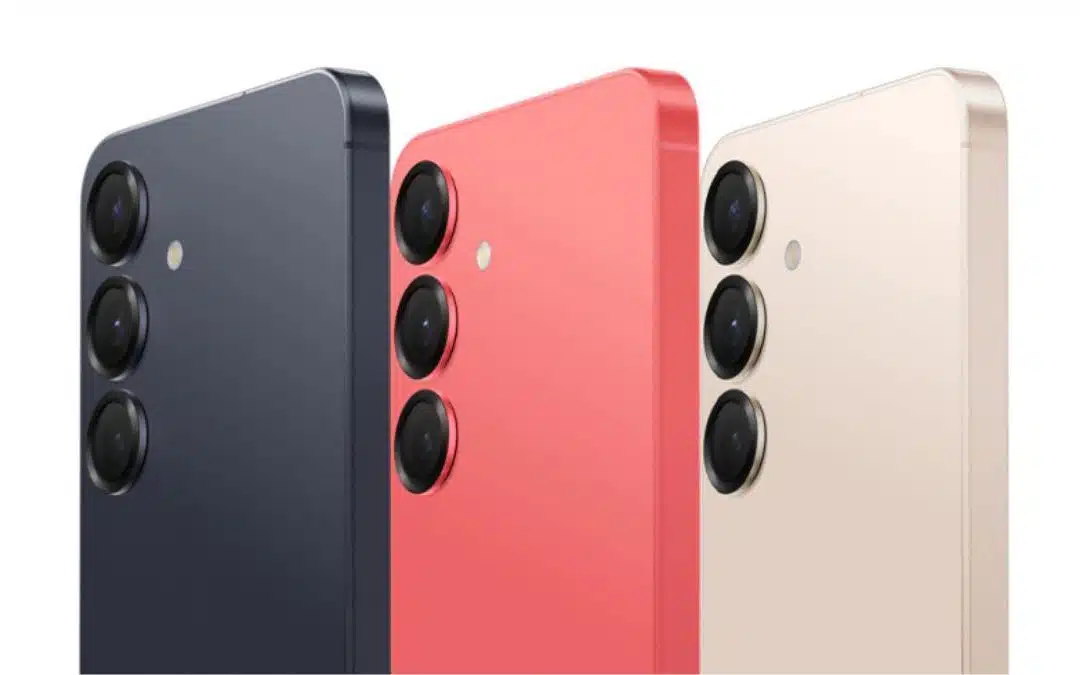
Galaxy S25+ and Galaxy Tab A11 Are Cheaper Than Ever at Walmart
Your wallet will thank you
Samsung Develops GAIA Accelerator to Power AI PCs
The accelerator will use a 4nm semiconductor process