How to Automate Privacy Display on Galaxy S26 Ultra using Modes and Routines
SammyGuru is reader-supported. We have affiliate and sponsored partnerships, so we may earn a commission when you buy through links on our site — at no extra cost to you. Learn more.
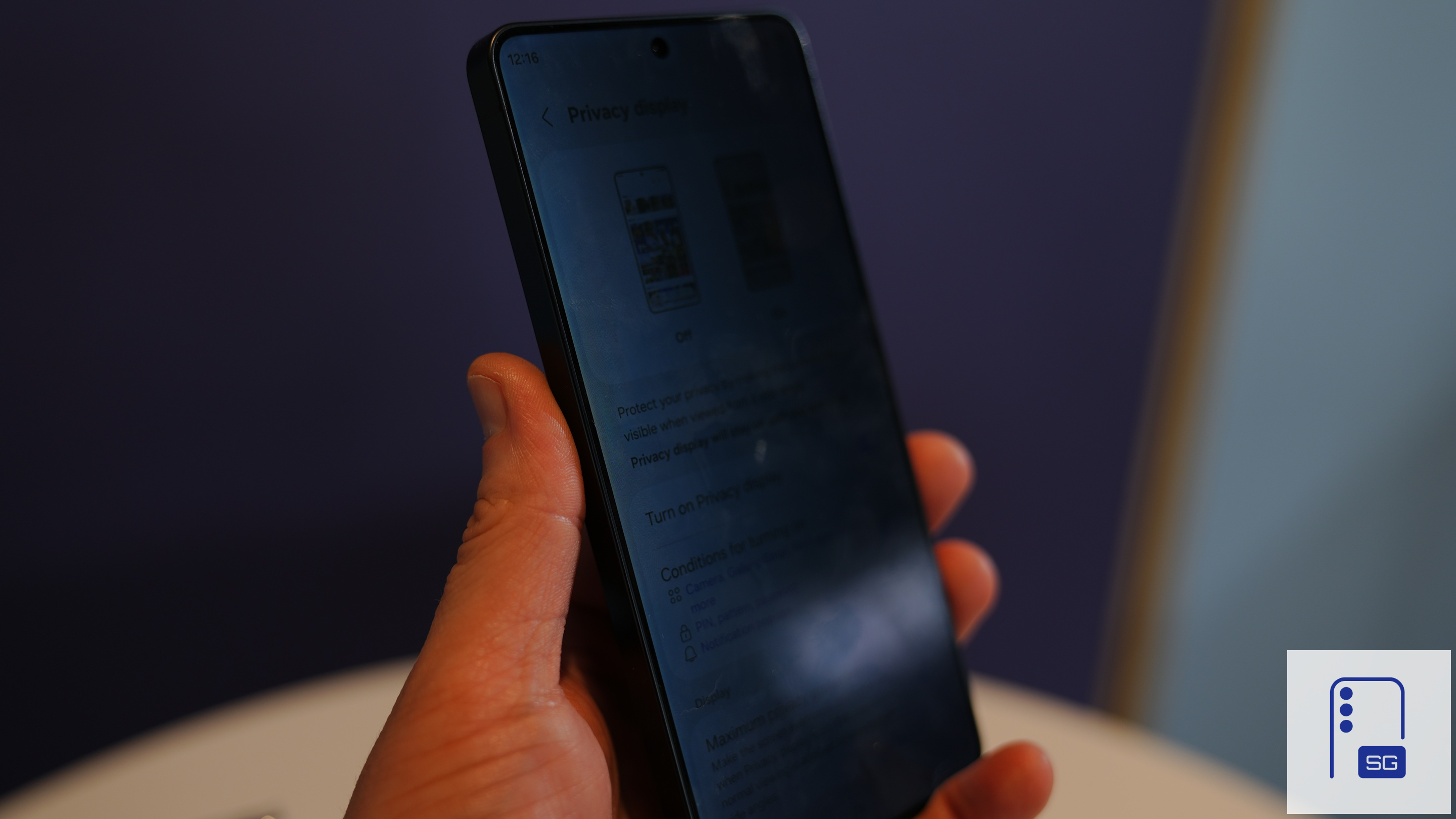
Samsung has been heavily spotlighting Privacy Display in its marketing for the Galaxy S26 Ultra, and for good reason. It tackles a surprisingly common annoyance: people sneaking glances at your screen in public. You do not have to keep the feature enabled all the time or manually turn it on whenever you step outside. Samsung lets you automate Privacy Display using Modes and Routines, so it can turn on and off exactly when you need it. Here’s how to set it up.
This feature has some drawbacks, but it’s no gimmick
Privacy Display is designed to limit viewing angles so that only the person directly in front of the screen can clearly see its contents. Anyone looking from the side sees a dimmed or distorted view, making it far harder for strangers to peek at sensitive information. It’s a perfect solution for using your phone privately in public. Unlike screen protectors that permanently affect display quality, Samsung’s solution is software-driven and can be toggled dynamically.

However, there’s a small trade-off. When Privacy Display is enabled on the Galaxy S26 Ultra, the screen can appear slightly dimmer even when viewed head-on. That makes it less ideal to keep switched on all the time, especially when you’re in a private setting. Thankfully, Samsung has already accounted for this and offers some built-in automation options. Privacy Display can turn on automatically in specific scenarios, such as:
- When opening selected apps like banking or messaging
- During notification pop-ups
- While entering a PIN, password, or pattern
Privacy Display keeps your screen private — do it the smart way with Modes and Routines
Wth Modes and Routines, you can go well beyond these built-in options. You can automate Privacy Display based on contextual triggers like location, time, or connectivity. For example, you can create a routine that turns Privacy Display on the moment you leave home. And when you return, it switches off automatically. No extra effort required.
You can also use your home Wi-Fi network as a trigger, so you don’t have to rely on GPS or location tracking. The moment your phone disconnects, Privacy Display activates. Likewise, you can set the feature to turn on when your phone connects to public Wi-Fi. Other triggers may include entering the workplace (if you do not use public transport for your commute) and Bluetooth connections.
There’s also a time-based approach. If your daily commute happens at fixed hours, you can schedule Privacy Display to turn on during those periods, ensuring your screen is protected when you’re most likely to be in public. You’re not limited to just one condition; you can tailor routines to match your lifestyle. These routines don’t override Samsung’s built-in triggers, so if you already have app-based activation enabled, your automated routines will still function seamlessly.
How to use Modes and Routines?
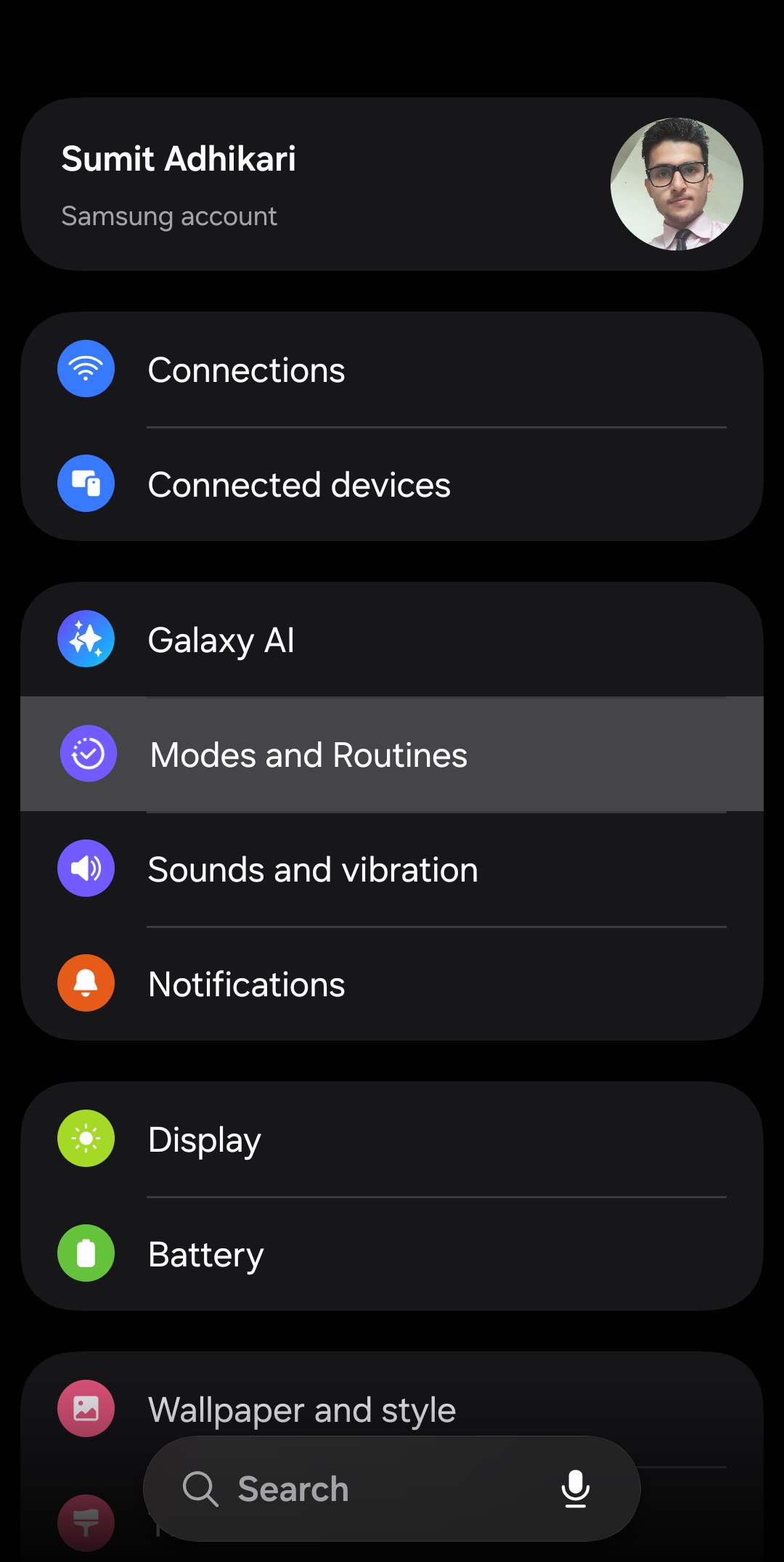
Modes and Routines is a built-in feature on Galaxy phones. You can access it from the Settings app. To configure triggers for Privacy Display, you have to create routines with specific conditions. Simply follow the steps below to create your routines:
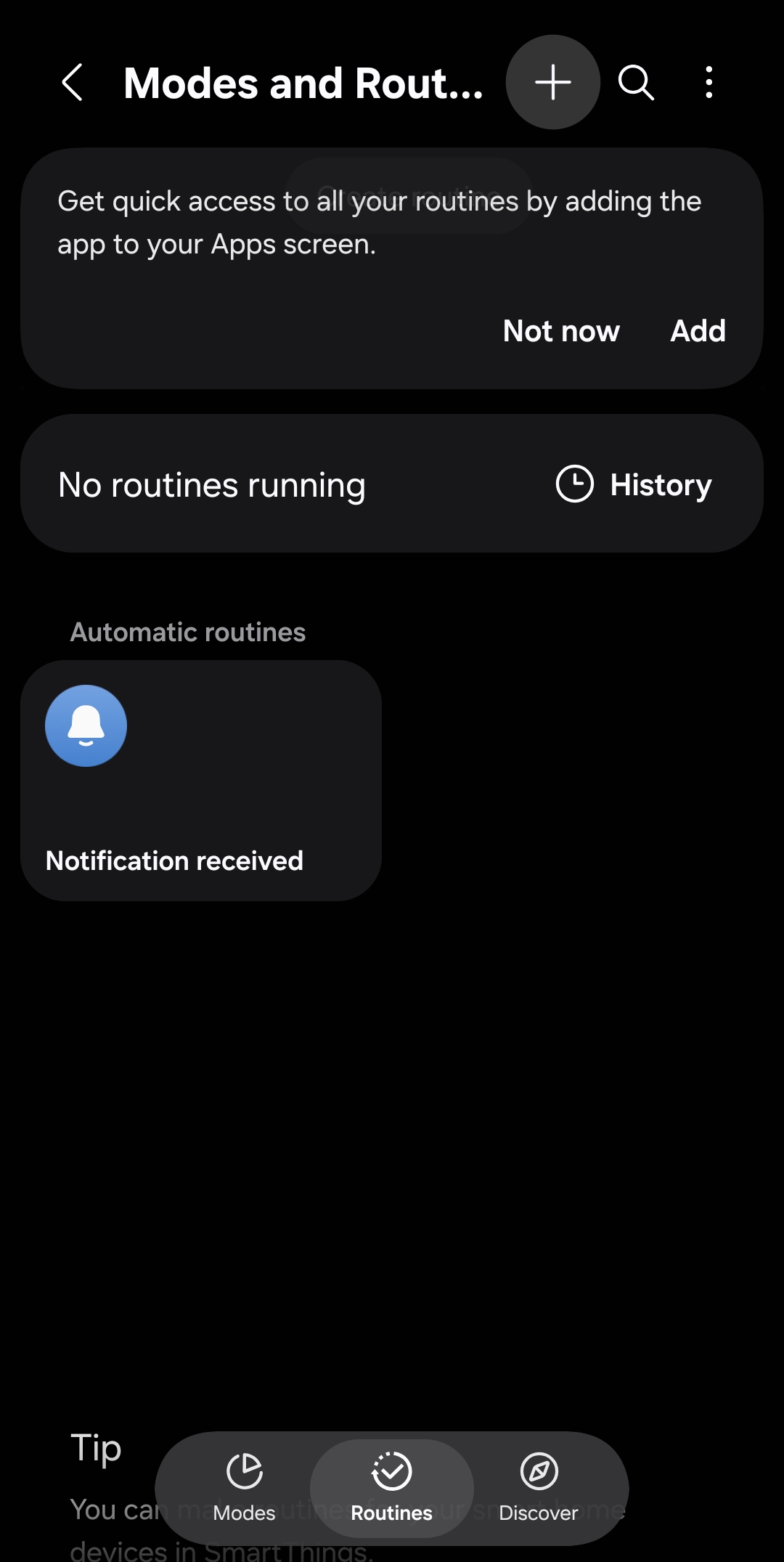
- Open the Settings app, go to Modes and Routines, and select the Routines tab
- Tap the + button in the top right corner to create a new routine
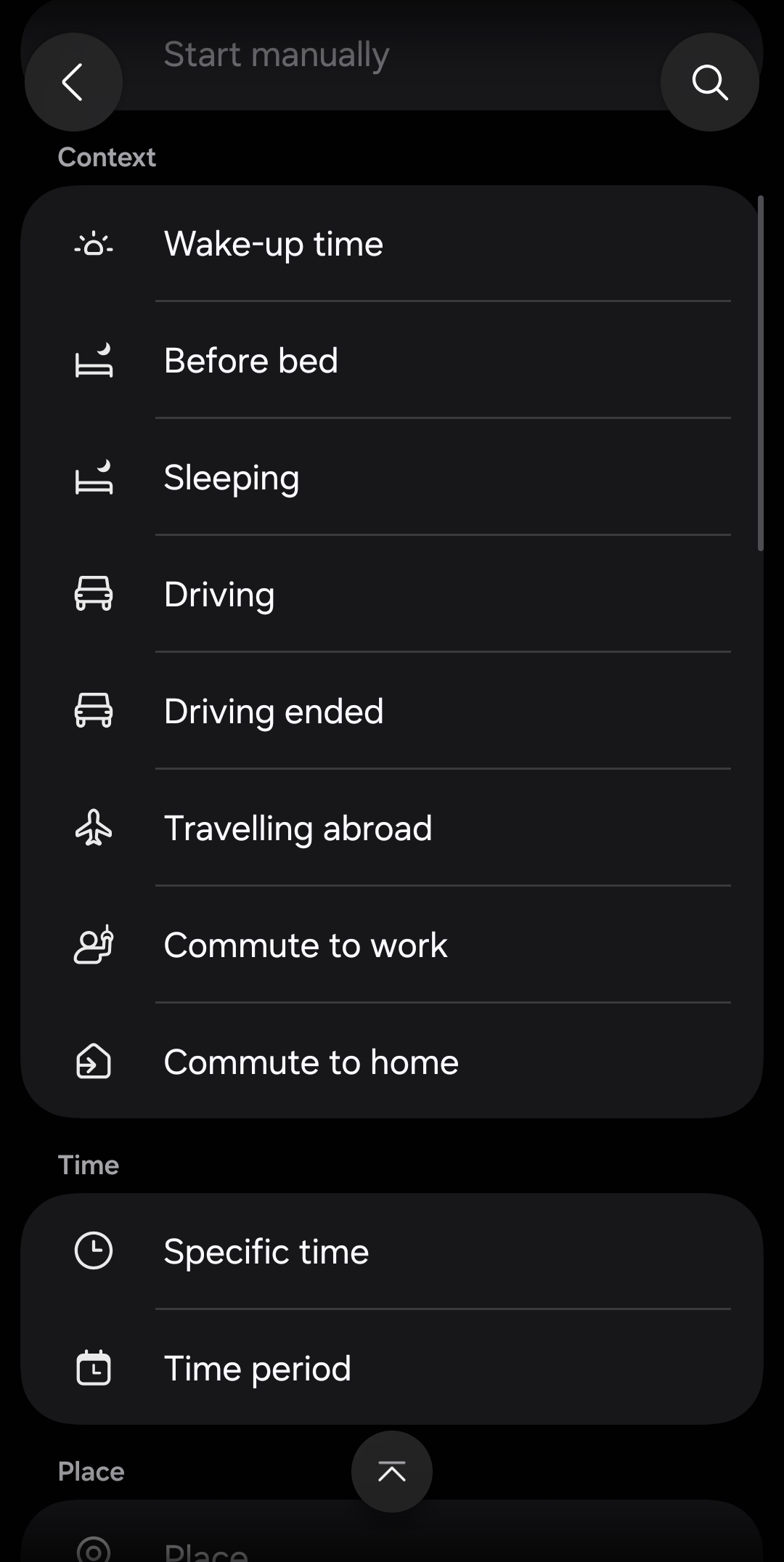
- Tap the + button under If and select a condition (Place, Time, etc.)
- Once you have configured your condition, tap Done to save it
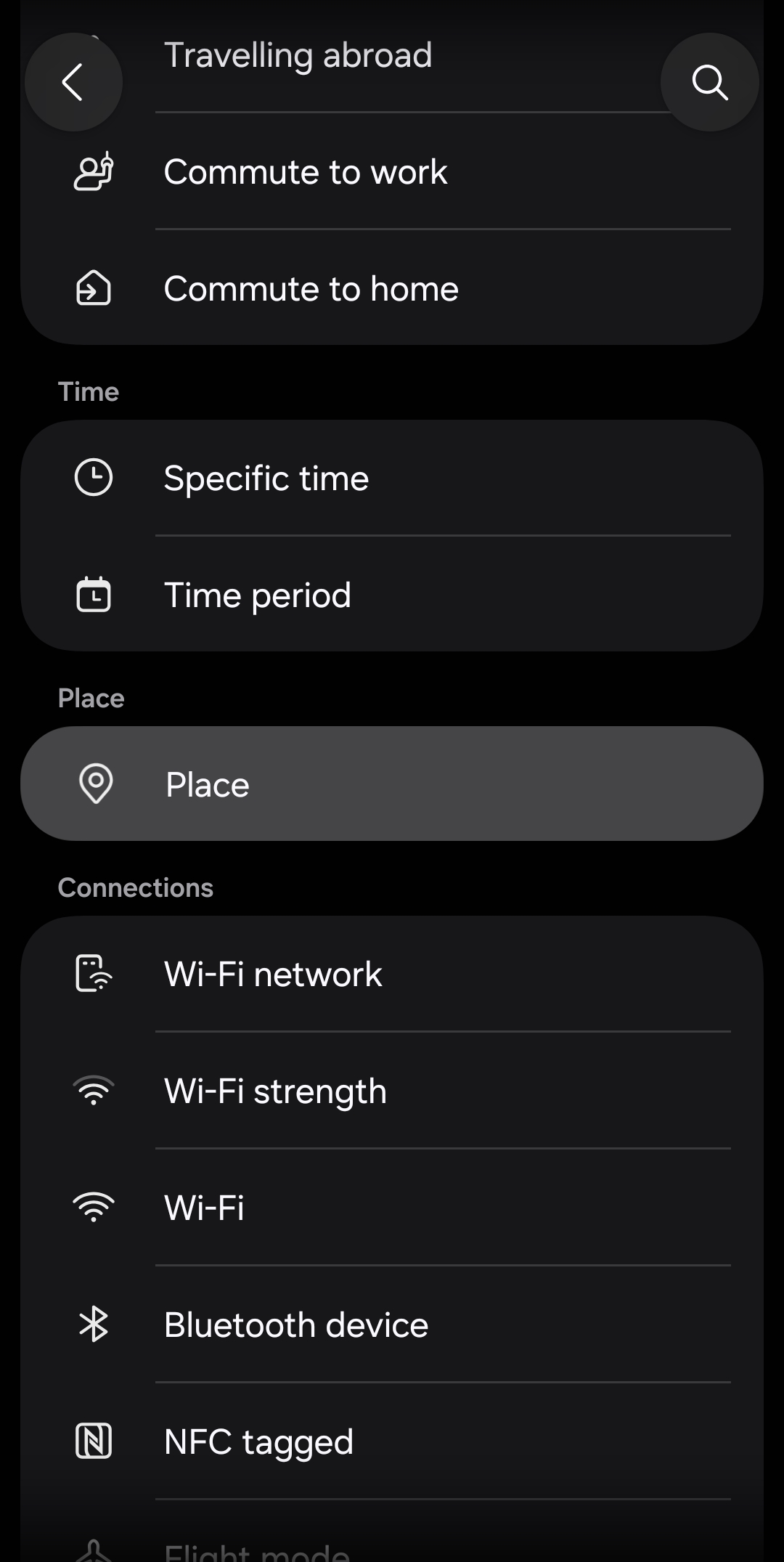
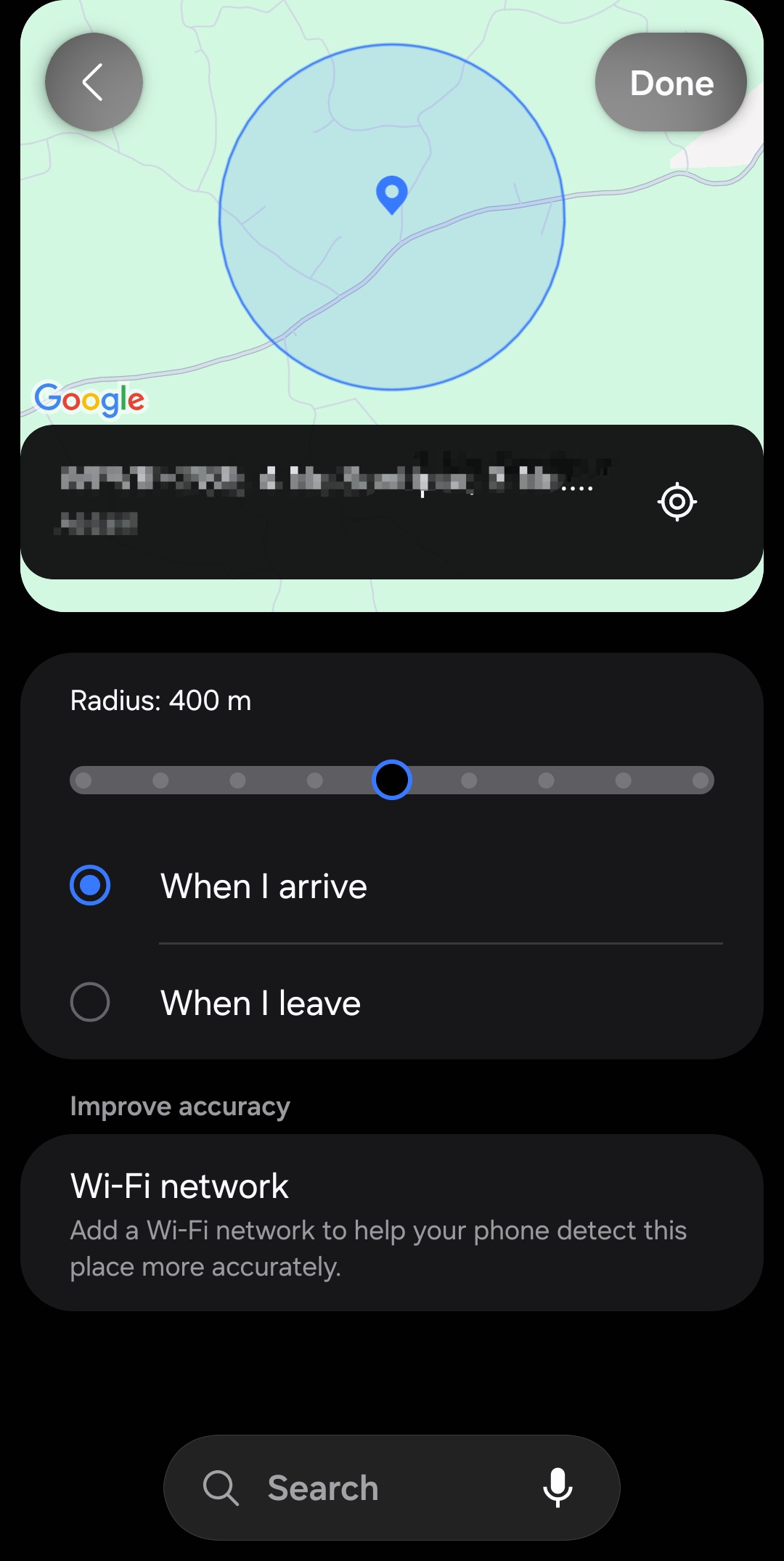
Depending on the condition you select, you will be asked to provide more information. For Place, you can select between your current location, home address, or any other location. Samsung even lets you set a radius around the selected location within which the routine will work. You also have the option to choose whether to trigger Privacy Display when you enter that location or exit it.
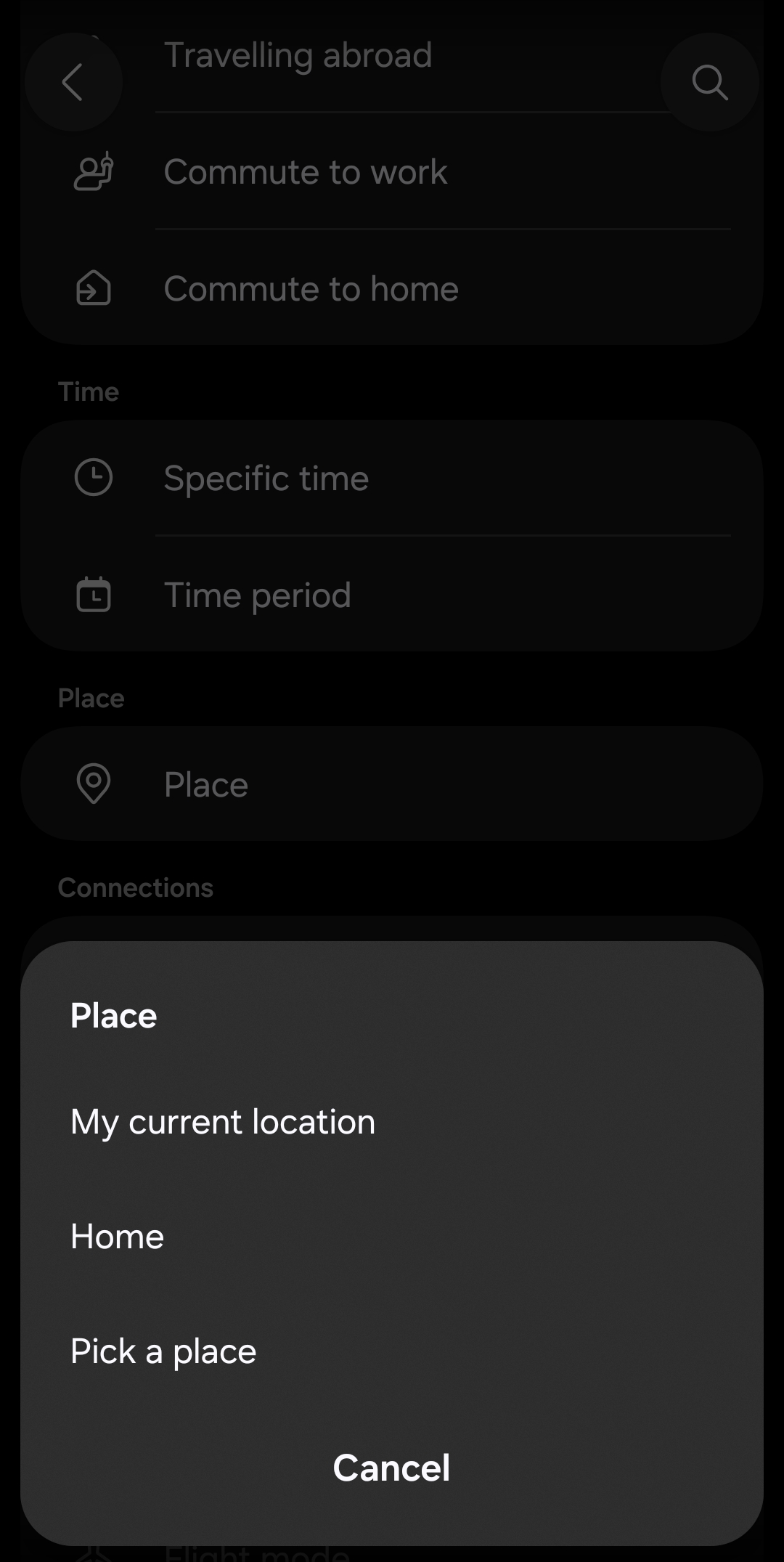
Note that you can add multiple conditions to your routine. So, alongside Place, you can add other conditions, such as Time, Wi-Fi network, Bluetooth device, and more. You have to carefully configure each condition and tap Done to save it.
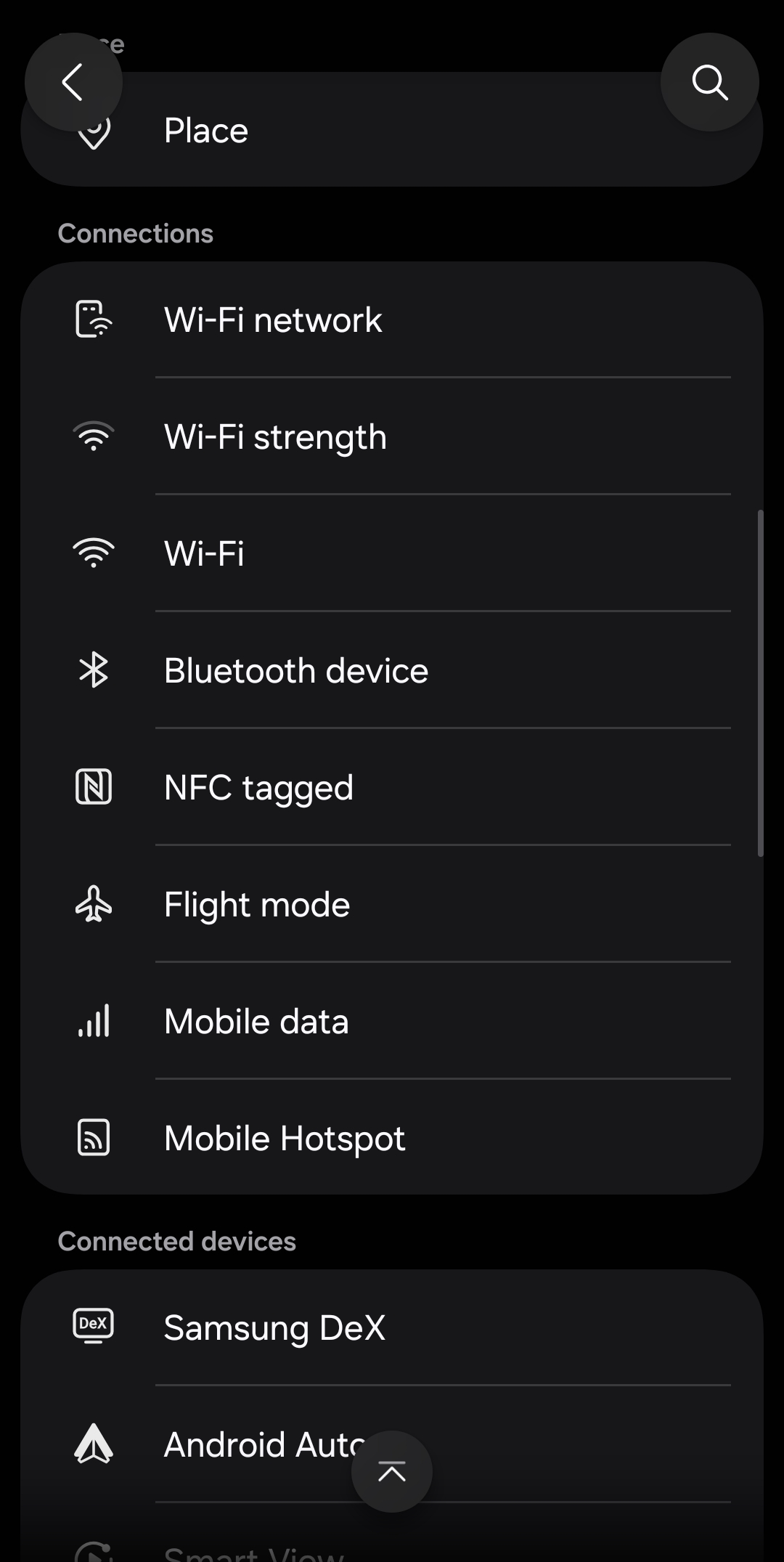
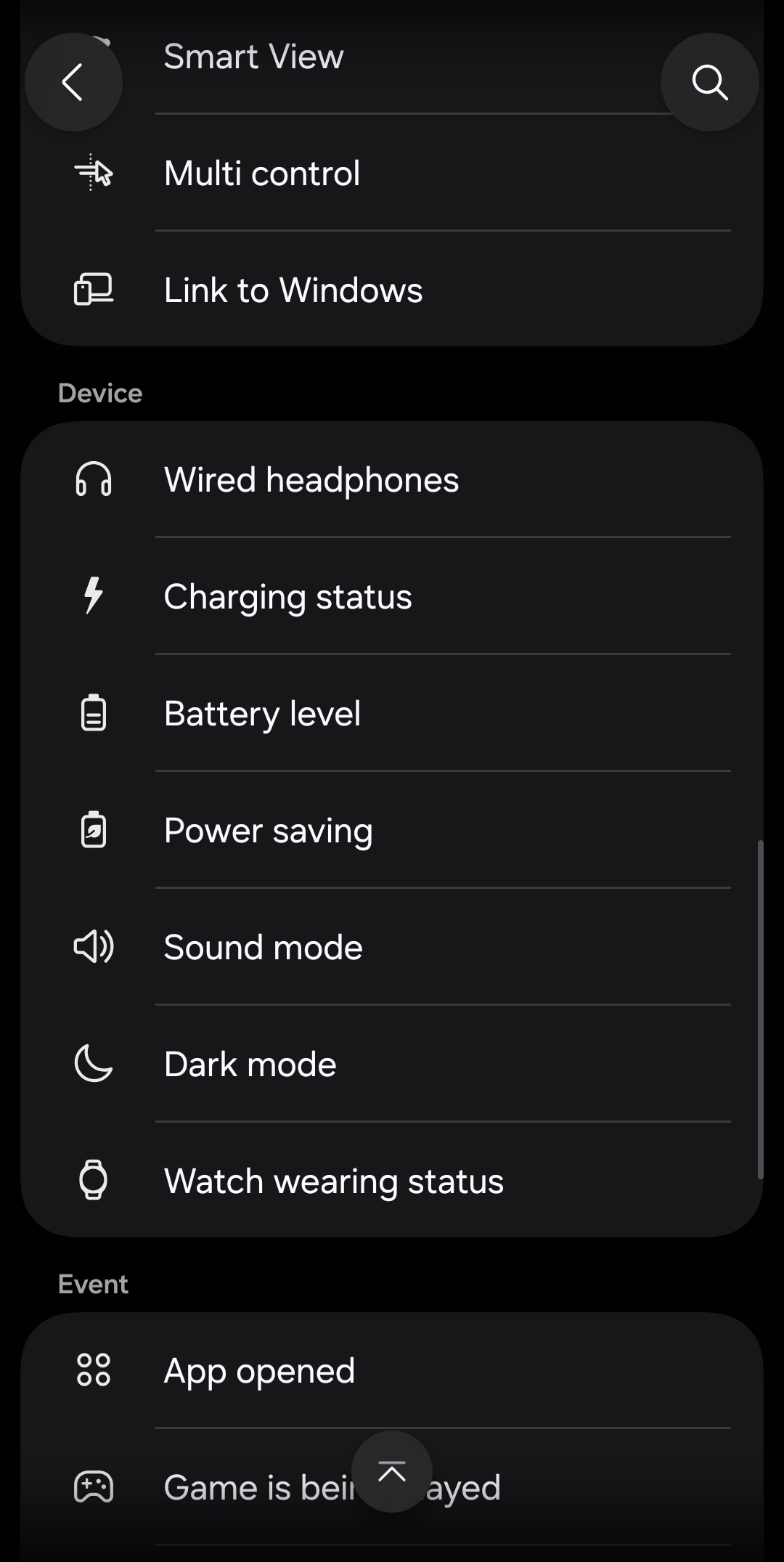
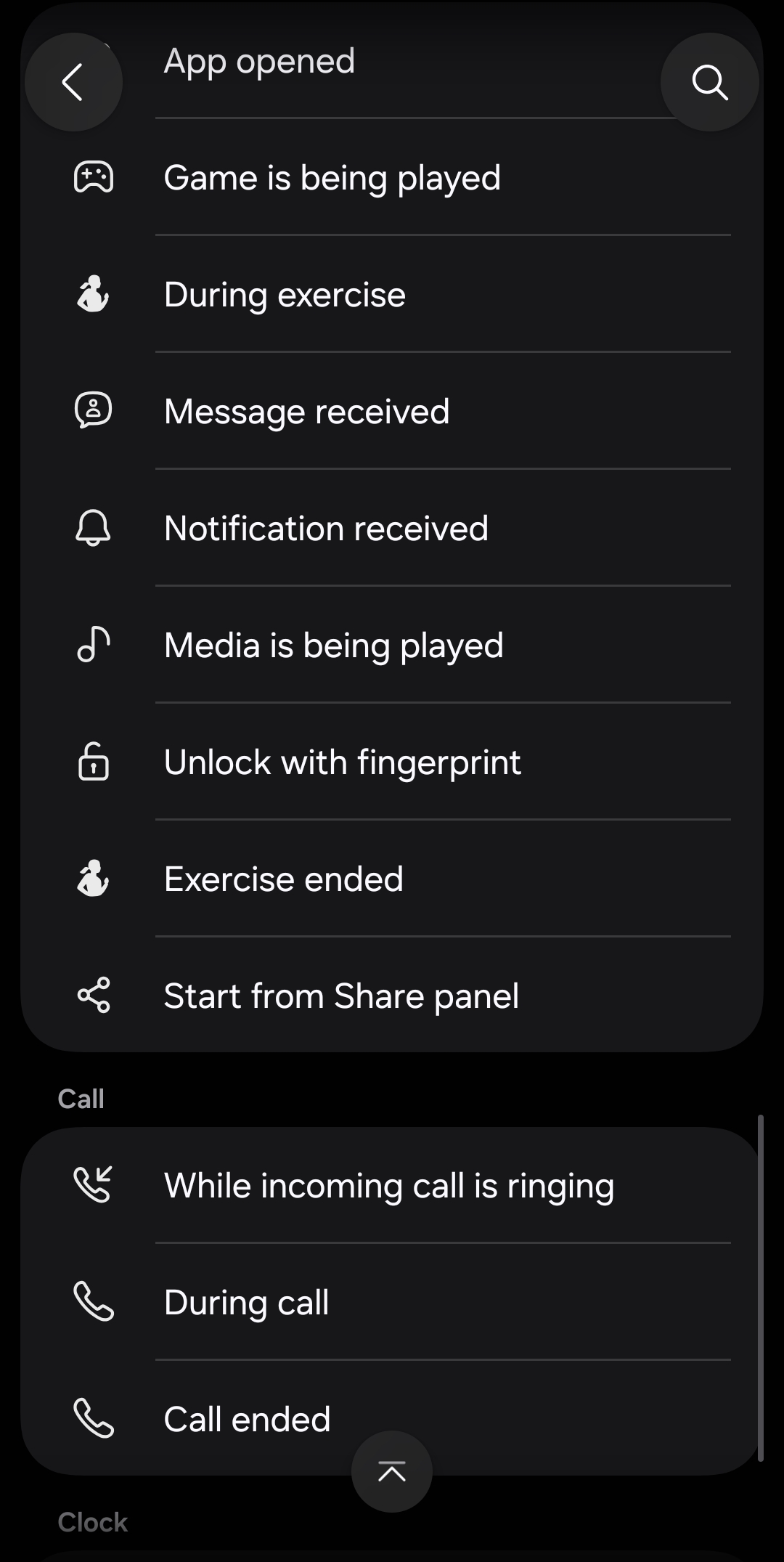
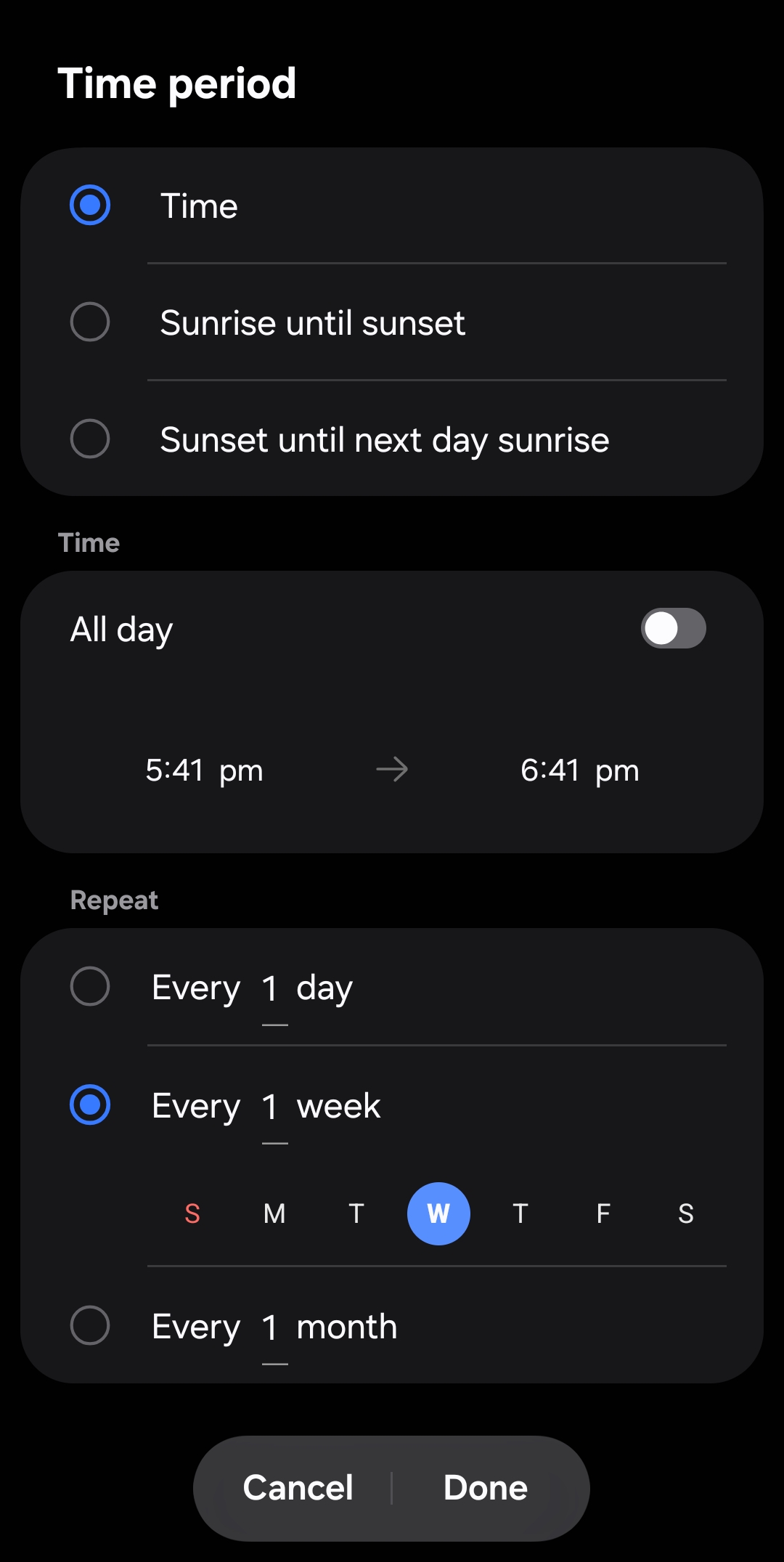
When all conditions are configured, select “When any condition below is met” under If. This is important — otherwise, Privacy Display would turn on only when all the conditions are met at the same time.
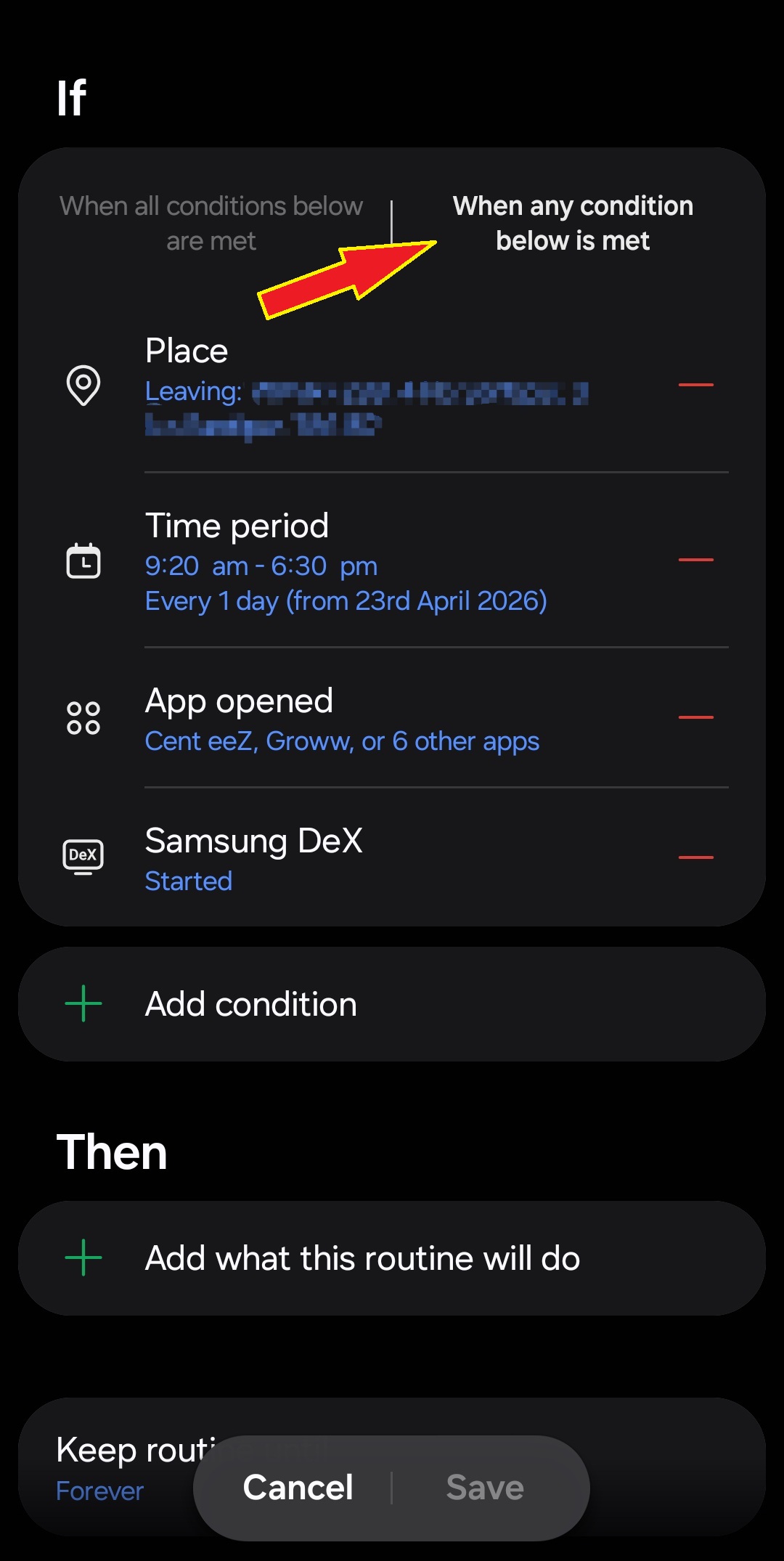
Now, you have to set these conditions to trigger Privacy Display. For that:
- Tap the + button under Then and select Display
- Scroll down and tap Privacy display
- Select On (also enable Maximum privacy protection if you want more screen privacy)
- Tap Done to save
- Tap Save to save your routine (you can name your routine and select a custom icon for it)
- Tap Done to finally save everything
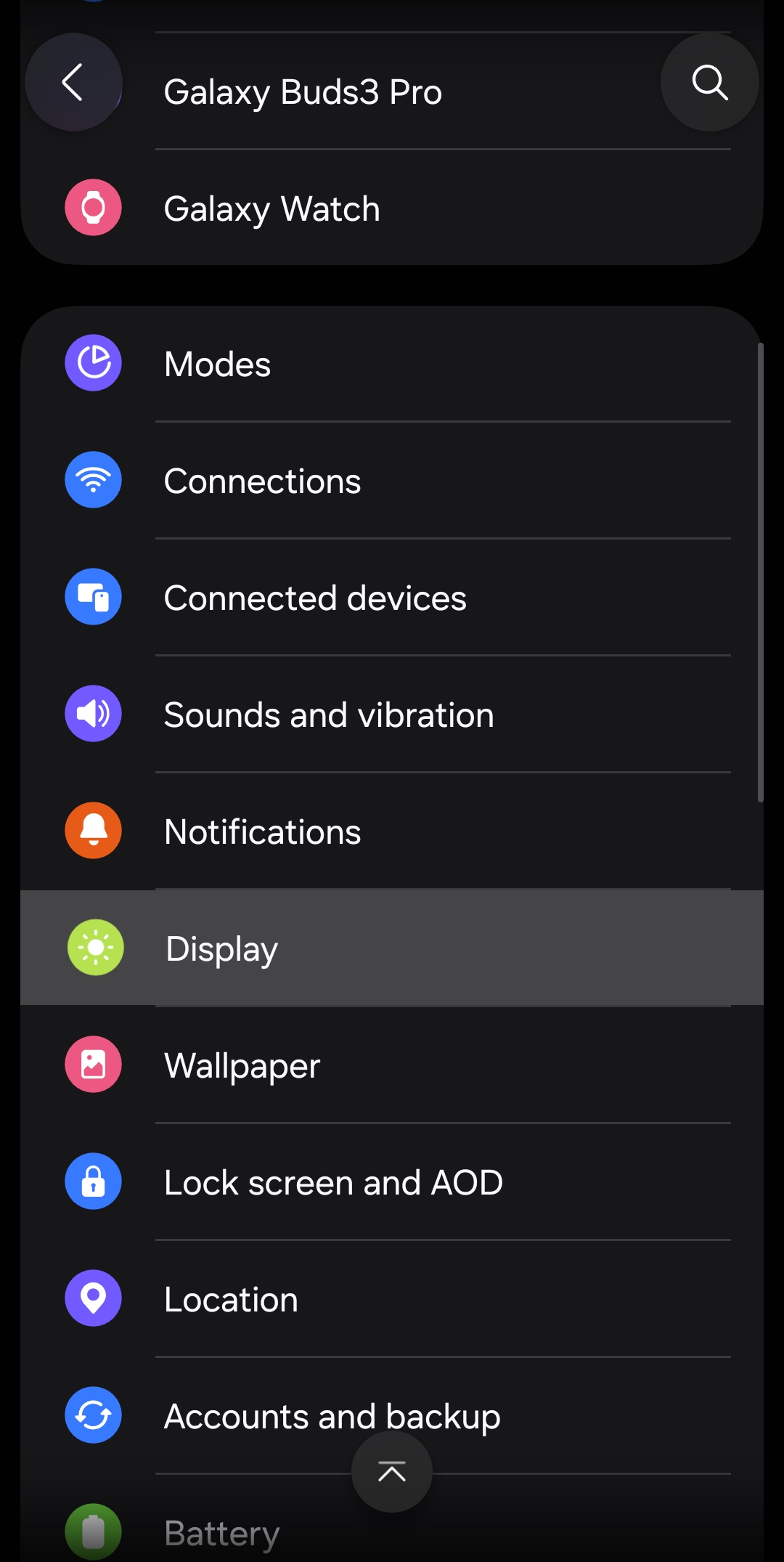
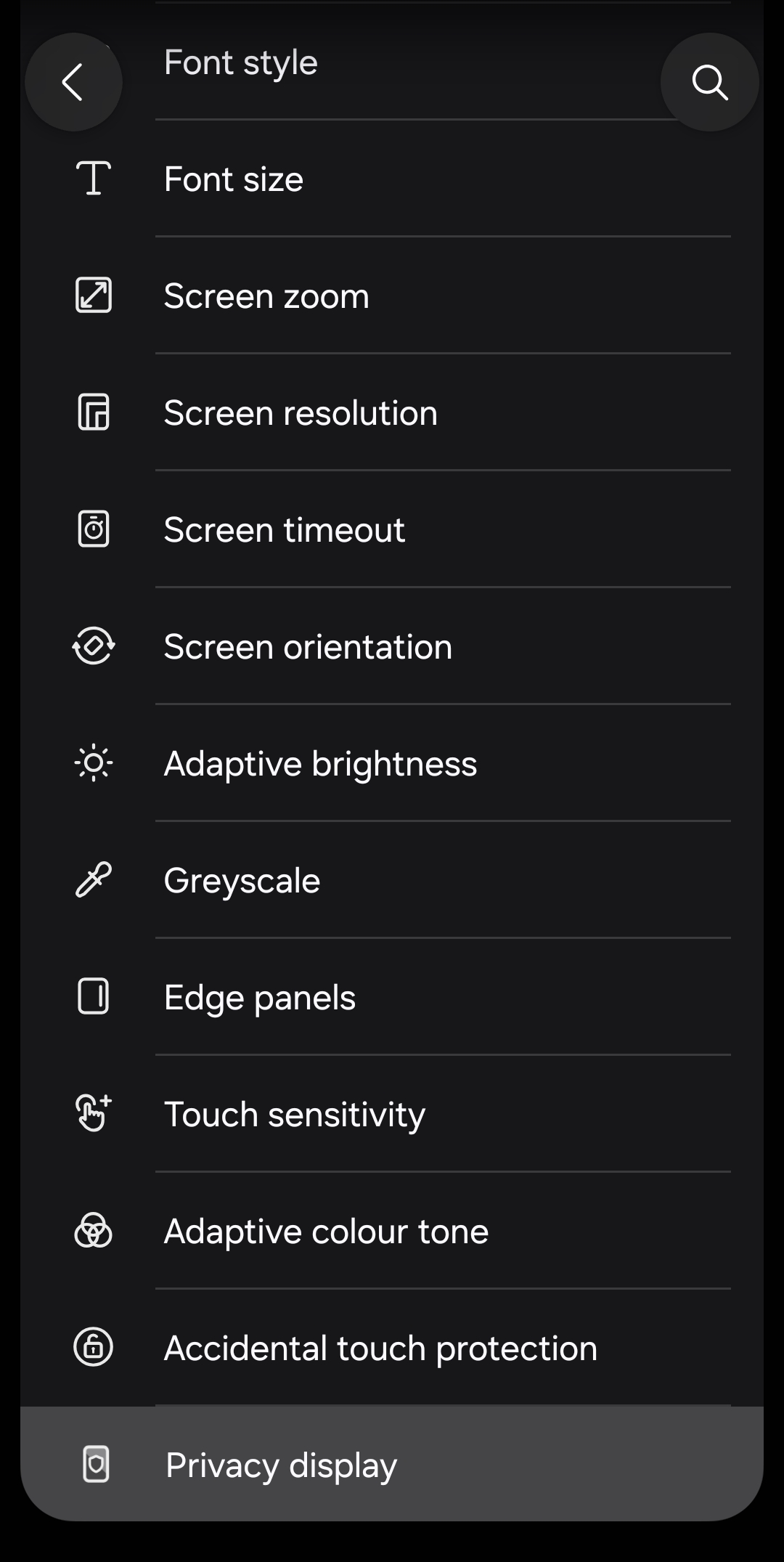
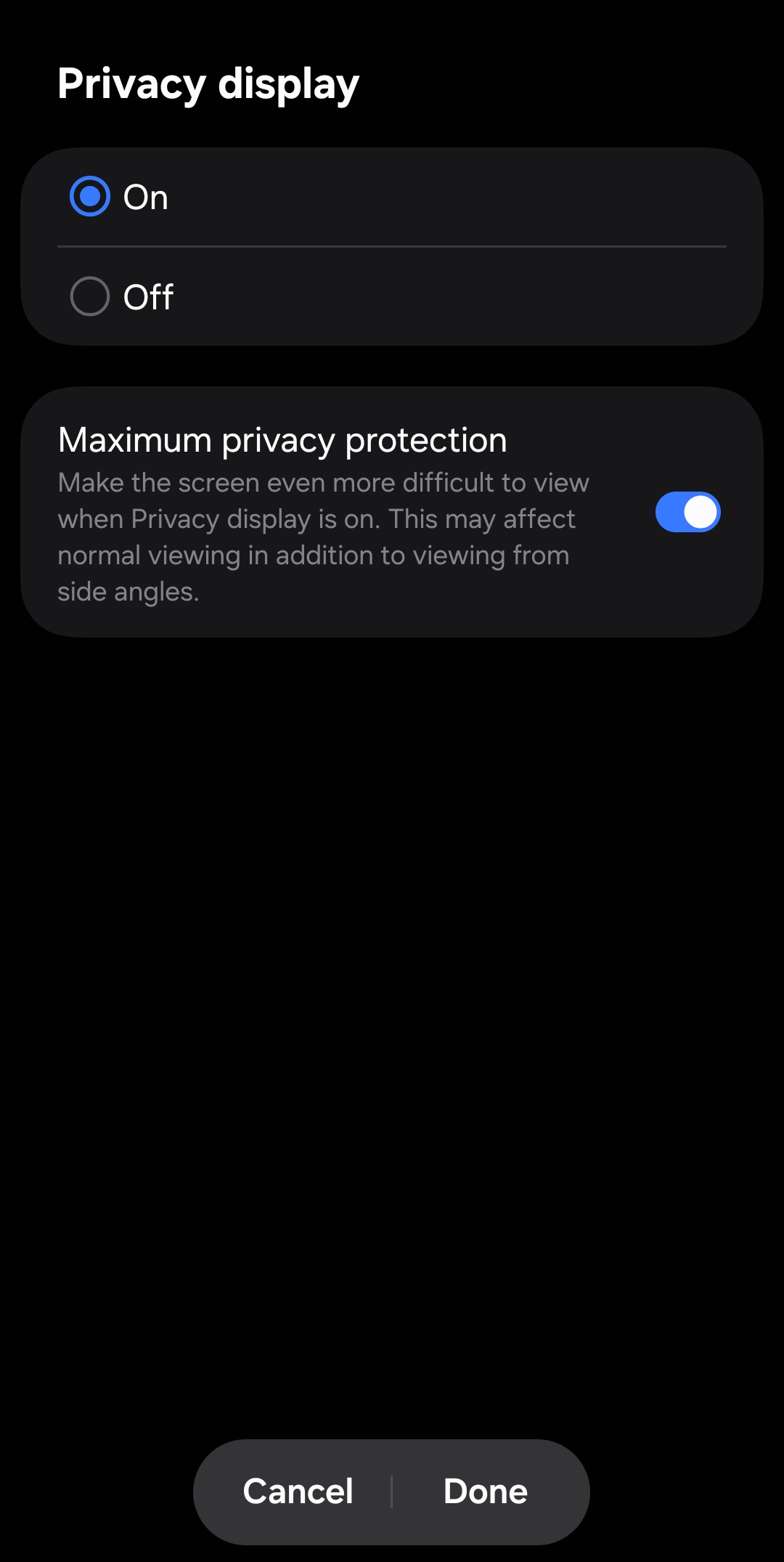
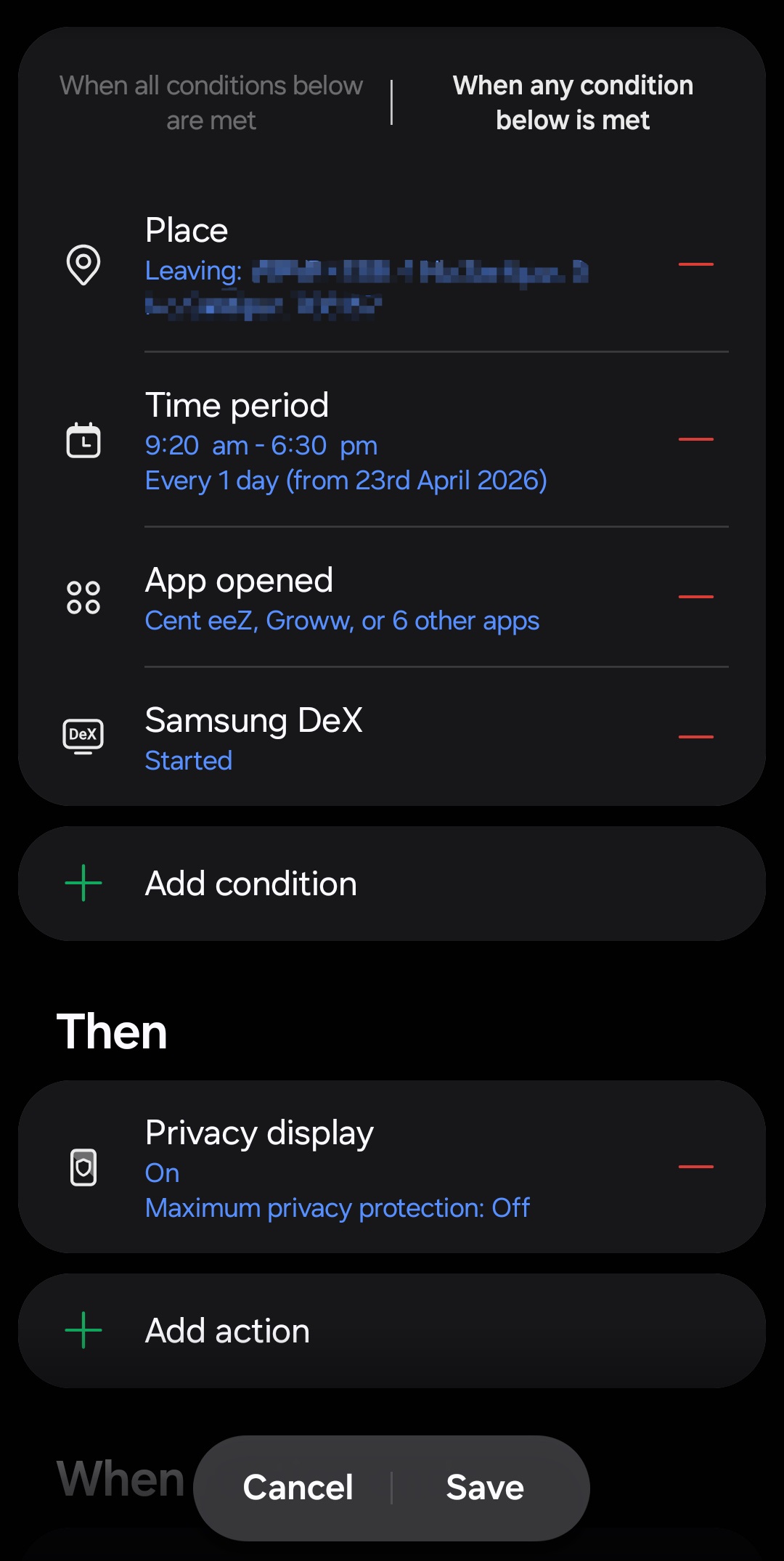
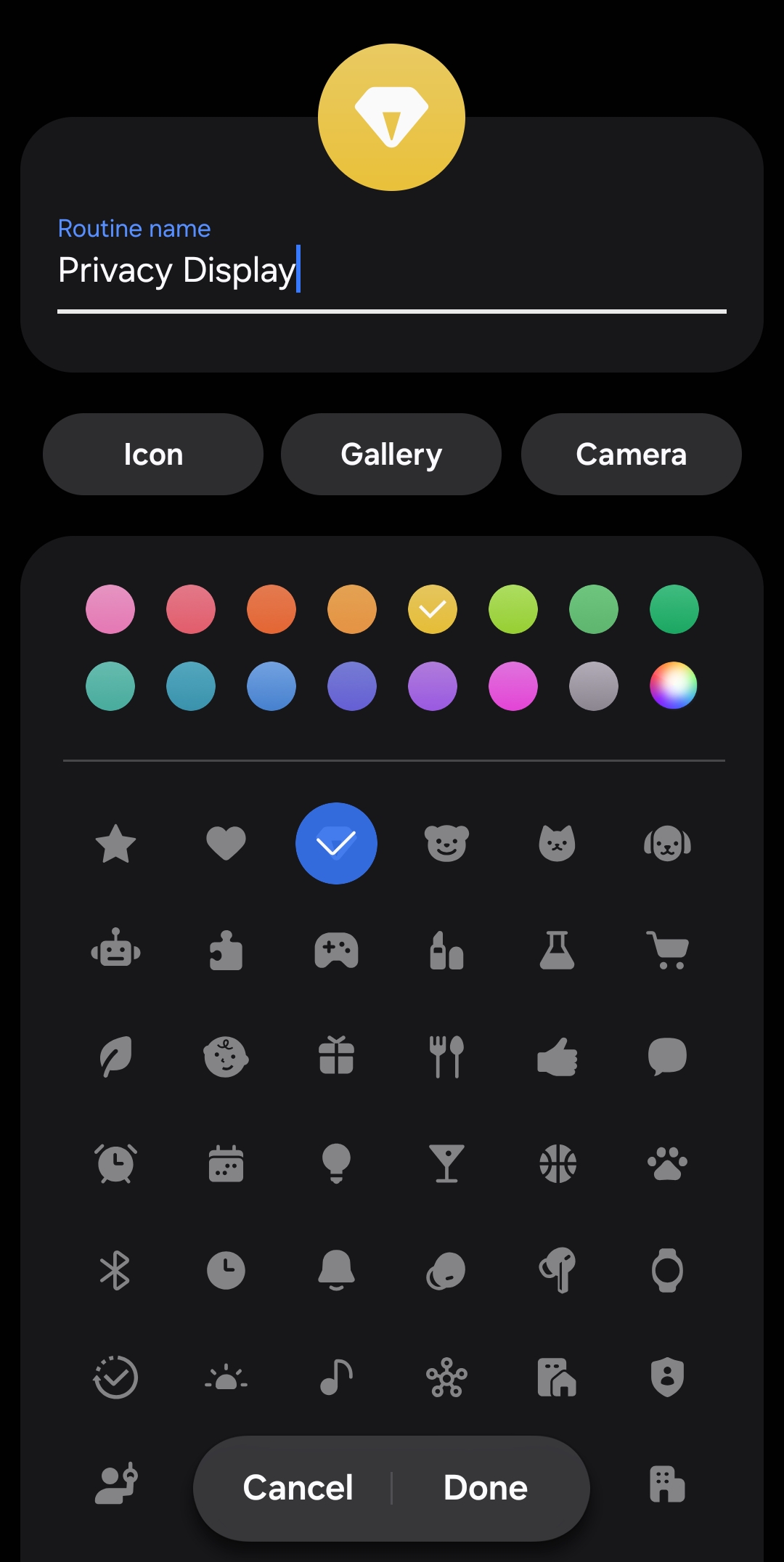
Now, Privacy Display will turn on automatically whenever one of the conditions you selected is met. You can edit your conditions anytime. And of course, you can manually enable or disable Privacy Display, overriding your routine.
No other Galaxy device has Privacy Display
Samsung may let you control Privacy Display using software, but the feature itself is built into the hardware. The Galaxy S26 Ultra’s display uses specific pixel arrangements to block the view when you look at it from side angles. This means One UI 8.5, or any other update for that matter, cannot bring the feature to other devices. Even the Galaxy S26 and S26+ do not have it.
While Samsung may bring Privacy Display to more models in the future, it remains exclusive to the Galaxy S26 Ultra for now. The device is available for purchase on Samsung’s website.

Written by
Sumit AdhikariSumit, a life-long Samsung user, is passionate about technology and has been professionally writing on tech since 2017. He’s a mathematics graduate by education and enjoys teaching basic mathematics tricks to school kids in his spare time. Sumit believes in artificial intelligence and dreams of a fully open, intelligent and connected world.

Follow us on Google Discover & set us as a preferred source in Google News
Share this Post
___________________________


New Blog Posts
___________________________
Galaxy A08 and Galaxy A07s Spotted on Samsung’s Internal Servers
One step closer to launch

Samsung Galaxy Weekly Updates Roundup (June 29-July 5)
Samsung’s update speed saw a brief slowdown this week
Galaxy F70 Pro Spotted on Bluetooth SIG Ahead of Launch
Galaxy F70 Pro set to launch soon