Google Keep Reminders Now Automatically Appear in Tasks

SammyGuru is reader-supported. We have affiliate and sponsored partnerships, so we may earn a commission when you buy through links on our site — at no extra cost to you. Learn more.
Google recently announced that its Keep reminders will now be automatically saved to Tasks. This means you can view Keep reminders in Calendar, Tasks, and even ask the Gemini app about them. The company is gradually making the feature available to Workspace customers, Workspace Individual Subscribers, and users with personal Google accounts.
Google Keep reminders now sync automatically with Tasks
Google Keep lets you note down whatever is on your mind, such as a grocery list, a deadline reminder, or a budding idea. You can organize your thoughts by creating lists, taking photos, recording your voice, or drawing directly in your notes. Furthermore, the platform lets you add time or location-based reminders to any note to get a notification right when you need it.
With the new capability, all reminders you set in Keep will now automatically appear in Tasks. The goal is to make the task management platform the single solution for managing your to-dos across Workspace. “So whether you’re saving something from Keep, Gmail, Calendar, Chat, Docs, or Gemini, Google Tasks will make sure it’s up to date and accessible across the Workspace products you use,” Google wrote in its blog post.

Old vs New
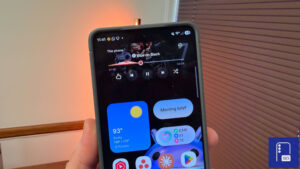
Note that Google Keep will stop sending alerts for your reminders, so make sure you have Calendar or Tasks installed on your device. The company also made a small visual change to the Remind me later menu. Now, when you tap the bell icon on a note, you’ll see a blue Google Tasks icon and a message saying that the system will save reminders in Tasks.
The options for setting reminders, such as Later today, Tomorrow morning, Next [week], and Pick a date & time, are still available. However, the company has removed the ability to set location reminders. While you can change the date or time in Keep, Calendar, Tasks, or Gemini, you can not edit the task’s title in Keep. Moreover, deleting a task in Calendar or Tasks won’t remove the note in Keep.

Written by
Binay KonwarBinay Konwar started his blogging journey in 2014 and has since written plenty of tech articles. At present, he is working as a News Writer at SammyGuru, covering everything about Samsung. He holds a Master's degree in Mathematics, but his real passion lies in tech and writing. In his free time, he enjoys playing chess and watching movies.

Follow us on Google Discover & set us as a preferred source in Google News
Share this Post
___________________________


New Blog Posts
___________________________
Breaking: Samsung Officially Teases New Galaxy Z Fold 8 (Wide)
“New Shape. New Joy” it is!
When I Get Galaxy Glasses, I’ll Want the Galaxy Ring Too
The Ring finds its perfect match
This Galaxy S26 Ultra Deal Lets You Save $350 on Every Color
Who doesn’t love discounts?