Samsung Shares Simple Fix for Galaxy S25 Battery Drain

SammyGuru is reader-supported. We have affiliate and sponsored partnerships, so we may earn a commission when you buy through links on our site — at no extra cost to you. Learn more.
Samsung has finally identified the cause behind the unusual battery drain affecting some Galaxy S25 users on T-Mobile networks in the US. According to the company, the issue is linked to the Mobile Services app, and a temporary fix is already available. Samsung says uninstalling recent updates for the app should immediately improve battery life while it works on a permanent solution through a future update.
Uninstall updates for the Mobile Services app to fix battery drain on your Galaxy S25
A growing number of Galaxy users have recently complained about unusual battery drain. A pattern later emerged that the affected units were primarily Galaxy S25 units on T-Mobile networks. Samsung has now identified the root cause of the problem and outlined a temporary fix for it.
According to an official Samsung moderator in the US community forums, the latest update for the Mobile Services app may have introduced a bug that causes sudden battery drain. The app in question is a system tool that handles network-related services on the device. Uninstalling updates rolls back the app to an older version, effectively freeing your phone from the buggy release.
Samsung hasn’t specified if they are working on a new update for the Mobile Services app to address the bug. However, considering how critical the app is for your phone’s core functionality, it must be actively investigating the issue. For the time being, affected Galaxy S25 users can try the temporary workaround by following the steps below.
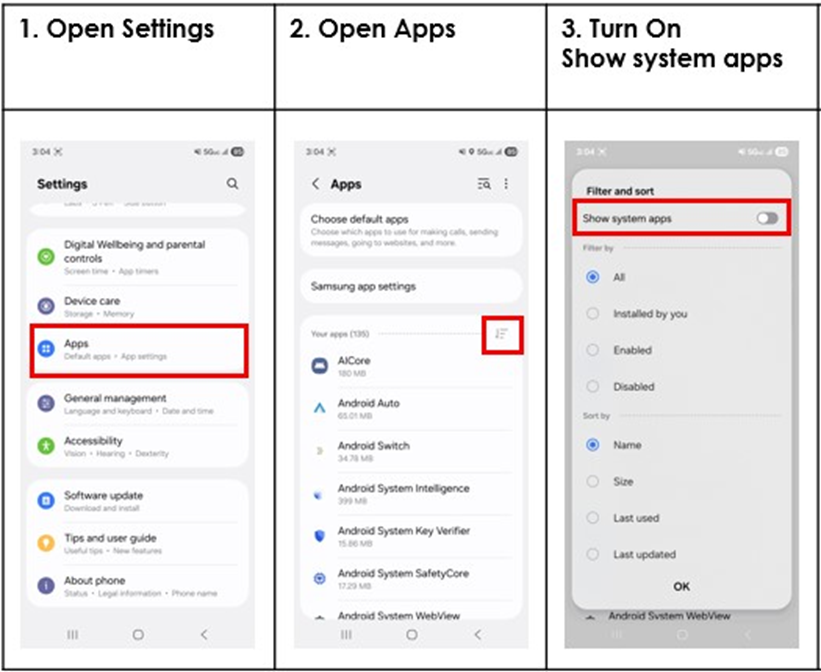
- Open Settings on your Galaxy phone
- Tap Apps
- Press the filter and sort icon near the top-right corner
- Enable Show system apps
- Search for Mobile Services
- Open the app page
- Tap Uninstall updates
- Confirm by selecting OK
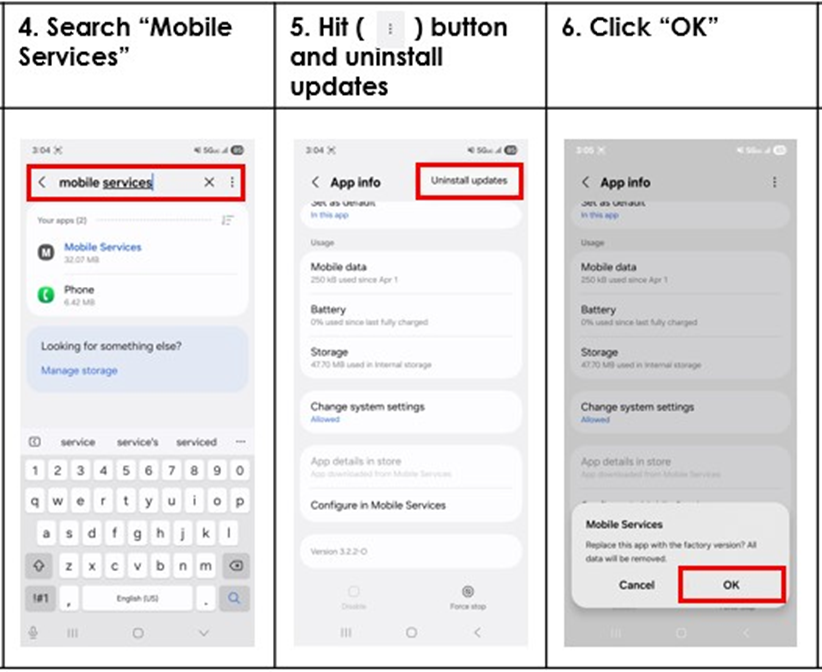
Samsung also suggests taking a screenshot of the app version number before uninstalling updates. After rolling back, users can compare the version number to make sure the downgrade worked correctly. Hopefully, Samsung won’t take long to roll out a permanent fix. Since this is a system app, new updates may be installed automatically when available.

Written by
Sumit AdhikariSumit, a life-long Samsung user, is passionate about technology and has been professionally writing on tech since 2017. He’s a mathematics graduate by education and enjoys teaching basic mathematics tricks to school kids in his spare time. Sumit believes in artificial intelligence and dreams of a fully open, intelligent and connected world.

Follow us on Google Discover & set us as a preferred source in Google News
Share this Post
___________________________


New Blog Posts
___________________________
Gemini Live Can Now Remember Your Past Conversations
You can now personalize your chat experience in Gemini Live
Google Shares Timeline for Android Sideloading Protections
Major app stores will get Android’s developer verification system
US Senator’s AI Plan Could Pay Americans Thousands Annually
US Senator wants AI profits shared with users