Which Galaxy Devices Support Quick Share with iPhones?

SammyGuru is reader-supported. We have affiliate and sponsored partnerships, so we may earn a commission when you buy through links on our site — at no extra cost to you. Learn more.
Sharing files between Galaxy phones and iPhones is now seamless thanks to Quick Share’s AirDrop support (available with One UI 8.5). The new feature lets Galaxy devices send files directly to nearby iPhones without depending on complicated workarounds. However, this capability is available on select Galaxy models, which you can see below.
These Galaxy devices support iPhone file sharing
Previously, Quick Share allowed Galaxy devices to transfer photos, videos, and other files with Android devices and Windows PCs. However, Samsung recently expanded the feature to support file sharing with iPhones through AirDrop. While this makes cross-platform transfers much easier, not all Galaxy models can take advantage of it.
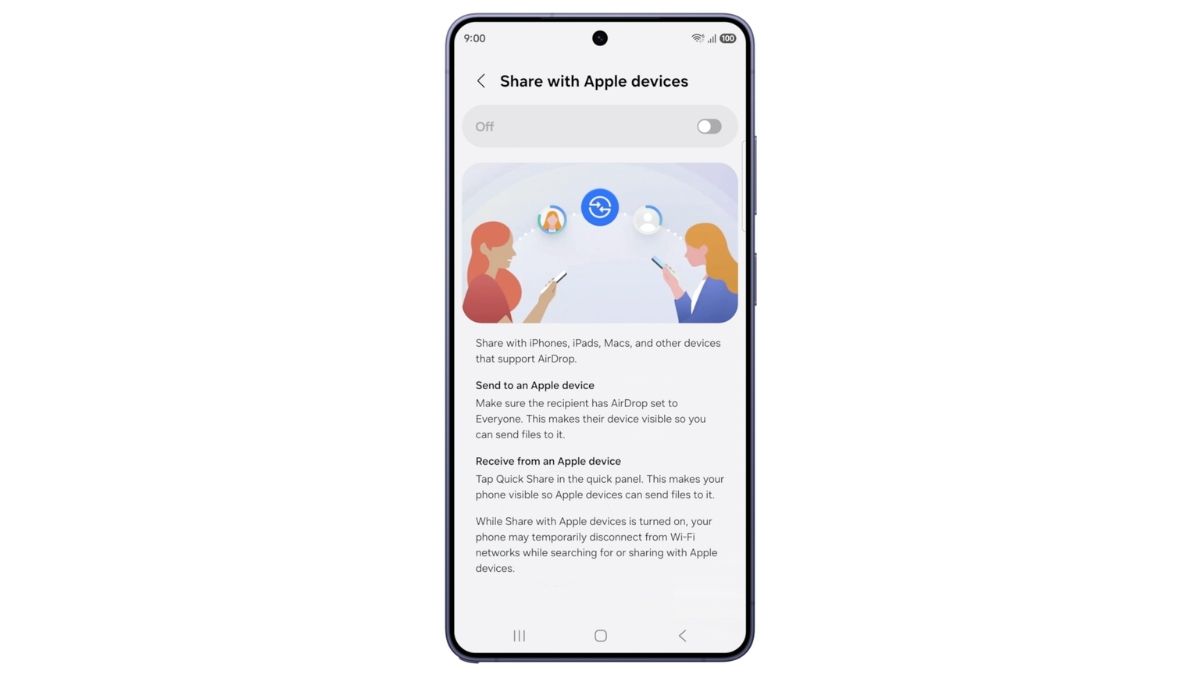
Samsung’s latest Galaxy S26 series was the first to receive AirDrop compatibility via Quick Share. The company later expanded the feature to other eligible Galaxy models with the One UI 8.5 update. To check whether your device supports it, head over to the Quick Share Settings page and then look for the “Share with Apple devices” option. If the option is available, your Galaxy device is ready to send files directly to nearby iPhones. Here is the list of Galaxy devices that support Quick Share file transfers with iPhones.
Galaxy S series
- Galaxy S26, S26+, S26 Ultra
- Galaxy S25, S25+, S25 Ultra, S25 Edge
- Galaxy S24, S24+, S24 Ultra
Galaxy Z Flip series
- Galaxy Z Flip 7, Z Flip 6
Galaxy Z Fold Series
- Galaxy Z Fold 7, Z Fold 6, Z Fold 6 (Special Edition)
Other model
- Galaxy Z TriFold
Surprisingly, older premium devices such as the Galaxy S23 Ultra are missing from the list. It looks like the feature may need specific hardware capabilities, meaning Samsung cannot solely depend on software tweaks. If the Korean firm brings the feature to more devices in the future, we will update this list.
To initiate file sharing, make sure the iPhone user is within Bluetooth range and has AirDrop visibility set to Everyone for 10 Minutes. Now open the file you want to share on your Galaxy device, tap Share, and then select Quick Share. From there, pick the nearby iPhone to begin the transfer (the iPhone user will need to accept the prompt).

Written by
Binay KonwarBinay Konwar started his blogging journey in 2014 and has since written plenty of tech articles. At present, he is working as a News Writer at SammyGuru, covering everything about Samsung. He holds a Master's degree in Mathematics, but his real passion lies in tech and writing. In his free time, he enjoys playing chess and watching movies.

Follow us on Google Discover & set us as a preferred source in Google News
Share this Post
___________________________


New Blog Posts
___________________________

Chip Giants Samsung and SK Hynix Consider Fresh Investments
This is due to the robust demand for high-performance chips
One UI 8.5 Stable Now Rolling Out to These Galaxy Devices
The update should expand to more budget and midrange models soon

Leaks Reveal More About Upcoming Galaxy Foldables as Samsung Clears Regulatory Hurdles
Fold 8 Ultra’s display could see a significant resolution boost