Samsung Shows AC Feature Using Galaxy Watches for Better Sleep
SammyGuru is reader-supported. We have affiliate and sponsored partnerships, so we may earn a commission when you buy through links on our site — at no extra cost to you. Learn more.
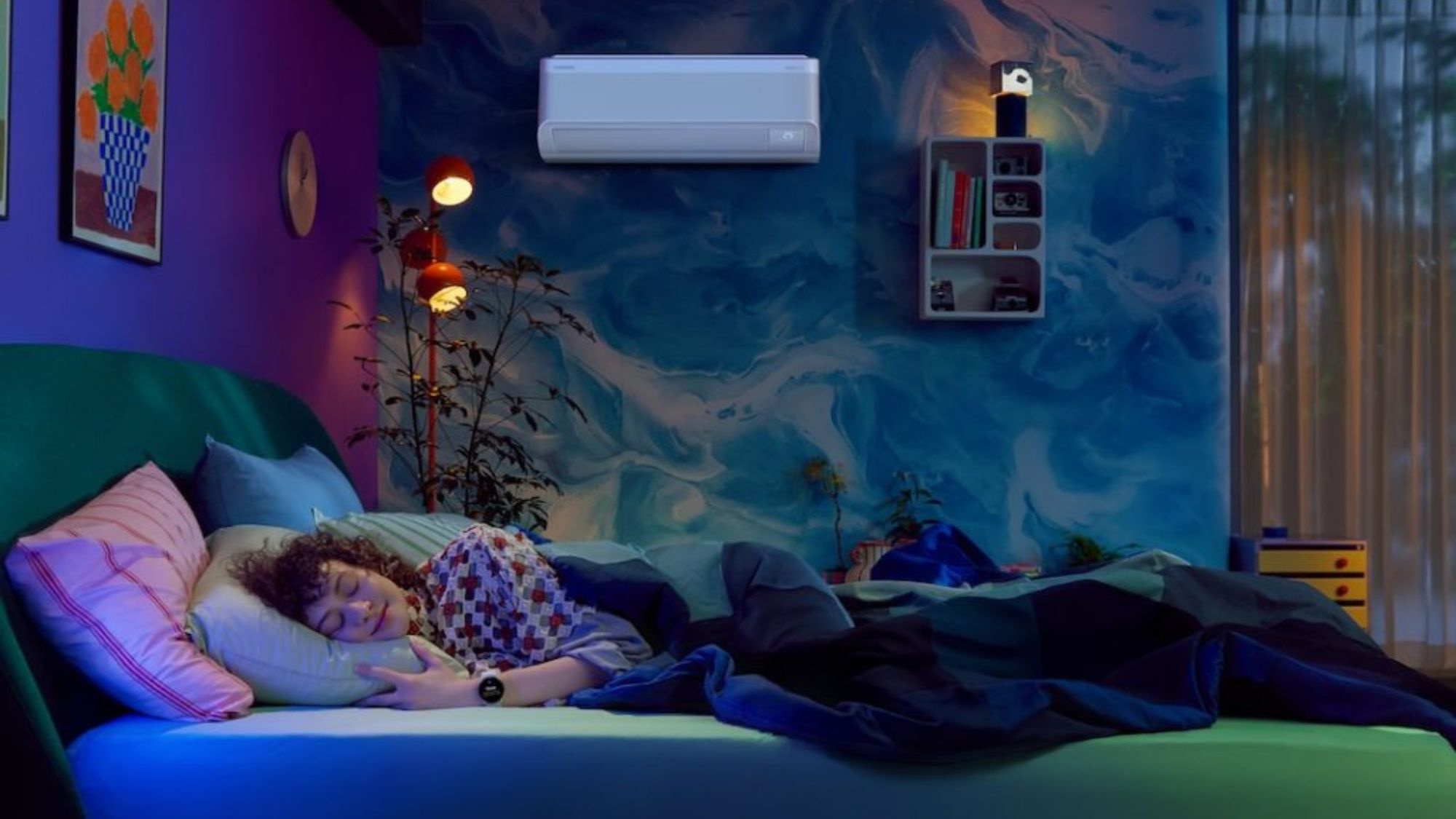
Samsung continues to implement AI into its home appliances to improve day-to-day life. The company recently highlighted an exciting feature that connects its air conditioner with the Galaxy Watch. This allows the AC to automatically adjust the room temperature depending on your sleep patterns.
How the WindFree Good seep mode works on Samsung ACs
In a promotional video, Samsung showed how its Bespoke AI WindFree air conditioner plays nicely with the Galaxy Watch to create a comfortable sleeping environment. The company pointed out the WindFree Wearable Good Sleep mode of the Bespoke AI WindFree.
The system uses your Galaxy Watch to detect when you are asleep (as well as determine your sleep pattern) and automatically turns on WindFree Cooling to adjust the cooling performance. As a result, you can enjoy an ideal climate for a deep, relaxing sleep throughout the night.
This comes in handy if you often struggle to sleep with changing room temperatures during the night. Thankfully, with Bespoke AI WindFree, you don’t need to manually adjust the temperature using the remote. As poor sleep impacts daily routines and overall mood, a stable sleeping environment becomes essential. Samsung addresses these annoyances with automation instead of manual control.
The feature adjusts the temperature at different stages of sleep, such as brain wave patterns, eye movements, and body temperature. It works through Samsung’s SmartThings platform, which connects smart devices in the home. Once it detects that you have fallen asleep, it sends a signal to the air conditioner, triggering Good Sleep mode.
To use the feature, you will first need to install the SmartThings app on your wearable (Galaxy Watch 4 or later, Fit 3 or later, Galaxy Ring) and connect your air conditioner to your home Wi-Fi network. Now you can configure it in the Samsung Watch app’s “Sleep well with smart devices.” OR, you can follow this path: Settings > Modes and Routines > Sleep. Finally, wear the device while sleeping, and the system will work automatically in the background.

Written by
Binay KonwarBinay Konwar started his blogging journey in 2014 and has since written plenty of tech articles. At present, he is working as a News Writer at SammyGuru, covering everything about Samsung. He holds a Master's degree in Mathematics, but his real passion lies in tech and writing. In his free time, he enjoys playing chess and watching movies.

Follow us on Google Discover & set us as a preferred source in Google News
Share this Post
___________________________


New Blog Posts
___________________________
Miss the Rotating Bezel? Galaxy Watch 8 Classic Is Now Half Off
A deal that’s hard to ignore
Samsung Could Benefit as Global Wearable Market Shrinks in 2026
Premium smartwatches are still growing, and that’s good news for Samsung
Galaxy S23 Gets July 2026 Update in More Regions, Galaxy A27 Gets First Update
Samsung has already begun One UI 9 testing for these models