Samsung Notes Secretly Lets You Drag and Reposition the Toolbar
SammyGuru is reader-supported. We have affiliate and sponsored partnerships, so we may earn a commission when you buy through links on our site — at no extra cost to you. Learn more.
Samsung Notes is packed with useful features, including a surprisingly quick customization option. You can move the toolbar anywhere on the screen, and you don’t have to dive deep into the app’s settings for it. This feature existed for a while, yet many Galaxy users still have no idea it’s there because it remains hidden in plain sight.
It’s surprisingly easy to move the Samsung Notes toolbar
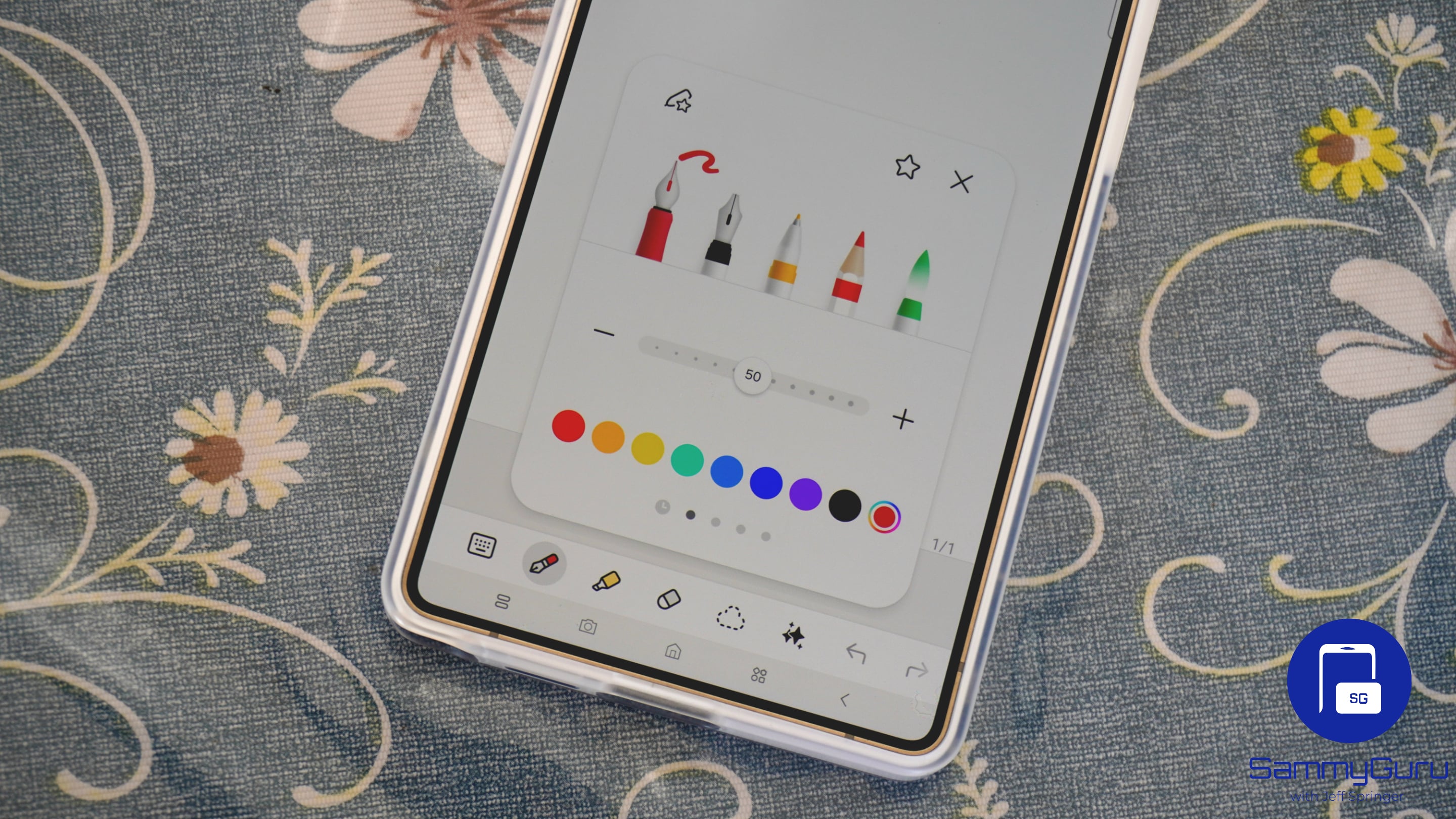
Depending on the One UI version of your Galaxy device, the toolbar on Samsung Notes could be at the top or bottom of the screen. If you’ve ever wished you could move it to somewhere else, you probably searched through the app’s settings menu and came away disappointed. While you can customize a lot of things in settings, including the arrangement of tools in the toolbar, there’s no option to move its position.
The good news is that you actually can reposition the toolbar in Samsung Notes. Even better, you don’t need to enable anything or dive into hidden menus. All you need to do is tap and hold the toolbar area, then drag it wherever you want. You move the toolbar to the top or bottom of the screen, or leave it floating freely anywhere on the display.

The floating mode is especially useful on tablets or foldables, where users often work in landscape orientation and may want quicker access to writing tools without stretching across the screen. As mentioned above, you can go into settings to customize the toolbar itself, so your most used tools are easily reachable.
Samsung Notes has evolved far beyond a simple note-taking app over the years. Features like AI-powered Note Assist, PDF annotation, audio syncing, handwriting-to-text conversion, math solving, and cross-device syncing have already made it one of Samsung’s strongest first-party apps. This hidden toolbar customization is another reminder that some of the app’s smartest features are the easiest to overlook.

Written by
Sumit AdhikariSumit, a life-long Samsung user, is passionate about technology and has been professionally writing on tech since 2017. He’s a mathematics graduate by education and enjoys teaching basic mathematics tricks to school kids in his spare time. Sumit believes in artificial intelligence and dreams of a fully open, intelligent and connected world.

Follow us on Google Discover & set us as a preferred source in Google News
Share this Post
___________________________


New Blog Posts
___________________________

Samsung’s Odyssey G8 Will Power Crimson Desert Demos at Gamescom 2026
In Cologne, August 36-August 30
Galaxy S25+ and Galaxy Tab A11 Are Cheaper Than Ever at Walmart
Your wallet will thank you
Samsung Develops GAIA Accelerator to Power AI PCs
The accelerator will use a 4nm semiconductor process