New Samsung Update Lets You Turn Audio Brief On or Off
SammyGuru is reader-supported. We have affiliate and sponsored partnerships, so we may earn a commission when you buy through links on our site — at no extra cost to you. Learn more.
Samsung has released a new update for its Personal Data Intelligence app, the system component that powers personalized Galaxy AI features such as Now Brief. The latest version introduces a small but meaningful addition: a toggle that lets users turn Audio Brief on or off within the Now Brief settings. The update is rolling out via the Galaxy Store.
Samsung now lets you disable Audio Brief in Now Brief
Introduced with One UI 7, Now Brief is Samsung’s contextual, AI-driven daily summary that surfaces useful information such as weather conditions, calendar events, reminders, commute details, suggested actions, and other personalized cards. You can choose the types of content to show in your Now Brief, which appears at the bottom of your lock screen.
Samsung recently introduced a new “Audio Brief” feature to Now Brief, allowing the app to read your information hub aloud. It’s designed for moments when you want hands-free updates while staying informed. A dedicated button appears in the top-right corner, giving you simple playback controls to play, pause, or skip through the briefing.
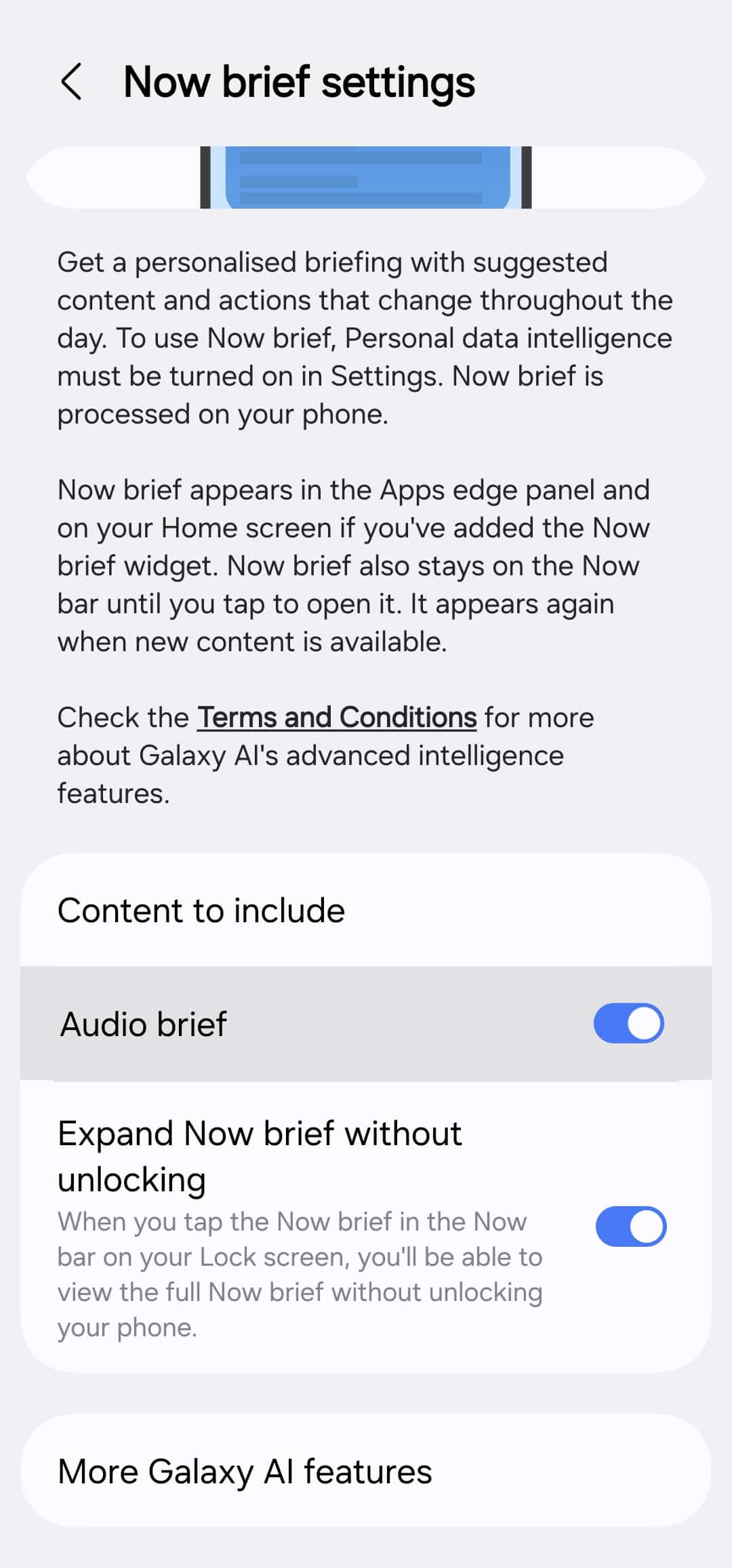
The latest update for the Personal Data Intelligence app now lets you decide whether you want Audio Brief or not. You now get a toggle to turn the feature on/off in Now Brief (Settings > Galaxy AI > Now Brief). This gives users more control over the feature that already serves as your personalized information hub.
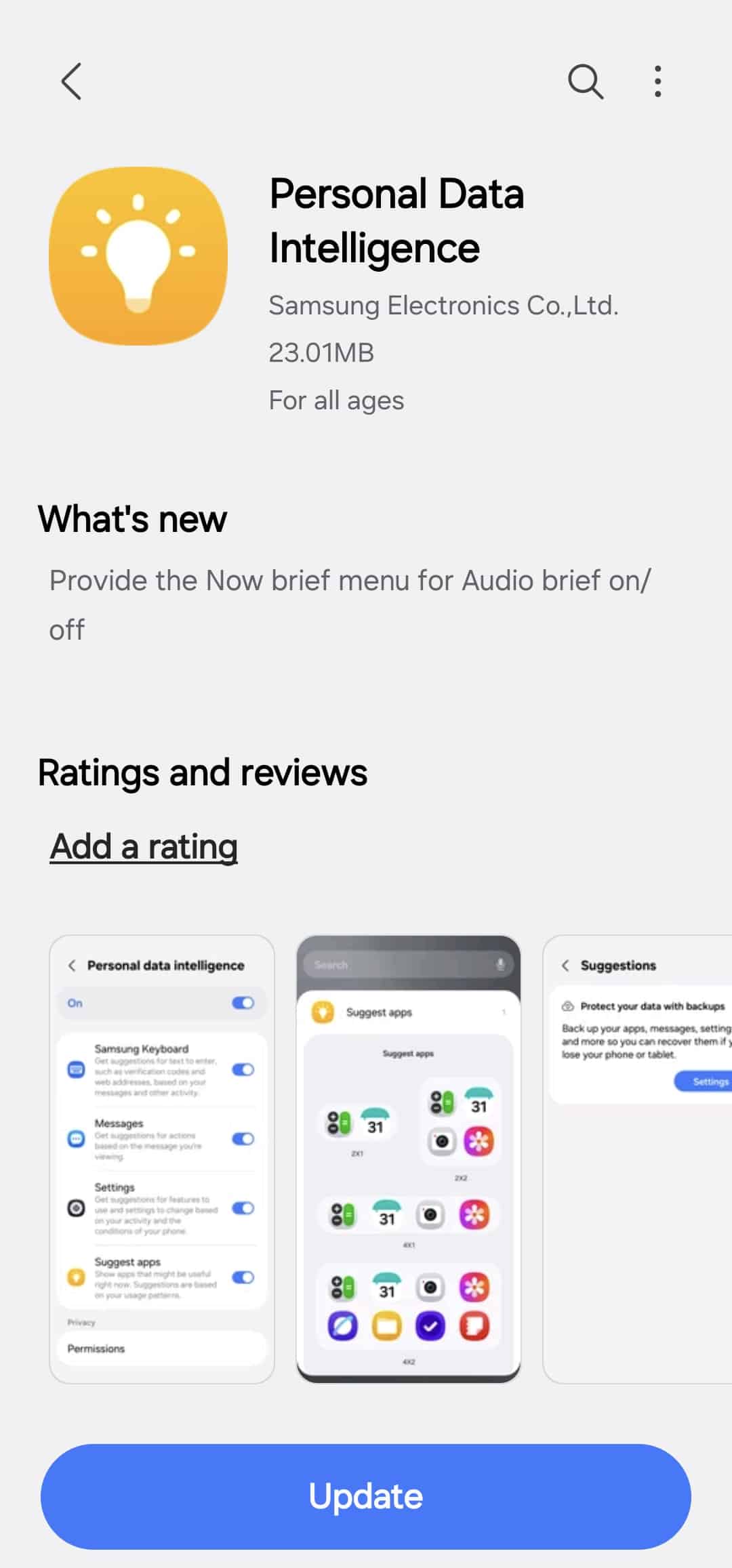
We received this new feature with version 7.1.04.6 of Personal Data Intelligence. This update should soon reach users worldwide via the Galaxy Store. To check for updates manually, open the store, tap the hamburger menu (three horizontal lines in the top left), and select Updates. You’ll find all available app updates there. Always keep your apps updated to receive the latest features and security enhancements.

Written by
Sumit AdhikariSumit, a life-long Samsung user, is passionate about technology and has been professionally writing on tech since 2017. He’s a mathematics graduate by education and enjoys teaching basic mathematics tricks to school kids in his spare time. Sumit believes in artificial intelligence and dreams of a fully open, intelligent and connected world.

Follow us on Google Discover & set us as a preferred source in Google News
Share this Post
___________________________


New Blog Posts
___________________________

Exynos 2700 Could Run Cooler Thanks to a Major Hardware Change
Will Exynos finally outshine competition with this trick?
Google Maps May Soon Let Ask Maps Order Food for You With Gemini
Are you excited?

Missed Prime Day? This Galaxy A57 Deal Is Back
Your chance to save $100 on the Galaxy A57