How to Turn On Theft Protection on Your Galaxy Phone
SammyGuru is reader-supported. We have affiliate and sponsored partnerships, so we may earn a commission when you buy through links on our site — at no extra cost to you. Learn more.
Even though you may never expect it, your phone could suddenly be stolen or snatched from your hand. This is not only frustrating but also puts your important information at risk, including photos, messages, banking apps, and passwords. Samsung’s built-in Theft Protection feature helps Galaxy users protect their personal data in such situations. In this guide, we’ll show you how to turn on the feature on your Galaxy phone.
What is Theft Protection?
Theft Protection is a suite of security tools that work together to keep your personal information safe if your phone is lost or stolen. These include Theft Detection Lock, Offline Device Lock, Failed Authentication Lock, and Remote Lock. Each tool has a different role.
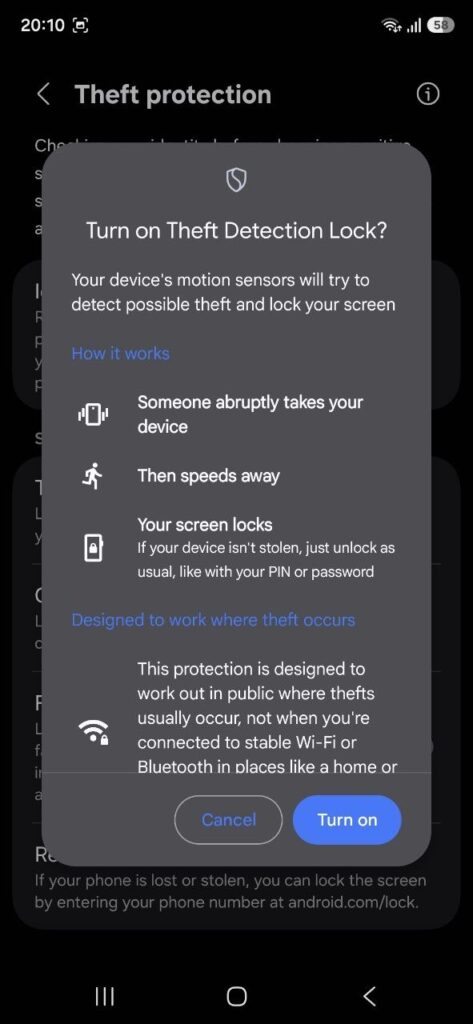
Speaking of Theft Detection Lock, this tool uses machine learning, your phone’s motion sensors, Wi-Fi, and Bluetooth to identify potential theft situations. For example, if someone suddenly grabs your Galaxy phone from your hand and runs away, the feature can detect this movement and automatically lock your phone’s screen.
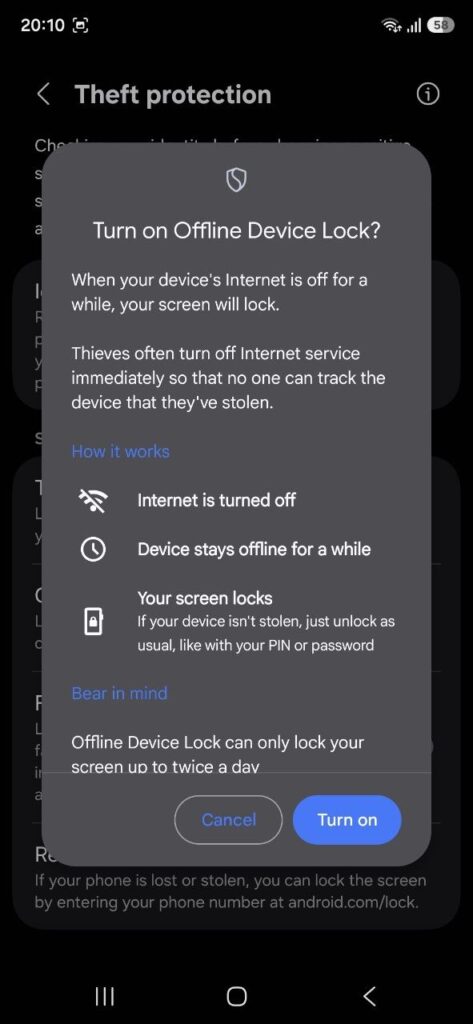
Offline Device Lock unlocks an extra layer of protection when your phone loses its internet connectivity. If the thief turns off Wi-Fi or mobile data to stop tracking, the feature automatically triggers and locks your phone’s screen, though it takes a short period.
Failed Authentication Lock comes in handy in case of consecutive failed authentication attempts. If someone tries to launch an app or use a feature that needs authentication and fails multiple times, the feature automatically locks your device.
Meanwhile, Remote Lock lets you lock your Galaxy phone remotely if it is lost or stolen. You just need to visit android.com/lock, enter your phone number, and lock the screen.
Follow these steps to enable Theft Protection on your Galaxy phone
- Open the Settings app on your Galaxy phone.
- Tap Security and privacy > Lost device protection.
- On the Theft protection page, you will see several screen locking options.
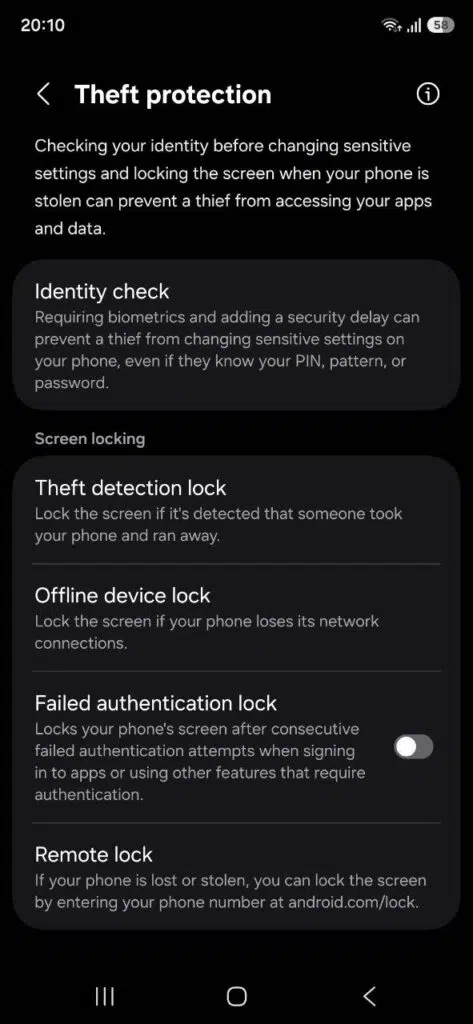
- Select Theft Detection Lock and hit Turn on.
- Tap Offline Device Lock and select Turn on.
- Now use the toggle to enable Failed Authentication Lock.
- Finally, tap Remote Lock and activate the “Use Remote Lock” option.
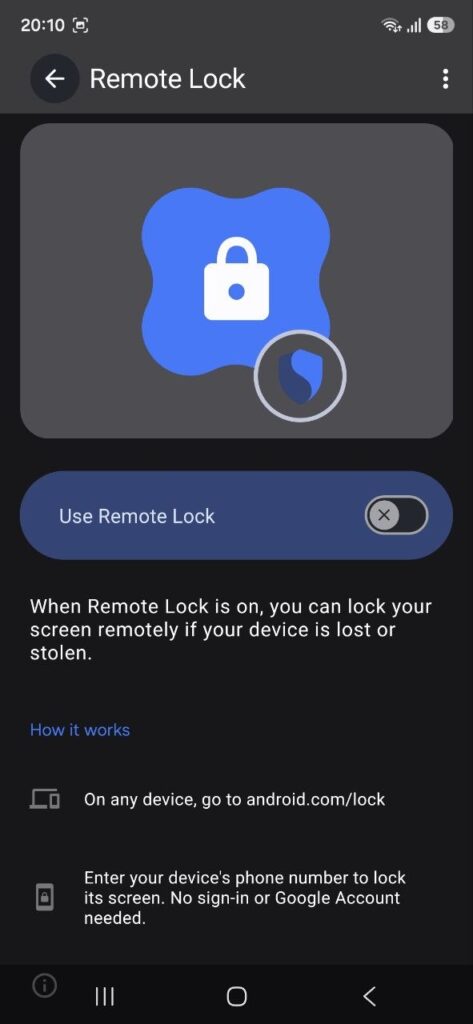
Since smartphone theft can happen abruptly, take a few minutes to turn on all screen locking options in advance. They work quietly in the background while offering security when you need it most.

Written by
Binay KonwarBinay Konwar started his blogging journey in 2014 and has since written plenty of tech articles. At present, he is working as a News Writer at SammyGuru, covering everything about Samsung. He holds a Master's degree in Mathematics, but his real passion lies in tech and writing. In his free time, he enjoys playing chess and watching movies.

Follow us on Google Discover & set us as a preferred source in Google News
Share this Post
___________________________


New Blog Posts
___________________________
The Galaxy Z Fold 8 Is the Best iPhone and iPad Replacement Yet
Two devices, one pocket
Miss the Rotating Bezel? Galaxy Watch 8 Classic Is Now Half Off
A deal that’s hard to ignore
Samsung Could Benefit as Global Wearable Market Shrinks in 2026
Premium smartwatches are still growing, and that’s good news for Samsung