How to Restart or Force-Restart a Frozen Galaxy Phone
SammyGuru is reader-supported. We have affiliate and sponsored partnerships, so we may earn a commission when you buy through links on our site — at no extra cost to you. Learn more.
What if your phone is frozen and unresponsive? The first common step is to force-restart the device, as it fixes most temporary software issues. In this guide, we’ll show you how to do this on your Samsung Galaxy phone to get rid of the frustrating freezing problem.
How to normally restart a Galaxy phone
Sometimes, a standard restart could clear temporary system processes, restoring normal performance on the phone. So it’s advised to periodically restart your phone. You may also want to restart your device if it feels slower than usual or if apps are not opening quickly. There are usually two ways to perform a normal restart on a Galaxy phone.
Method 1: Use the combination of physical buttons
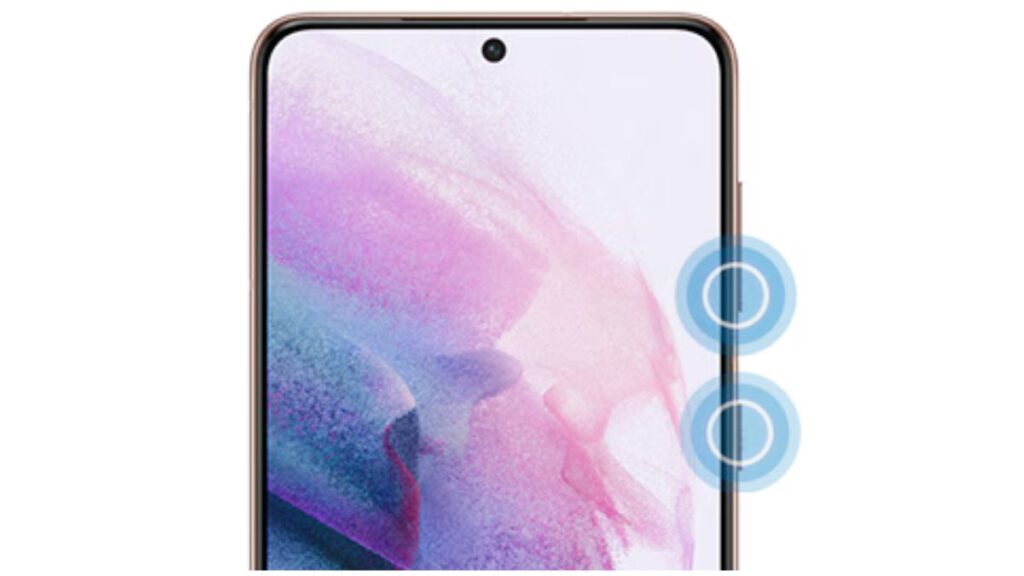
- Press and hold the Side (power) and Volume Down buttons at the same time for a few seconds.
- Now you will see the power menu with several buttons, including Restart.
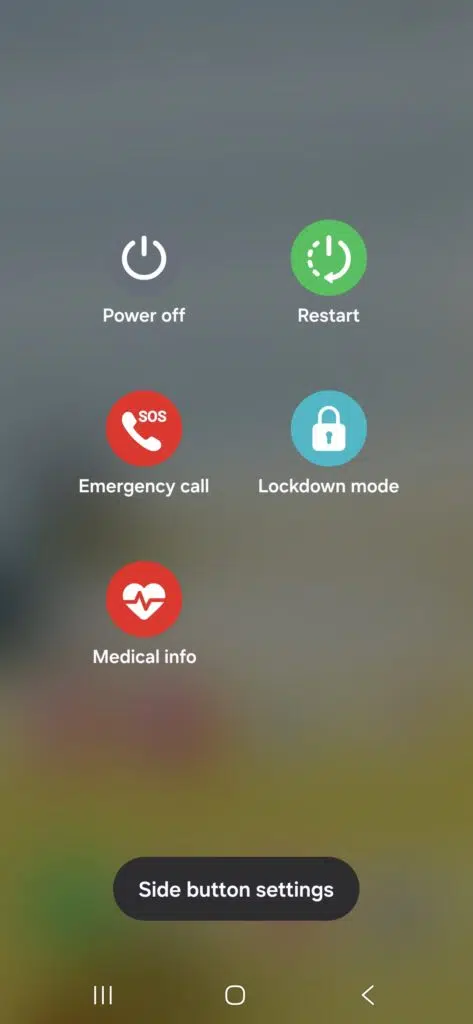
- Tap on it, and your device will shut down and turn back on.
Method 2: From the Quick Settings panel
- Open the Quick Settings panel (Swipe down from the top of the screen).
- In the top-right corner, before the Settings gear, you will see a Power icon.
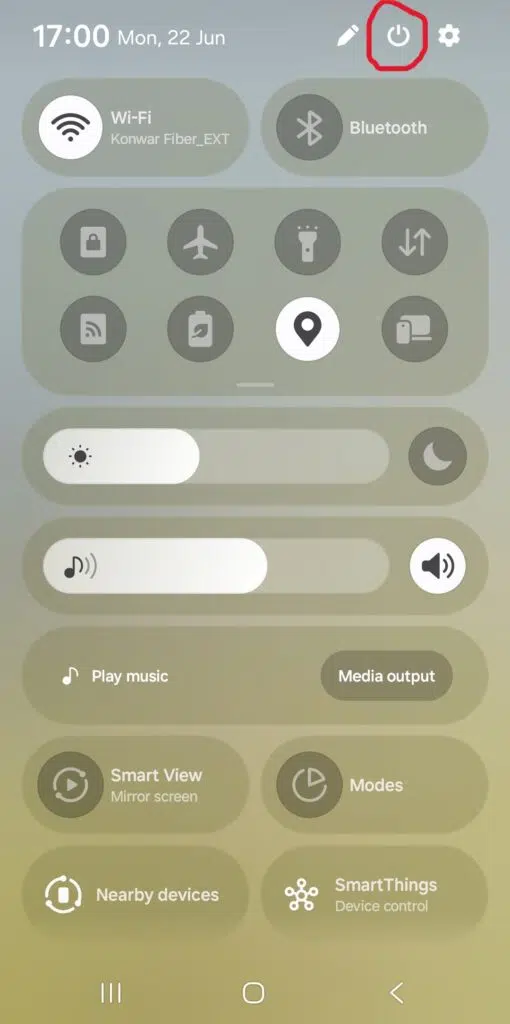
- Tap it to open the power menu, then select Restart as described in Method 1.
How to force-restart a frozen Galaxy phone
If your Samsung Galaxy phone is completely frozen or the touchscreen is not responding, a normal restart may not be possible, as you won’t be able to access the on-screen power menu.
In this case, you will need to perform a force restart to reboot the device. Note that while doing so will not erase your photos, apps, or other data, you may lose unsaved work. Follow the steps below:
- Press and hold the Side (Power) and Volume Down buttons simultaneously.
- You will need to continue holding both buttons for more than 7 seconds.
- Release both buttons once you feel a slight vibration and see the Samsung logo on the screen
- Now your device will automatically restart.
Even if a force restart fixes the issue, your Galaxy phone may freeze again later. That’s why you should figure out the root cause. Some common causes include low storage space and software-related bugs. Make sure to remove unnecessary files and delete unused apps to restore seamless performance. Moreover, install all available system software updates to benefit from possible bug fixes.
To check for updates, go to Settings > Software update > Download and install. You should always keep your phone updated. You should also regularly update apps from the Galaxy Store or the Play Store. Avoid installing apps from unknown sources, as they could contain hidden malware or other bugs that may slow down your phone.

Written by
Binay KonwarBinay Konwar started his blogging journey in 2014 and has since written plenty of tech articles. At present, he is working as a News Writer at SammyGuru, covering everything about Samsung. He holds a Master's degree in Mathematics, but his real passion lies in tech and writing. In his free time, he enjoys playing chess and watching movies.

Follow us on Google Discover & set us as a preferred source in Google News
Share this Post
___________________________


New Blog Posts
___________________________

Samsung TV Plus Now Lets Viewers Shop Products Directly From Their TVs
Samsung TV Plus becomes a shopping platform
Samsung Reveals Galaxy M47 5G Launch Date and Key Specs
The company will unveil the phone in India on June 29
Galaxy Watch 9 and Watch Ultra 2 Leak with New Health and Fitness Features
Tons of new health features for you…if you plan to use them