Five Hidden Samsung Galaxy Features You Should Start Using Today
SammyGuru is reader-supported. We have affiliate and sponsored partnerships, so we may earn a commission when you buy through links on our site — at no extra cost to you. Learn more.
Samsung Galaxy phones are packed with features. While flashy AI tools often get the spotlight, One UI includes several practical features that can make your phone more useful every day. And some of the best ones are hidden away in menus most users never visit. From routing audio to different devices to turning your phone into a ruler or Wi-Fi analyzer, here are five hidden Samsung Galaxy features worth trying.
1. Separate App Sound: Play audio on two devices at once
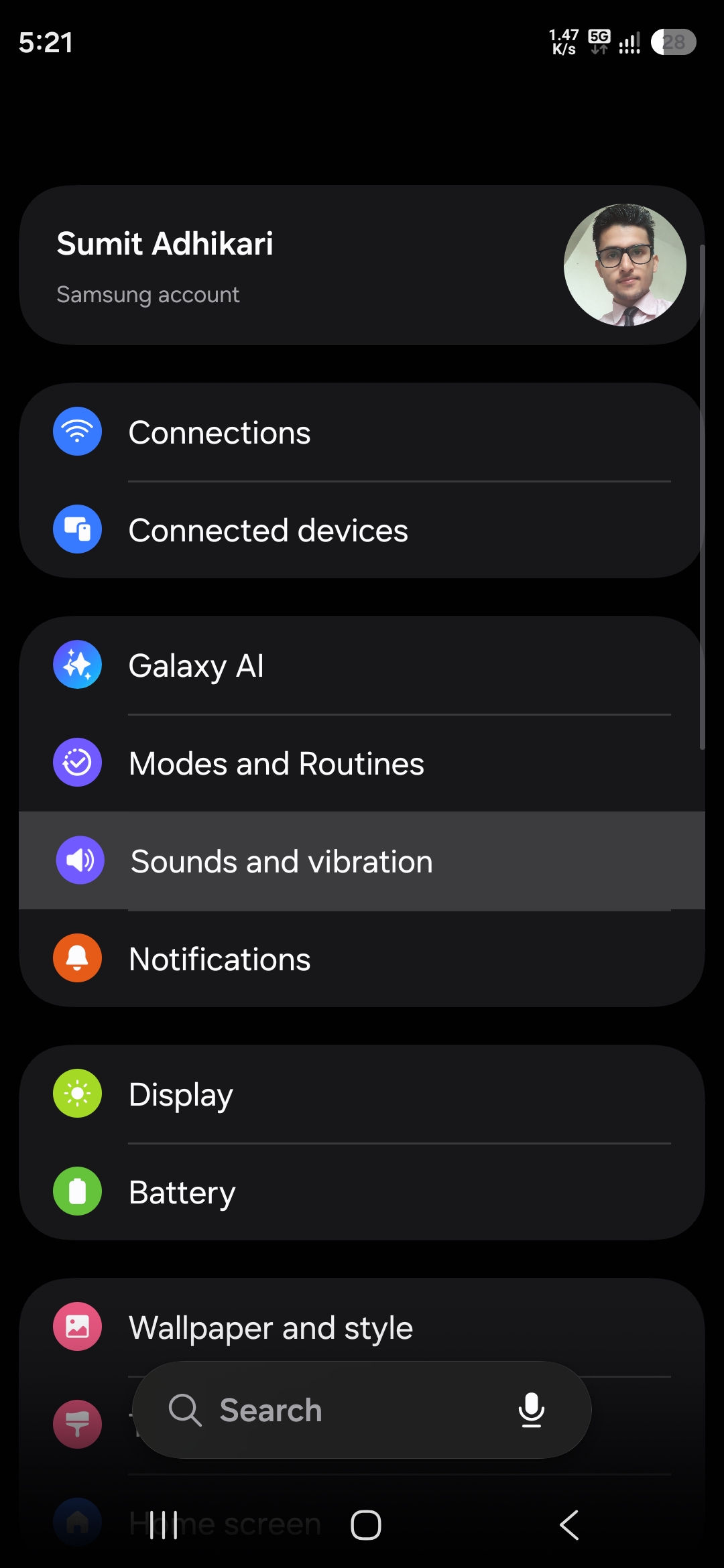
Ever wanted Spotify to play through a Bluetooth speaker while YouTube audio stays on your phone? Samsung has a built-in feature for exactly that. Separate App Sound allows you to assign a specific app’s audio output to a different device, independently from the rest of your phone.
How to enable it
- Open Settings and go to Sounds and vibration
- Select Separate app sound
- Turn the feature on
- Choose an app
- Select the audio output device
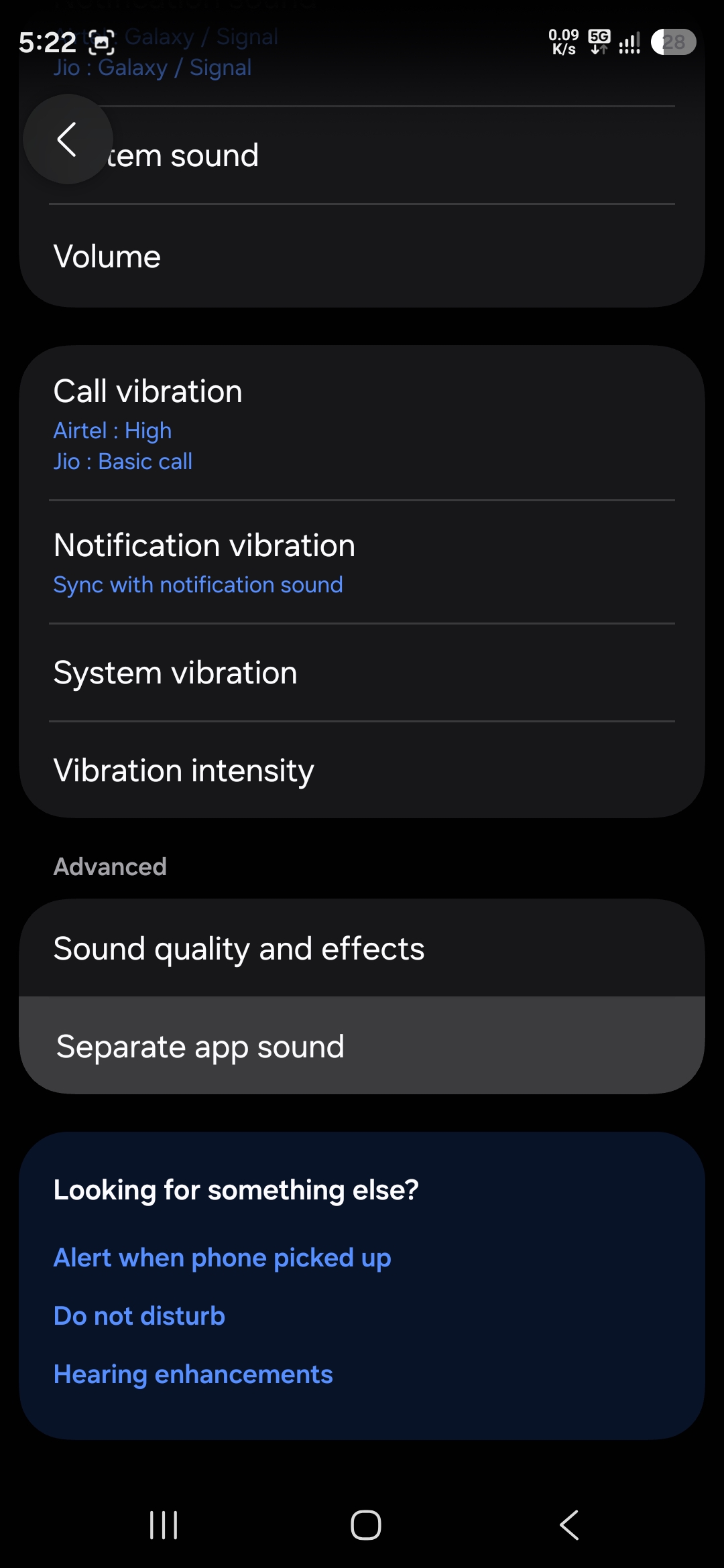
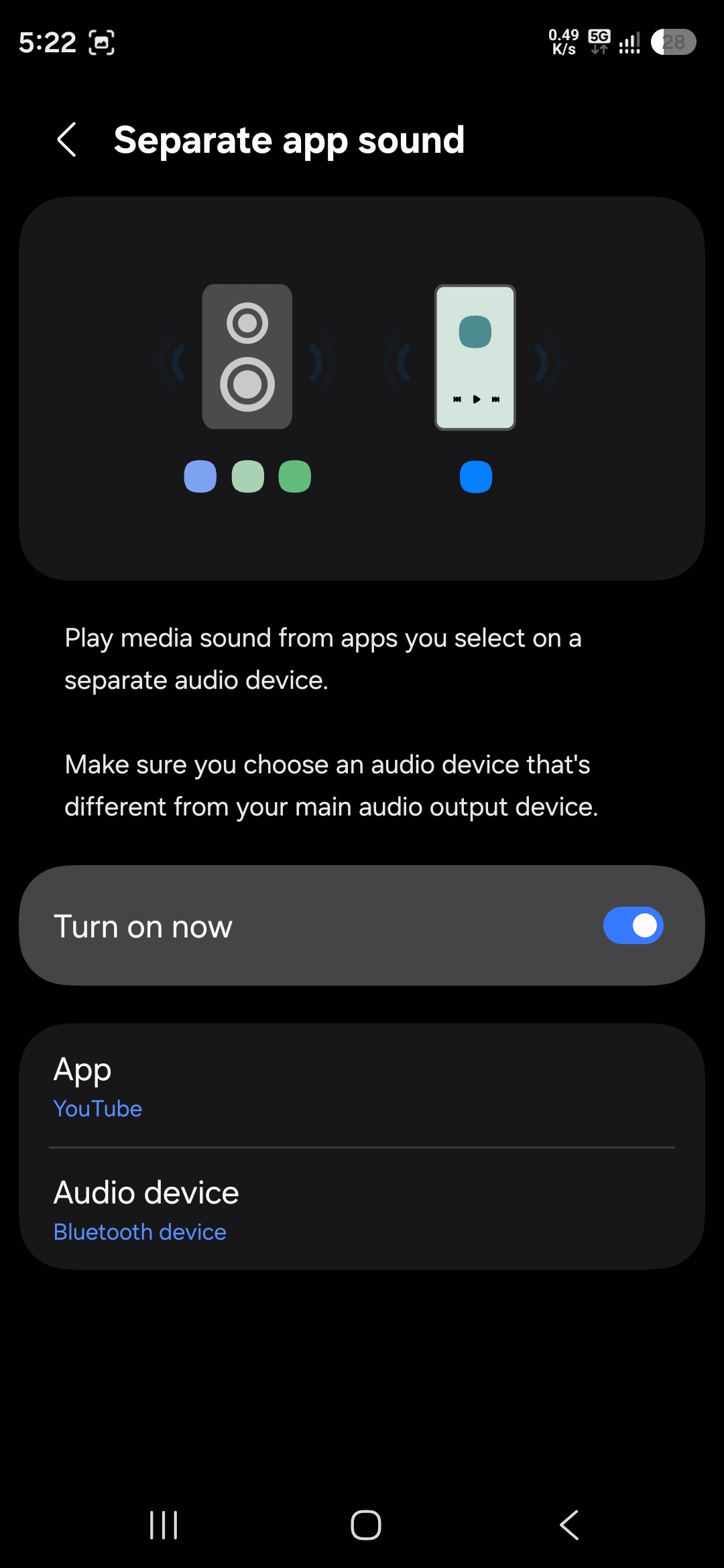
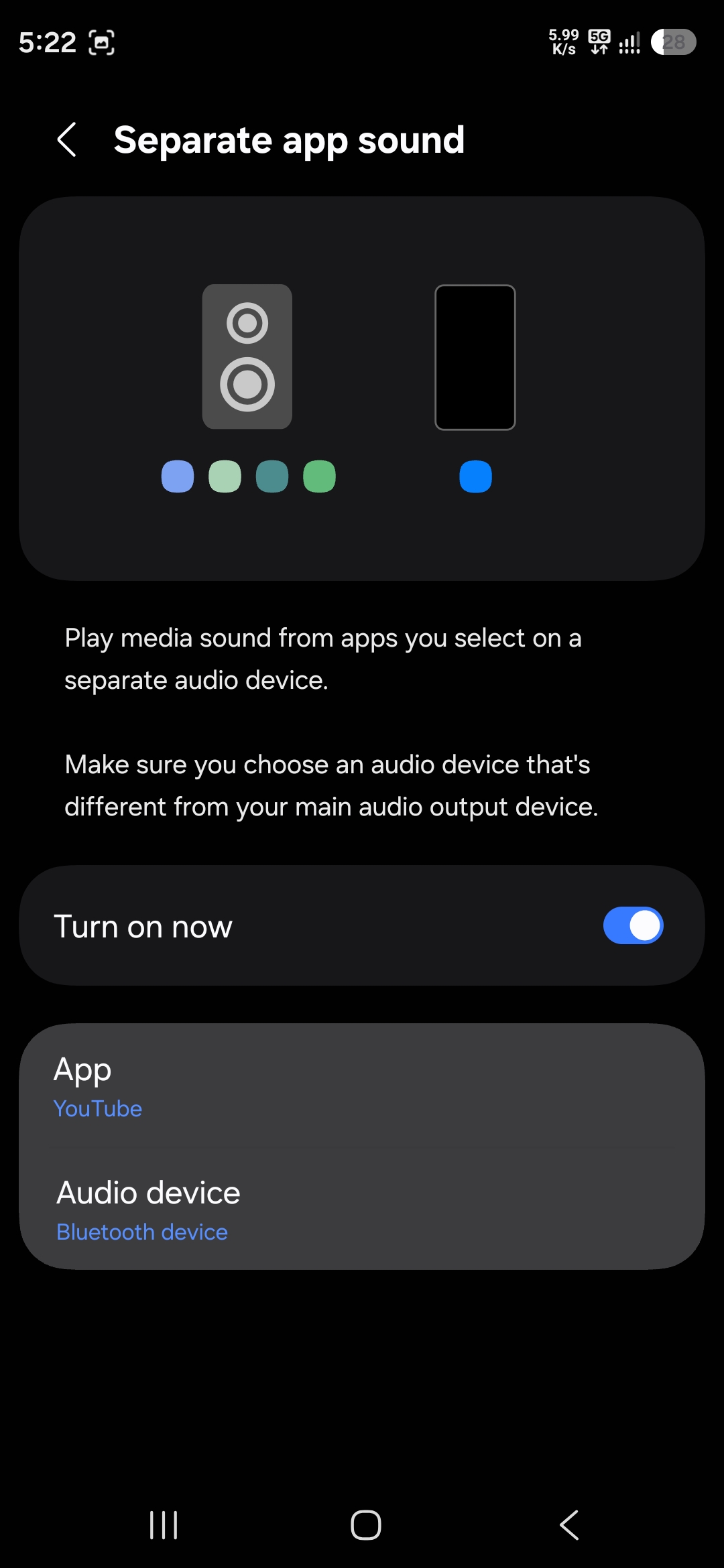
For example, you can send Spotify audio to a Bluetooth speaker while keeping game sounds, notifications, and videos on your phone’s speaker. It’s one of Samsung’s most underrated multitasking features and is especially useful when sharing music with others without interrupting your own phone usage.
2. Create your own custom vibration patterns
Most people change their ringtones and call it a day, but Samsung also lets you create completely custom vibration patterns. You can create different vibration styles ranging from subtle notification pulses to more noticeable patterns for important contacts. This makes it easier to identify specific notifications without looking at your phone.
You need Samsung’s Sound Assistant app for this — Download here.
How to create a custom vibration
- Download Sound Assistant (link above) and launch it
- Go to Customize vibration patterns
- Tap the + icon to create a custom vibration pattern for calls or notification alerts
- Tap the screen to create your own rhythm (you may need a few retakes to perfect it)
- Press Stop at the bottom to play your custom pattern (if you want to redo it, tap clear and tap the screen again)
- When you get the desired result, tap the three dots in the top-right and select Save
- Name the file and hit OK
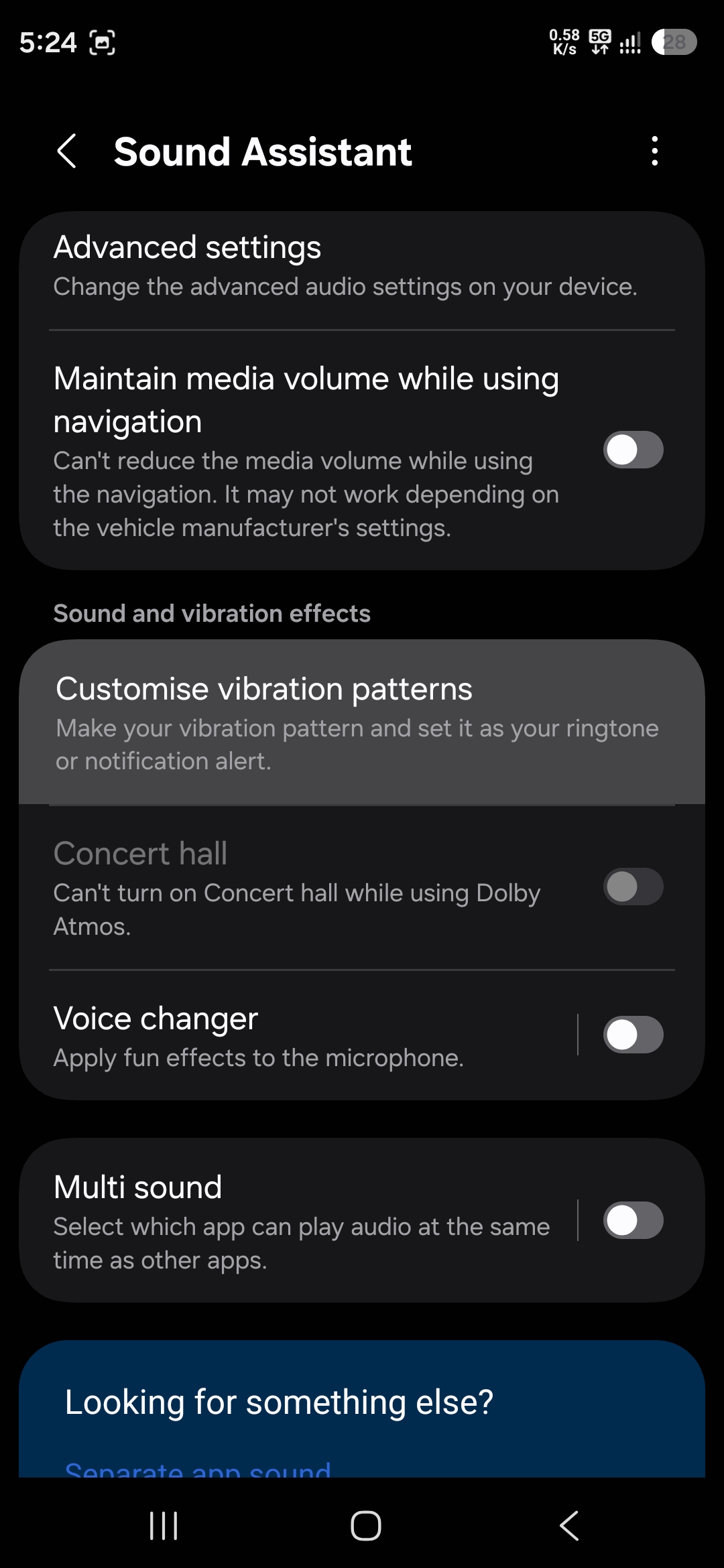
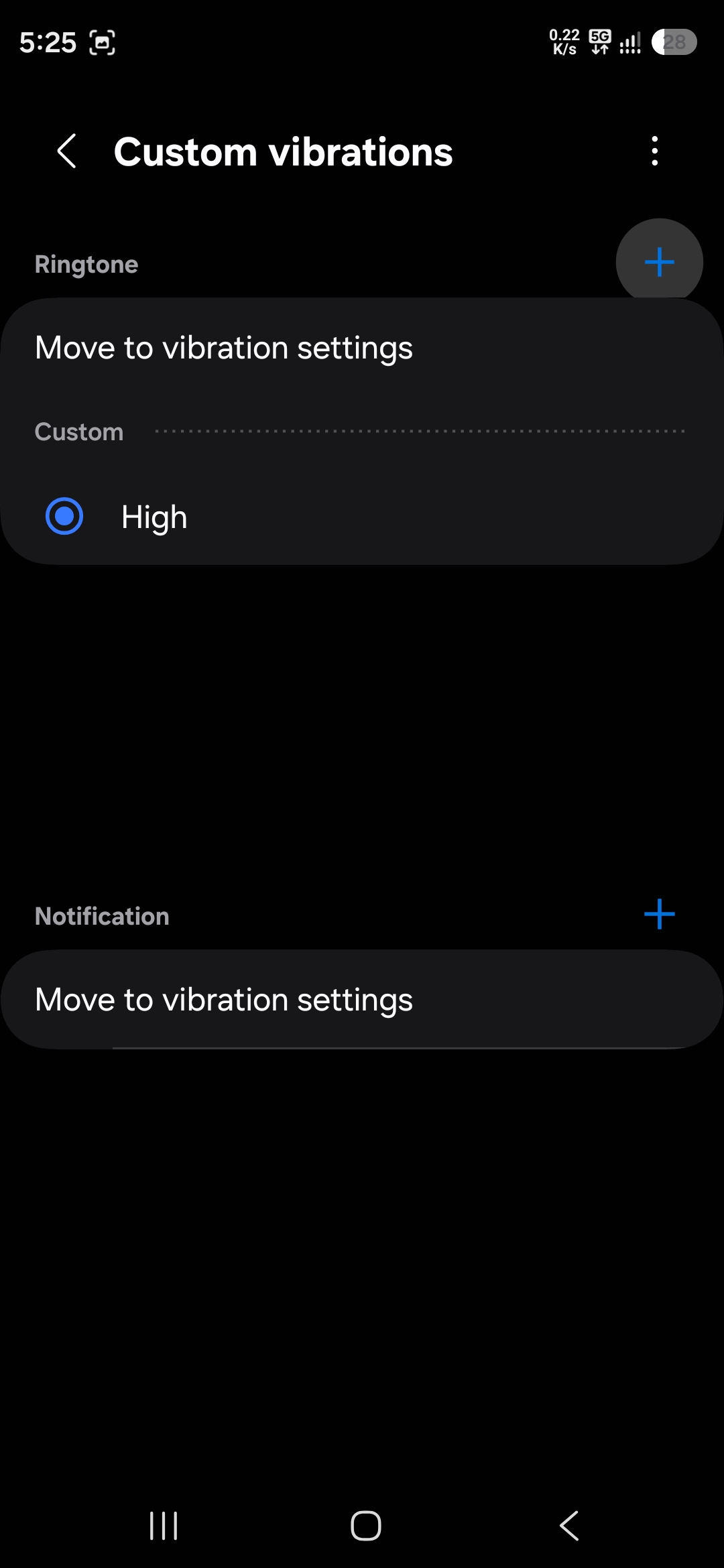
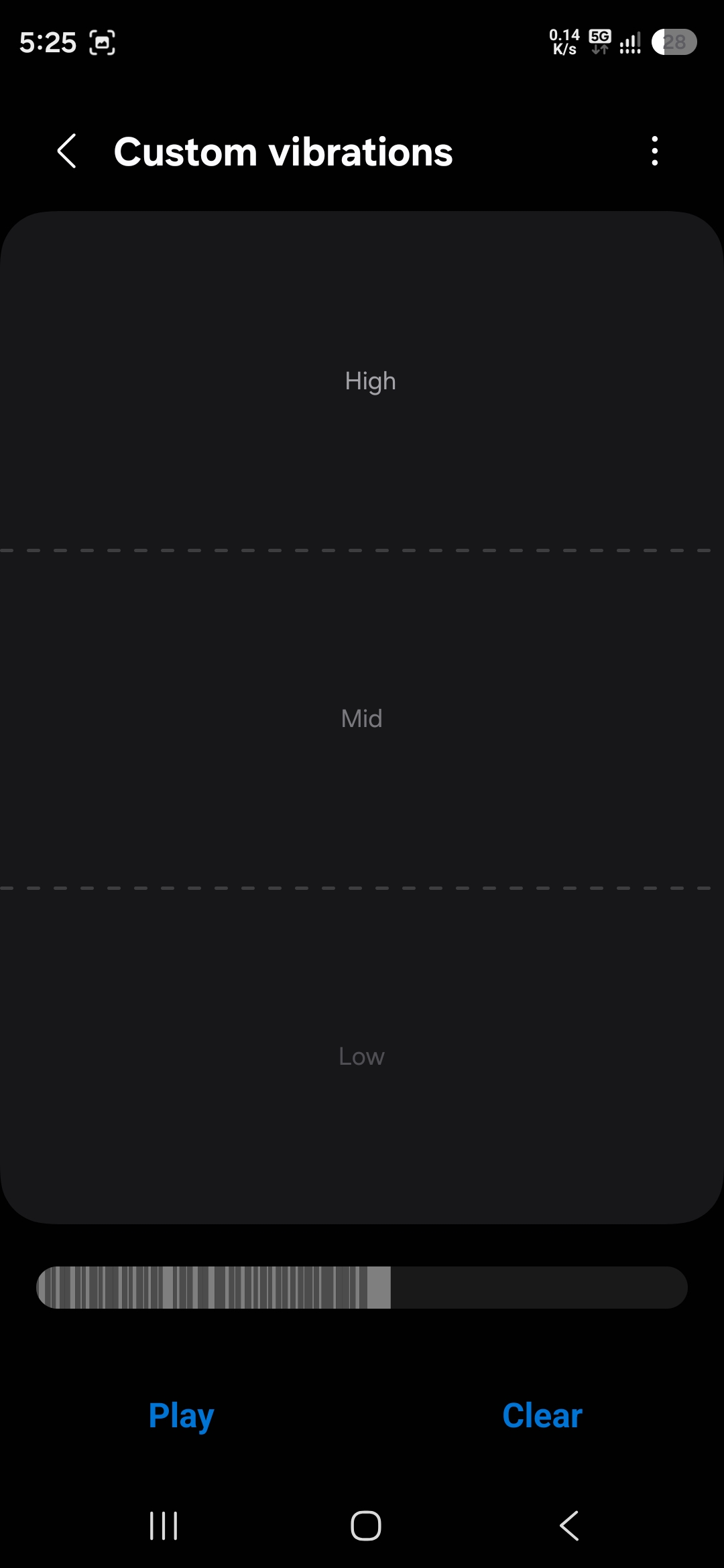
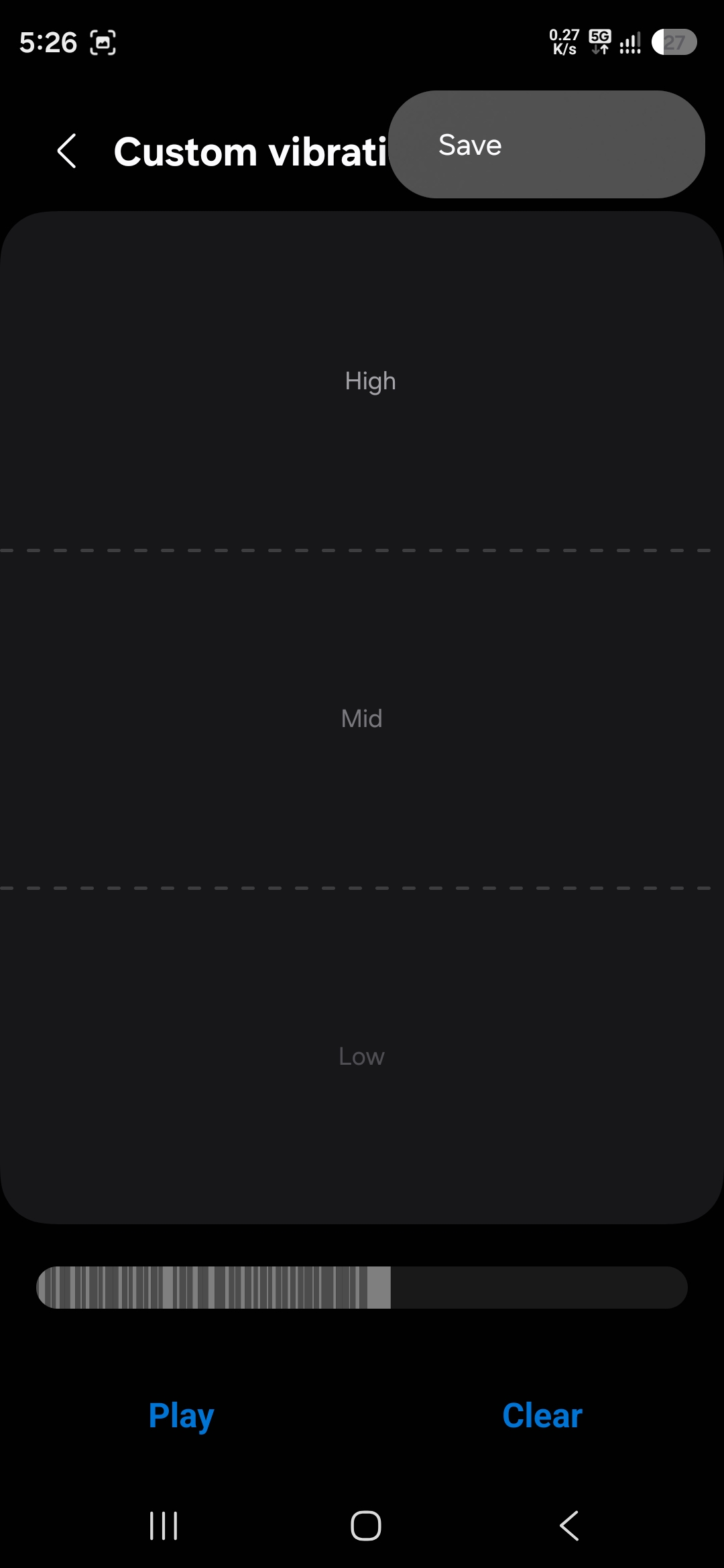
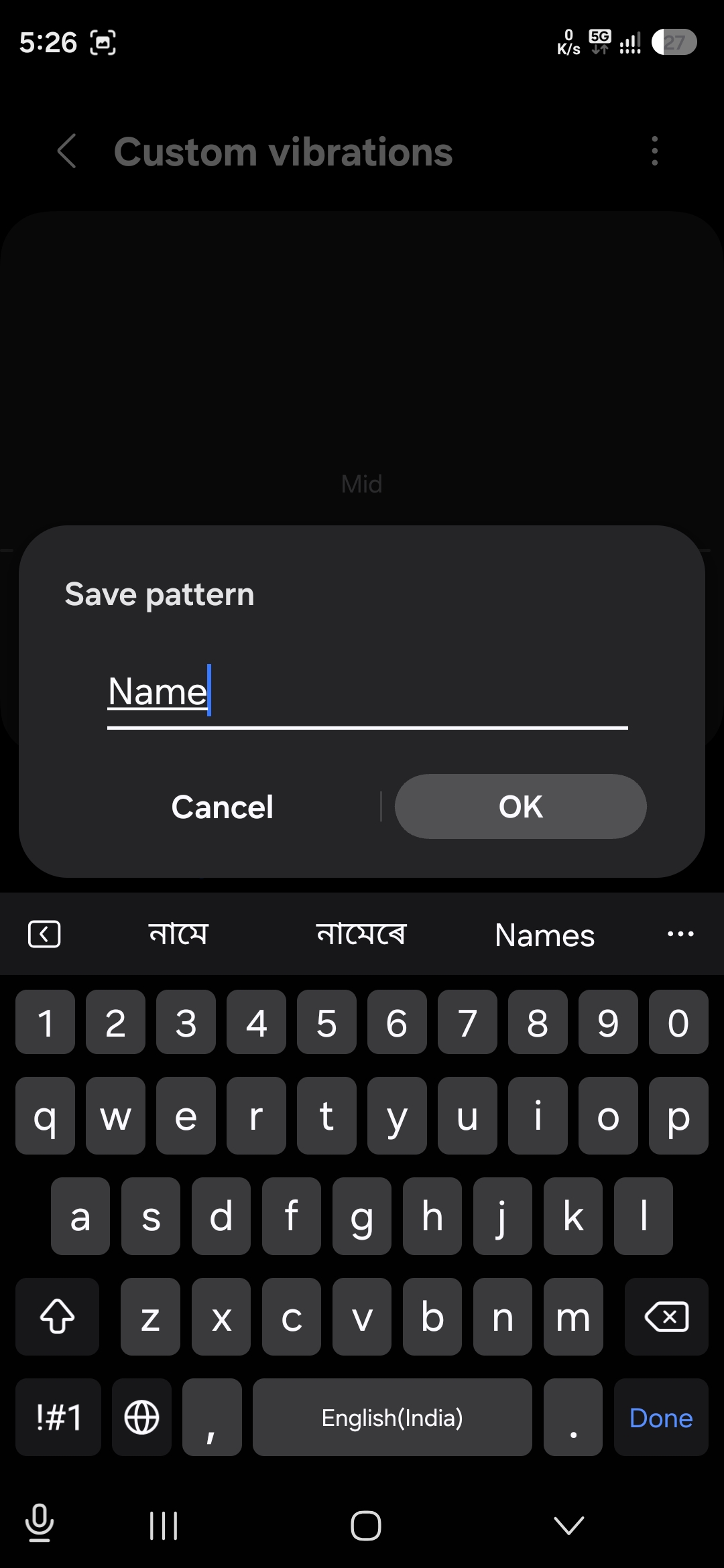
Your custom vibration pattern will now appear alongside pre-loaded ones in vibration settings. You can create multiple custom patterns for calls and notification alerts.
3. Use Samsung’s hidden Wi-Fi inspection tool
Samsung includes a powerful Wi-Fi diagnostic suite called Connectivity Labs, but it’s hidden behind a secret menu. The feature can help identify weak Wi-Fi spots around your home and determine the best router placement.
How to access Connectivity Labs
- Open Settings and go to Connections
- Tap Wi-Fi
- Press the three-dot menu and select Intelligent Wi-Fi
- Repeatedly tap Intelligent Wi-Fi at the bottom of the page
- Continue tapping until Connectivity Labs appears
- Go to Connectivity Labs and tap Home Wi-Fi Inspection
- Tap Start and select your Wi-Fi network
- Tap Next two times, followed by Start
- Walk around your home
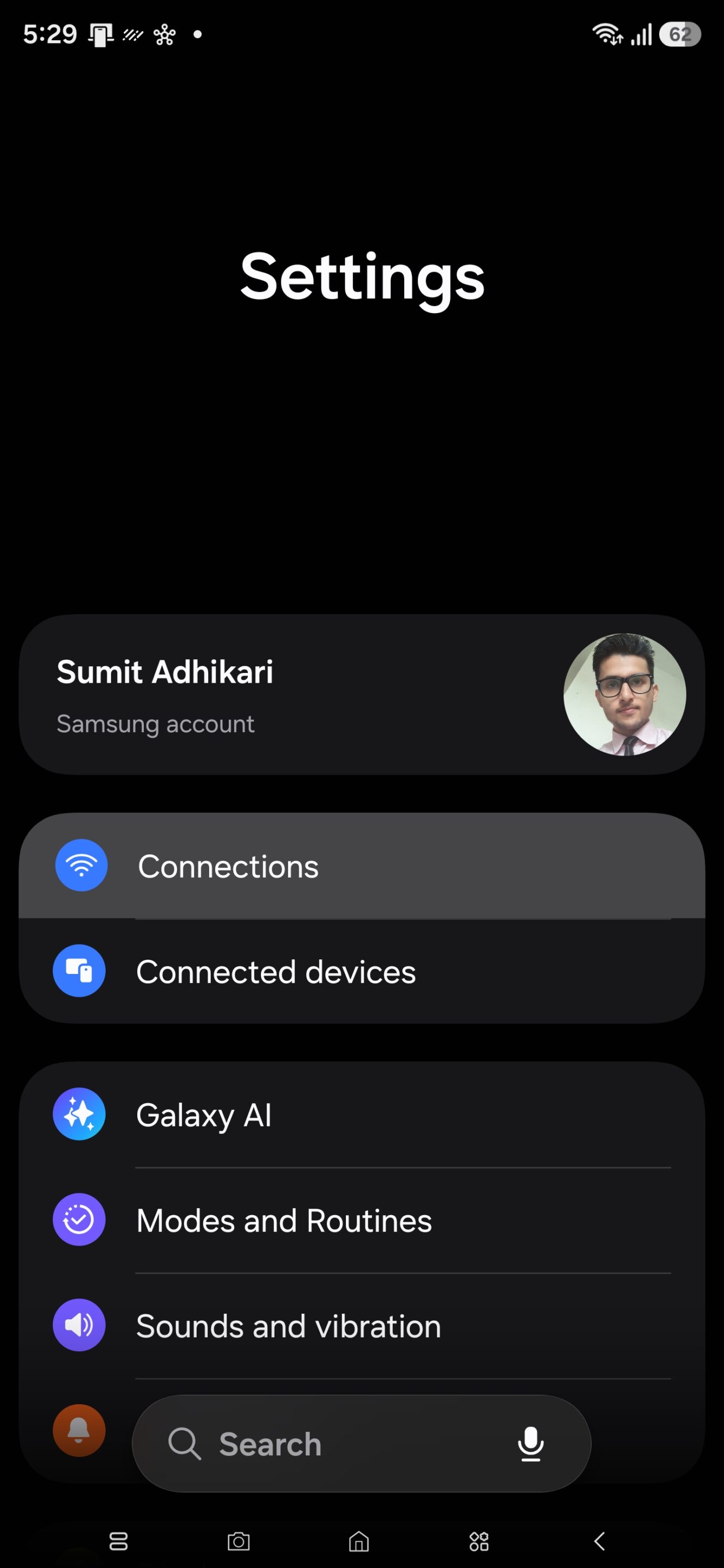
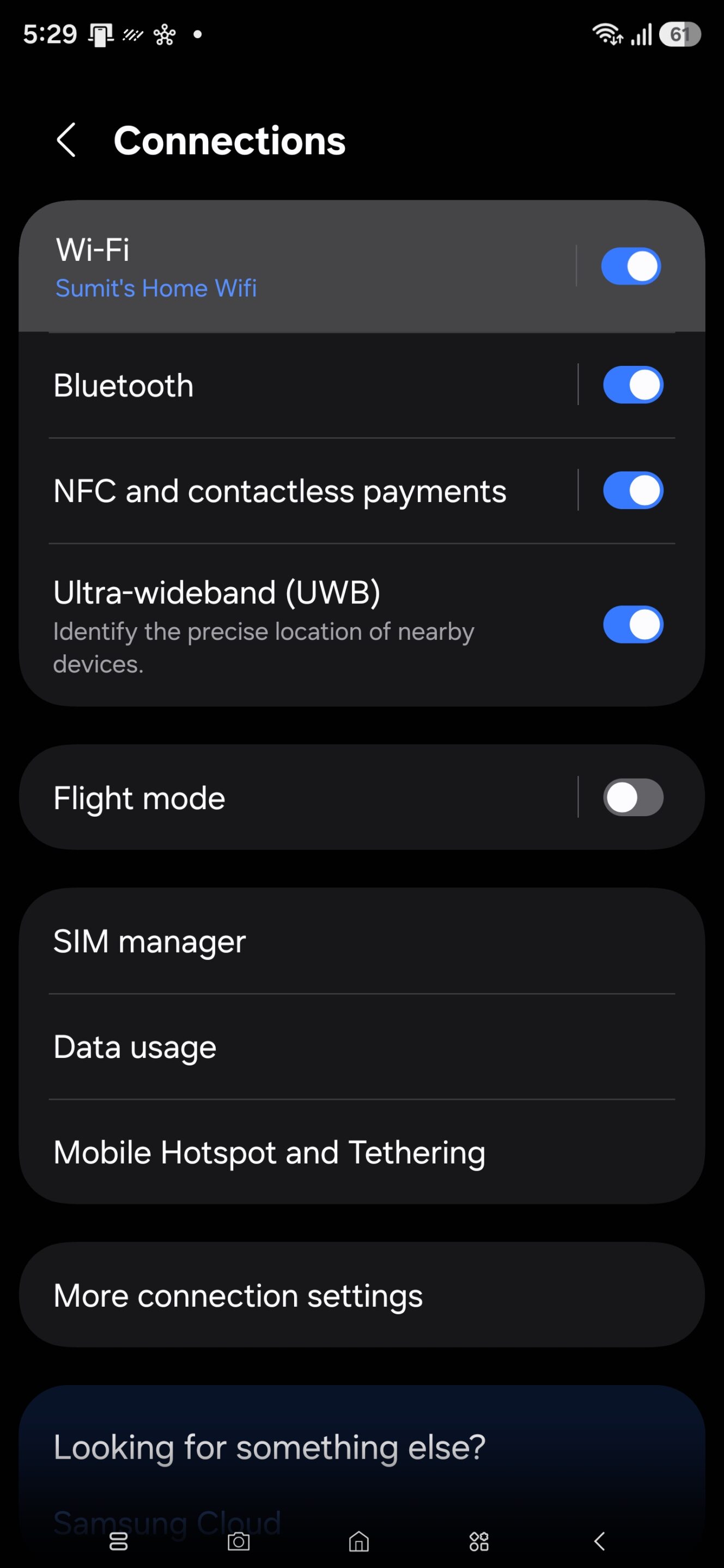
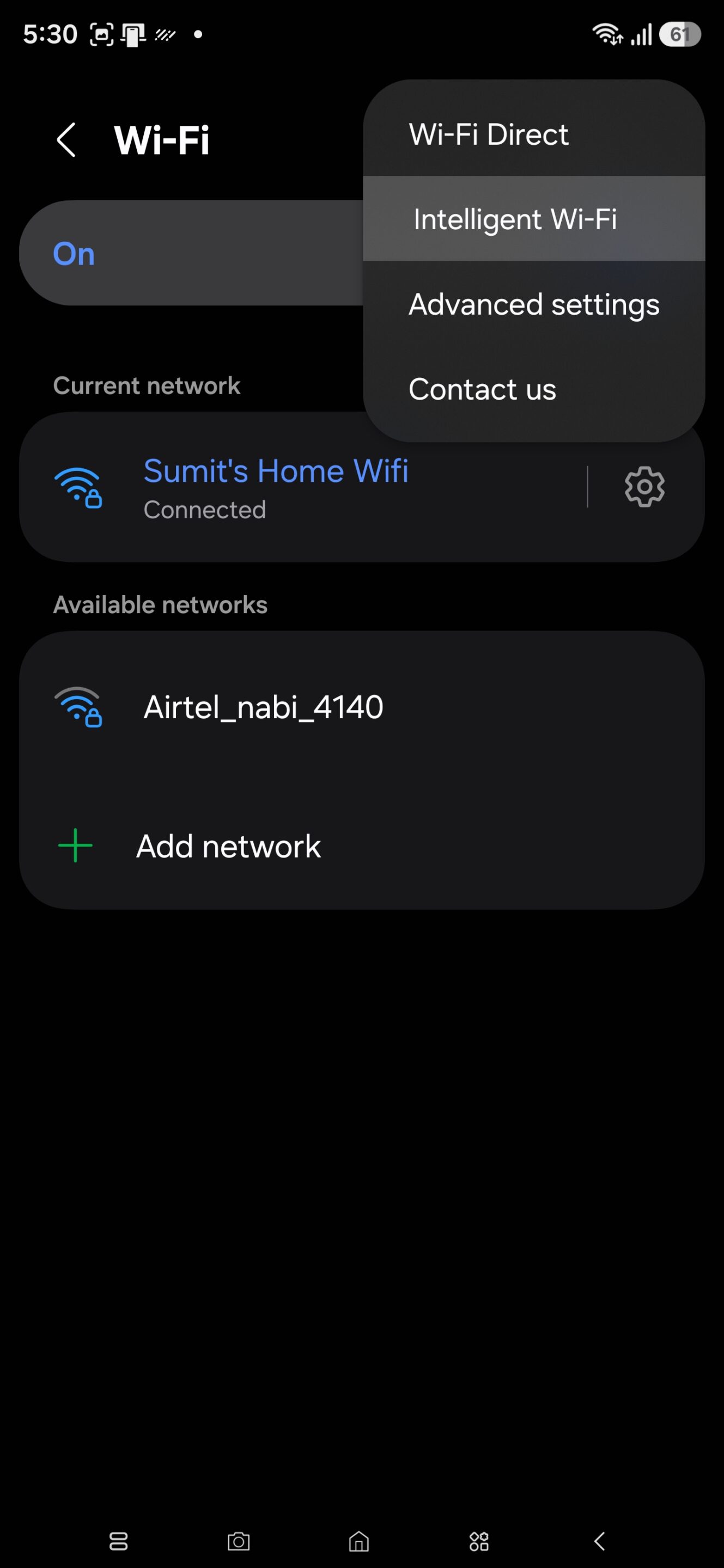
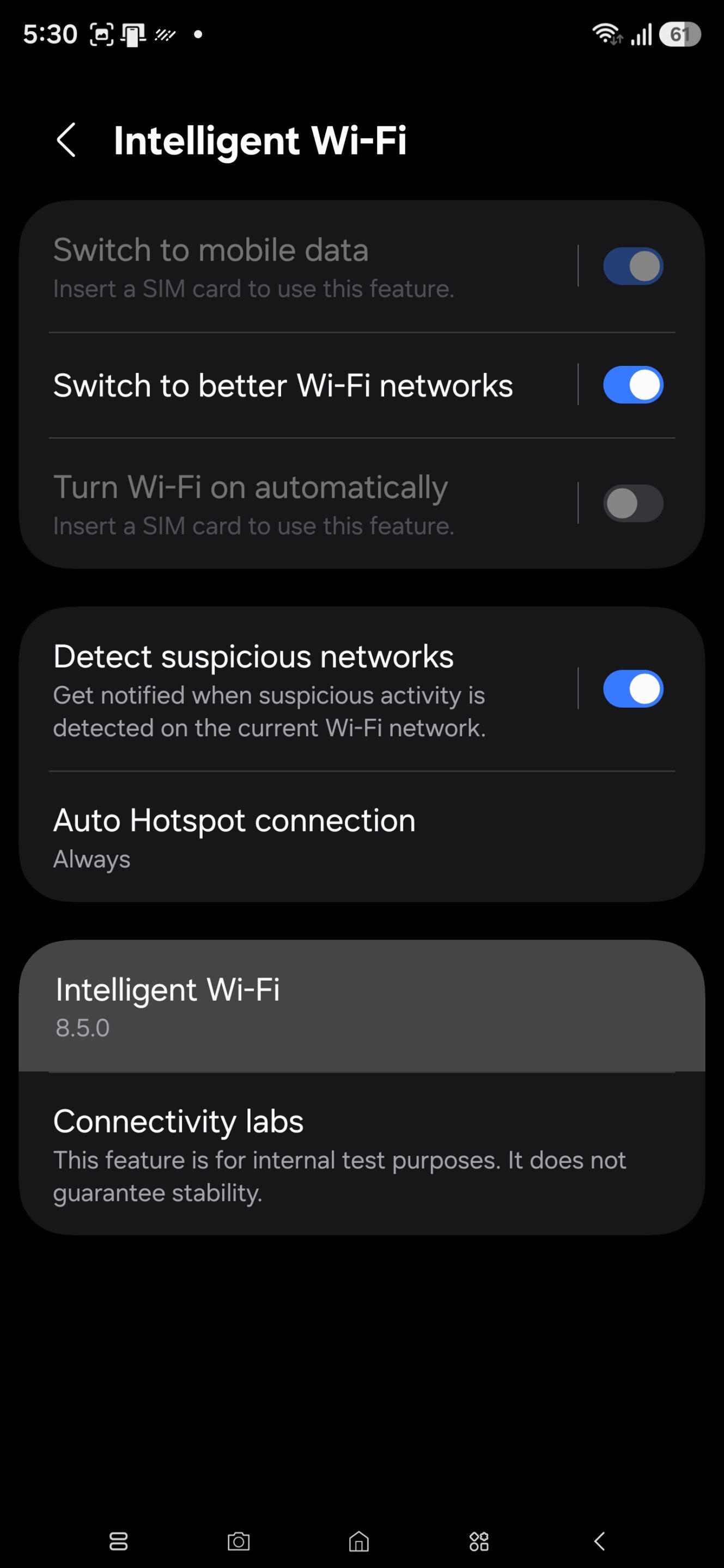
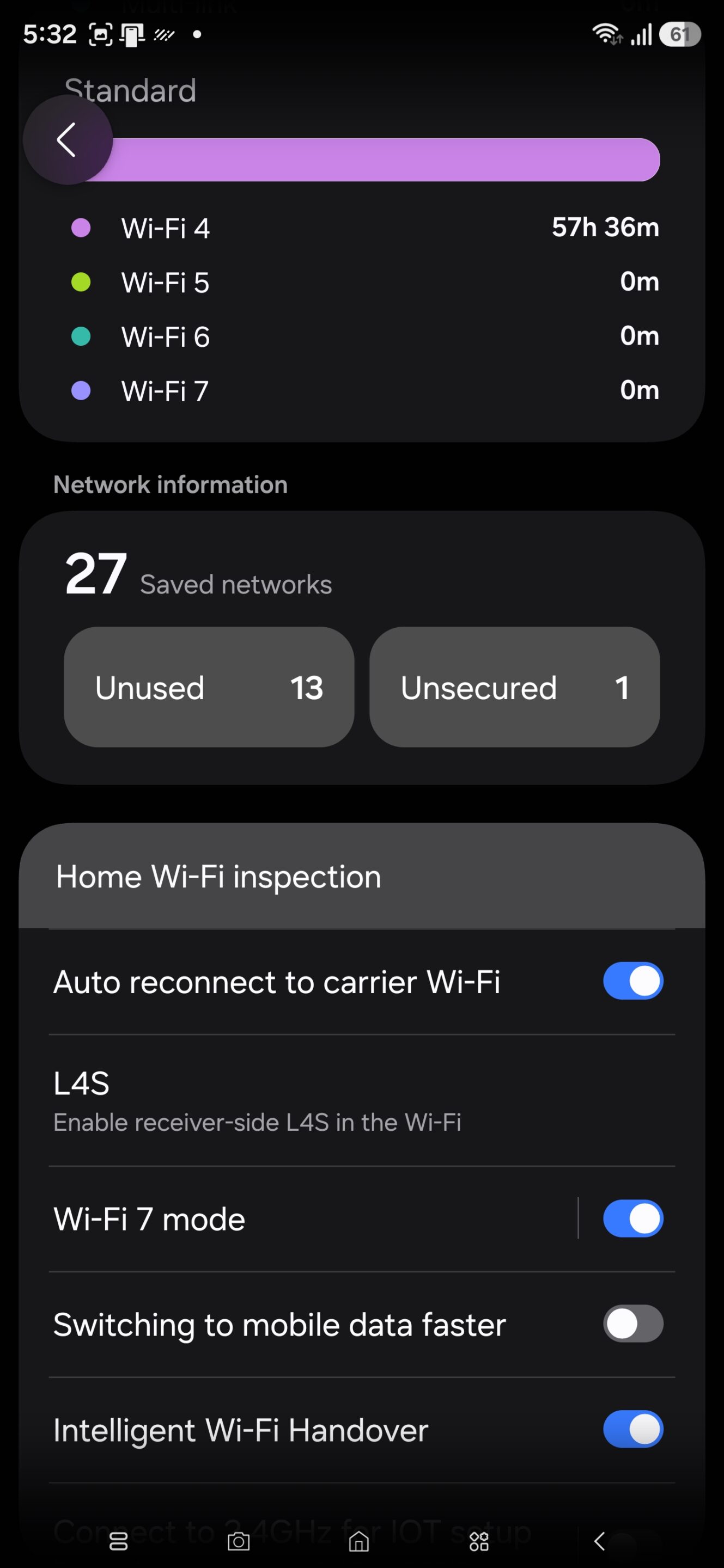
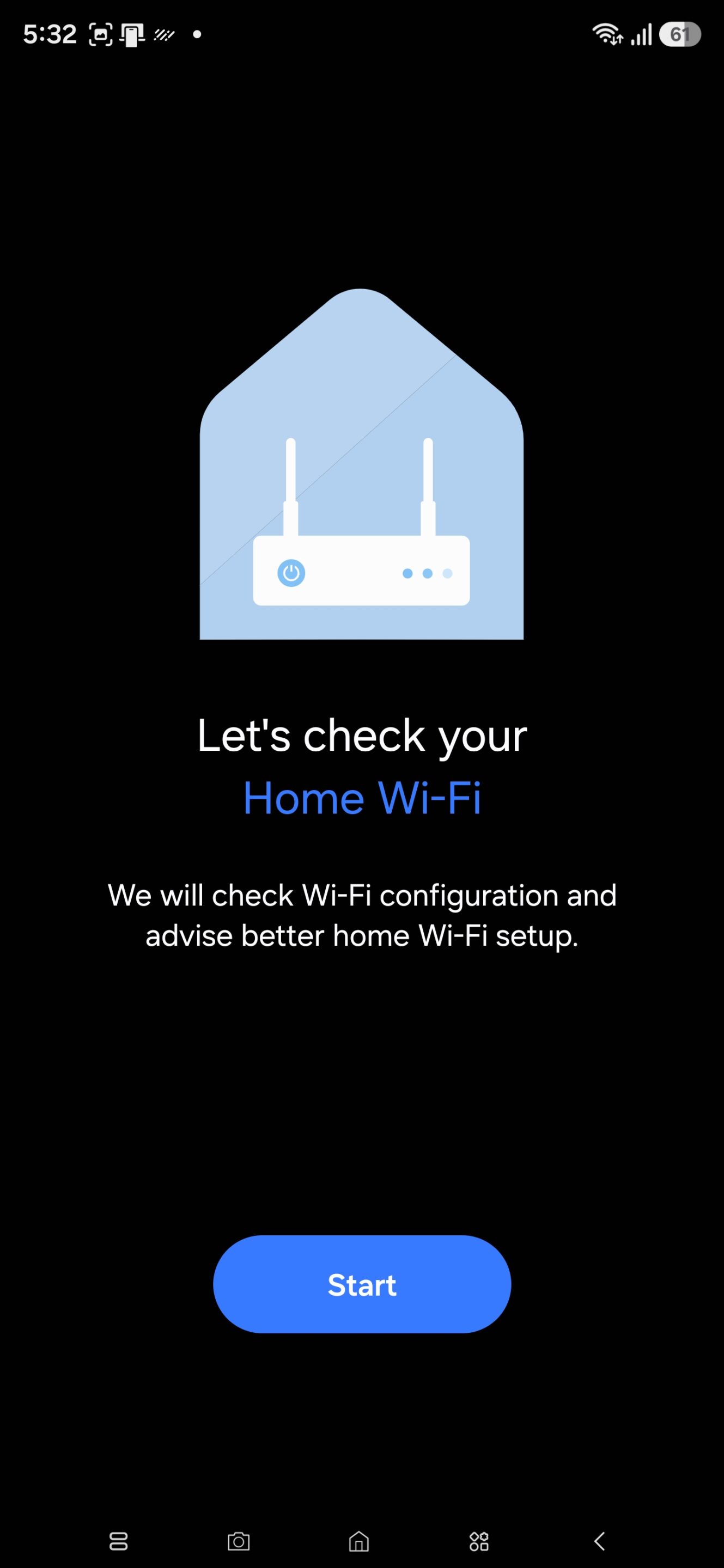
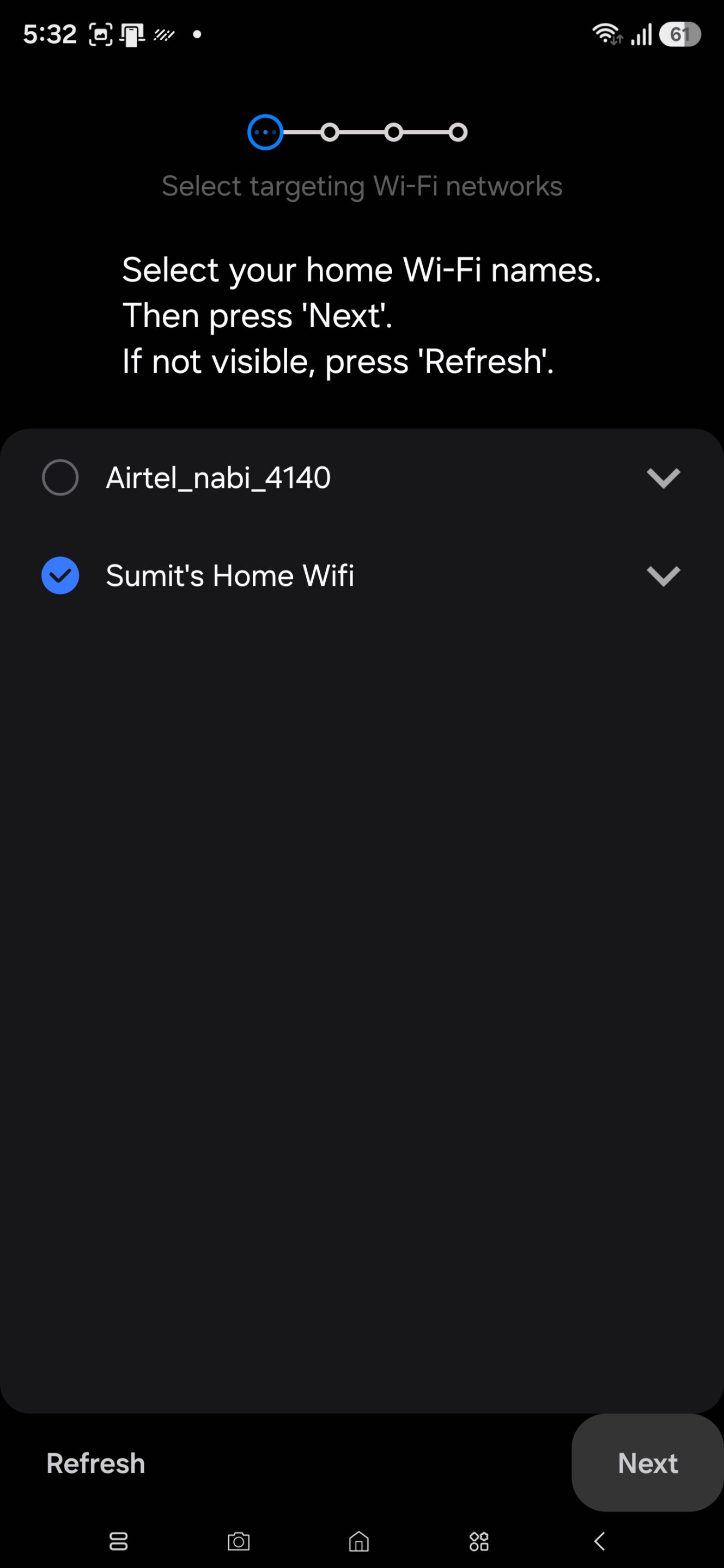
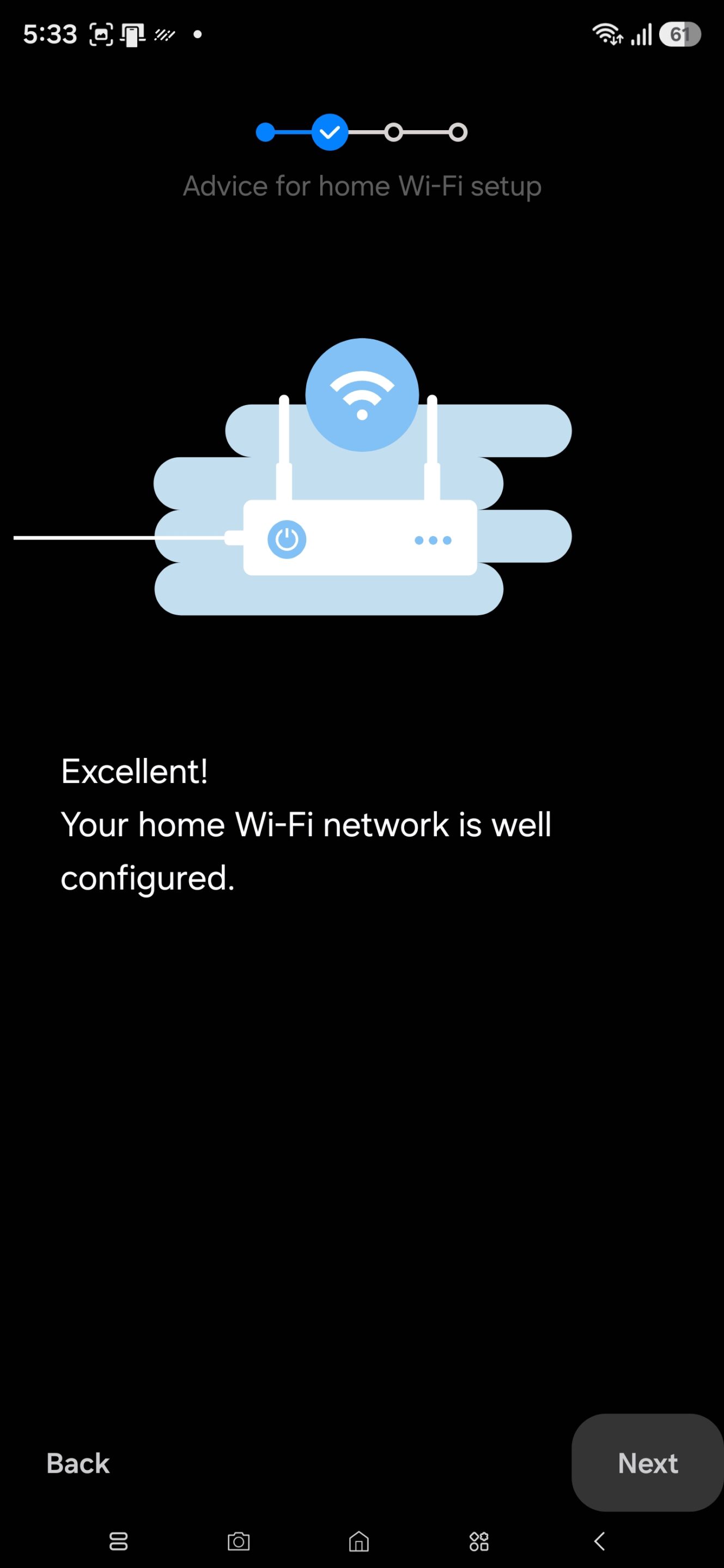
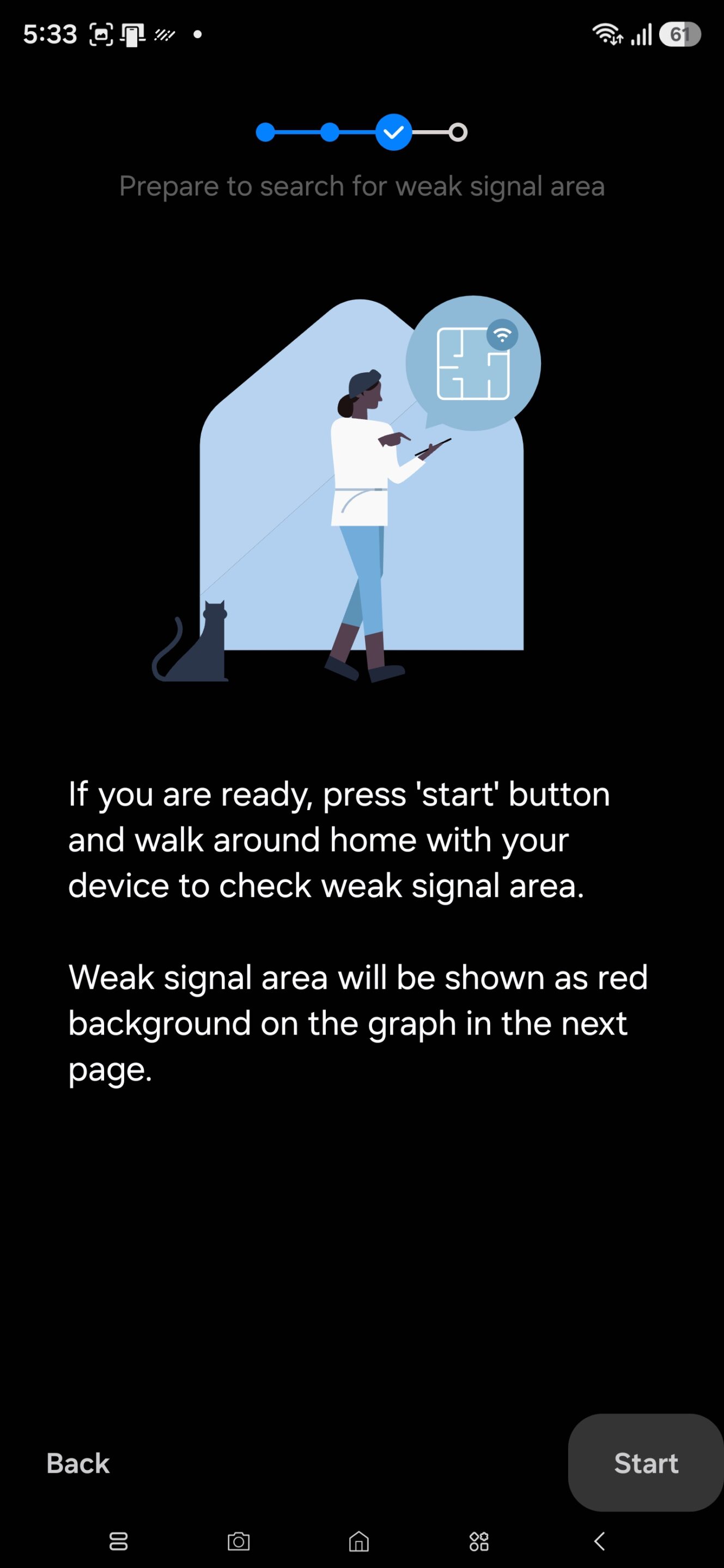
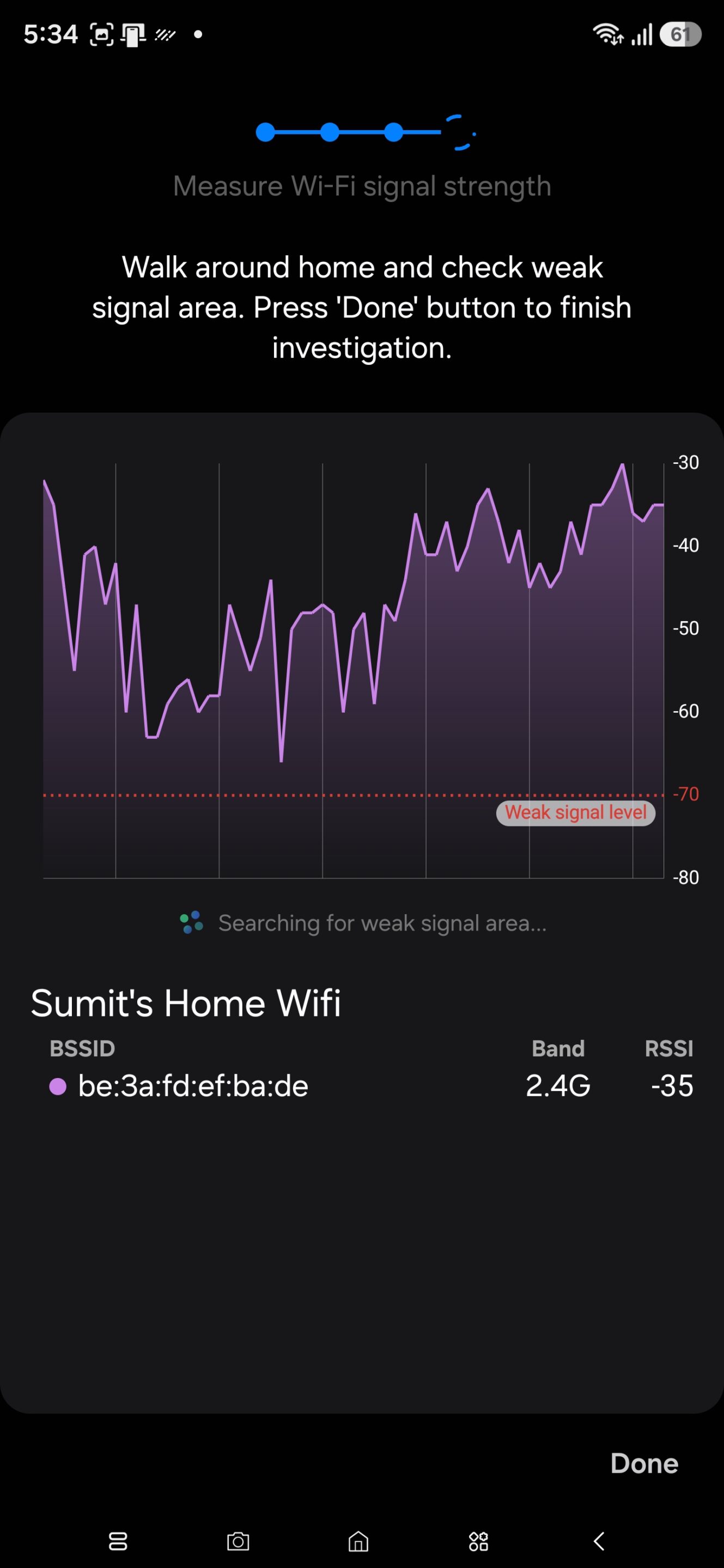
Your Galaxy phone will measure signal strength in real time and generate a coverage graph showing strong and weak areas. Samsung also includes nearby network information, Wi-Fi filtering tools, and advanced diagnostics for power users.
4. Your phone has a built-in compass and ruler
Samsung’s Edge Panels include a handy tools section that many users never discover. Hidden inside is both a digital compass and a ruler.
How to enable the compass and ruler
- Open Settings and go to Display
- Select Edge Panels
- Tap Panels
- Enable Tools
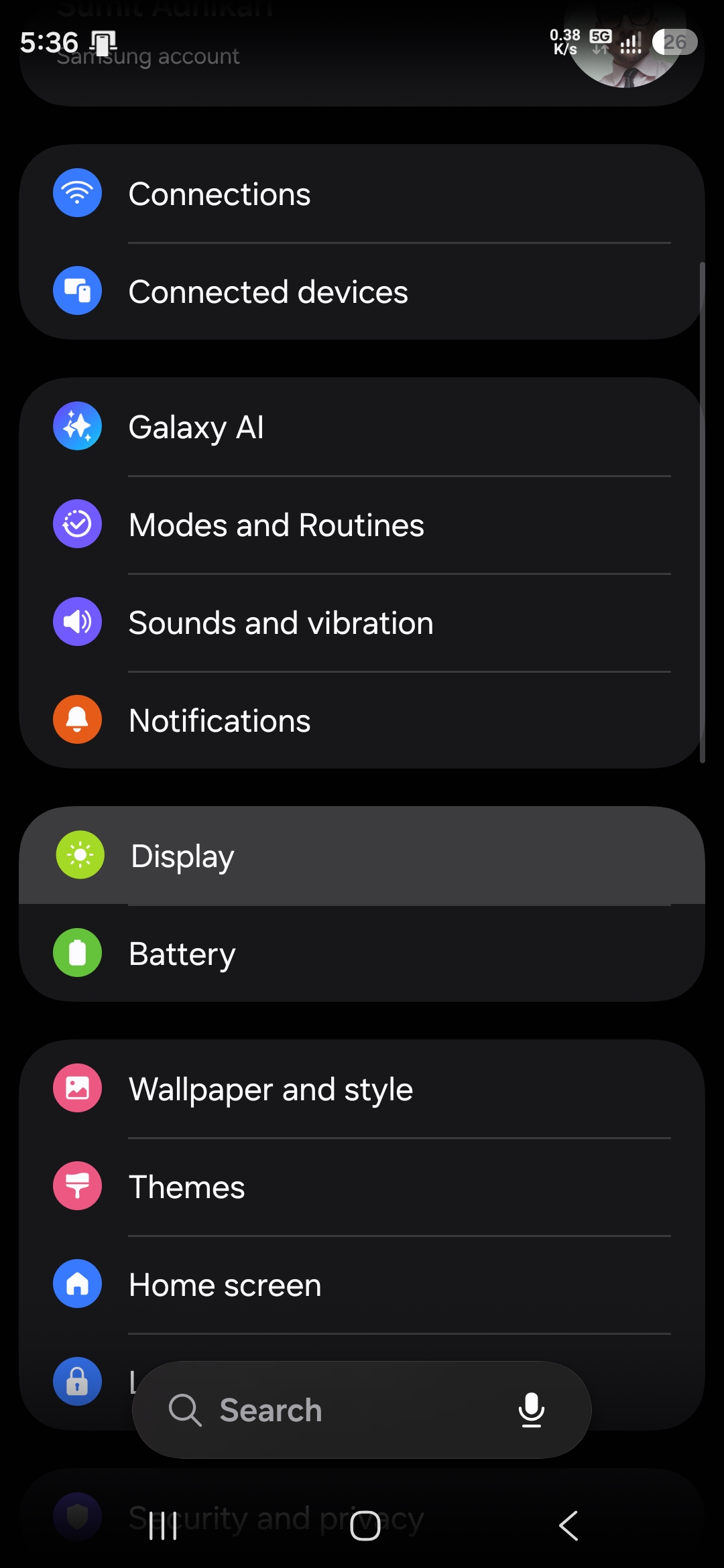
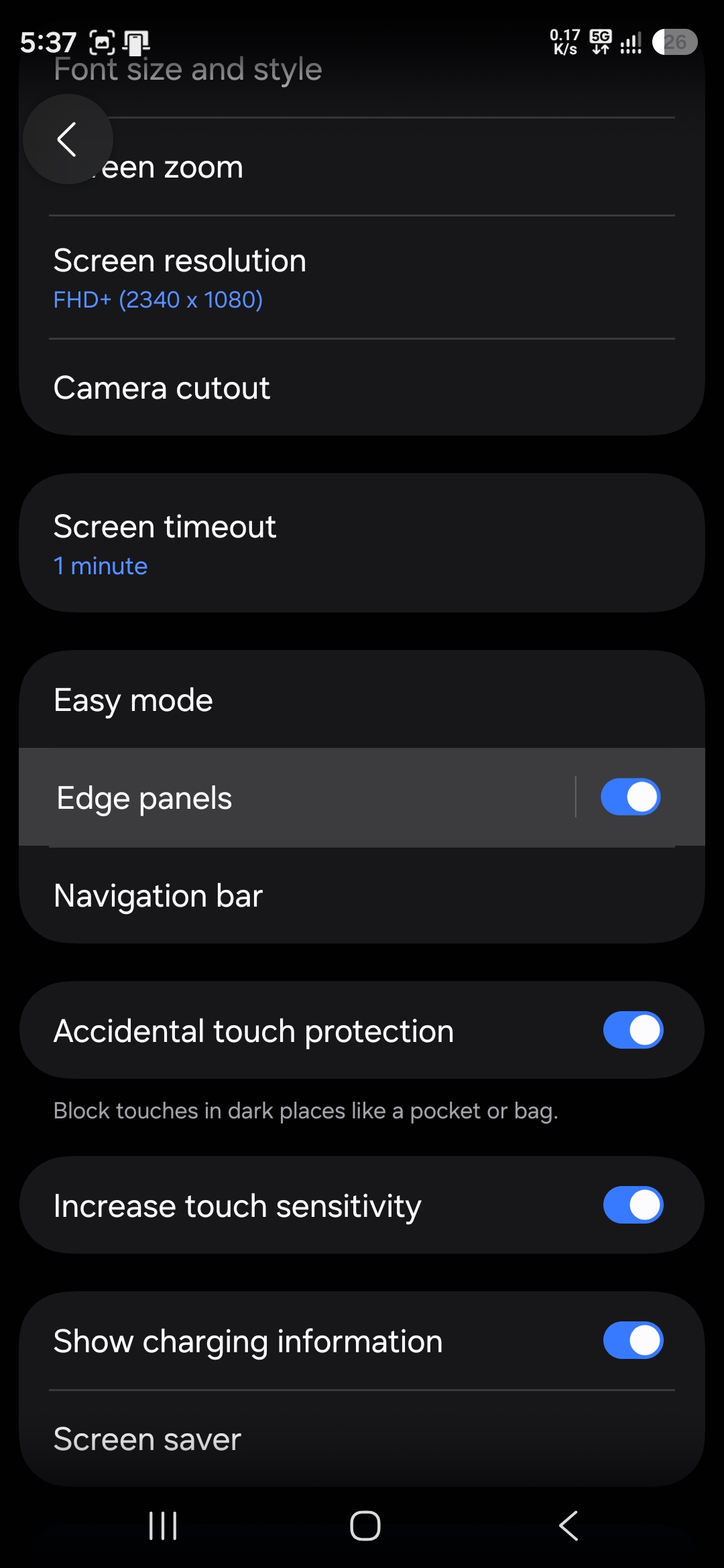
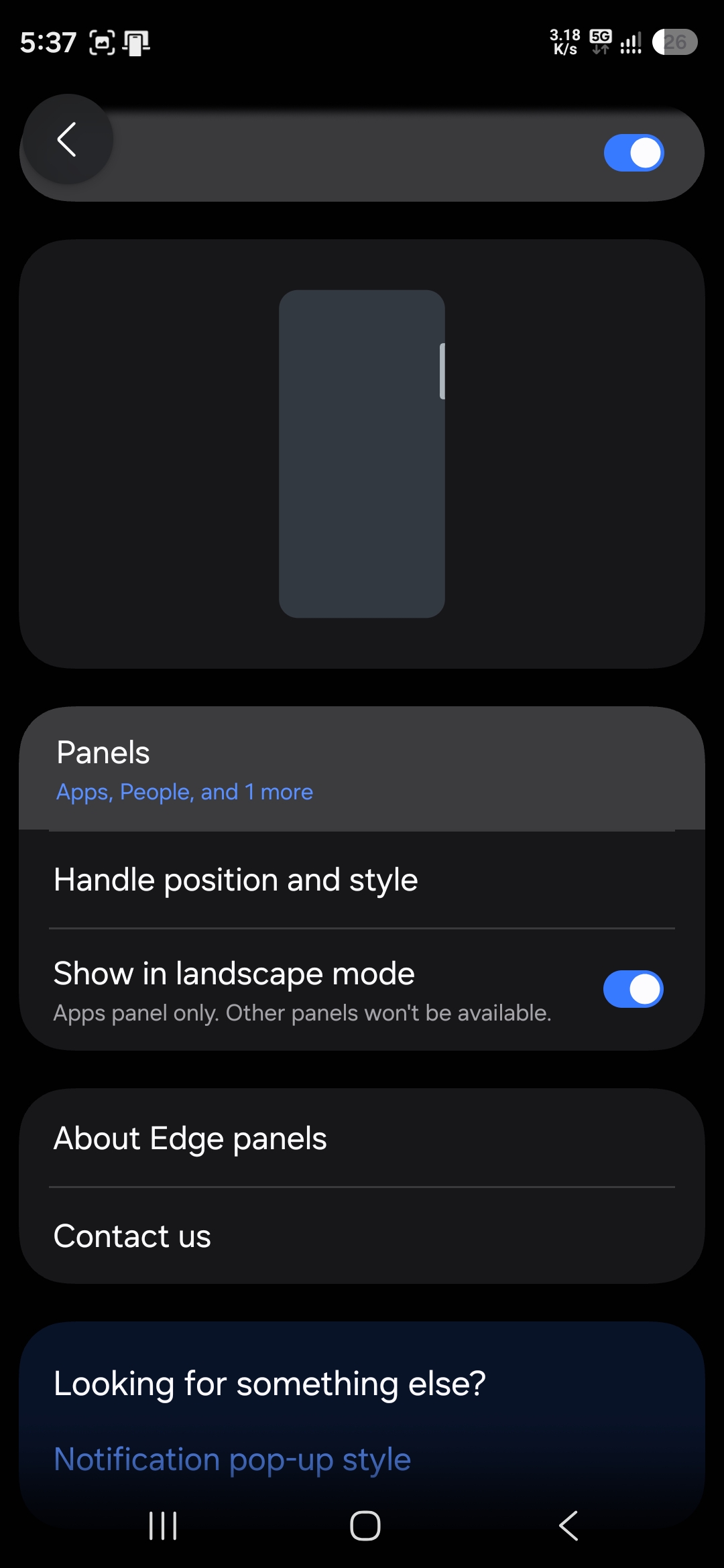
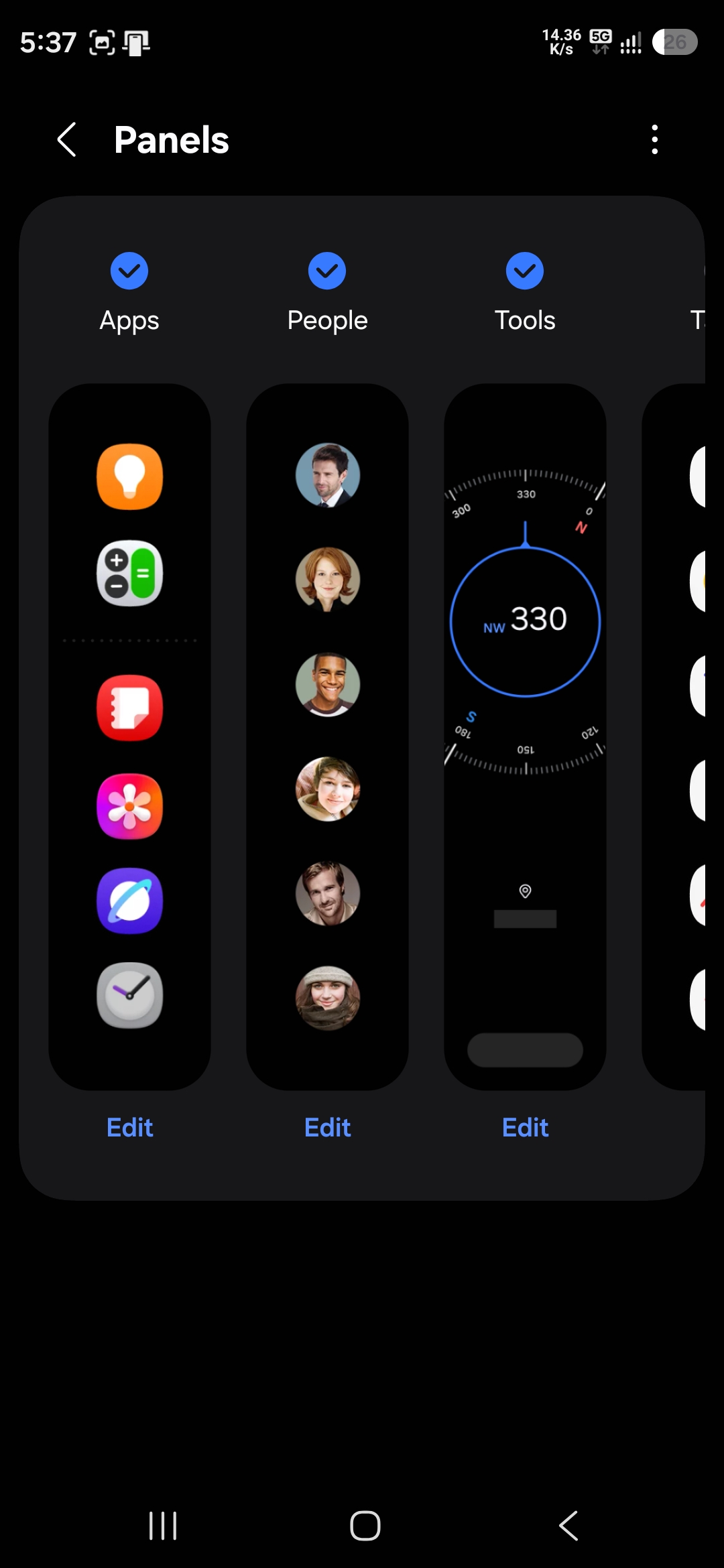
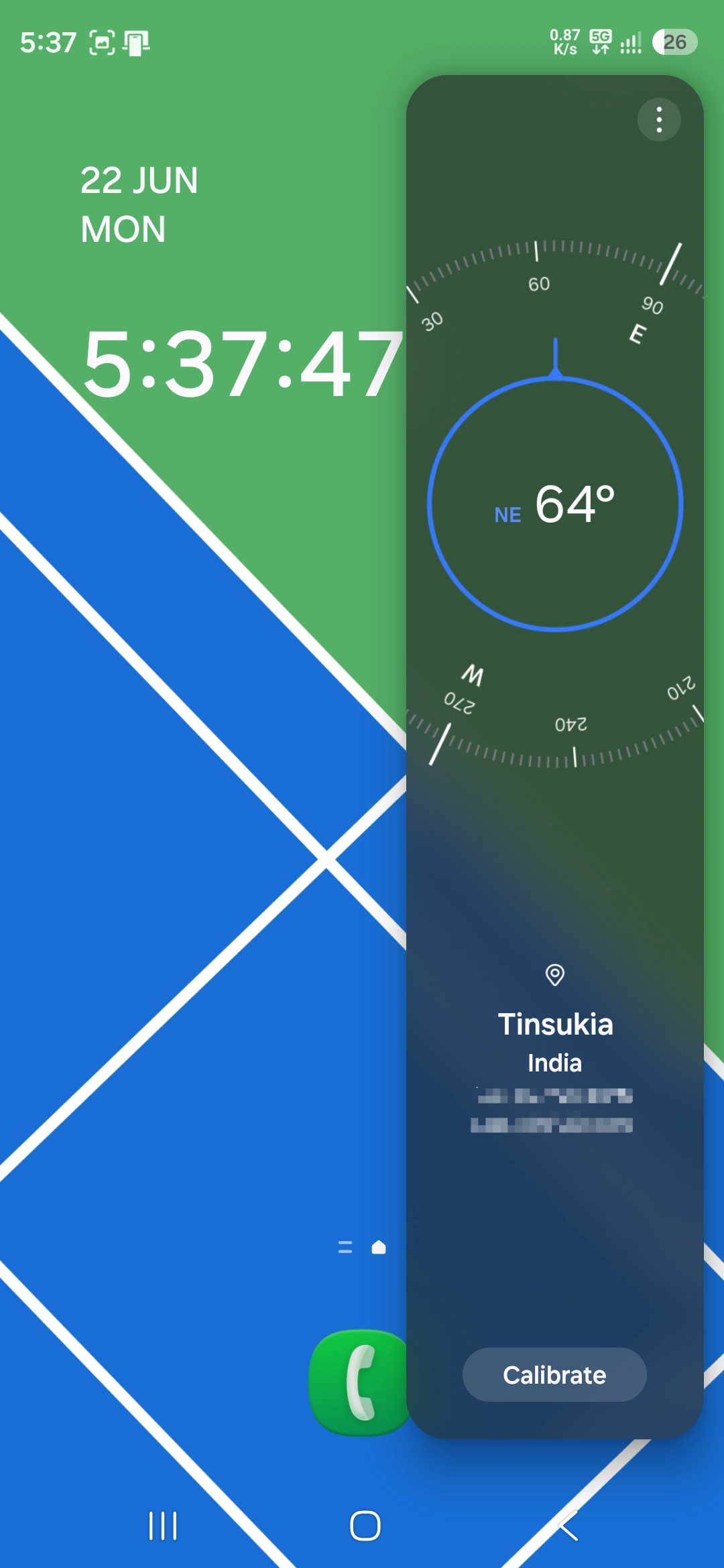
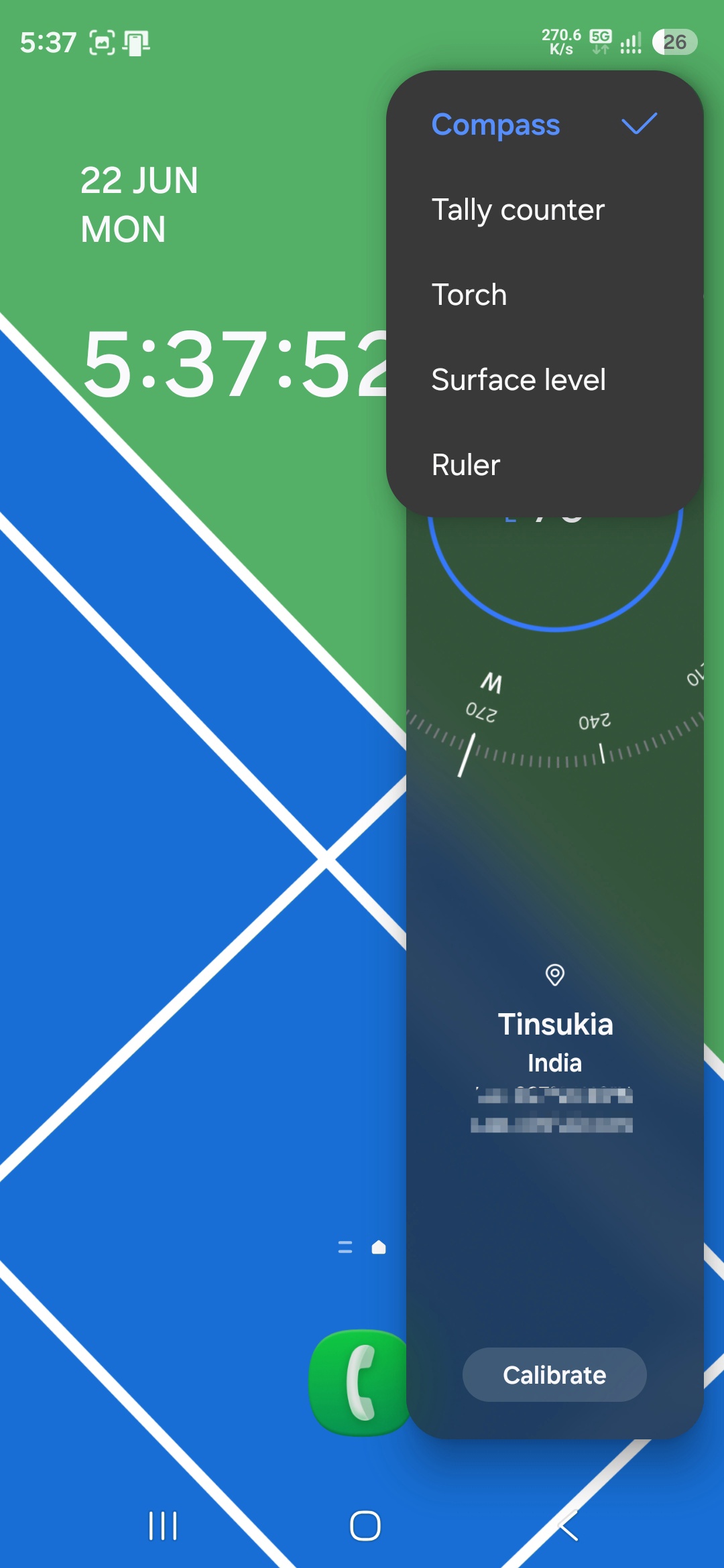
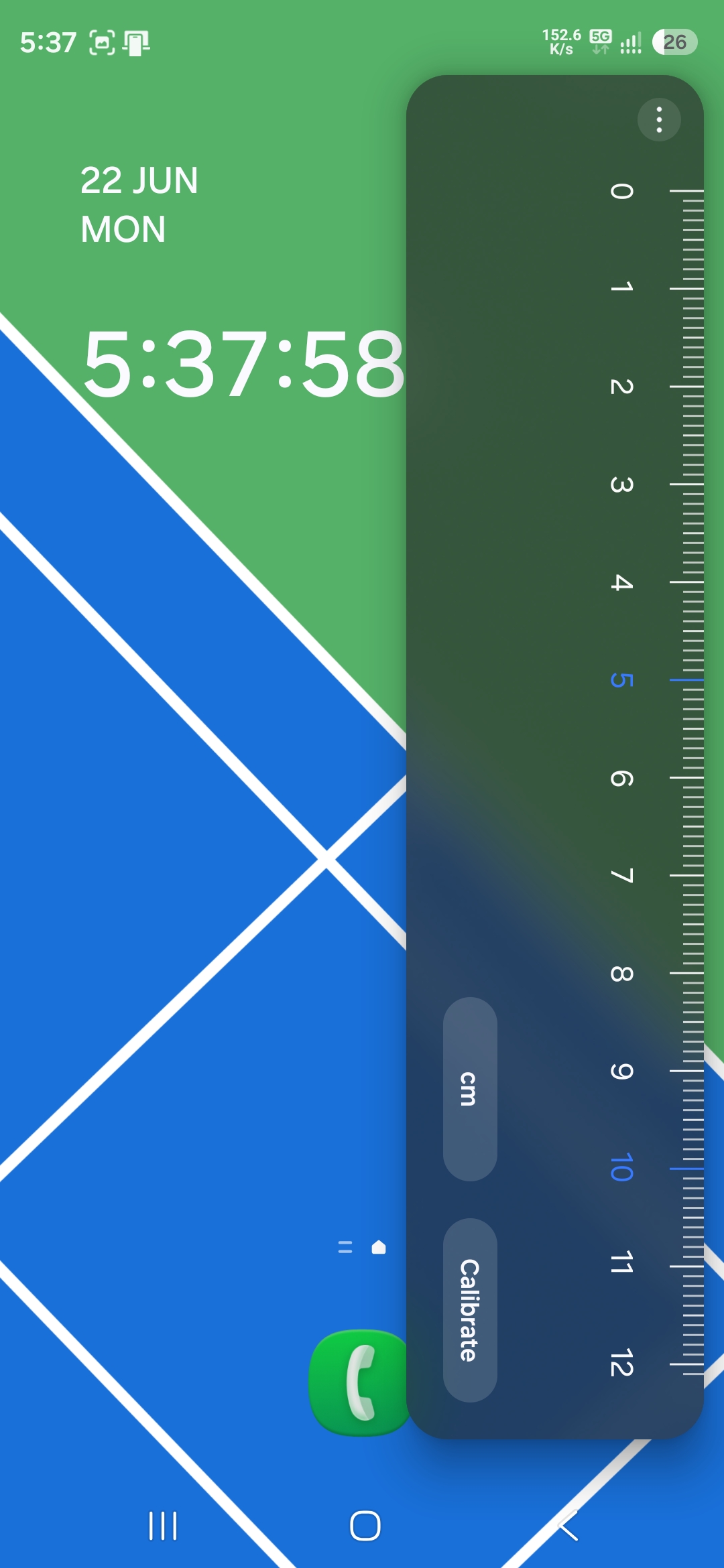
Once enabled, swipe in from the Edge Panel handle and cycle through the panels to reach tools. By default, you get a compass that shows direction in real time and displays coordinates. Tap the three dots in the top-right and select ruler to get a small ruler on the screen. You can switch between centimeters and inches. Both tools include calibration options for improved accuracy.
5. Pin Apps in RAM
Modern Samsung Galaxy phones are excellent at managing memory, but sometimes the system may close background apps to free up RAM for other tasks. While this helps maintain performance, it can also cause certain apps to reload when you open them again.
Samsung offers a handy feature that lets you “pin” important apps in memory, ensuring they stay active in the background for faster access and a smoother experience.
How to keep an app open
- Open the app you want to keep in memory
- Tap the Recent Apps button or use the recent apps gesture
- Tap the app’s icon at the top or next to its preview card
- Select Keep open
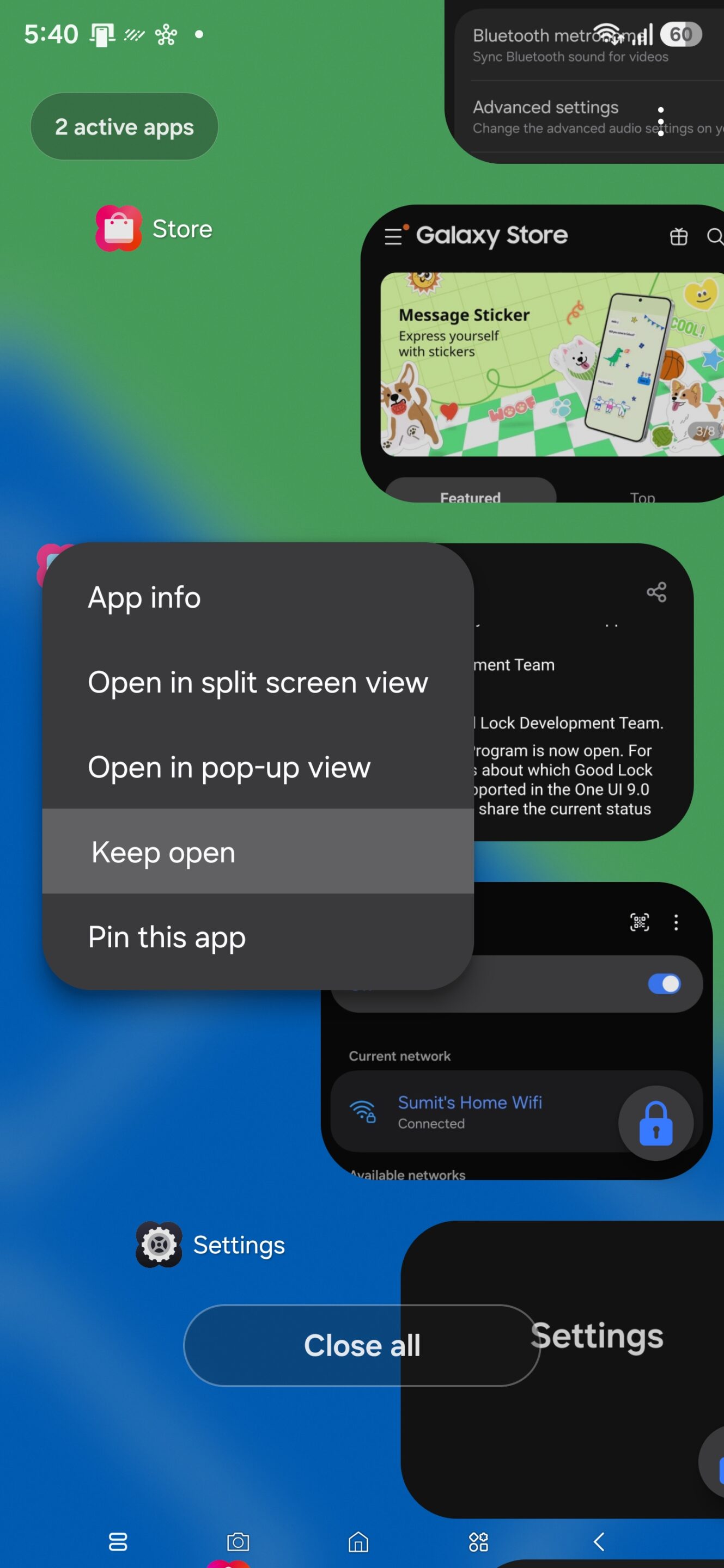
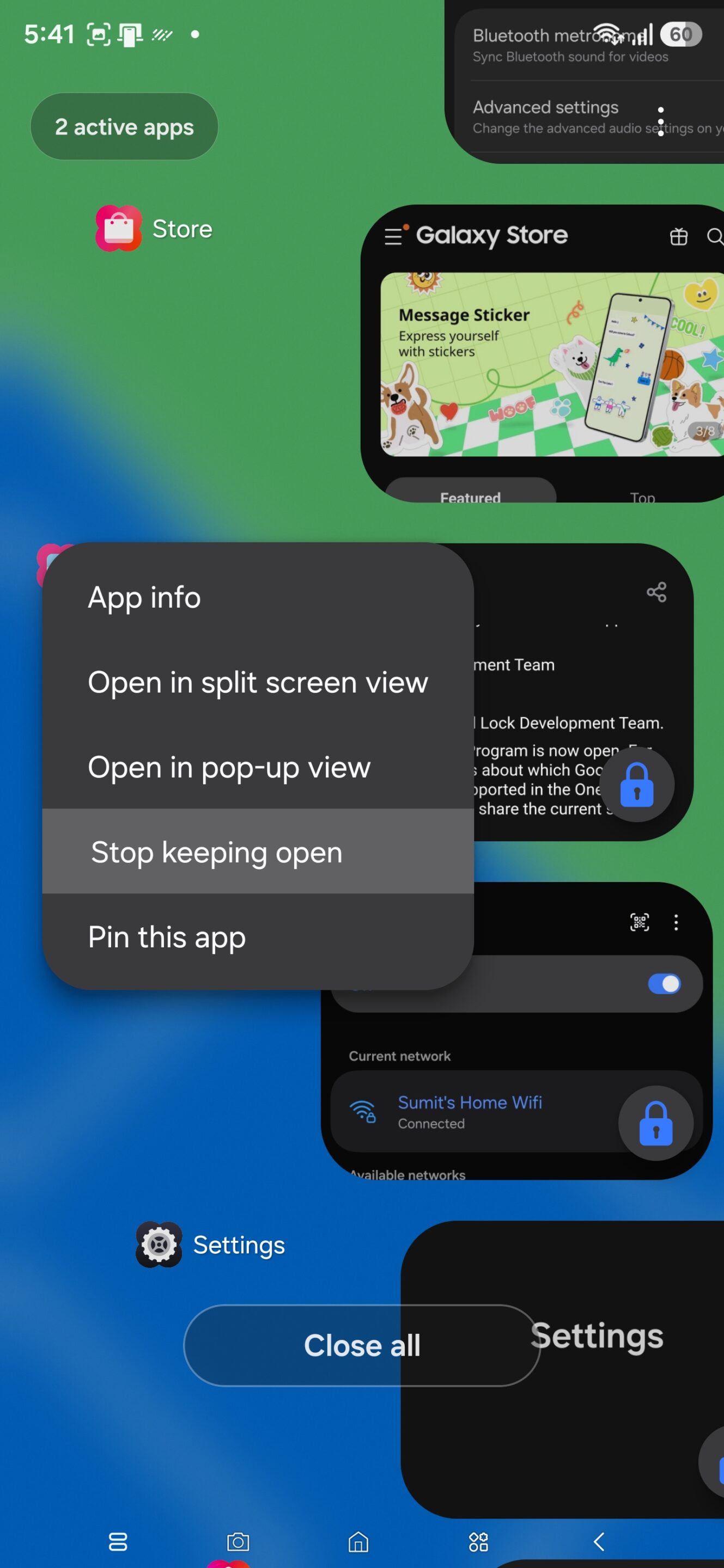
Once enabled, Samsung will prioritize that app and avoid closing it during routine memory optimization. The app will remain loaded in RAM, allowing it to launch almost instantly when you switch back to it. It will remain active even if you select “Close all.” You can keep multiple apps open like this, though it may take a toll on your phone’s RAM performance.

Written by
Sumit AdhikariSumit, a life-long Samsung user, is passionate about technology and has been professionally writing on tech since 2017. He’s a mathematics graduate by education and enjoys teaching basic mathematics tricks to school kids in his spare time. Sumit believes in artificial intelligence and dreams of a fully open, intelligent and connected world.

Follow us on Google Discover & set us as a preferred source in Google News
Share this Post
___________________________


New Blog Posts
___________________________

Samsung May Have Completed the One UI 8.5 Rollout
No One UI 8.5 for Galaxy S22 series, after all
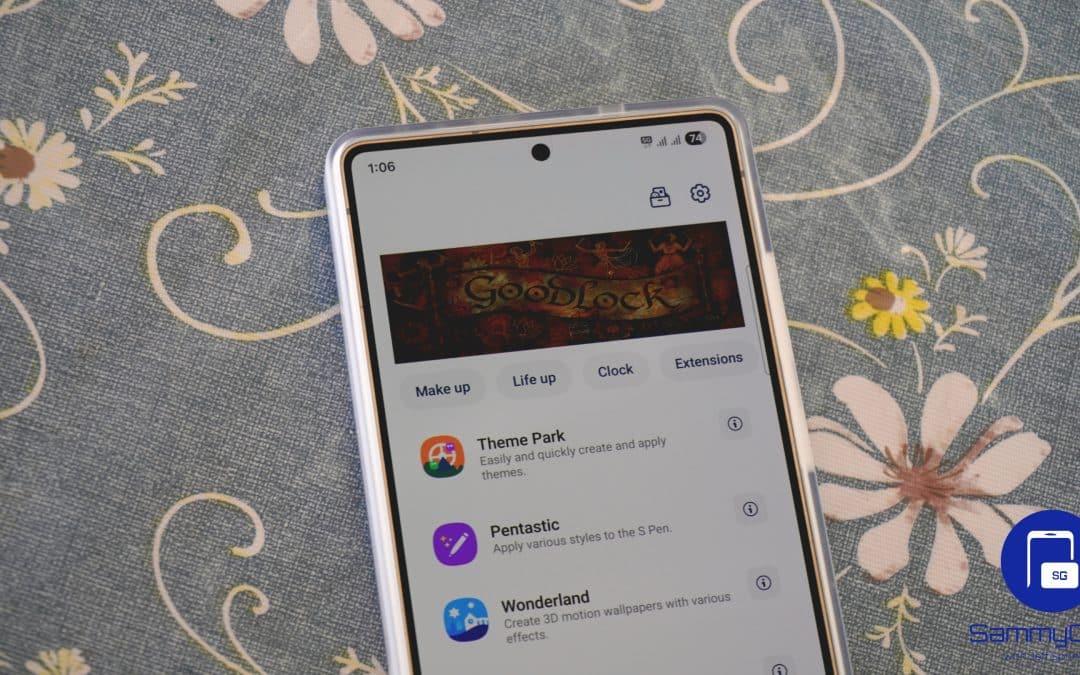
Good Lock Nears Full One UI 9 Compatibility, Only Six Modules Remain Unsupported
QuickStar and MultiStar now support One UI 9
Galaxy A15 and F34 Grab UI 8.5 Update as Samsung Nears Rollout Completion
Two more devices in!