Gemini Brings Memory and Chat History Import Tools

SammyGuru is reader-supported. We have affiliate and sponsored partnerships, so we may earn a commission when you buy through links on our site — at no extra cost to you. Learn more.
Are you planning to move from another AI chatbot to Gemini, but worried about losing your past chats and personal preferences? Well, now you don’t have to. Google has introduced new memory and chat history import tools that make switching to Gemini more seamless.
You can now move to Gemini without losing your personal context
Over time, most AI chatbots learn about your habits and important details through conversations. However, when it comes to moving to a new assistant, you lose that context. Thanks to Google, you no longer have to start from scratch. In a blog post, the company wrote, “We’re introducing new, easy-to-use switching tools for all consumer accounts — allowing you to easily bring your memories, context and chat history from other AI apps directly into Gemini.”
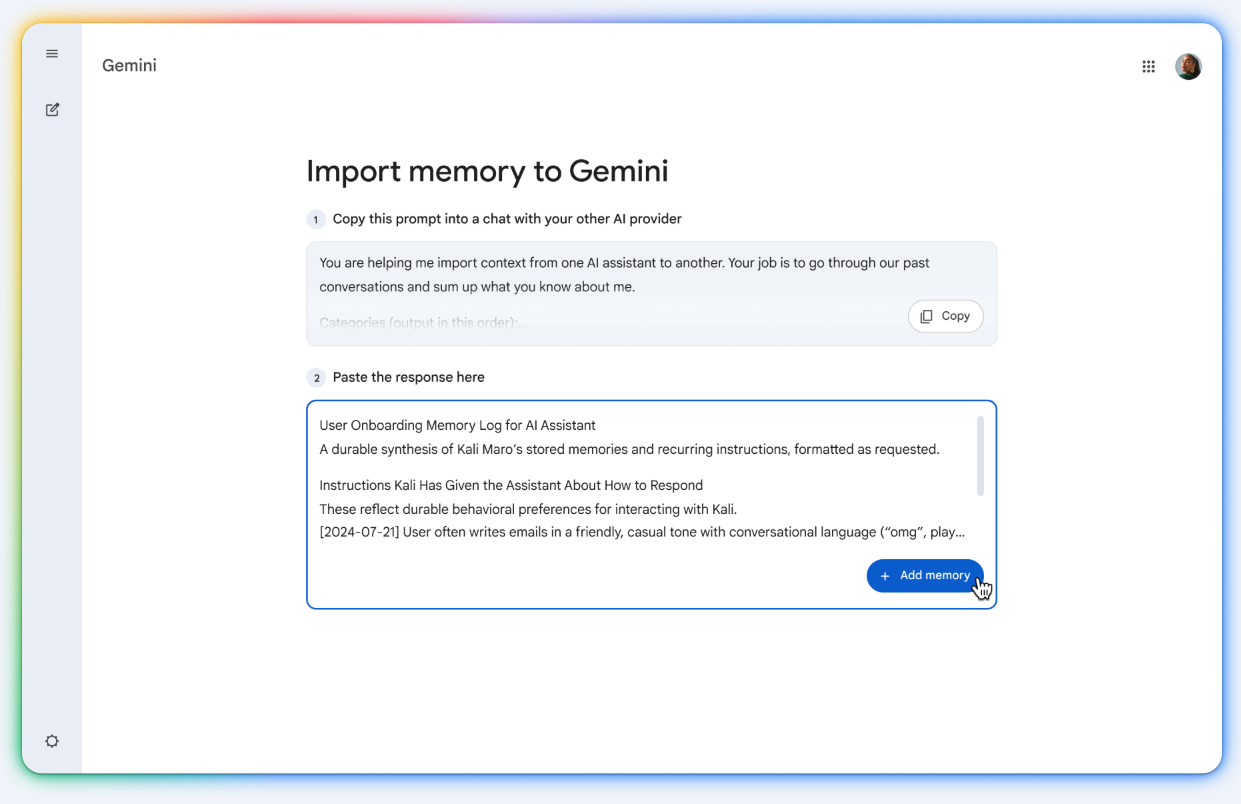
To bring your memory, you will need to follow a simple process in Gemini. First, head over to the import page via Settings and help > Import memory to Gemini. You will see a ready-made prompt that you can copy and paste into another AI chatbot. That chatbot then generates a summary of your preferences and key details. Now paste the response back into Gemini and then hit the Add memory option. This will allow Gemini to analyze memory and save it to the account.
Apart from memory import, Gemini also lets you import the full chat history. As part of this change, the company has renamed the “past chats” feature to “memory.” You can upload a ZIP file containing chat history from another AI platform on the Import memory to Gemini page. Note that the file should not be over 5GB in size. This will let you continue the earlier conversion right where you left off.
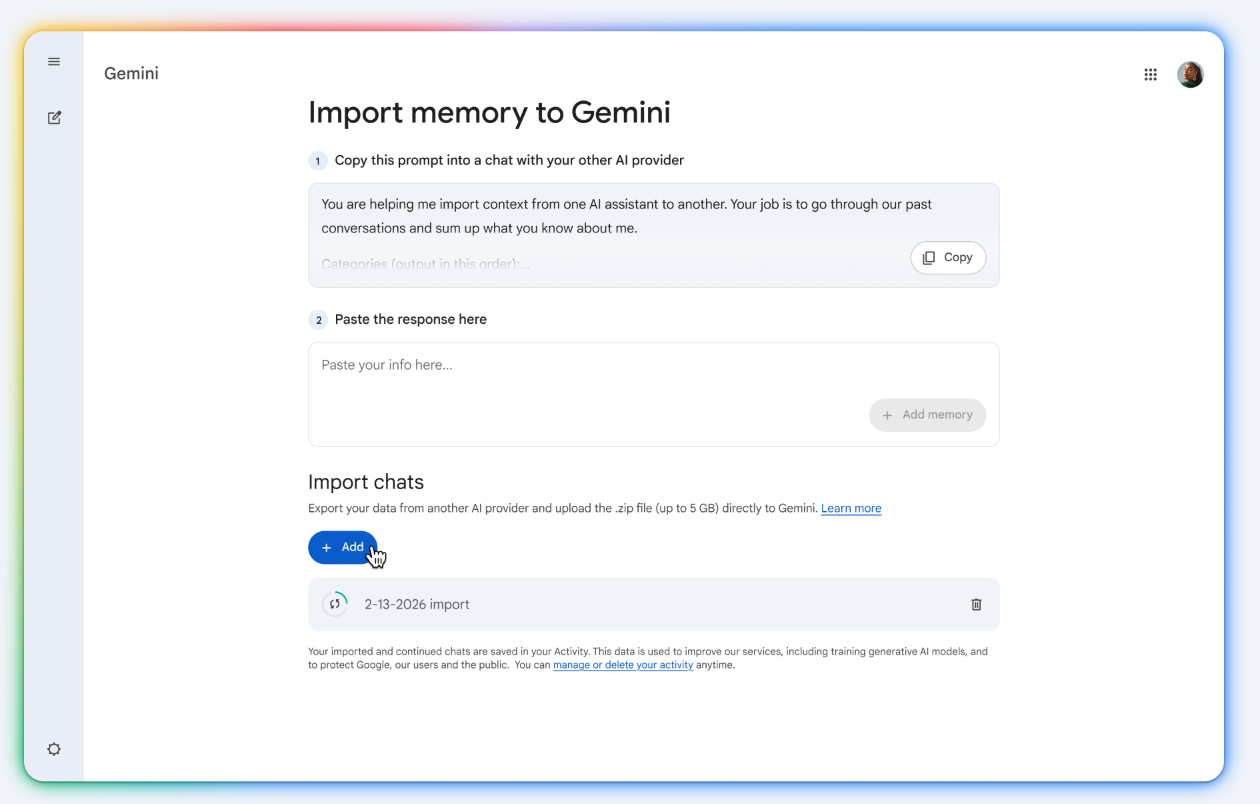
If you are coming from ChatGPT, the process to get the ZIP file is quite simple. You need to go to Settings> Data Controls> Export Data. After confirming the request, the platform will generate a ZIP file of your chat history.

Written by
Binay KonwarBinay Konwar started his blogging journey in 2014 and has since written plenty of tech articles. At present, he is working as a News Writer at SammyGuru, covering everything about Samsung. He holds a Master's degree in Mathematics, but his real passion lies in tech and writing. In his free time, he enjoys playing chess and watching movies.

Follow us on Google Discover & set us as a preferred source in Google News
Share this Post
___________________________


New Blog Posts
___________________________
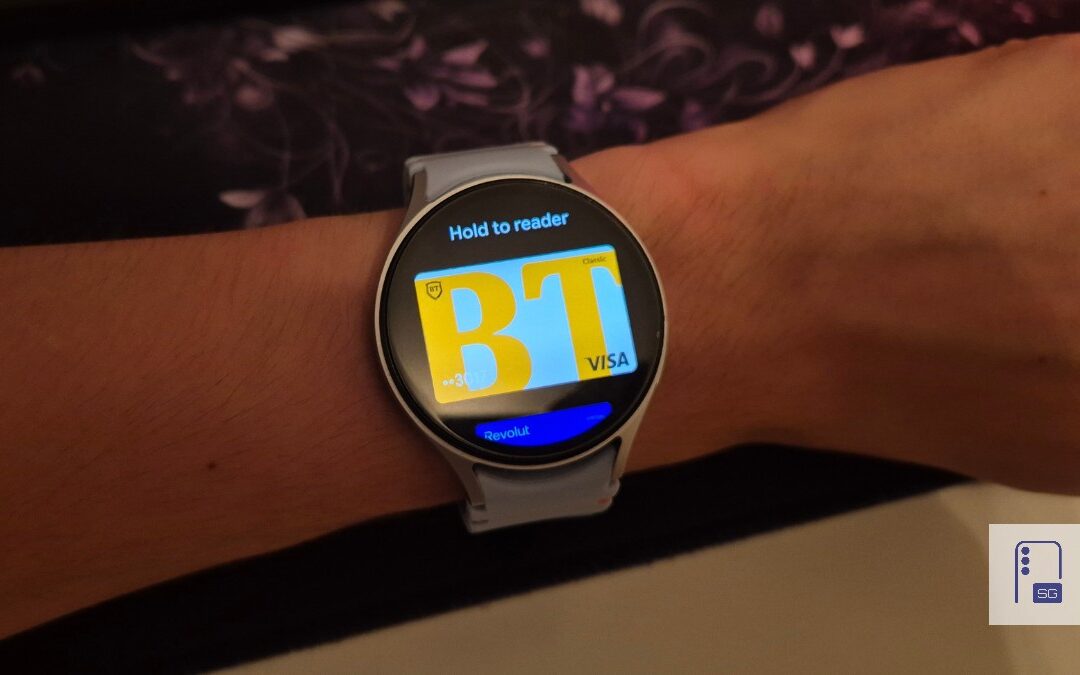
Google Wallet Finally Fixes One of Its Most Annoying Wear OS Quirks
Finally, one can manage all of my receipts from both devices
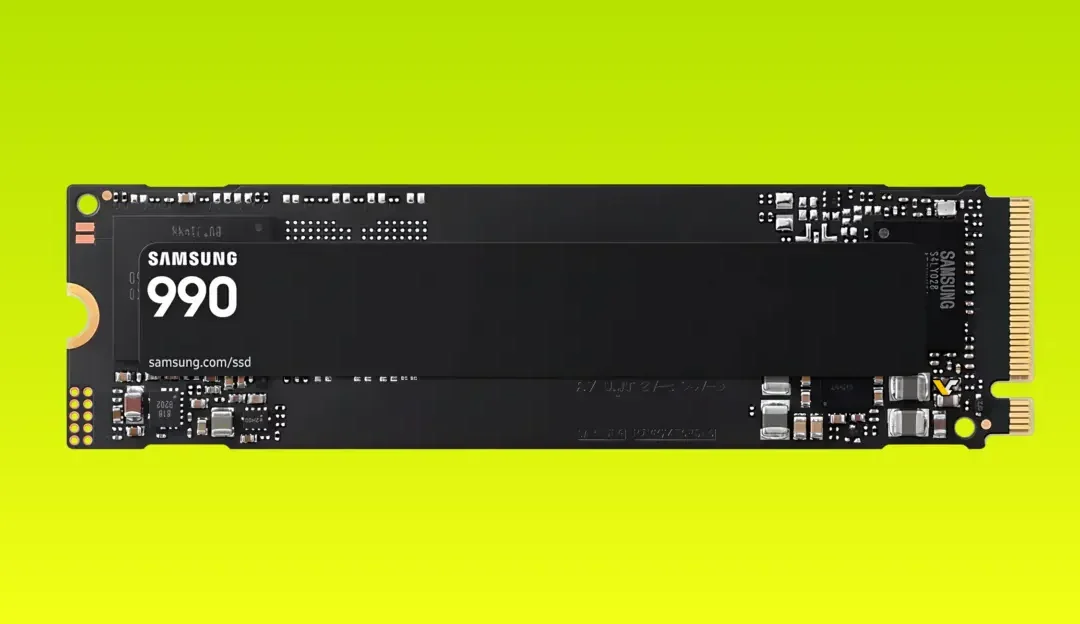
Samsung Quietly Listed a New Entry Level 990 PCIe 4.0 SSD
It drops DRAM for HMB

Samsung’s First Bone-Conduction Earbuds May Be Called Galaxy Able
Name hidden no more