Galaxy Tab S11 Ultra Pro Keyboard Review: Solid Hardware with a Major Flaw
SammyGuru is reader-supported. We have affiliate and sponsored partnerships, so we may earn a commission when you buy through links on our site — at no extra cost to you. Learn more.
After spending a little over a month with the Galaxy Tab S11 Ultra Pro Keyboard for this review, I can say Samsung has struck gold. They’ve found their own path toward a true laptop-like experience. This keyboard brings the Galaxy Tab lineup ever so closer to becoming a legitimate laptop alternative.
That said, the Pro Keyboard isn’t without its flaws. While the hardware is 90% of the way there, the software is lagging behind and has become the Achilles’ heel. Even though Samsung has brought its best this time, it may not be enough just yet.
Disclaimer: We bought this unit at retail. Samsung had no role in this review and did not see it before publication.
Hardware Breakdown
It feels reminiscent of the Galaxy S25 Edge and Galaxy Z Fold 7, delivering capable performance in a slim form factor. It wasn’t a half measure like the previous Book Cover Keyboards, which were essentially just Microsoft Surface keyboards for the Galaxy Tab. Those felt flimsy and cheap.
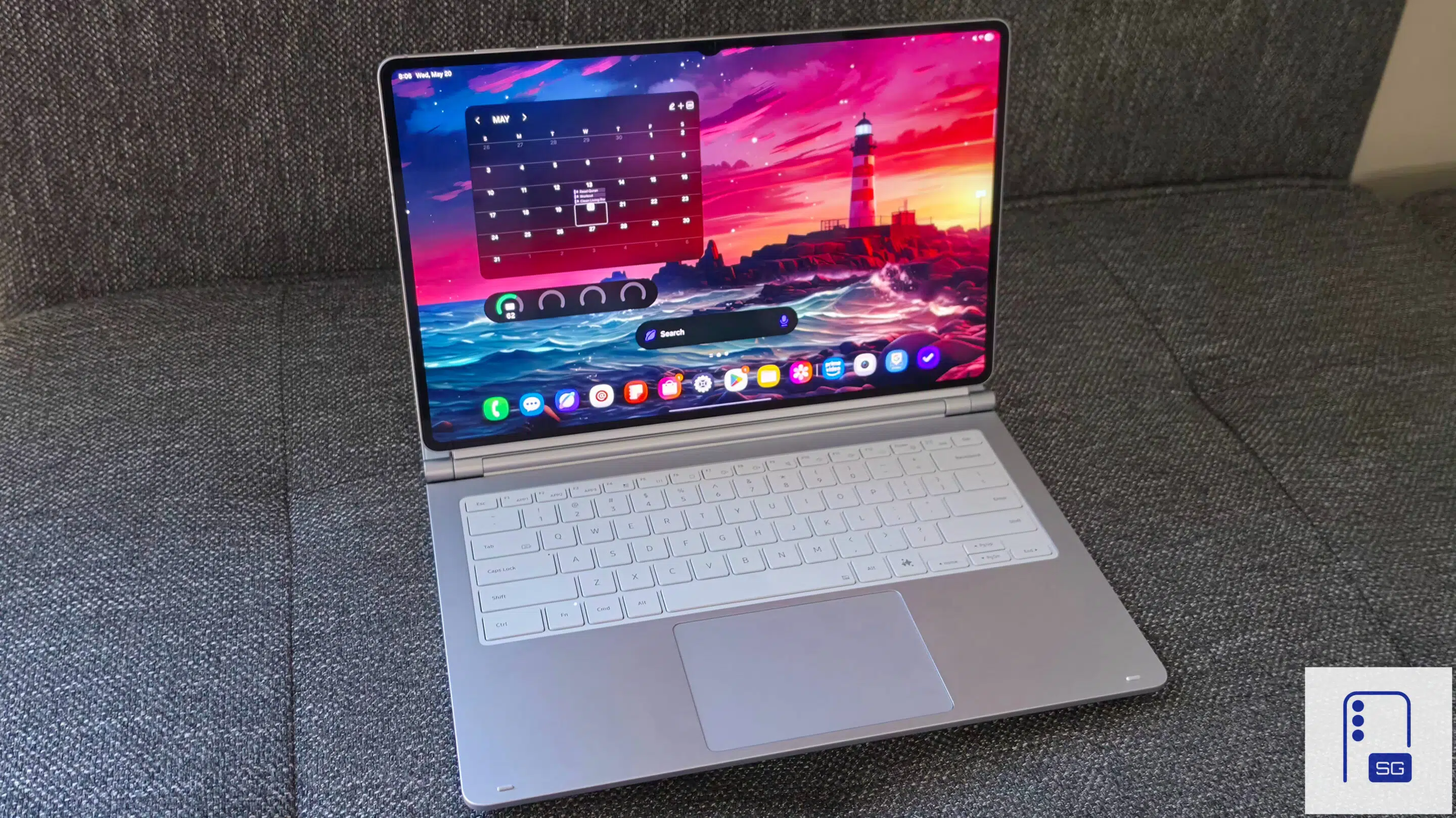
The Pro Keyboard’s designers clearly kept in mind exactly what the Galaxy Tab S11 Ultra is: slim, sleek, lightweight, yet packing a massive 14.6-inch display. It’s not thick or heavy, so the keyboard had to preserve that same identity. It delivers a familiar laptop-like experience without adding unnecessary bulk.
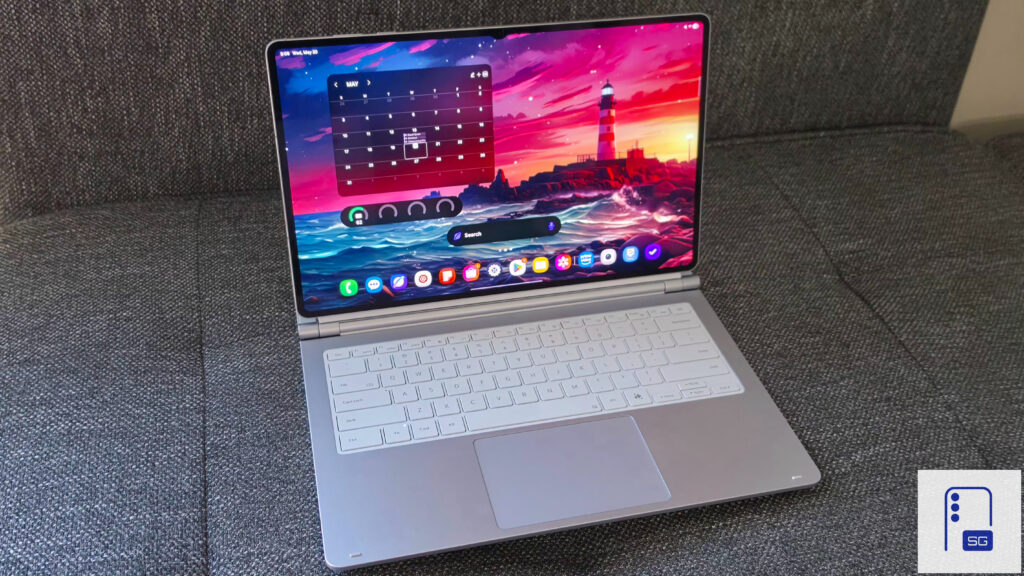
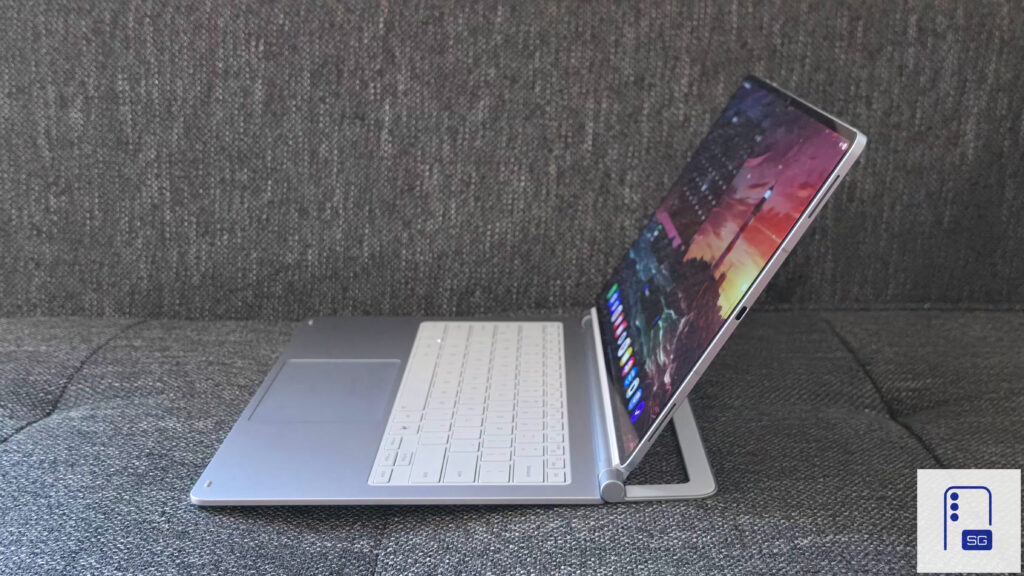
Switching from a plastic/rubber material to a nearly all-metal design really brings it home. I no longer have to worry about the keyboard flexing when typing on my lap. The only downside to the metal build is that it shows hand oils and sweat on the palm rests more easily.
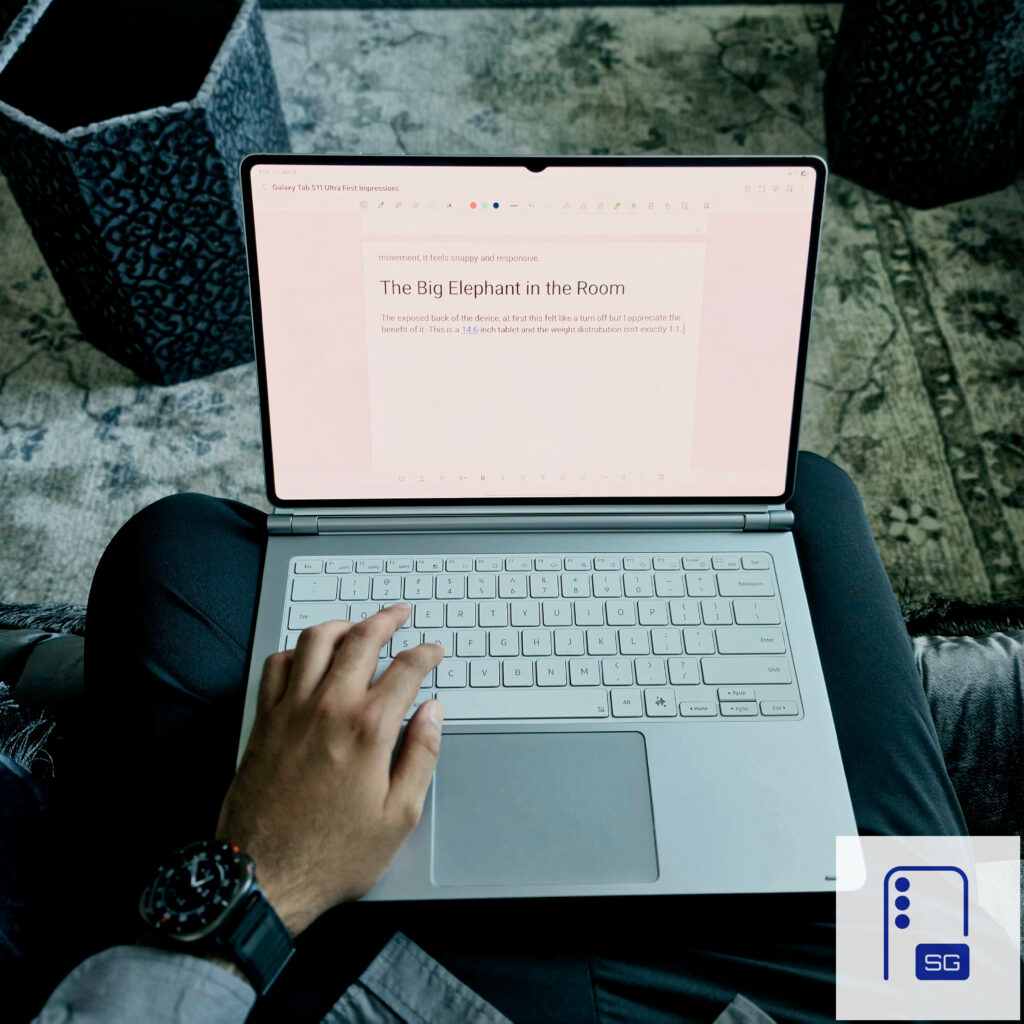
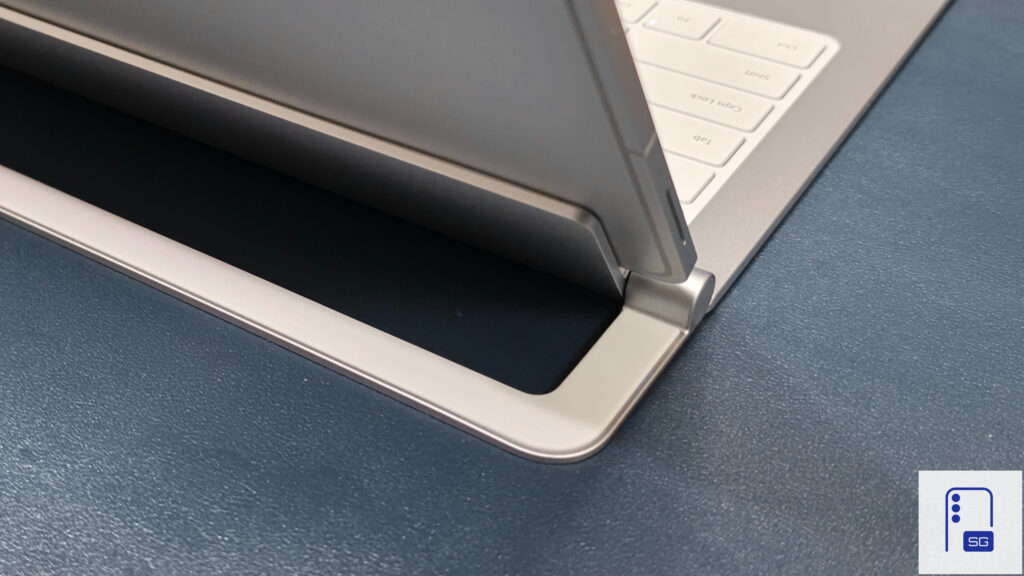
Anyone who has used the iPad Pro with the Magic Keyboard knows the issue; certain positions (especially farther back on your lap) become unusable because the whole setup is top-heavy and can easily tip over. I gotta give it to Samsung; they’ve thought this one through. When you attach the Galaxy Tab S11 Ultra to the Pro Keyboard, there’s an additional supporting kickstand that helps balance the top-heavy feel. I haven’t had to worry about it tipping over.
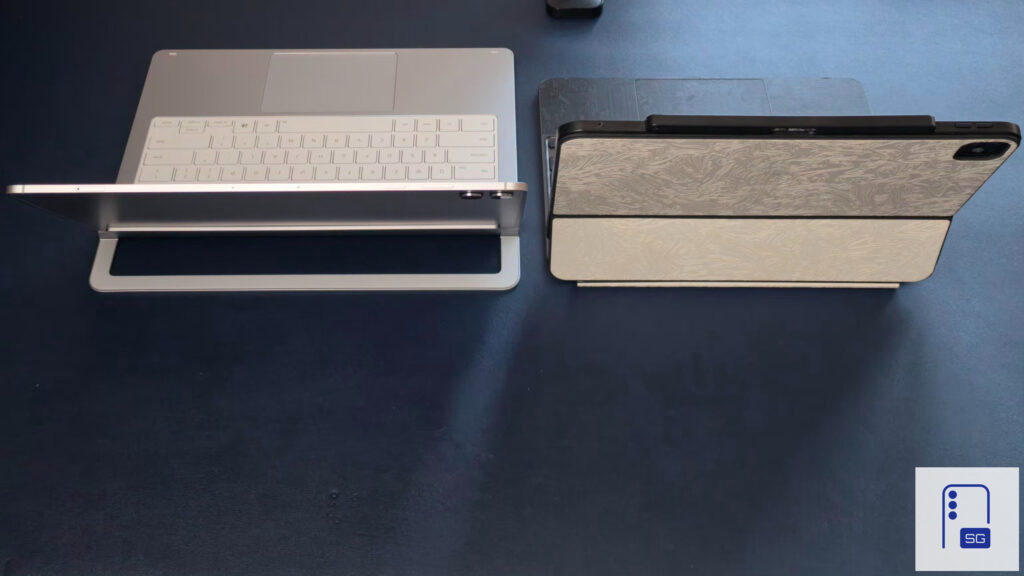
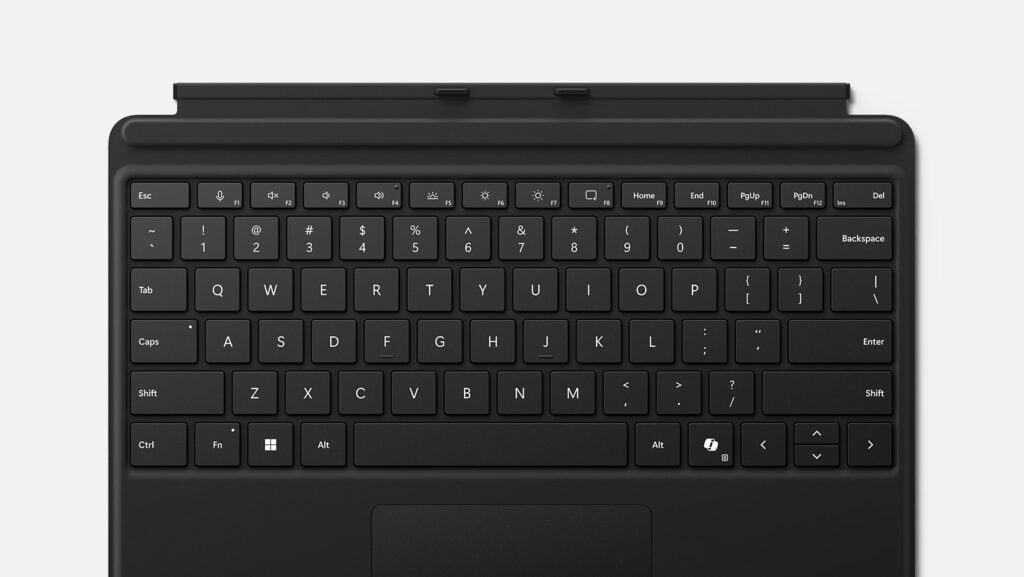
I have no complaints about the keyboard itself. It isn’t mushy, but it’s not so tactile that it’ll turn heads in an office either. The backlight is a huge miss. While you don’t really need it in a well-lit environment, it would be nice if the quality matched the premium price tag. In bright conditions, it’s sometimes hard to tell if it’s even on. In decent lighting, it can also make the keycaps harder to read.
-
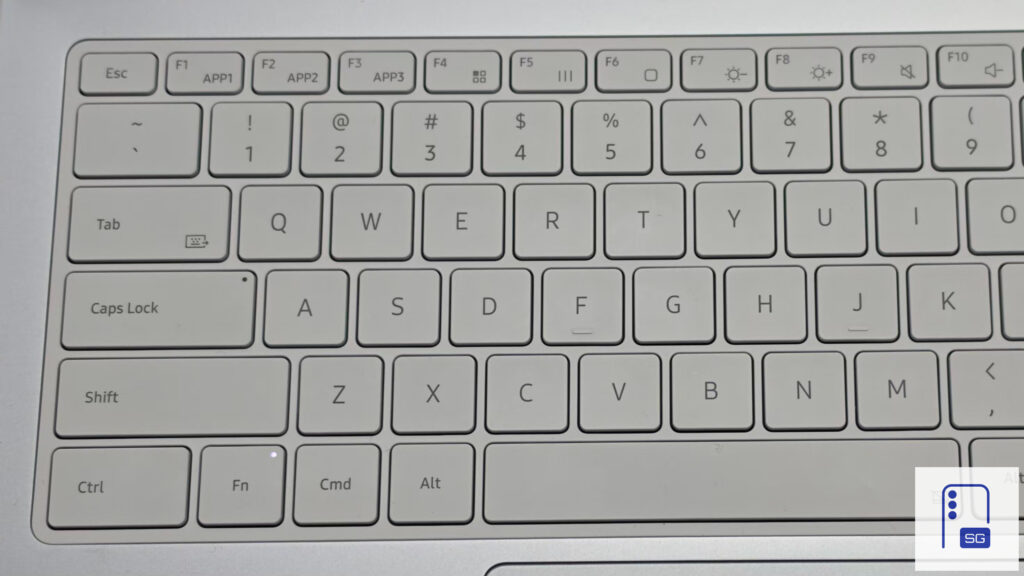
- Lighting On
-
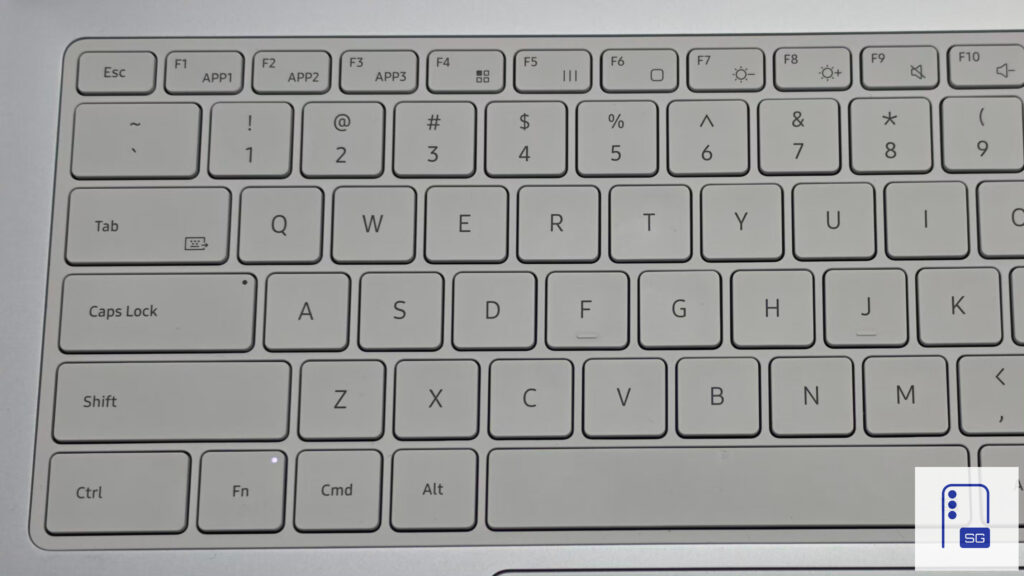
- Lighting Off
While the top section is metal, the bottom deck uses a polyester material. It doesn’t feel cheap, but when typing on my lap, I can feel my keyboard strokes through to my legs. There seems to be insufficient reinforcement between the layers, resulting in a small amount of flex.
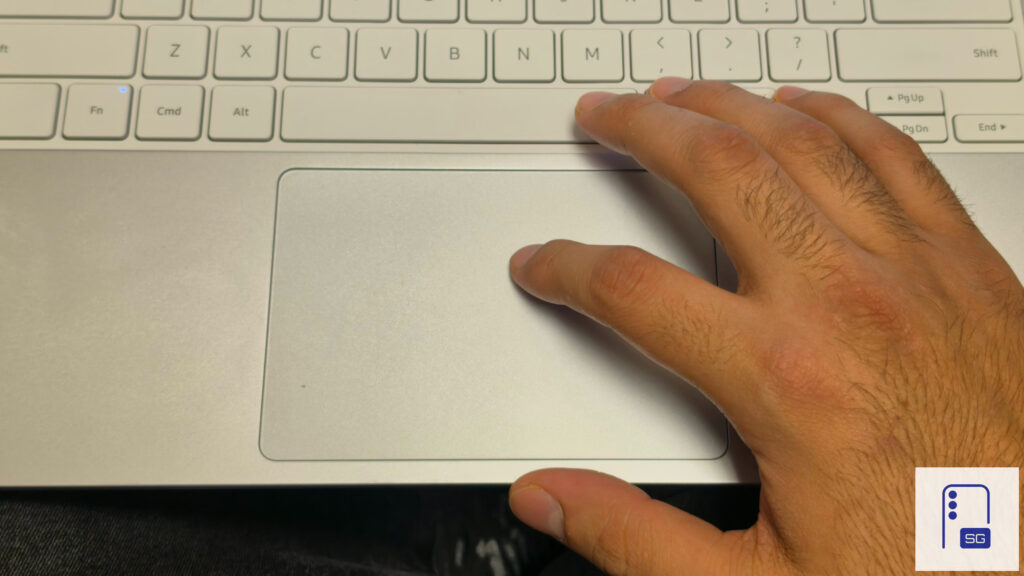
The trackpad is a bit of a mixed bag, with most of my complaints stemming from the software, which I’ll discuss soon. It’s a smooth, large, presumably glass surface. Your finger glides nicely, and it’s quite accurate. It’s not a haptic trackpad, but that doesn’t make it bad. Unlike previous iterations, pressing on the palm rests while using it on your lap no longer accidentally triggers clicks.
Laptop Experience: The Good
As a complete package, the Pro Keyboard paired with the Galaxy Tab S11 Ultra is everyone’s dream laptop. You’re getting a metal design, a large glass surface touchpad, and most importantly, it’s compact. It perfectly complements the tablet’s specs: 120Hz Anti-Reflective OLED, all-day battery life, fantastic speakers, and a touchscreen.
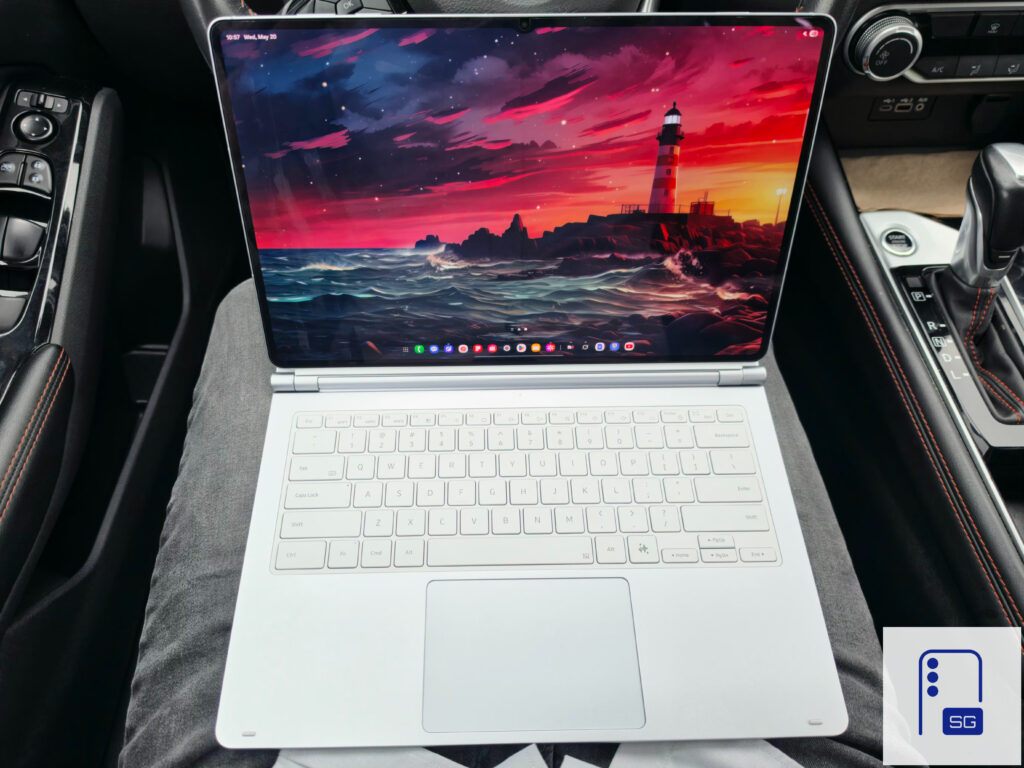
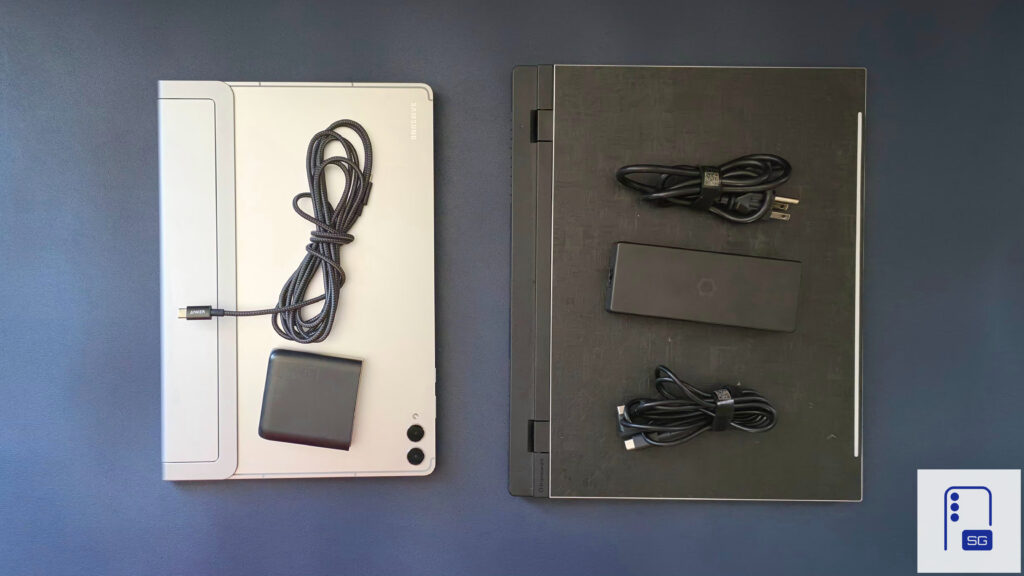
Since this is a tablet, you won’t have to worry about fan noise or heat on the keyboard deck when you’re using it for long sessions or intensive workloads. I’ve always tried to use 14-inch laptops as my daily drivers, such as the ASUS Zephyrus G14, but even with the fans off, I could still hear the coil whine, and that irritated me. The best part is not carrying a large charging brick wherever I go because x86 laptops can’t output full performance on battery.
Laptop Experience: The Bad
I’ve never understood how Samsung avoided the ridicule for their tablets while Apple faces it for the iPad. Yes, I understand the ridiculous “What’s a computer?” advertisements from Apple were a stretch. But even today, the iPad is still criticized. I can confidently state that the iPad is better than what the Galaxy Tab is capable of currently. Just because the Galaxy Tab was able to run more apps at one time doesn’t mean it’s definitely better.
Samsung’s skin is called One UI, but it is anything but One UI. We have three separate full-screen options: one each for standard Tab view, the “immersive” view, and the Windows-like full-screen mode.
-
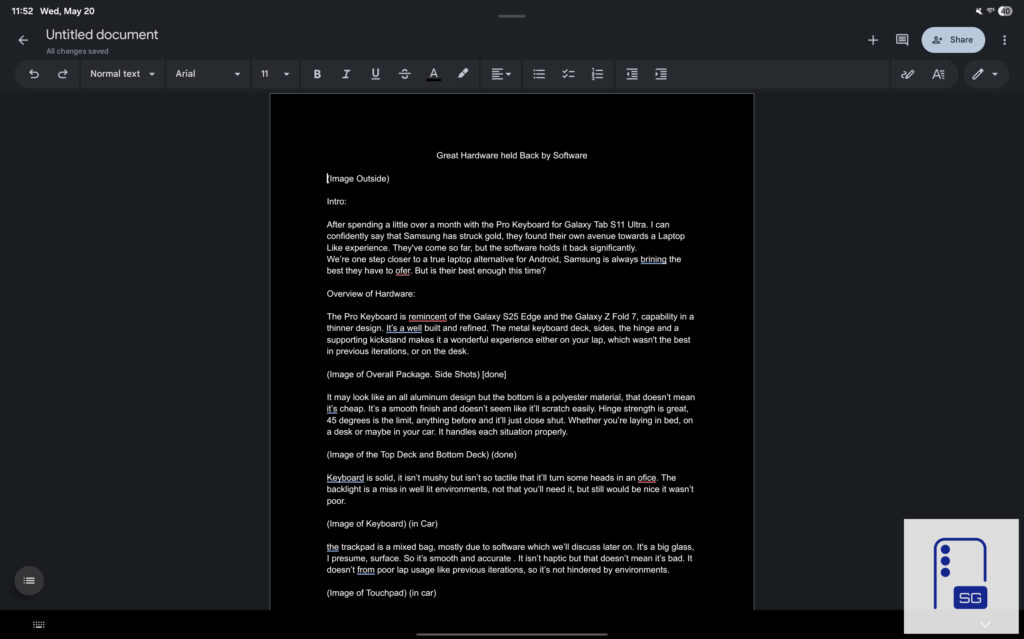
- Standard Tab View
-
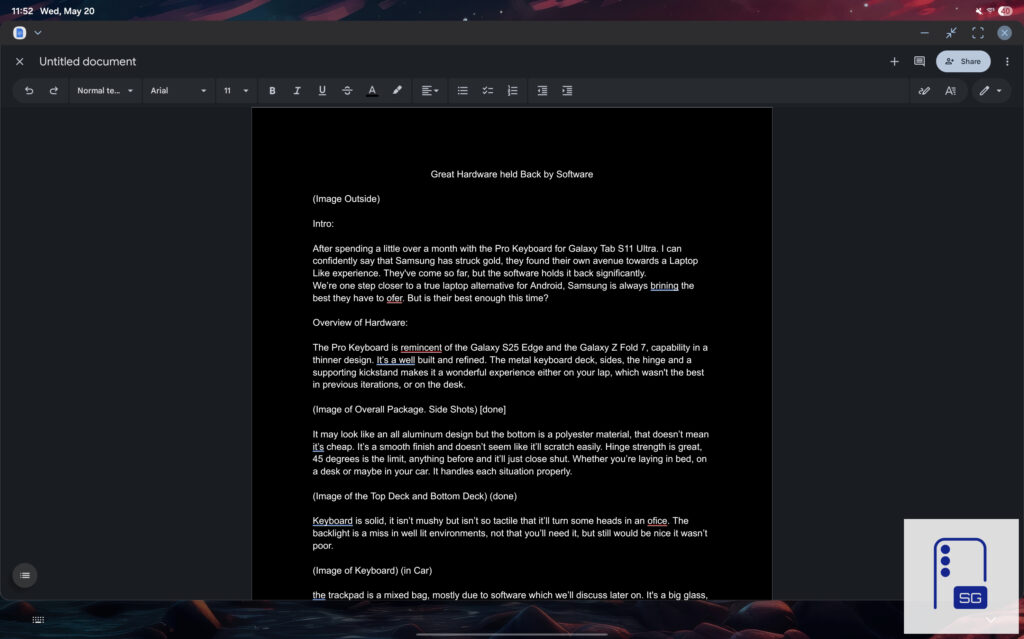
- New Dex Expand Window View
-
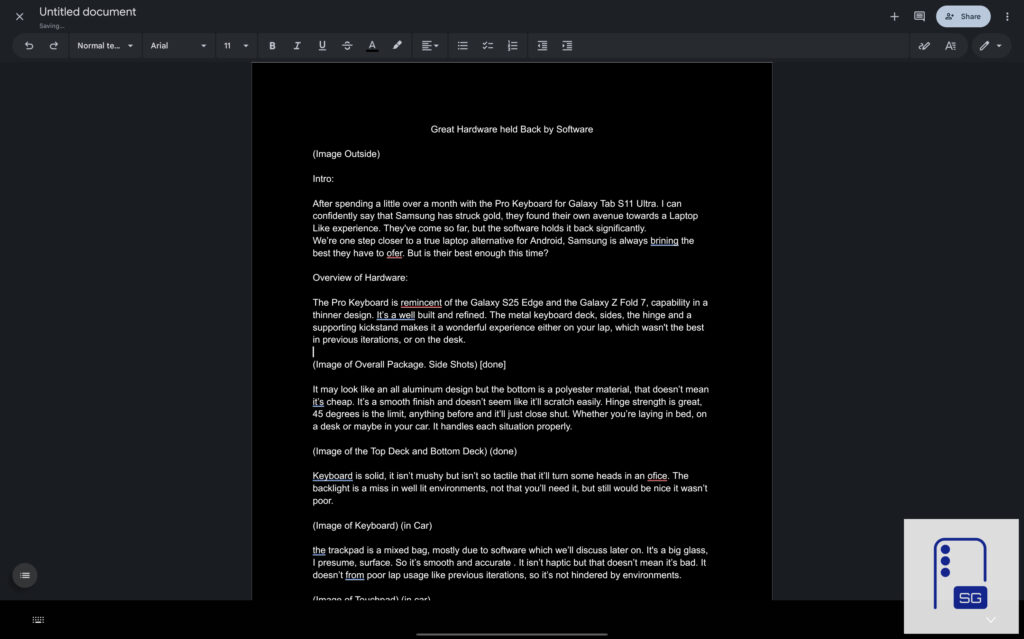
- New Dex Immersive View
I cannot fathom why we have two separate UIs on the Galaxy Tab. It creates an unnecessarily bloated experience. On top of this, we have two separate docks: the new and improved one with standard view, and the old and worse one in New Dex.
-
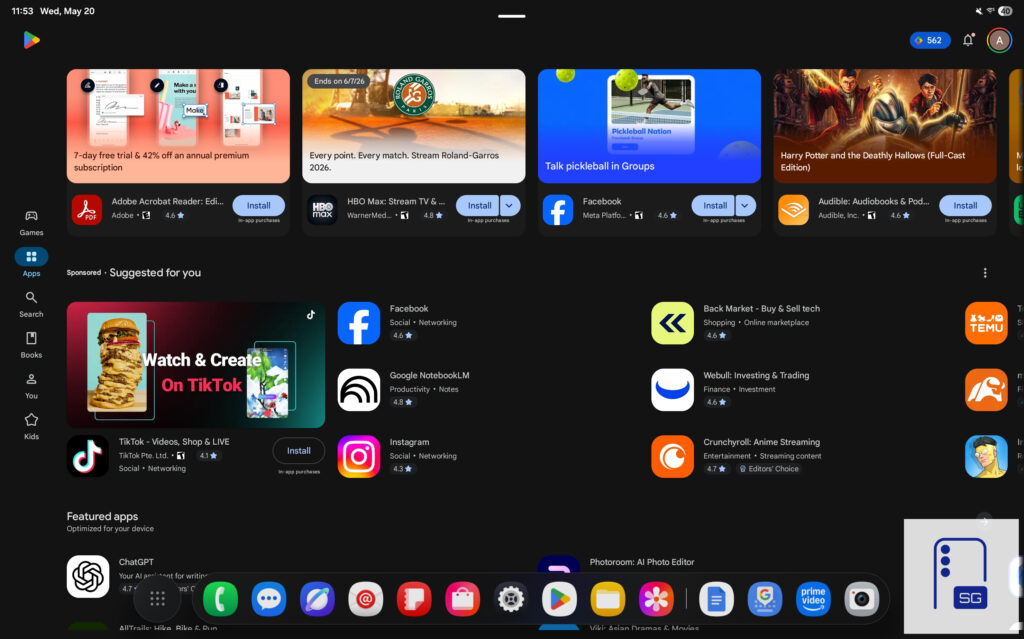
- New Dock
-
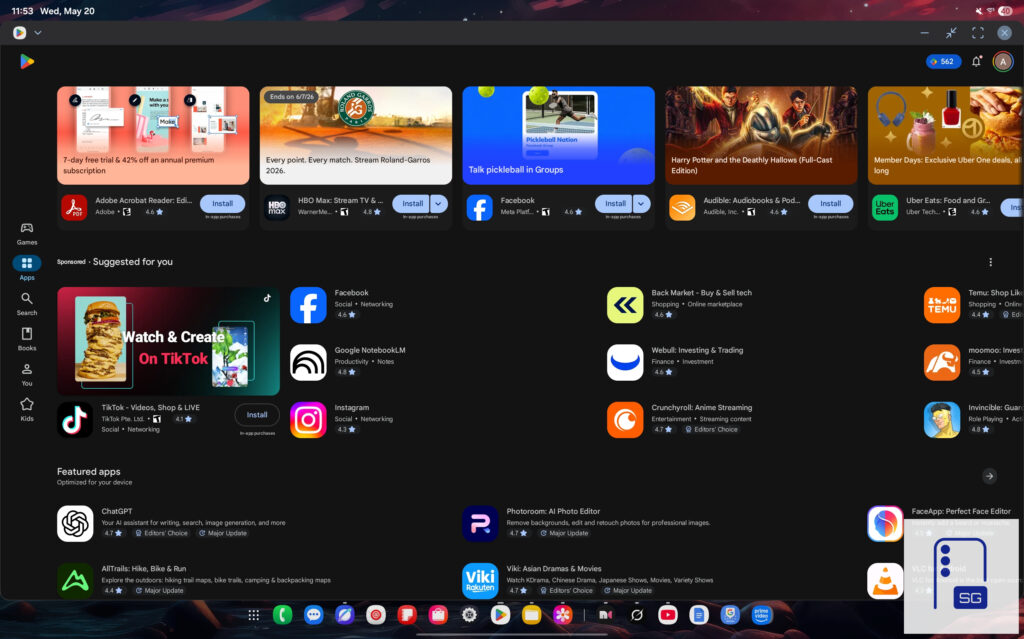
- Old Dock
I’m sure they all have a place, but it doesn’t meld together. The Galaxy Tab is a touch-first experience. It should remain that way with easier-to-use functions, like the new and improved dock. What makes it worse is that the Keyboard Toolbar blocks off the new dock in New Dex. Even if you decide to use GBoard, the bottom half of the keyboard toolbar will remain.
-
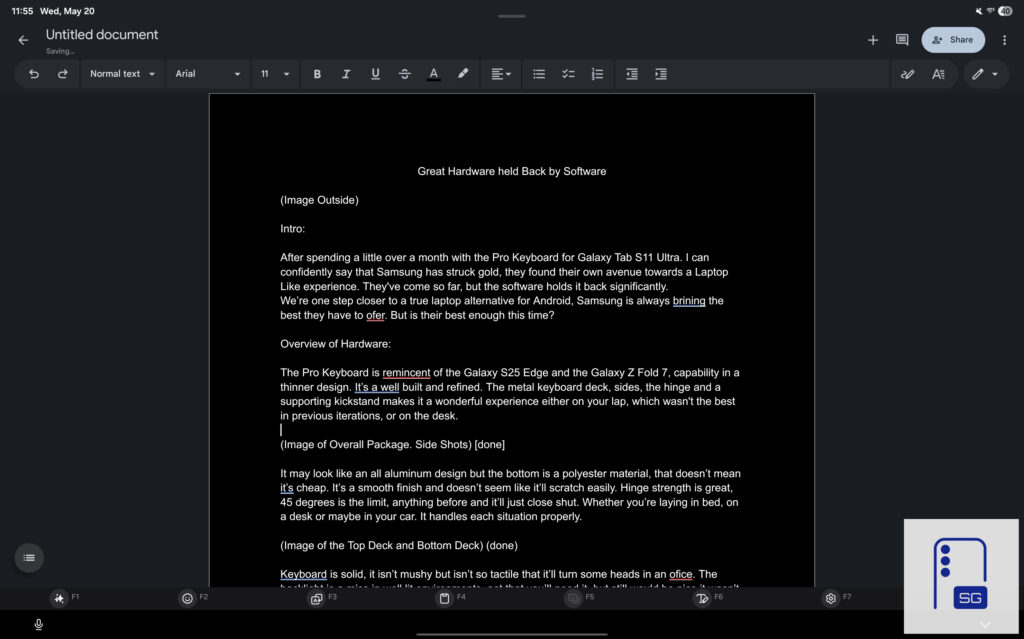
- Samsung Keyboard
-
- GBoard
Laptop Experience: The Ugly
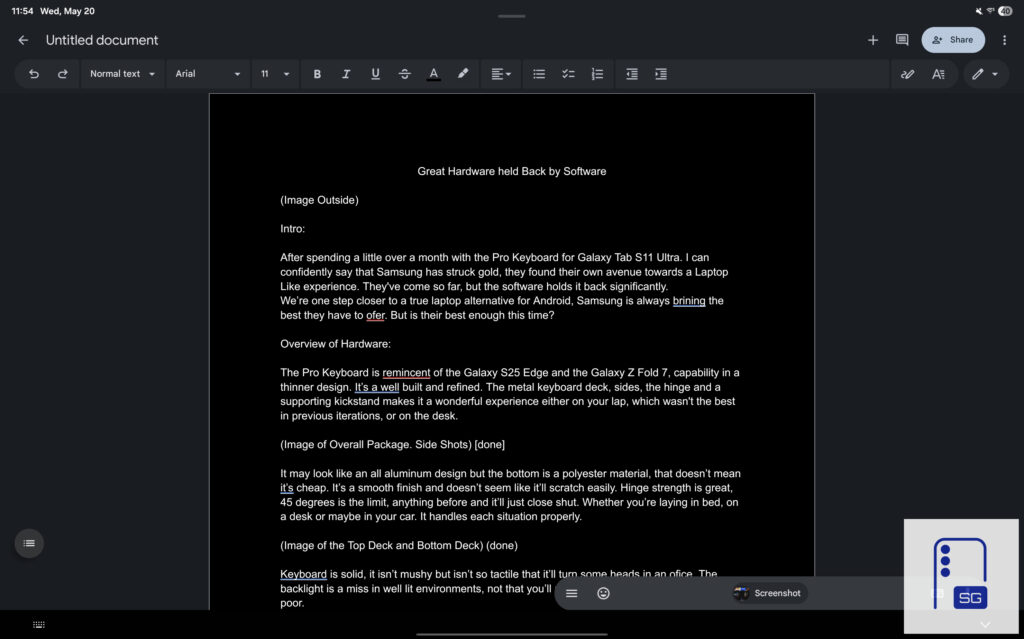
At this point, I’ve had to switch from writing this on my Galaxy Tab S11 Ultra to the iPad Pro. It has nothing to do with the Pro Keyboard. The way Android and One UI handle keyboard and mouse inputs is what pushed me to this point.
I was adding images, and for some reason, the keyboard toolbar would constantly spam-open and close. I’d have to keep tapping the text box again. Then, when I went back to place the images for this article, all the text was gone. Thankfully, a quick CTRL + Z brought everything back, but it happened three different times. I couldn’t take it anymore.
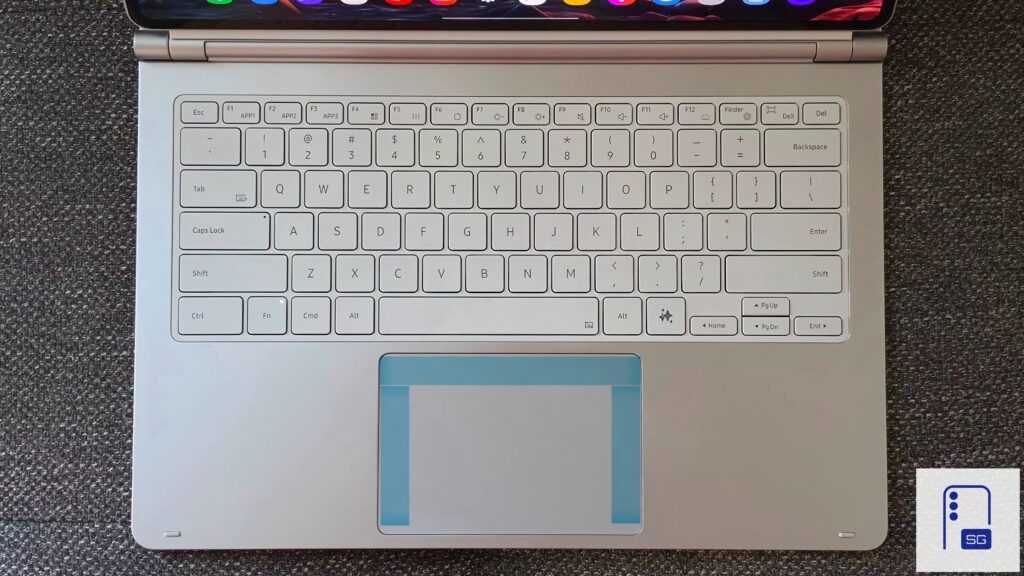
The way the touchpad is treated in software is infuriating. It merely emulates your finger. There is no click and drag; it’s press and hold to grab. The same goes for text; you cannot double-click to select anything. It does not behave like a traditional mouse, and it erodes the experience. Also, the touchpad will not activate if you start from the edge, highlighted in the image below.
I’m not sure if it has something to do with palm rejection or how it responds to clicks and taps. There is a ton of skipping when I’m selecting text or trying to drag images around. At times, the pointer just jumps to a random spot, which makes rearranging windows really fun.
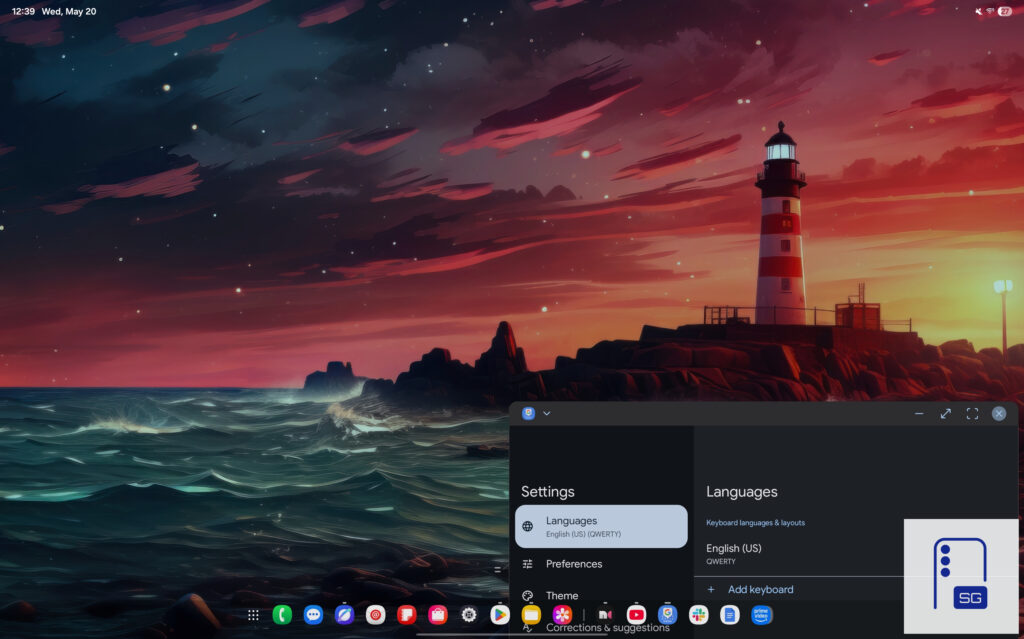
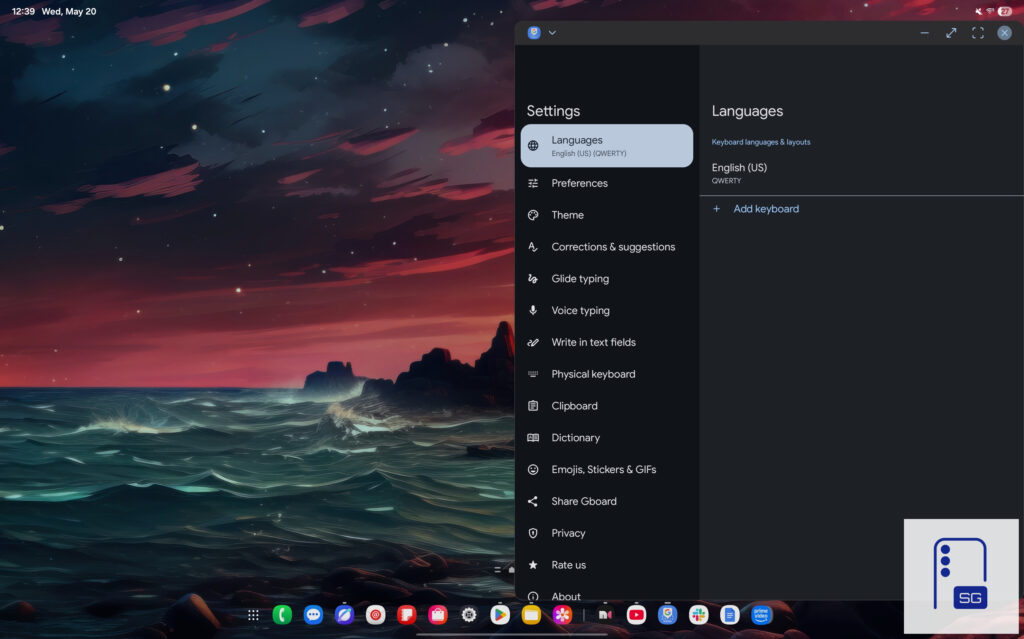
Sometimes, I would tap the screen or use the cursor to click a window to make it the active one, but it would just jump off the screen. I have no idea why.
Since this is Android, uniformity is nonexistent. I know there isn’t a universal keyboard and touchpad standard because of the differences between Samsung Keyboard and GBoard. For example, CTRL + Backspace only works with GBoard and doesn’t work at all with Samsung Keyboard. Even Google Docs offers a noticeably better keyboard and mouse experience than Samsung Notes.
Galaxy Tab S11 Ultra Pro Keyboard review: It’s a Solid Accessory
I’ve had a mostly positive experience with the Galaxy Tab S11 Ultra Pro Keyboard over the course of this review period. My issues stem from Android and One UI’s poor implementation of support for hardware keyboards and touchpads.
Despite these complaints, I love it. It’s given me what I wanted from Samsung for years. Even when considering the price, which is currently on sale for $380, it’s about $100 cheaper than Apple’s equivalent since you get the S Pen included in the box.
Overall, the Pro Keyboard has brought a ton of welcome changes. At the same time, it highlights a deeper underlying issue within Samsung itself. It doesn’t seem like the hardware and software departments are communicating well. How else would these glaring software issues make it through?
There is hope. I’ve discovered that DeX in the One UI 9 beta has received one change that dramatically improves the experience and makes it feel like proper One UI.
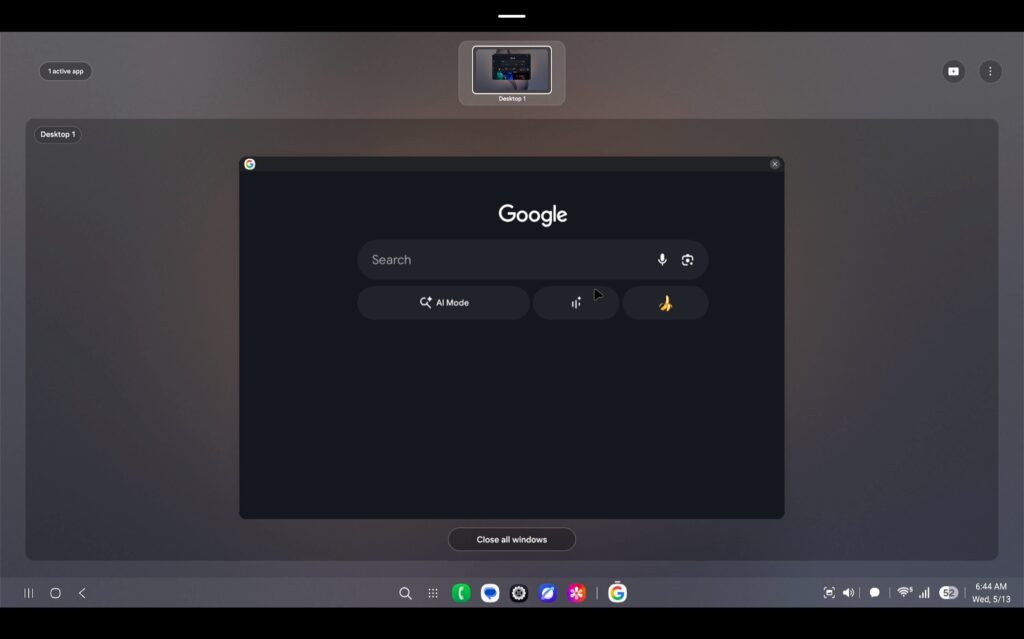
We can now see our separate desktops at the top. It’s a small change, but one that reduces friction while working. You no longer need to swipe between desktops to find what you need.
It’s time for the Galaxy Tab to level up with One UI, or One UI Tab, so to speak. That is the only way the Pro Keyboard’s full potential can be realized.


Written by
Aladdien FadhelAladdien Fadhel provides Samsung reviews and in-depth analysis for SammyGuru. By tracking the development of One UI and exploring Samsung's product roadmap, he delivers insights designed to benefit both the manufacturer and the user. A dedicated tinkerer, Aladdien prefers fine-tuning his current hardware to maximize its potential rather than opting for an immediate upgrade.

Follow us on Google Discover & set us as a preferred source in Google News
Share this Post
___________________________


New Blog Posts
___________________________
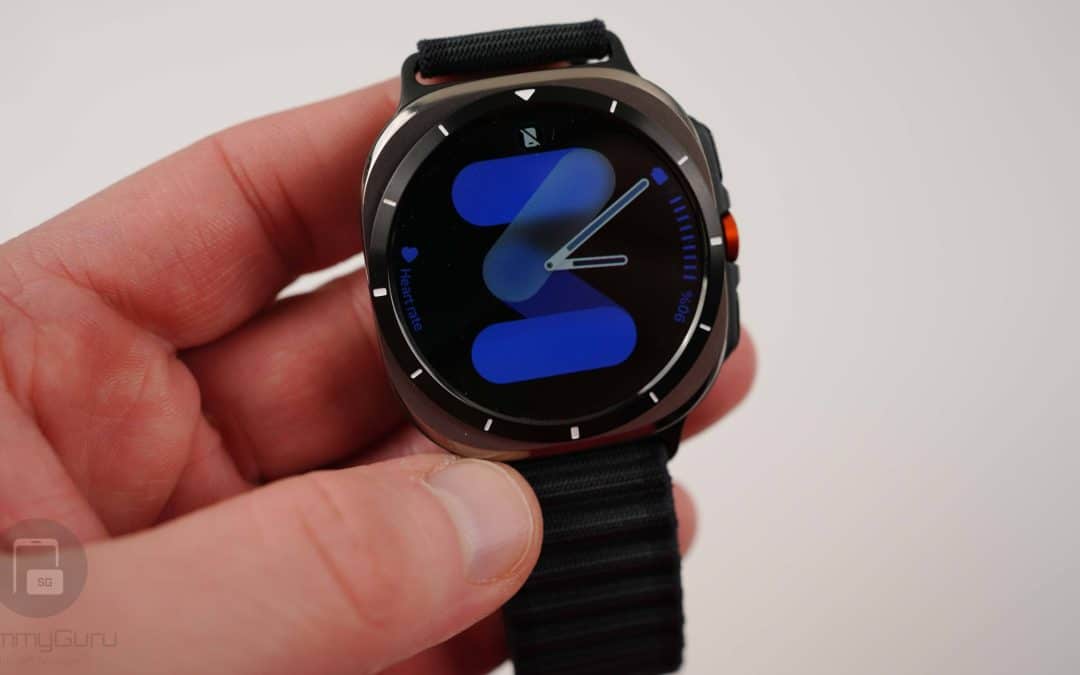
Exclusive: Here’s Your First Look at the Galaxy Watch 9 and Galaxy Watch Ultra 2 Watch Faces
Five new faces
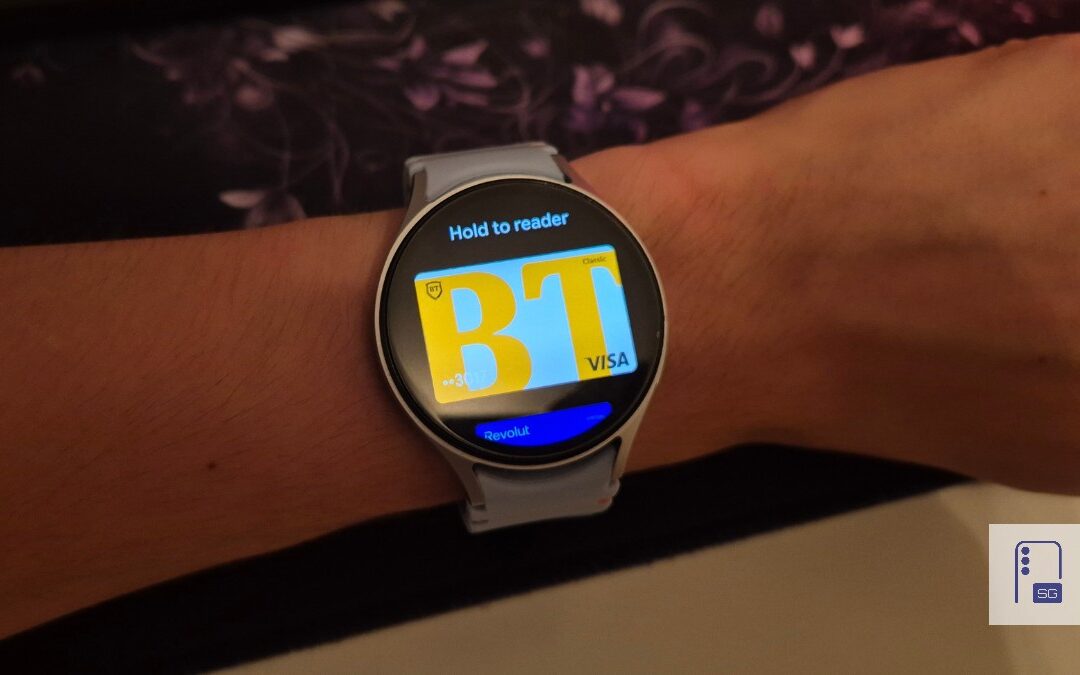
Google Wallet Finally Fixes One of Its Most Annoying Wear OS Quirks
Finally, one can manage all of my receipts from both devices
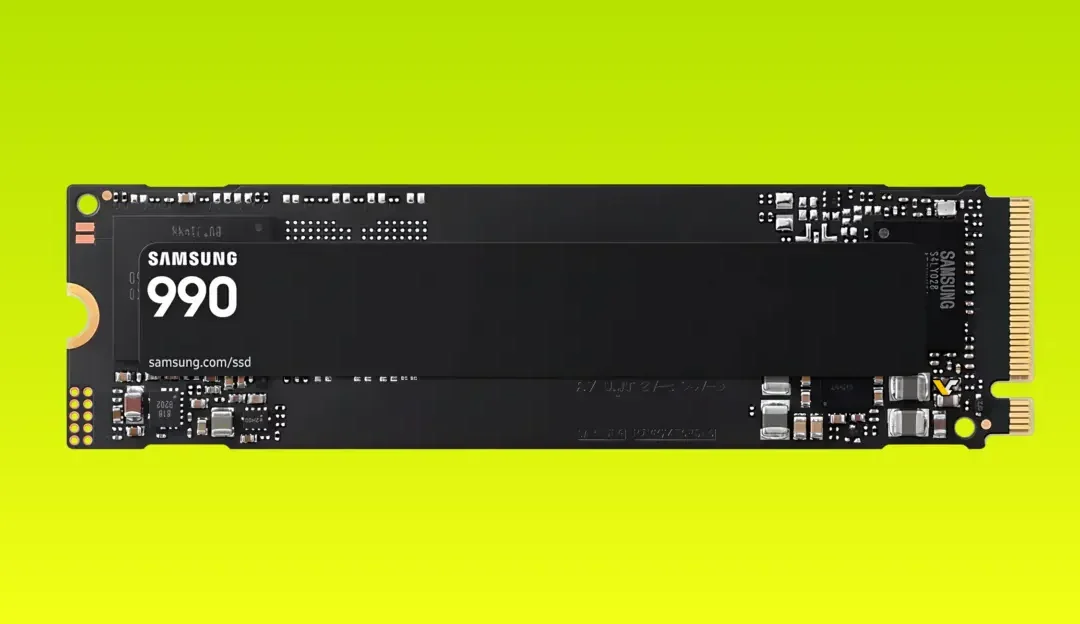
Samsung Quietly Listed a New Entry Level 990 PCIe 4.0 SSD
It drops DRAM for HMB