Exclusive: Here’s How Every Button and Gesture on the Galaxy Glasses Works
SammyGuru is reader-supported. We have affiliate and sponsored partnerships, so we may earn a commission when you buy through links on our site — at no extra cost to you. Learn more.
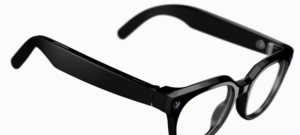
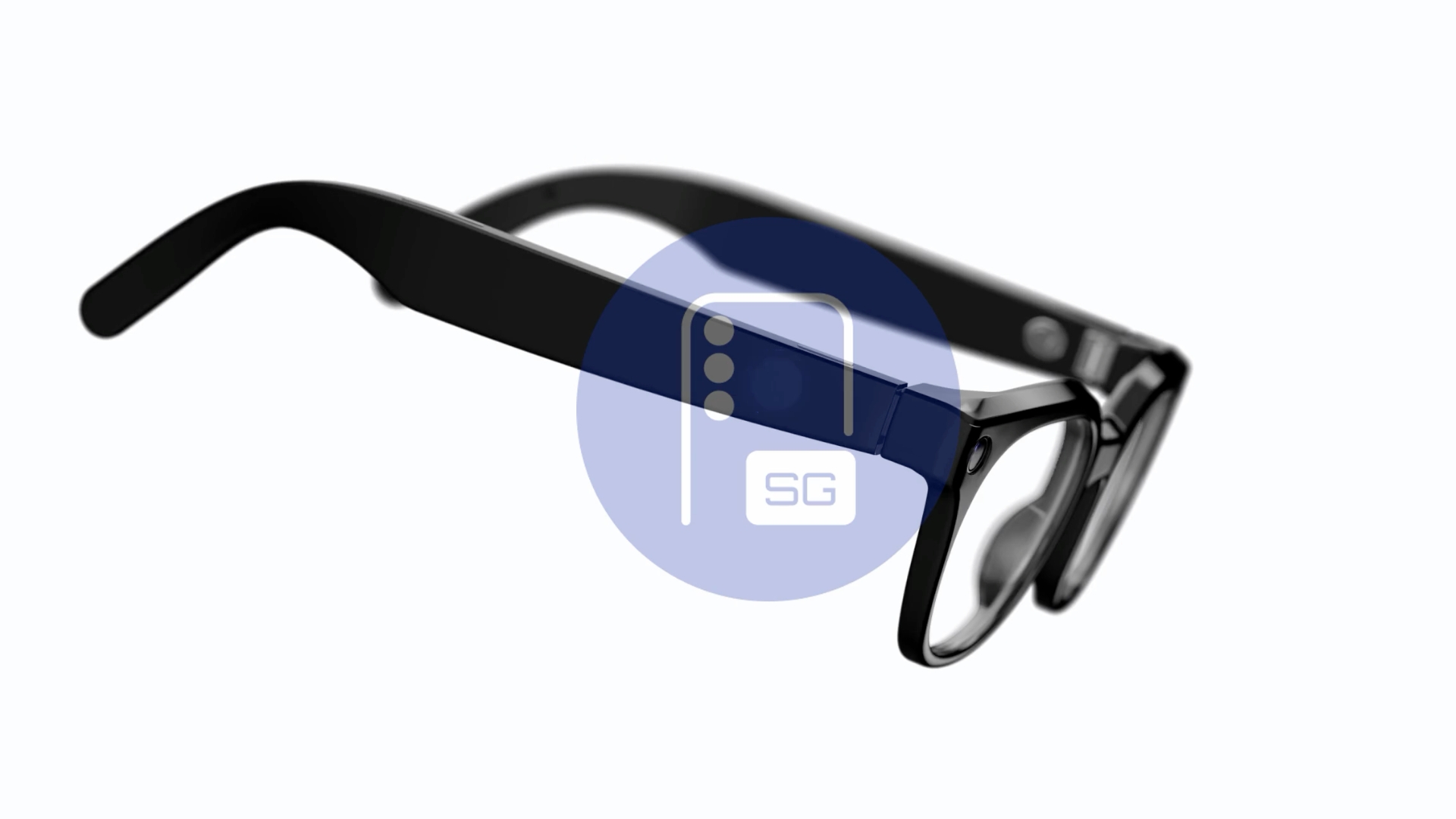
Google and Samsung pulled the curtain back on the Galaxy Glasses, giving us a closer look at the two frame styles. We’re taking a closer look at the Warby Parker version to see what all the buttons, gestures, and indicator lights do.
Galaxy Glasses hardware walkthrough
We’ve obtained a series of short videos that walk you through each physical feature of the Galaxy Glasses and how to use it. The first few show where the touchpad is, which sits on the right side of the frame.
Swiping forward with one finger skips to the next song, while swiping backward goes back to the previous track.
Swiping with two fingers adjusts the volume.
You can also tap the touchpad to pause or resume media playback, or answer calls.
The camera button lets you take photos with a single press, while pressing and holding starts video recording. Press it again to stop.
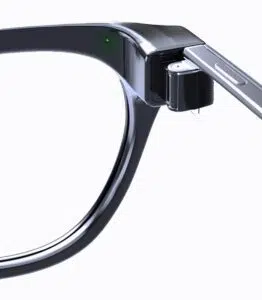
An external LED lights up whenever the camera is in use, letting people around you know you’re taking a photo or recording a video.
A second LED on the inside of the frame lets you know when the camera is active, much like the camera indicator on Android phones.
Once you’ve taken a photo or recorded a video, it’ll appear in the Now Bar on your Galaxy phone. From there, you can preview it and reframe the shot if needed. It can also appear on your Galaxy Watch.
Finally, the charging case has an external LED that shows its pairing status and battery level, just like your Galaxy Buds.
And that’s a closer look at the upcoming Galaxy Glasses. You now know what the buttons and indicator lights do, as well as how to take photos and record videos. You can also check out the software features the glasses have to offer.
Thanks to @evowizz for helping us discover these!

Written by
Josh SkinnerJosh is a freelance writer, graphic and user interface designer, and content creator. He has a sizable following on Twitter/X, with his deep insights, extensive knowledge and design skills attracting audiences. He also loves lego, video games and tech as a whole.

Follow us on Google Discover & set us as a preferred source in Google News
Share this Post
___________________________


New Blog Posts
___________________________
Galaxy F70 Pro India Pricing Leaks Ahead of Launch
The base variant could cost INR 32,999
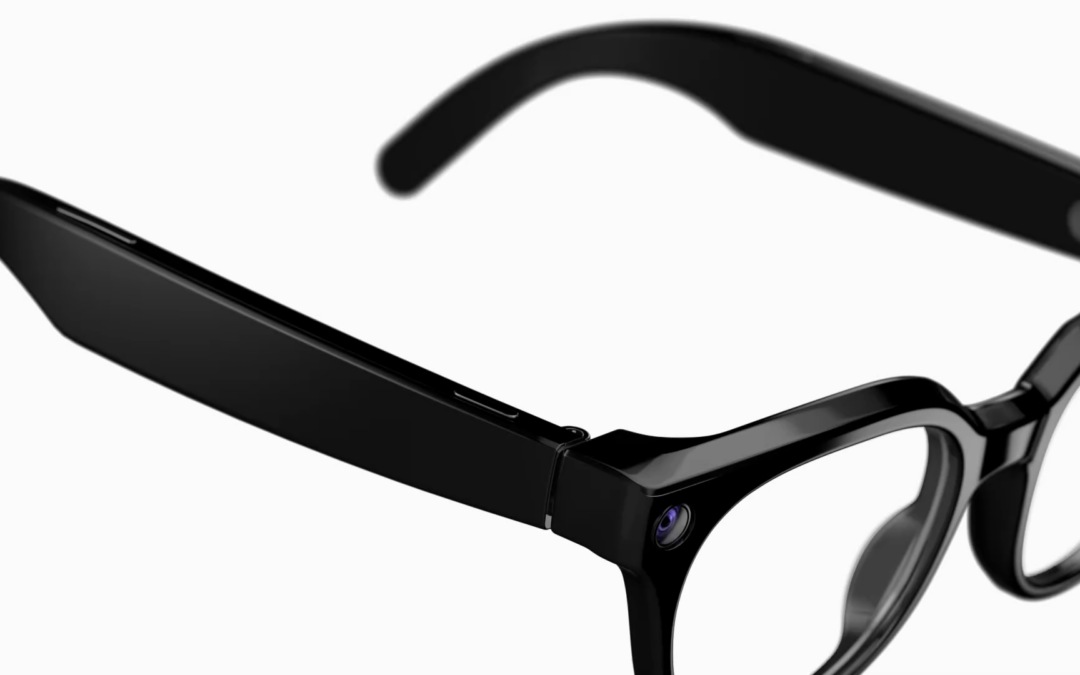
Exclusive: Here’s Your First Look at the Galaxy Glasses Manager App
See how they’ll fit into your Galaxy ecosystem

Samsung’s AI RAN Speed Optimizer Boosts 5G Speeds by Up to 52%
The system optimizes parameters for each individual cell