Gemini Now Lets You Find and Install Google Play Apps

SammyGuru is reader-supported. We have affiliate and sponsored partnerships, so we may earn a commission when you buy through links on our site — at no extra cost to you. Learn more.
Google now lets Android users find and install apps without opening the Play Store. The company’s AI assistant, Gemini, can discover Google Play apps through simple chat and present direct installation links. The new capability is available for free for all eligible users.
You can now ask Gemini to find Android apps through simple conversations
Google has announced the Google Play connected app for Gemini on Android. It brings Google Play right into the chatbot, letting you search for apps using natural language. This removes the need to type keywords into the Play Store. You can simply describe what you are looking for, and Gemini will suggest apps.
For example, you can ask Gemini to recommend a good map app for international travel or a productivity app for meal planning. If you already know the app you want, ask Gemini to install it. Now tap the app link to open its Google Play page and complete the installation.
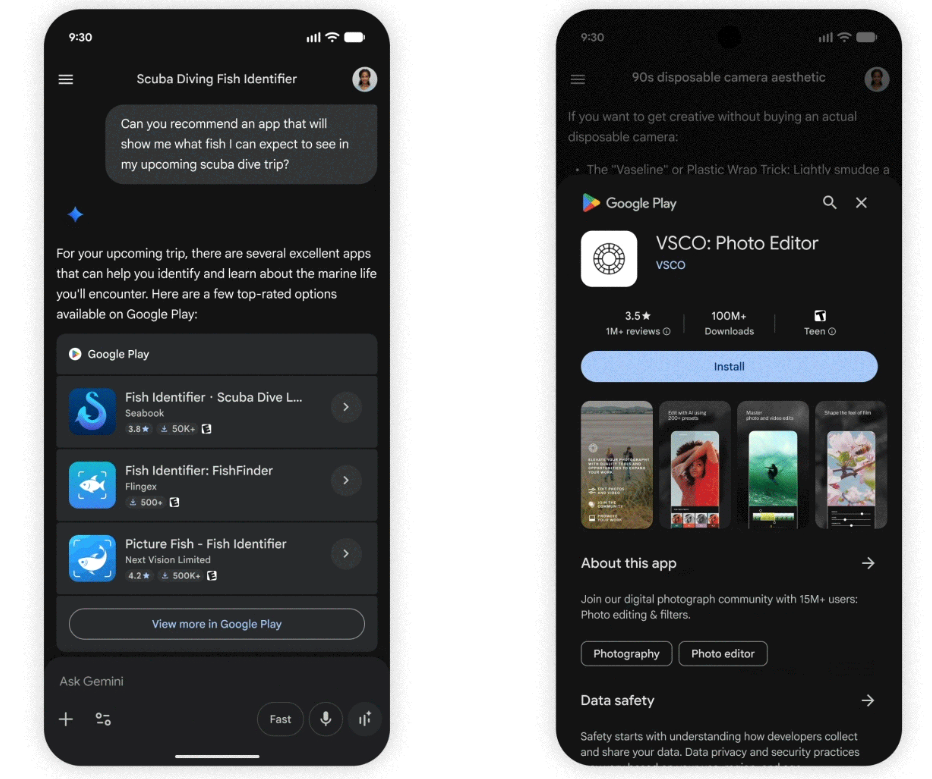
Moreover, you can use Gemini to discover in-app purchases for select apps or buy Google Play gift cards. Note that availability and in-app items may differ depending on your country, device, or developer.
To use the feature, you must be at least 18 years old. Make sure you have installed the Google Play Store on your phone. Note that you will need to be signed in to Gemini with a personal Google account, the same one you use with Google Play. In the settings, make sure “Keep Activity” is turned on.
If Google Play is not connected, you will get the option to connect it during your app-related request. Now follow the on-screen instructions to finish the setup. Alongside recommending apps, Gemini also lets you explore more apps. You can do so from the “View more in Google Play” button that appears below all the suggested apps.

Written by
Binay KonwarBinay Konwar started his blogging journey in 2014 and has since written plenty of tech articles. At present, he is working as a News Writer at SammyGuru, covering everything about Samsung. He holds a Master's degree in Mathematics, but his real passion lies in tech and writing. In his free time, he enjoys playing chess and watching movies.

Follow us on Google Discover & set us as a preferred source in Google News
Share this Post
___________________________


New Blog Posts
___________________________
Samsung Introduces Paid SmartThings APIs to Fund Future Smart Home Growth
SmartThings API will cost $5 per month for individual developers
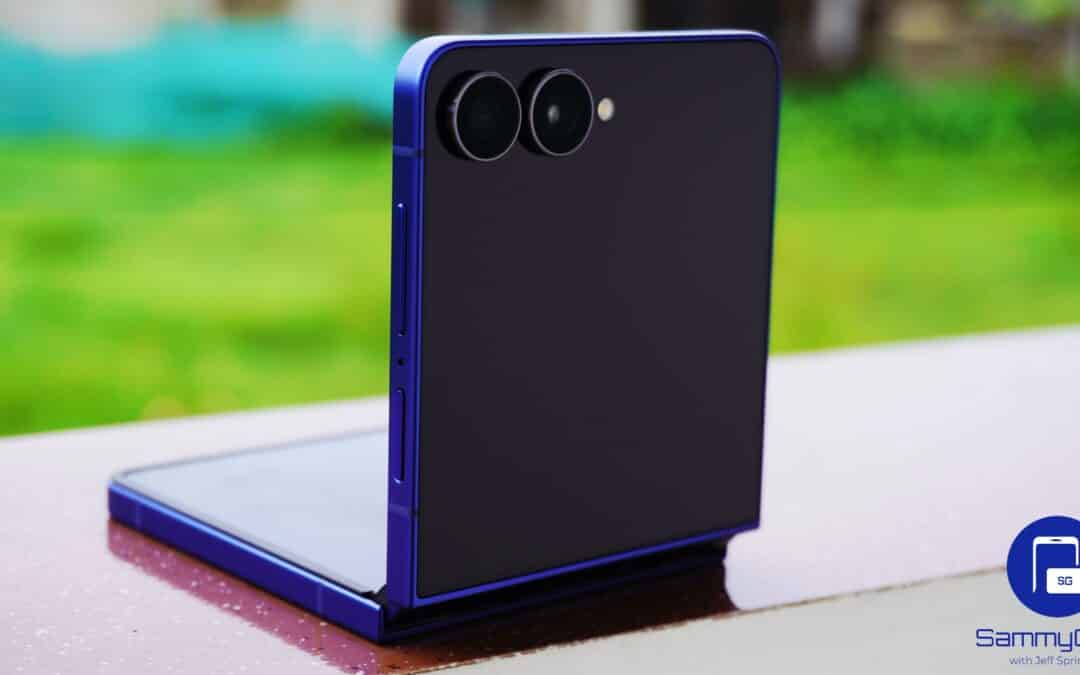
Galaxy Z Flip 8 May Ditch 25W Charging, Brightness Boost Rumored for Fold 8 Ultra
New Galaxy Z Fold 8 Ultra and Flip 8 leaks are quite promising

Samsung Hit With $3 Million Damages Over Roaming Technology Patent
It’s unclear whether the firm plans to appeal the decision