How to Measure Blood Pressure Using Your Galaxy Watch

After a long wait, Samsung recently released its Blood Pressure feature for Galaxy Watches in the US. The feature enables on-the-go blood pressure monitoring right from your wrist. While this brings one of Samsung’s most anticipated health tools to American users, it doesn’t work straight out of the box. Because of its medical nature, there’s a structured setup and calibration process involved. Here’s how to get it up and running.
Set up your Galaxy Watch to measure blood pressure
To get started, you’ll first need to calibrate your Galaxy Watch with an upper-arm cuff-based blood pressure monitor. For that, install the Samsung Health Monitor on both your Galaxy smartphone and your watch. The app is available on the Galaxy Store (it is different from Samsung Health, which comes preinstalled on Galaxy devices). This app is also used to record ECG and Sleep Apnea (in supported regions).
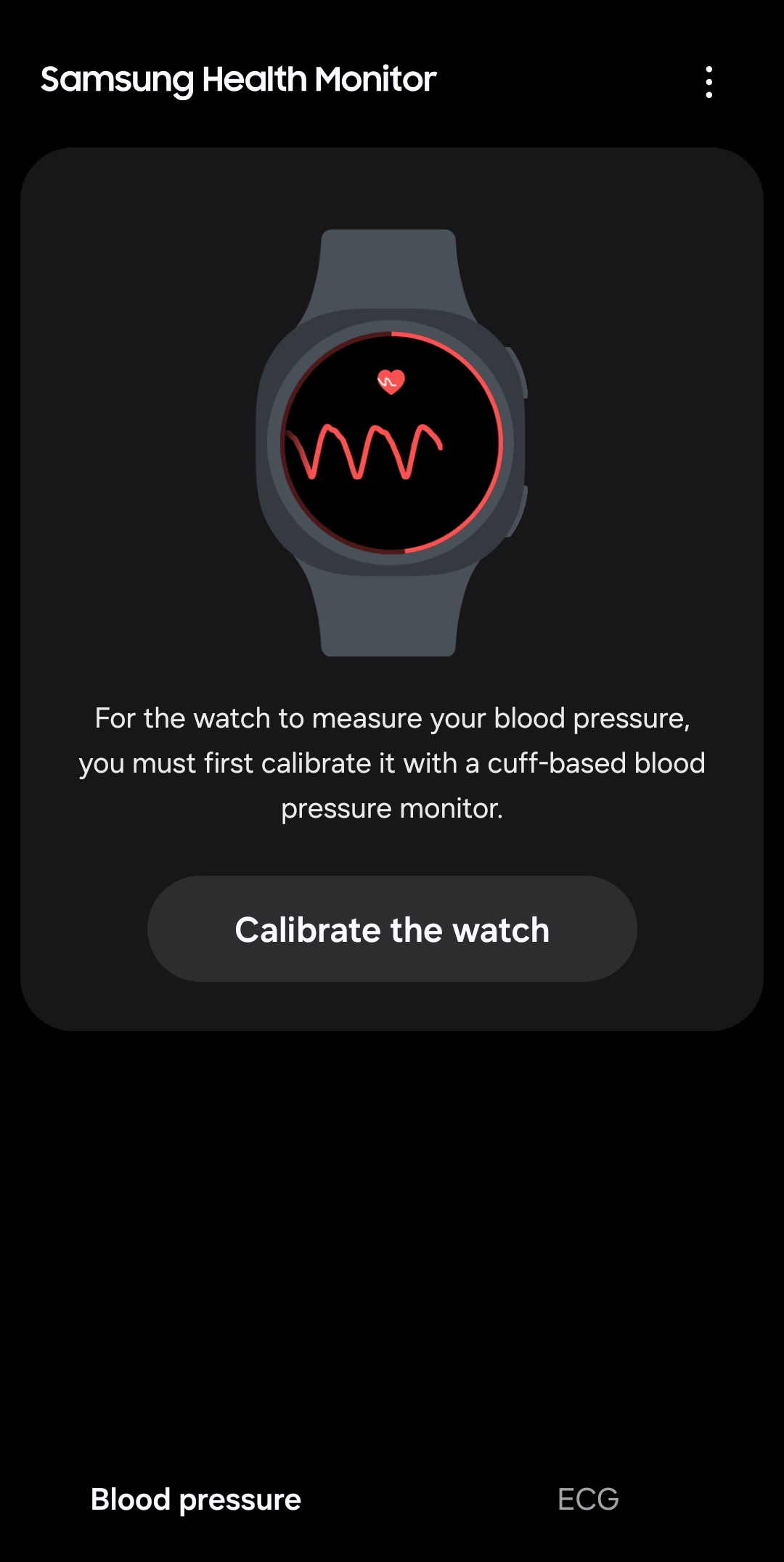
Once you have installed Samsung Health Monitor on your phone and watch, launch it on your phone and follow the on-screen instructions. Tap Calibrate the watch, followed by Next when prompted. Make sure to read the instructions before proceeding to the next step. Samsung advises users to avoid exercise, bathing, caffeine, alcohol, and nicotine for 30 minutes before measuring.
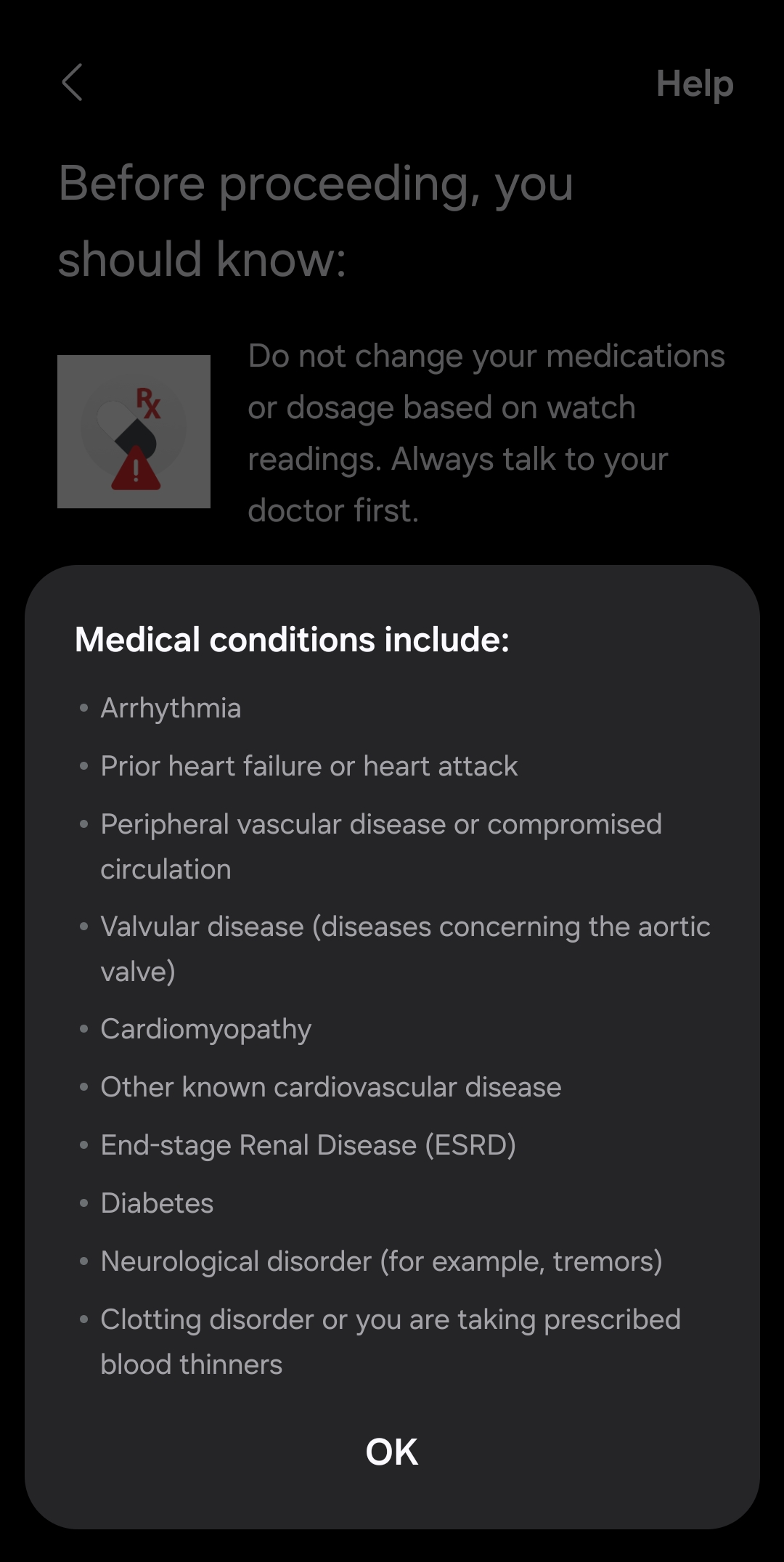
Pregnant women should also avoid using the Galaxy Watch to monitor their blood pressure. Additionally, Samsung doesn’t recommend it for users with the following medical conditions:
- Arrhythmia
- Prior heart failure or heart attack
- Peripheral vascular disease or compromised circulation
- Valvular disease (diseases concerning the aortic valve)
- Cardiomyopathy
- Other known cardiovascular diseases
- End-stage Renal Disease (ESRD)
- Diabetes
- Neurological disorder (for example, tremors)
- Clotting disorder, or you are taking prescribed blood thinners
Calibrate the watch
Once you are ready, tap Get started to calibrate your watch with a traditional blood pressure cuff. Wear your watch snugly away from the wrist bone and tap Next. Then, fit the cuff on the upper arm opposite your watch (fit it on the right hand if you are wearing the watch on the left hand) and tap Next again. Now you should see the following screen: “Start your blood pressure monitor now.”
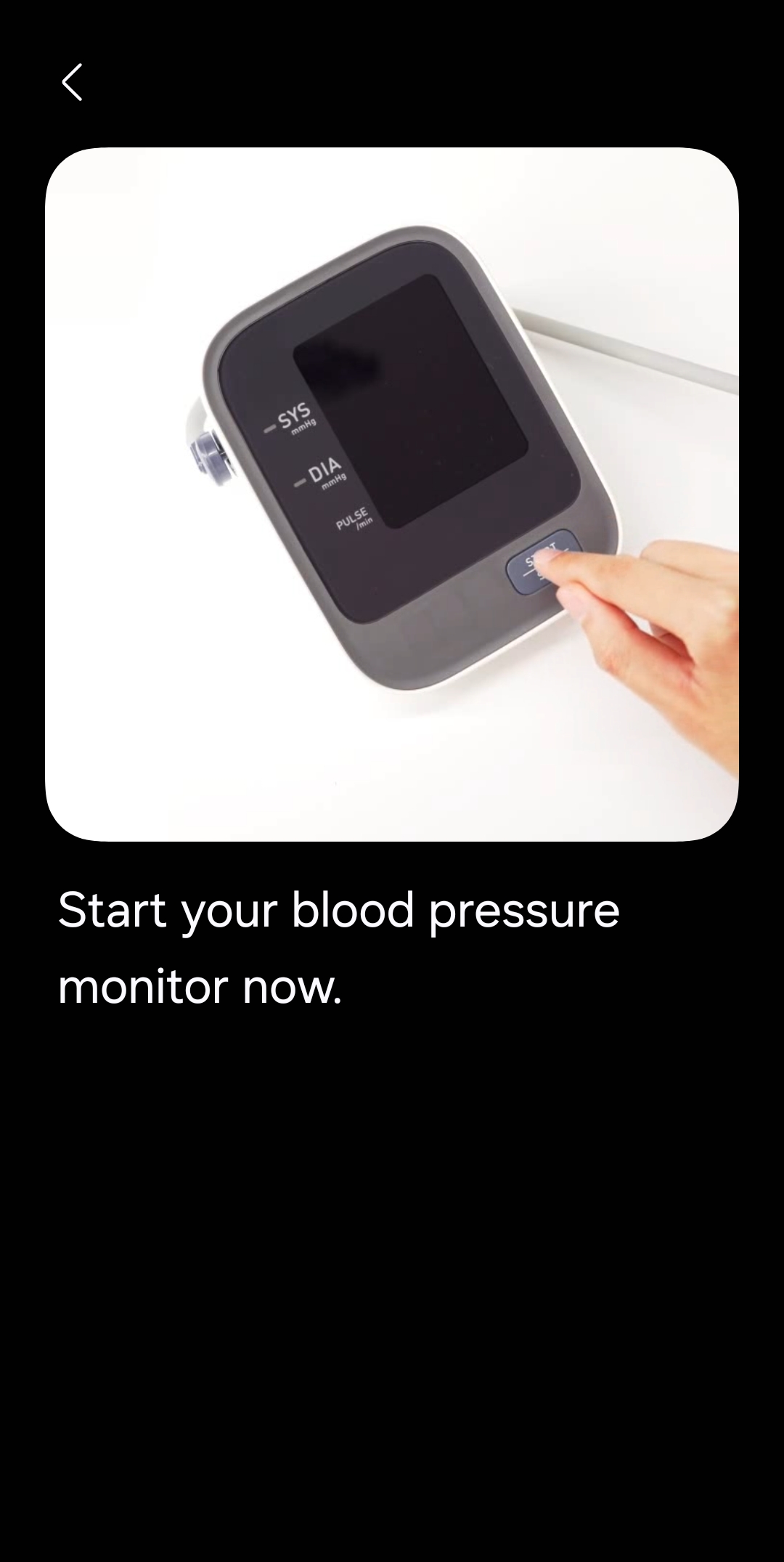
At this point, start the cuff-based blood pressure monitor, relax your hands and arms, and let the machines do their work — sit still, do not move or talk. Wait until the monitor shows the results and manually enter the readings into the app on your phone. Repeat the process two more times and enter the readings correctly.
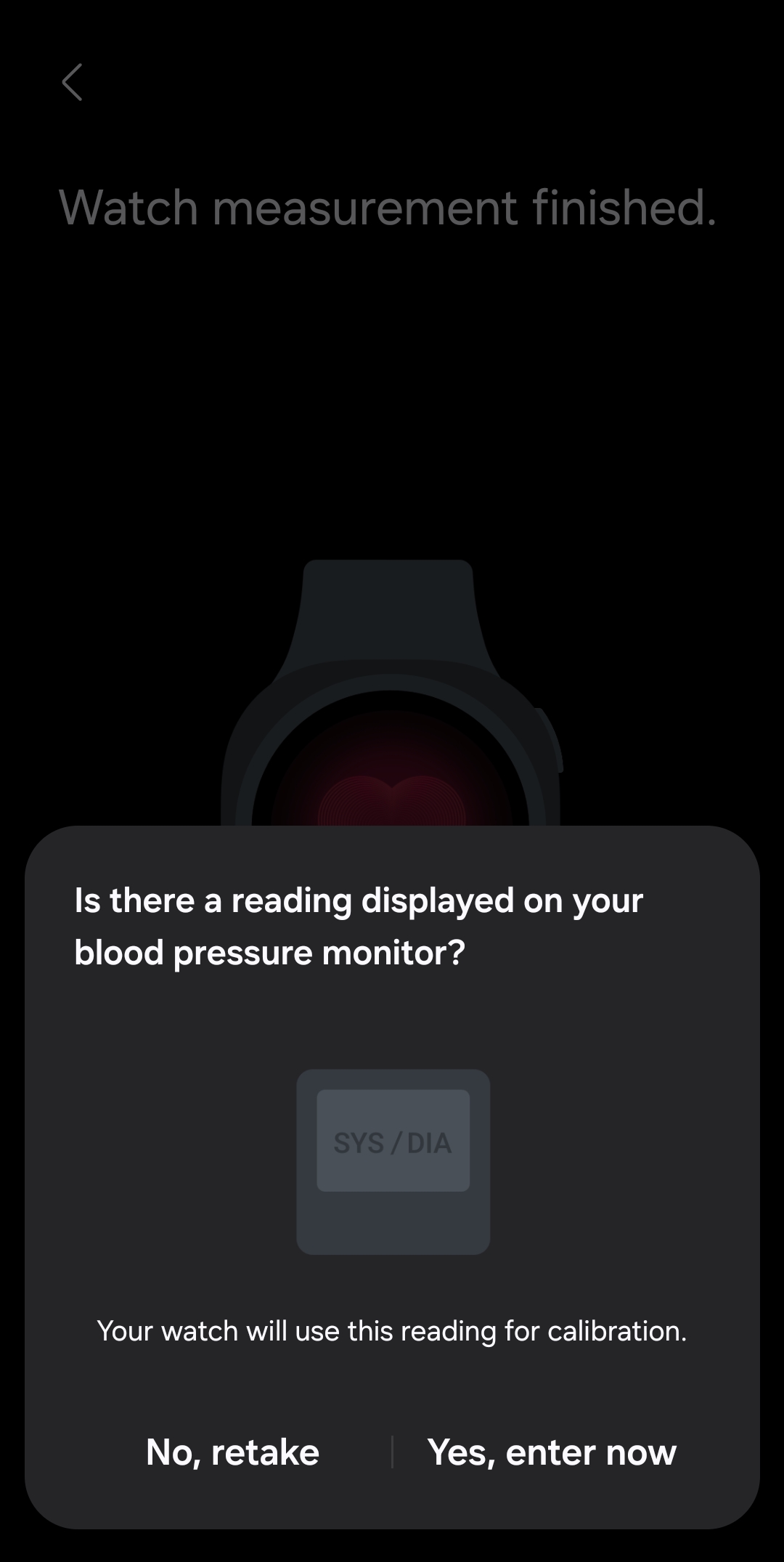
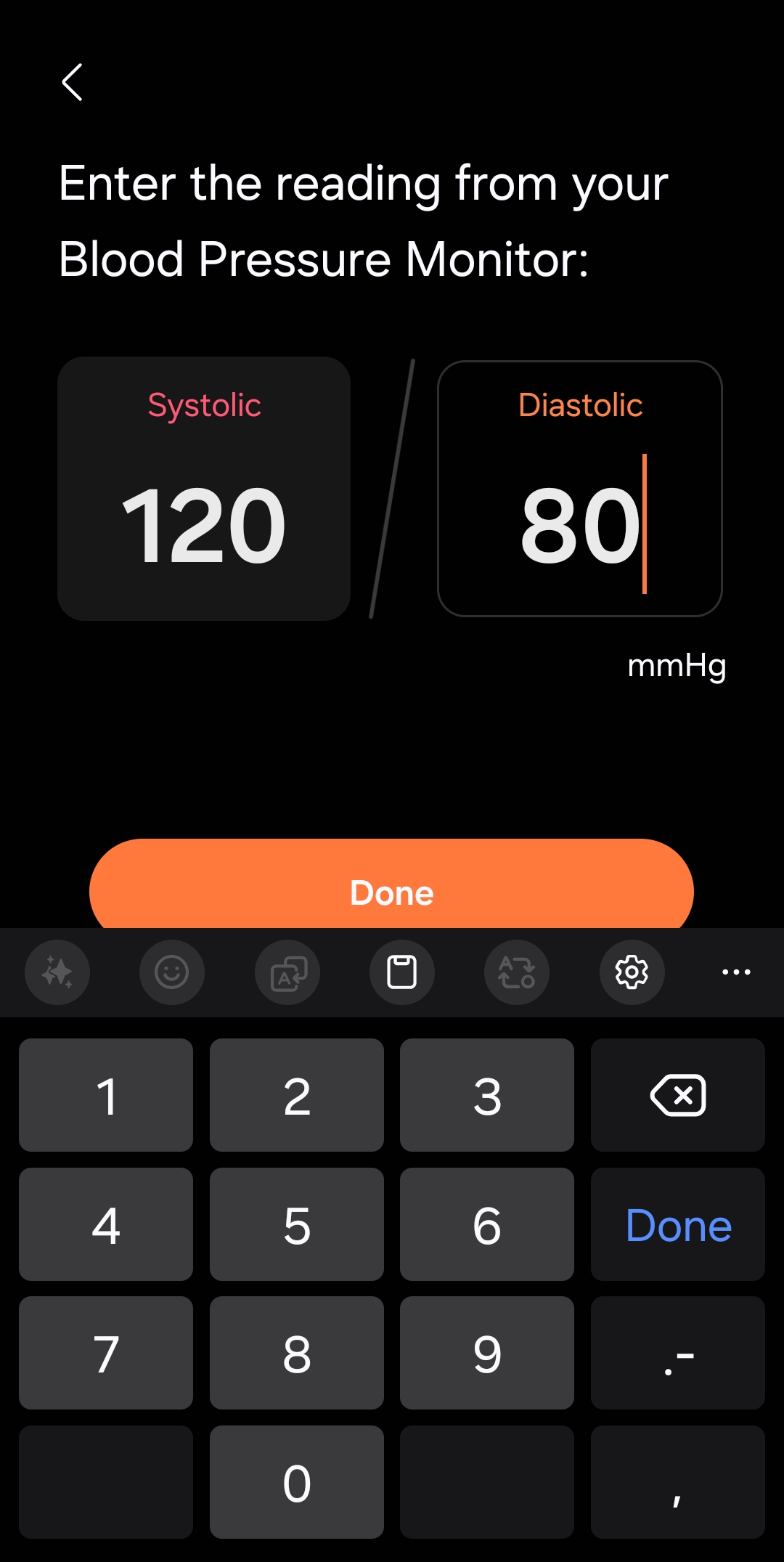
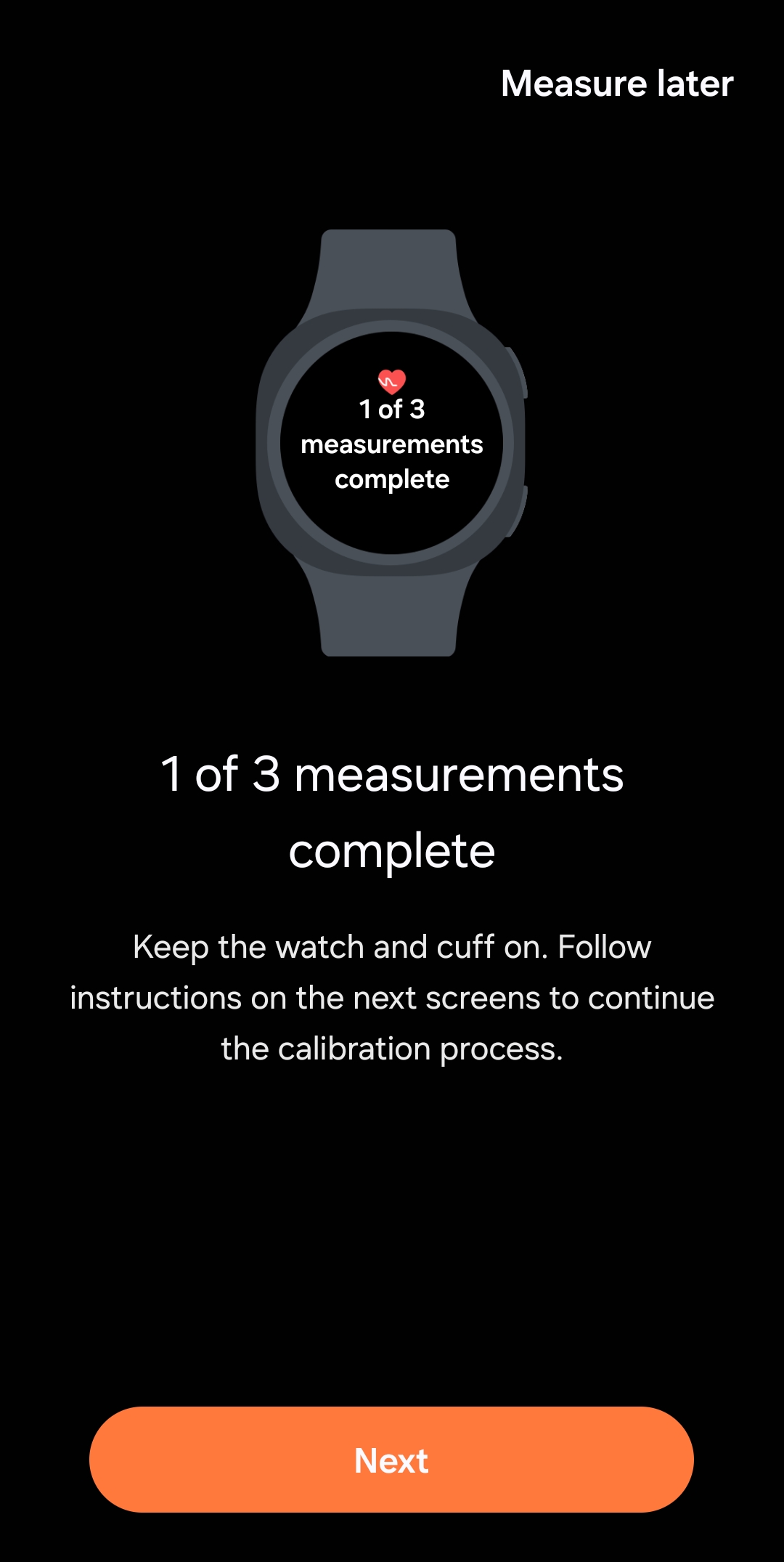
Once you have entered readings from three separate measurements with the cuff-based blood pressure monitor, your watch is ready to measure your blood pressure on its own. Simply launch the Samsung Health Monitor app, select Blood Pressure, and tap Measure. Read the instructions on the screen and hit OK to measure. Always sit still and relax your hands and arms for better results.
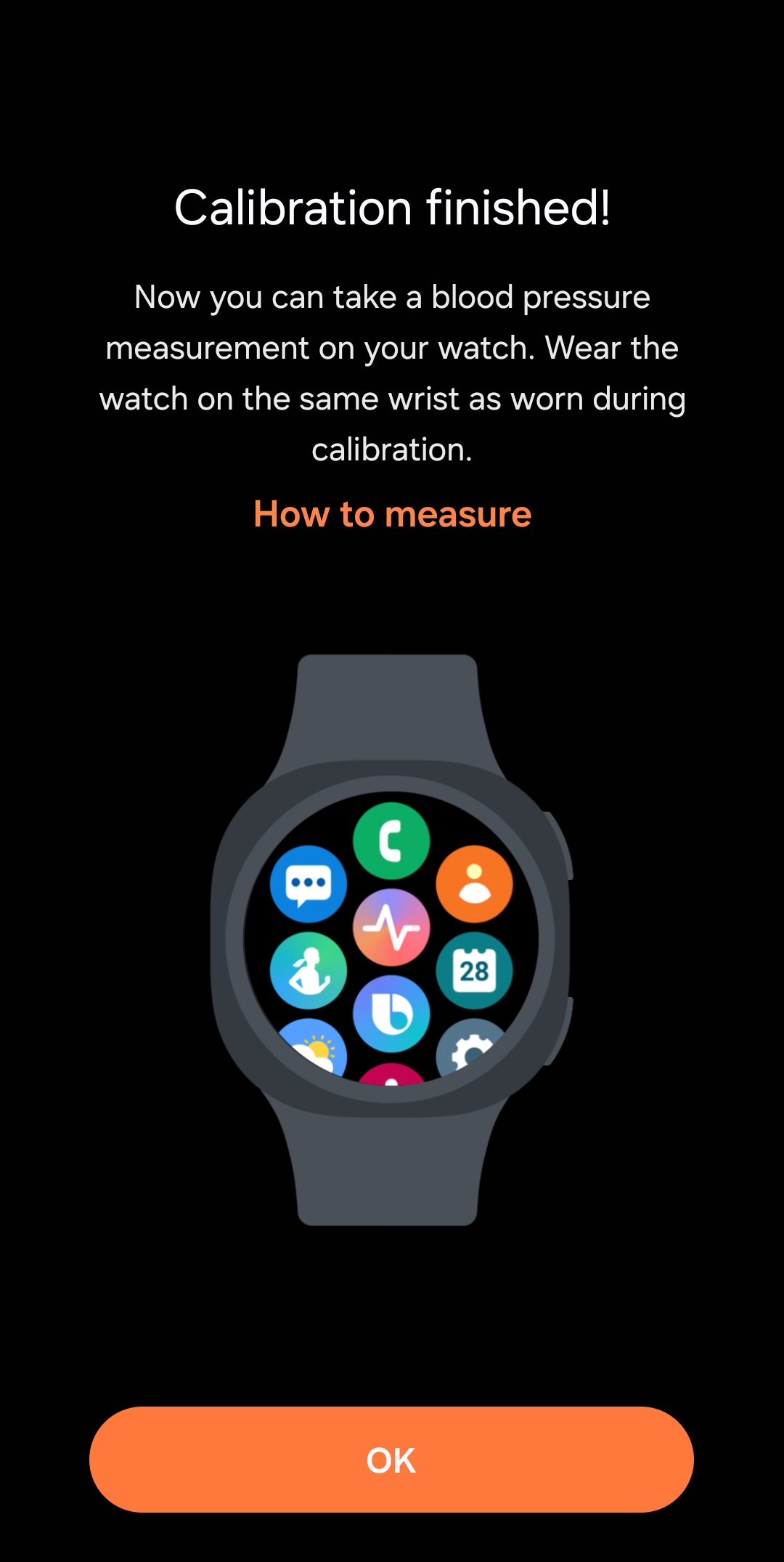
You need to recalibrate the watch every four weeks for it to keep measuring your blood pressure accurately. Samsung will notify you when it’s time for recalibration.
Also, keep in mind that the Blood Pressure feature on your watch is intended for monitoring purposes only. Do not treat its readings as definitive or use them to adjust your medication or dosage. Always consult your doctor before making any changes.

Follow us on Google Discover & set us as a preferred source in Google News
Share this Post
___________________________


New Blog Posts
___________________________

Samsung’s Shipbuilding Arm Pushes Floating Data Centers for AI Boom
Samsung is building ships designed to run AI data centers

World Cup 2026 Could Decide Samsung vs Hisense MiniLED Battle: Counterpoint
Samsung leads MiniLED race, but World Cup may flip it, says Counterpoint
Galaxy S25 FE Drops to $449 in Solid 31% Discount Deal
Galaxy S25 FE gets a nice price cut to $449